
Lesson packages in TimePlan: track visits and deduct sessions automatically
When clients buy sessions in packages, you need a clear count of used and remaining visits. Studios, swimming pools, driving schools and training centres may offer several packages covering different services to the same person.
Create a package once for the whole company, selected calendars or particular services. TimePlan deducts a session when a booking is created. Clients can check their remaining sessions under My bookings, while administrators use the package list.
This guide follows Sarah Miller's demonstration studio, which offers group Pilates, stretching and personal training. We will issue packages, allow trial bookings, schedule weekly visits and track balances.
1. How packages work
A package records a set number of sessions for a client. When creating it, specify the client, session count and scope:
- Whole company: valid across the company's calendars.
- Selected calendar: for example, all services in the Swimming pool calendar.
- Selected services: for example, group Pilates only. You can include several services and calendars.
A fitness centre can therefore offer separate packages for group workouts and personal training. Sessions are deducted only for services included in the relevant package.
Tracking packages and requiring them for self-booking are separate settings. Even when package-only booking is disabled, an applicable package is still used. Enabling the restriction means self-booking requires a suitable package or an available trial booking.
2. Require a package for self-booking
Open Settings → Working hours, select a calendar and choose Restrictions.
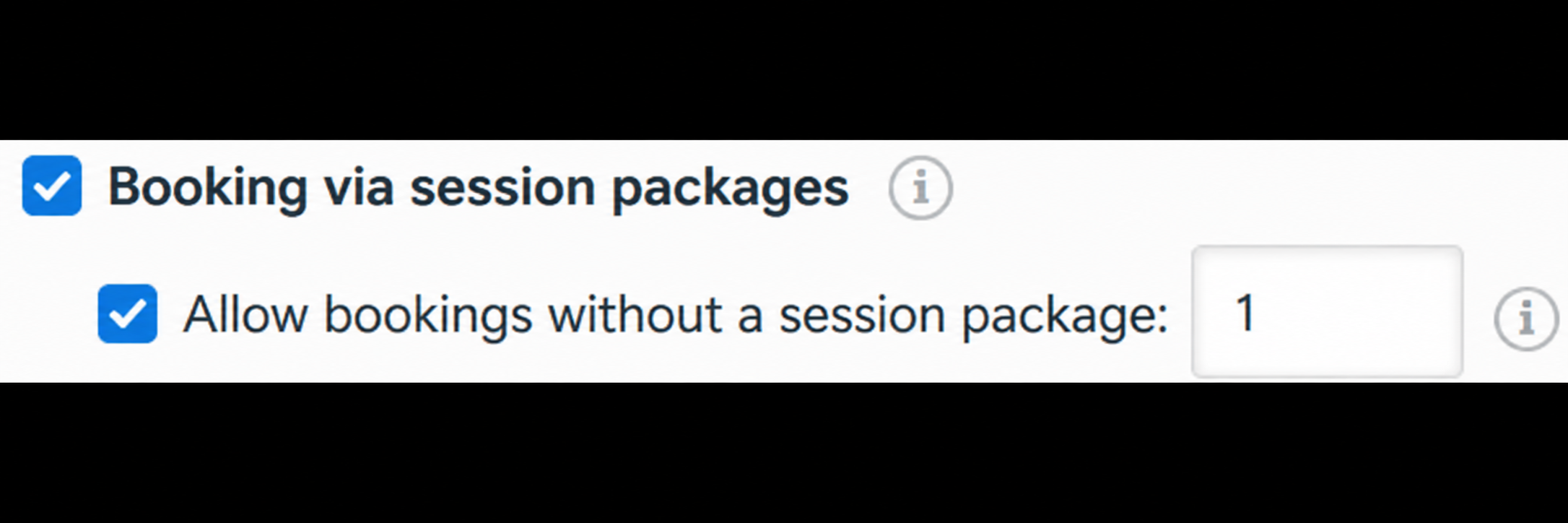
- Package-only booking restricts self-booking by clients without a suitable package.
- Allow bookings without a package sets their trial allowance, such as one introductory visit.
Sarah's studio allows one booking without a package. The count includes all bookings without a package in that calendar, including those created by an administrator.
Configure this separately for each calendar. Group workouts can require a package while room rental stays open to everyone. See Working hours and booking availability for other restrictions.
3. Issue a package
Open Packages in the main menu and click Add.
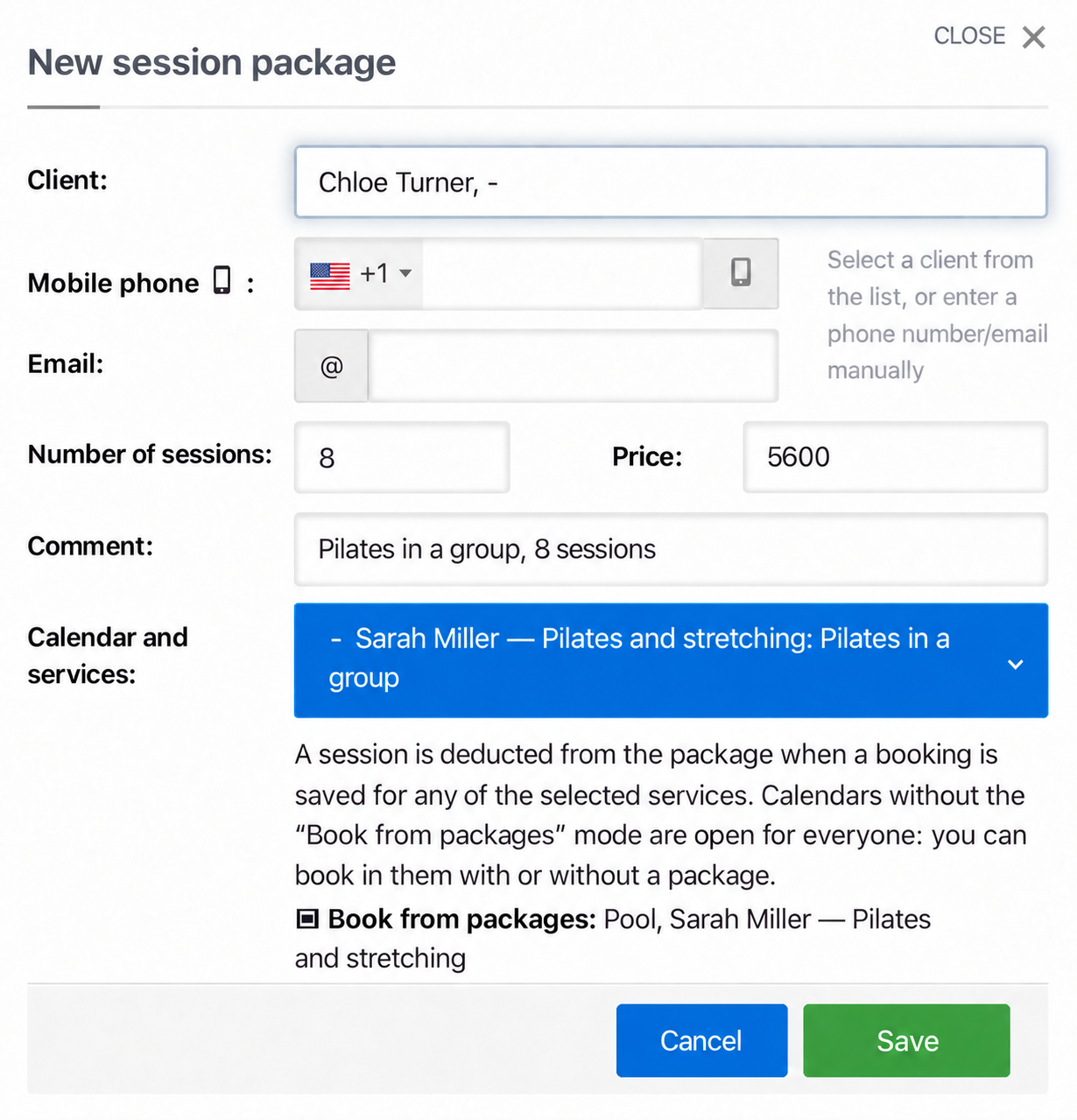
Complete these fields:
- Client: select someone from the customer list. If they are not yet registered, enter a phone number or email address; the package will be linked when they first book using those details.
- Quantity: the number of sessions included.
- Price: an amount for your records; it does not affect session deductions.
- Comment: for example, “Group Pilates, 8 sessions” or “Gift package”.
- Calendars and services: the whole company, specific calendars or selected services.
Below the service list, TimePlan shows which calendars require packages for self-booking. Packages remain usable in calendars where that restriction is disabled.
You can issue a gift package before the recipient's first booking using their phone number or email address. When they book with matching details, the package is linked to them.
4. Read the package list
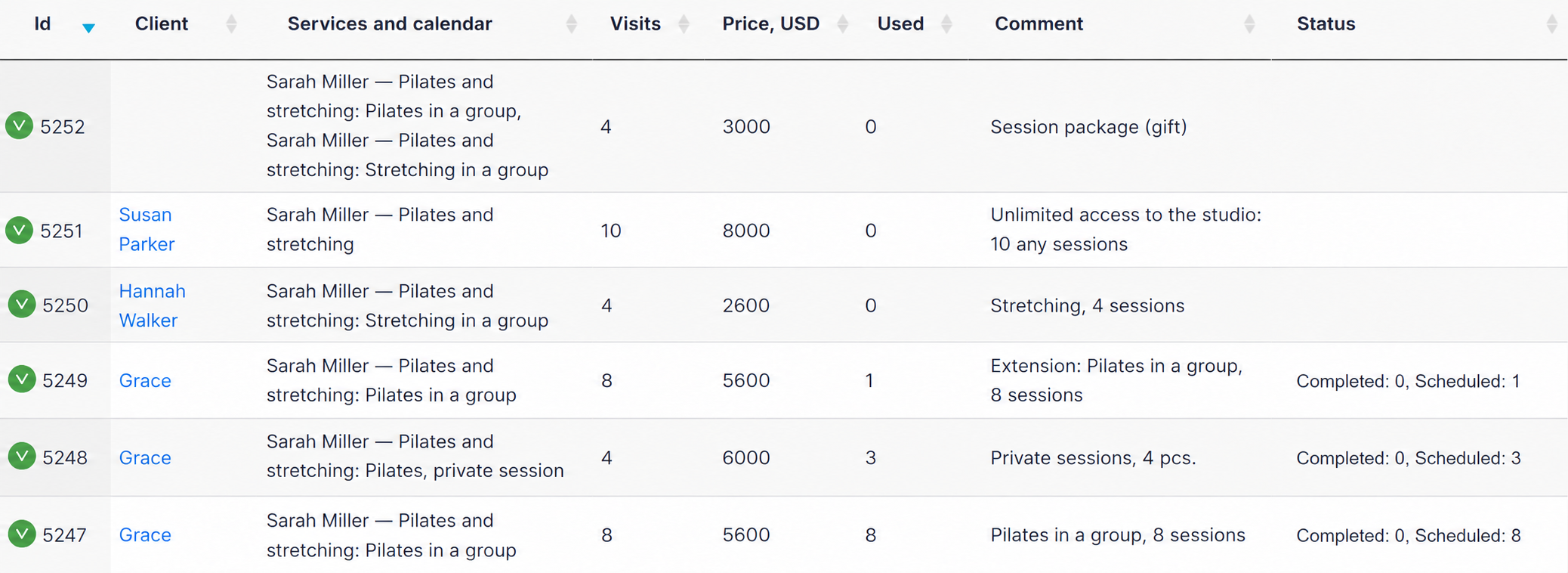
Watch three columns:
- Calendars and services: what the package covers.
- Used: how many sessions have been deducted when creating bookings.
- Status: how many deducted sessions have taken place and how many are still scheduled.
A client may use all eight sessions to book future weeks even though none has happened yet. The distinction between completed and scheduled visits makes this clear.
You can delete a package that has never been used for a booking. After its first booking, use Close instead: it stops accepting new bookings while preserving history. A closed package remains in the list with its status and closing date.
Search the list or export it to Excel, CSV or PDF.
5. What clients see when booking
Clients choose a service and time as usual. Before confirming, they see which package will be used and how many sessions will remain.
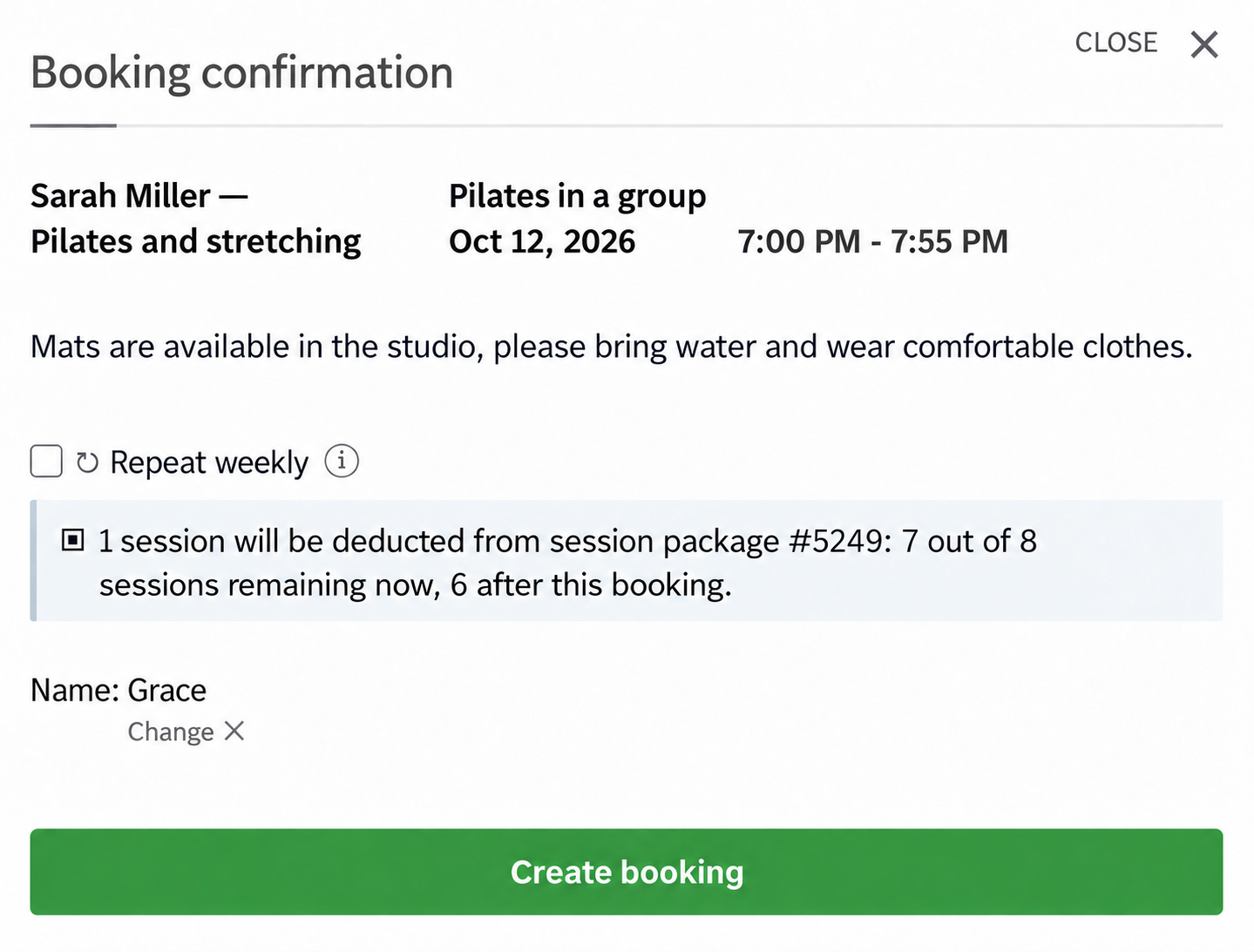
After booking, TimePlan shows the updated balance.
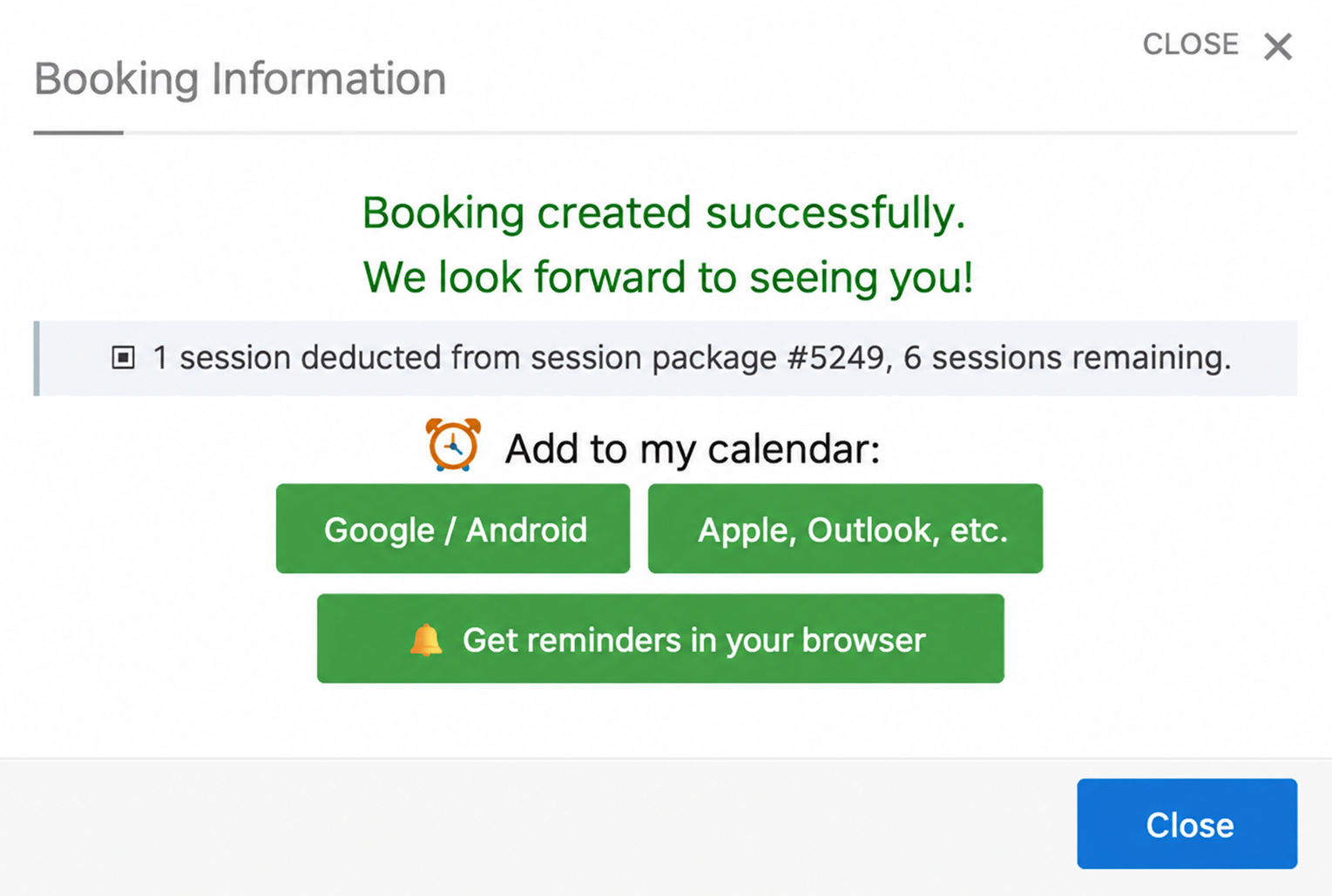
On a phone, package information appears in the form before Create booking.
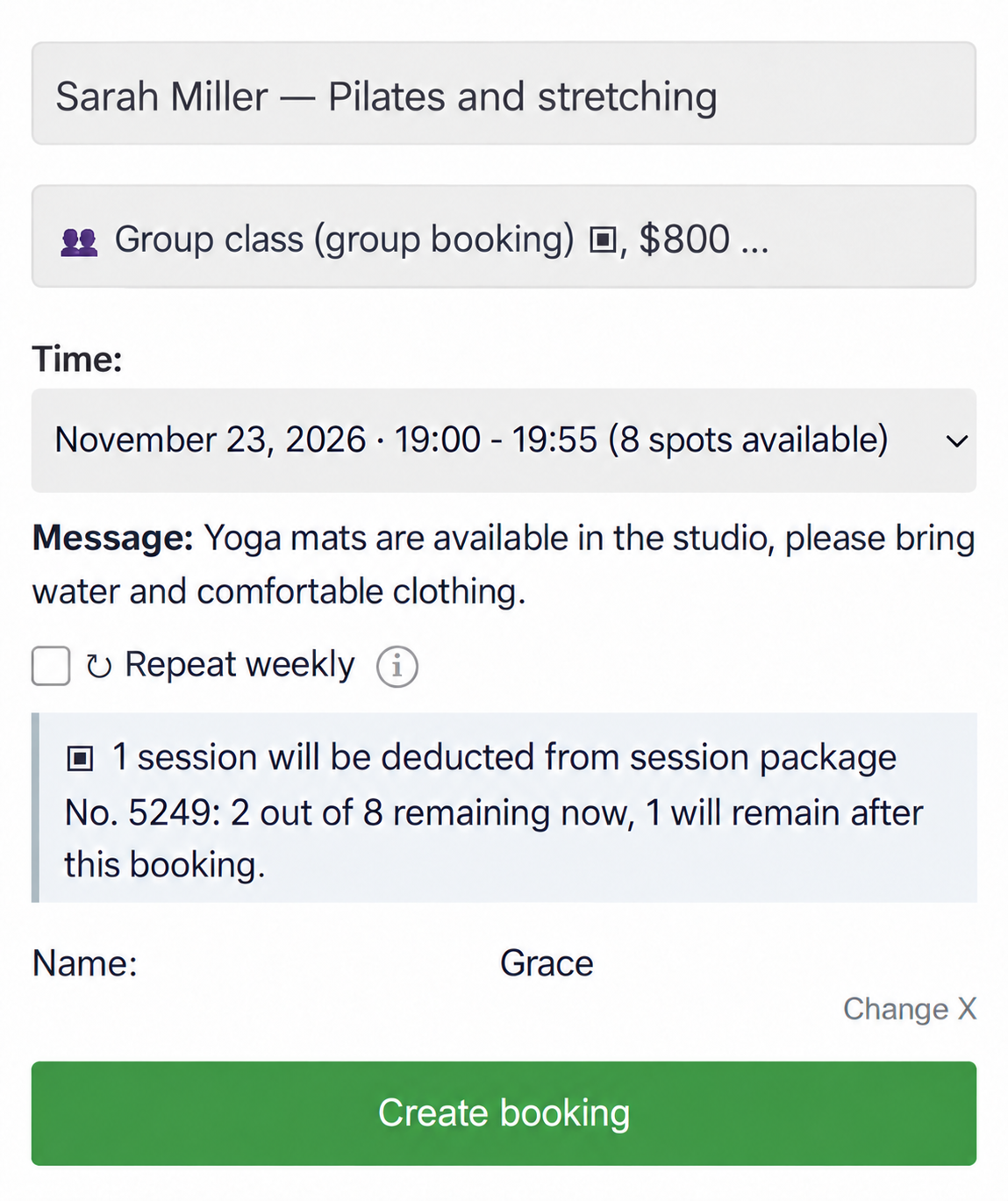
For a group class, the available-place count also changes. One booking deducts one session, for both individual and group services. See the group booking guide.
6. Use a package for weekly appointments
For a service that allows recurrence, select ↻ Weekly instead of booking every visit separately. You can enter an end date in Until or leave it empty. Either way, TimePlan respects the package balance and does not create more bookings than it covers.
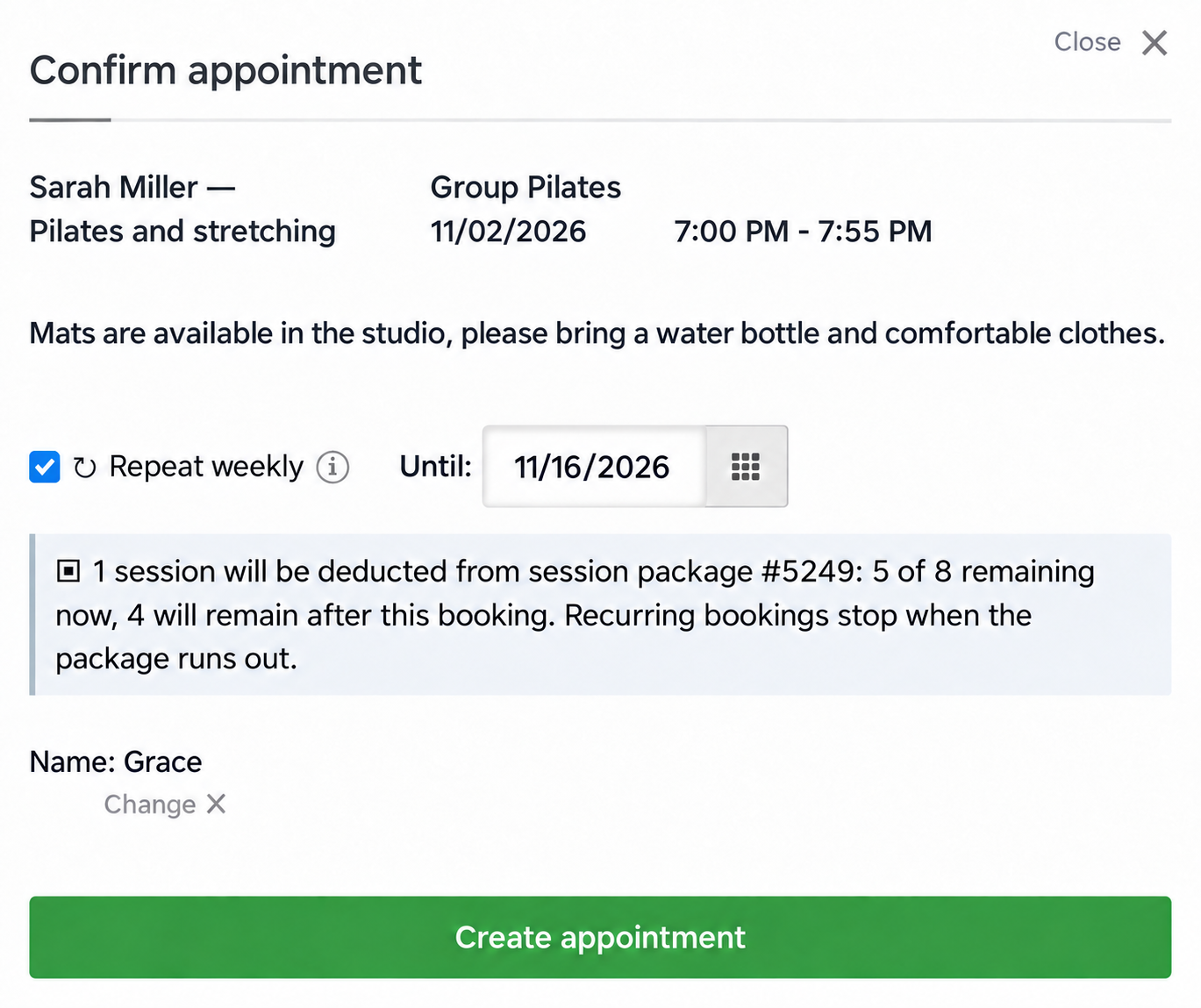
Here, the client has five sessions left and selects weekly Pilates through 16 November. The series contains three visits, on 2, 9 and 16 November, leaving two sessions.
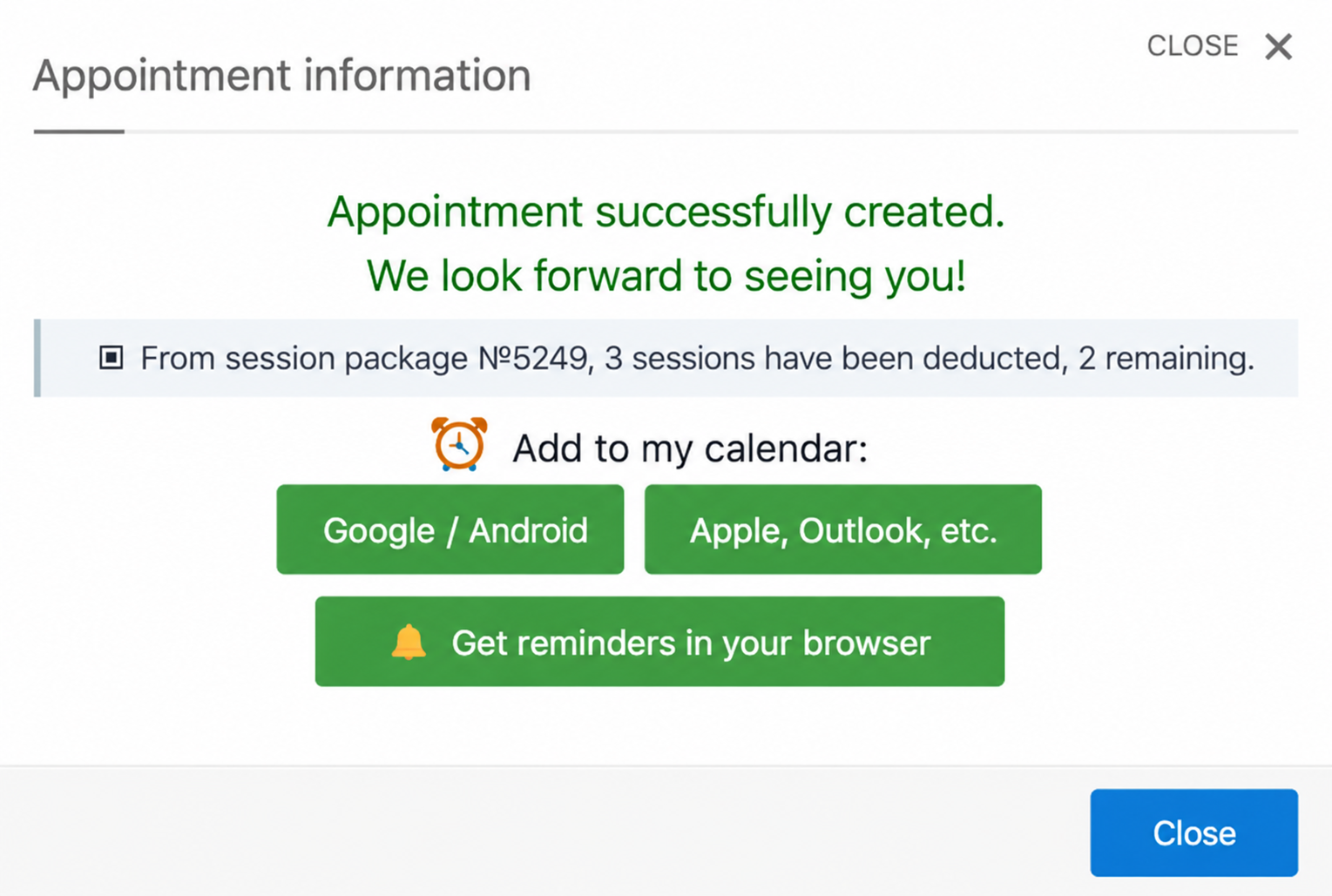
Without an end date, the series could use all five remaining sessions. After receiving another package, the client creates a new series for subsequent visits.
Weekly recurrence works for individual and group sessions on desktop and mobile. Read Recurring appointments for details.
7. Trial bookings without a package
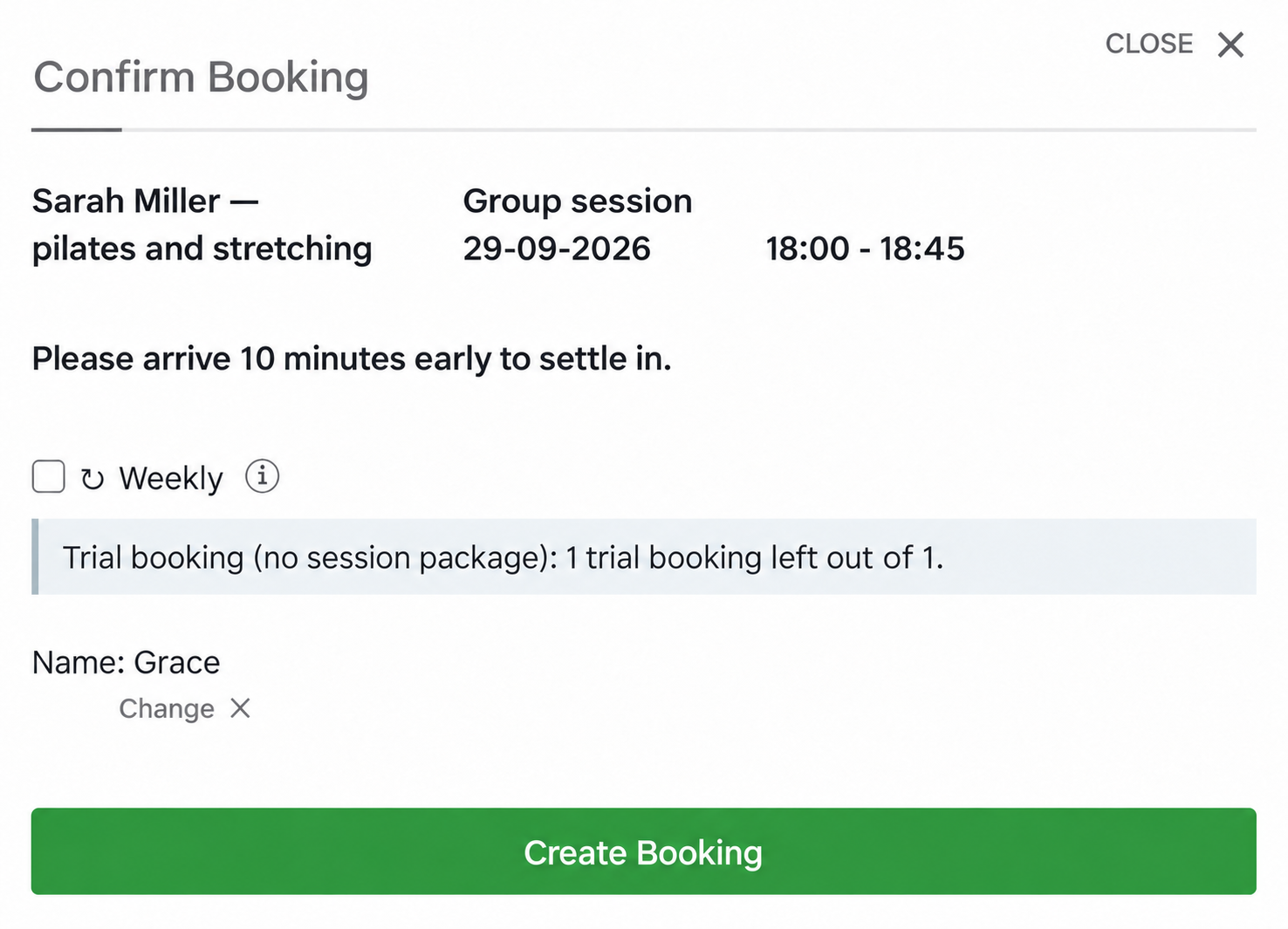
If the calendar allows bookings without a package, a new client can use that allowance for an introductory visit. Confirmation shows how many such bookings remain.
Once the allowance is exhausted, a client without a suitable package sees “A package is required to book. Please contact the administrator.”
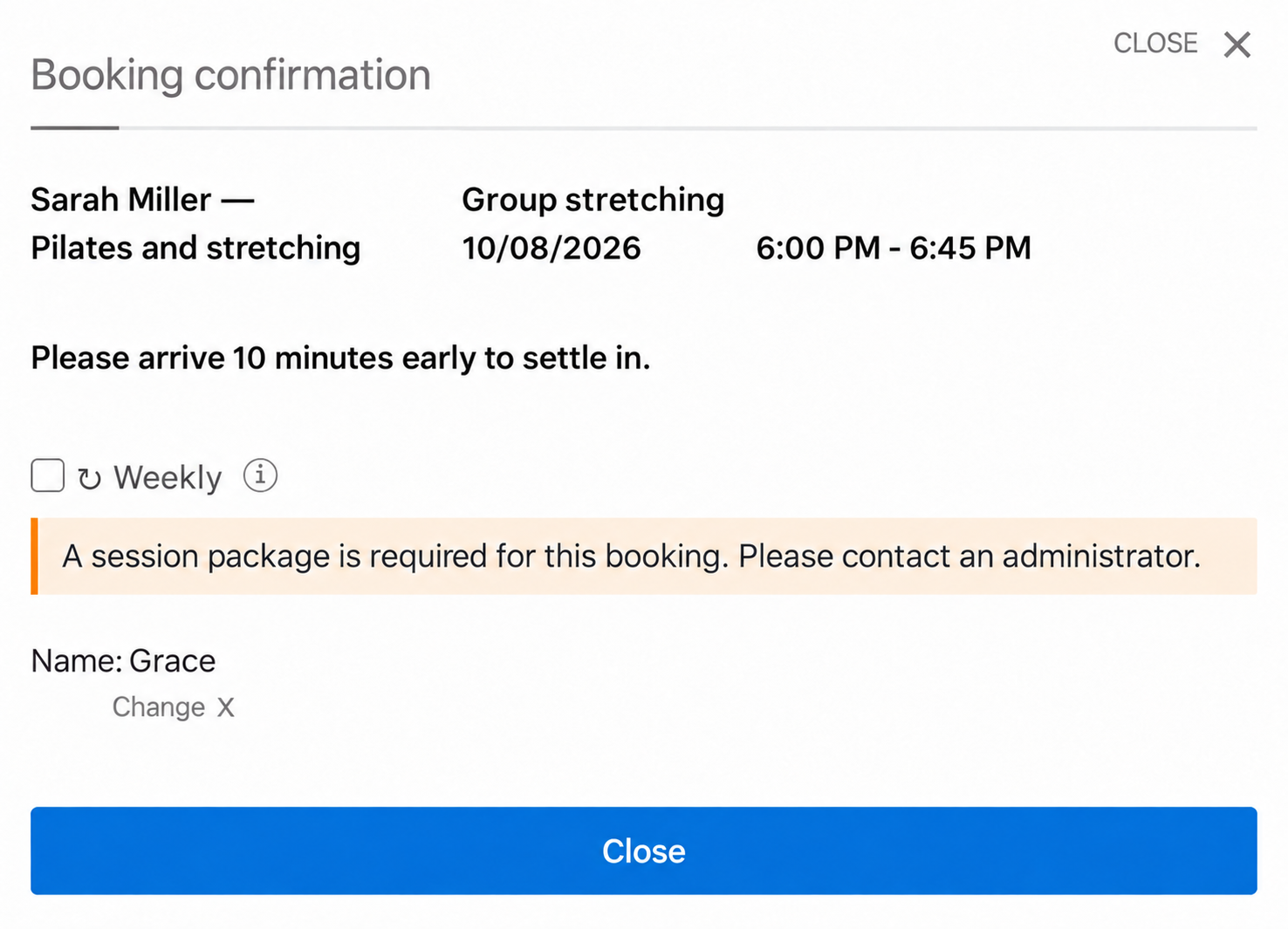
Only Close is available in place of the booking button. This works the same way on desktop and mobile. The same restriction applies when a client owns a package that does not cover the selected service: a Pilates package cannot be used for stretching unless stretching is included.
8. Administrator bookings
Administrators can book a client without a package even when self-booking requires one. If a suitable package exists, TimePlan offers a choice.
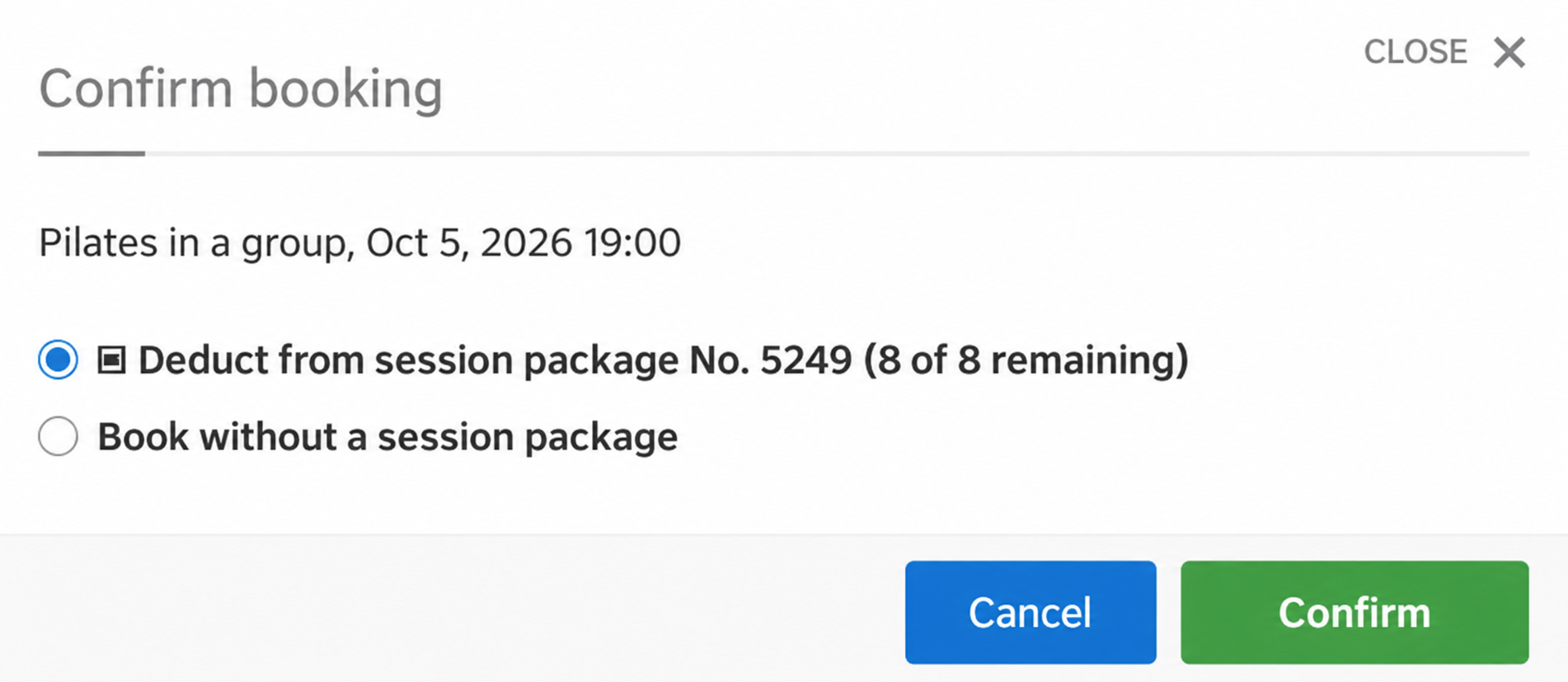
- Deduct from package: use one of its sessions.
- Book without a package: keep this visit outside the package.
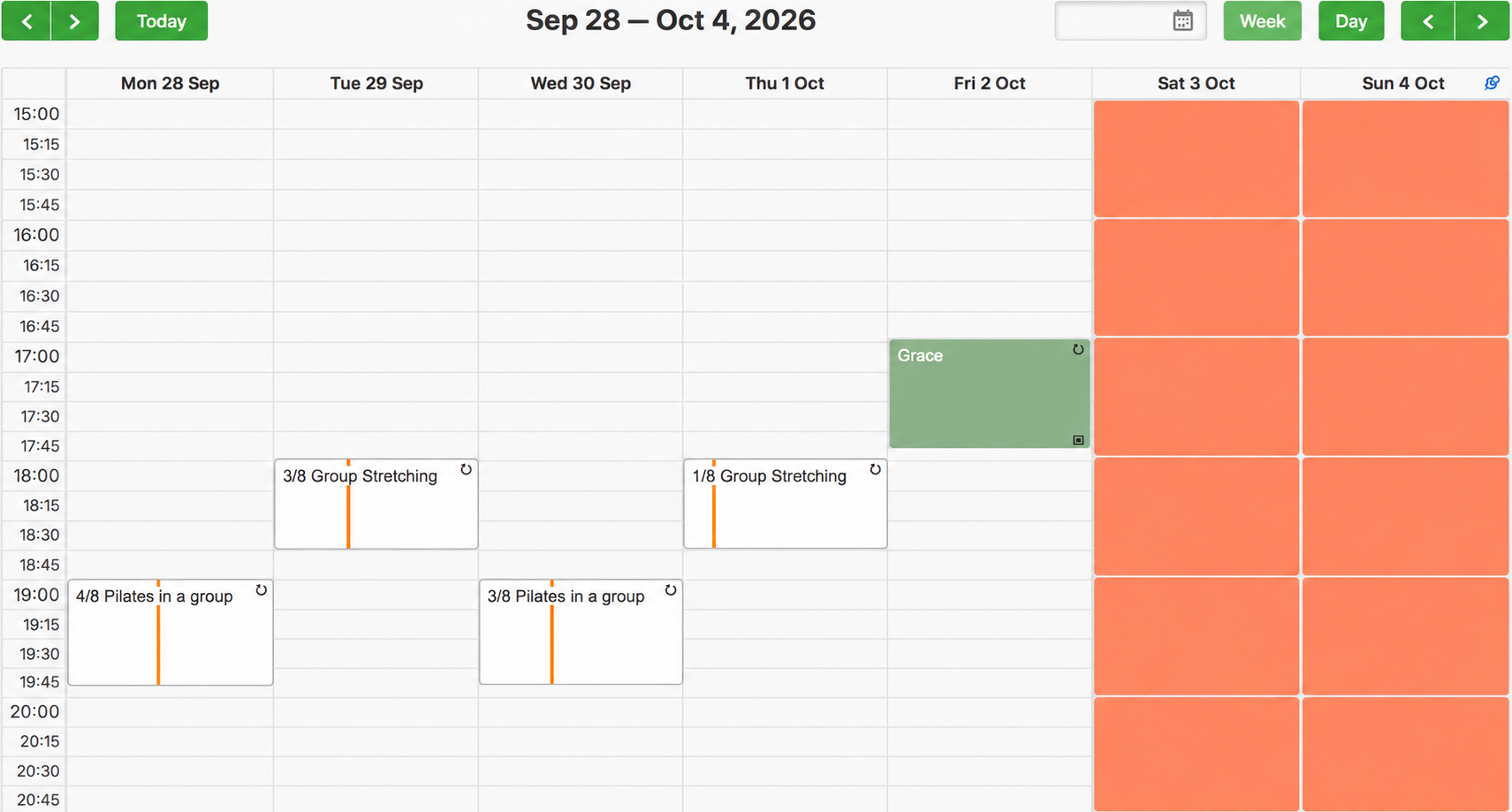
If there is no applicable package, TimePlan explains that the booking will be created without one. A package booking has a small ▣ icon in the bottom-right corner of its calendar block.
9. Packages under My bookings
Above the appointment list, clients see a Packages section with active and completed packages, remaining sessions and included services. Completed packages also show the last session date.
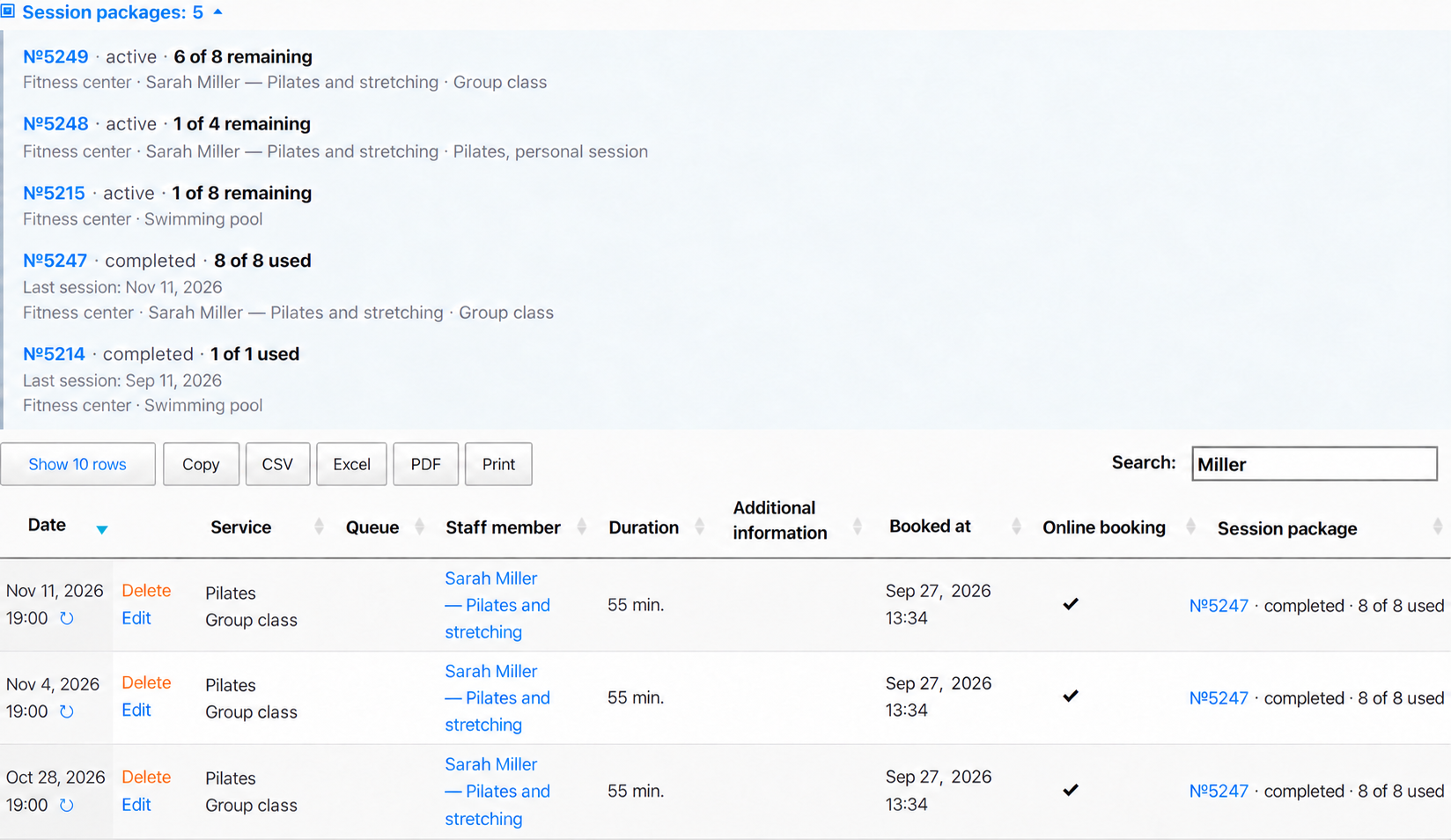
The appointment table has a Package column. Clicking a package number filters the list to its bookings.
The mobile page has the same package summary above the visits.
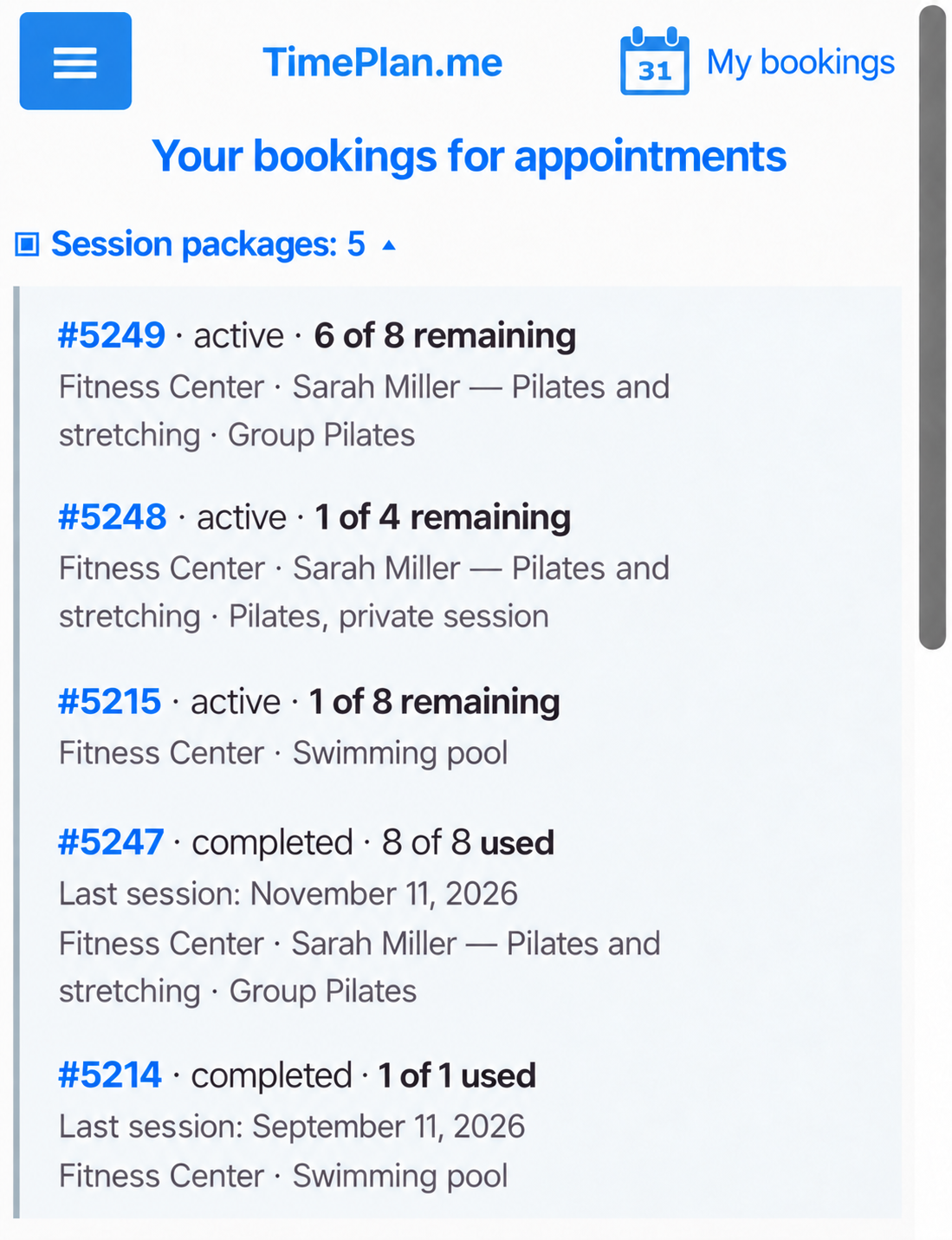
Clients can check their balance and package scope without asking the administrator.
10. Cancelling a booking restores a session
When a client cancels through My bookings, or an administrator deletes the appointment, the session returns to the package. Cancelling a group booking also releases the place for another participant.
Under Restrictions, you can prevent clients from cancelling within a specified number of hours before the start. To record a no-show, use the separate missed-appointment action; see Managing missed appointments.
11. Give staff access
The company manager has access to Packages by default. For another employee, open Settings → Operators and enable Access to the Packages module in their record.
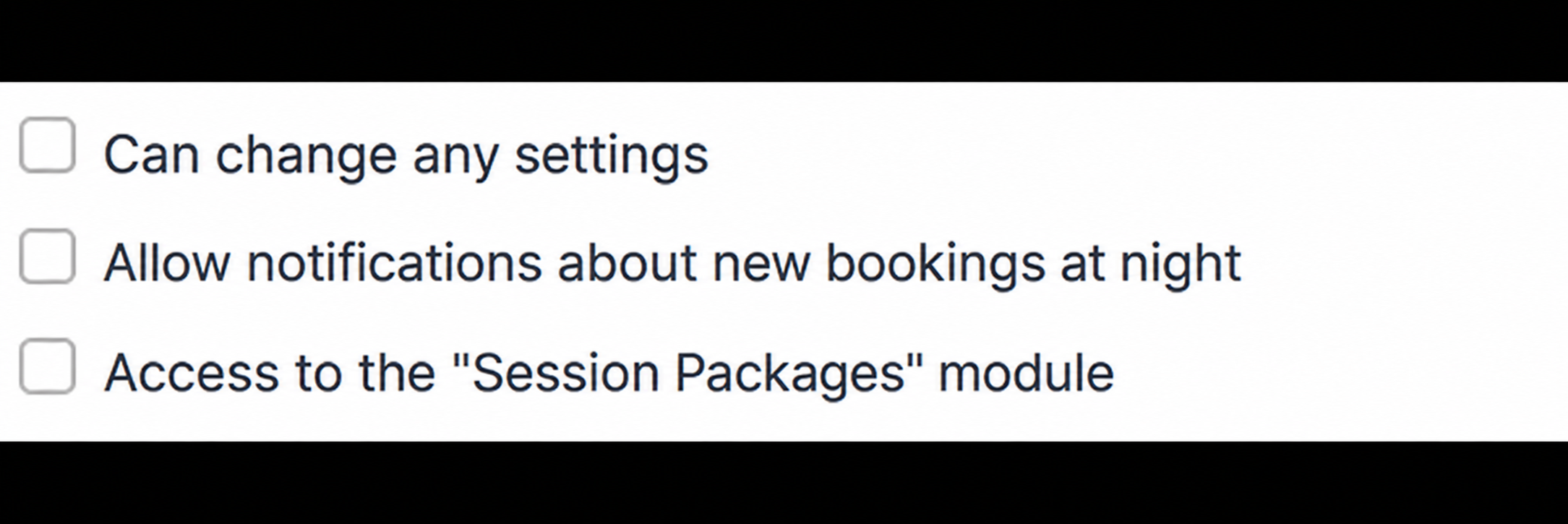
The module is available on paid plans. See Choosing a TimePlan plan.
Settings at a glance
| Task | Where to configure it |
|---|---|
| Require packages for client self-booking | Working hours → Restrictions → Package-only booking |
| Allow trial visits | The same tab → Allow bookings without a package |
| Issue a package | Packages → Add |
| Limit its scope | Calendars and services in the package form |
| Check usage | Used and Status in the package list |
| End a package early | Close |
| Give an employee access | Settings → Operators |
Setup checklist
- Enable package-only booking in the calendars that need it.
- Allow one or more trial bookings if appropriate.
- Add the client, session count and included services under Packages.
- Share the public booking link.
- Review remaining sessions and arrange the next package when needed.
Keep these distinctions in mind: deductions happen when booking, not after attendance; weekly series are limited by the available balance; administrator bookings without a package count towards the trial allowance; and a used package can be closed but not deleted. The price field is for your records. Illustrations use sample prices in USD.