
Working hours and available booking times in TimePlan
Why can a client choose one start time but not another? In TimePlan, availability depends on several settings working together: working hours, the calendar interval and service duration.
This guide uses the Rachel Bennett — massage calendar in a demonstration fitness centre. We will set working hours, days off, booking restrictions, reserved time and a buffer after an appointment, then compare the administrator and client views. Prices shown in the illustrations are sample service prices in USD.
1. What determines availability?
| Setting | What it controls | Where to find it |
|---|---|---|
| Working hours | The days and hours when the calendar is open | Settings → Working hours → Schedule |
| Calendar interval | The spacing between possible starts, such as 15, 30 or 60 minutes | Settings → Working hours → Calendar interval |
| Service duration | How many consecutive slots an appointment occupies | Settings → Services → Duration |
With a 15-minute interval, a 60-minute service occupies four consecutive slots. A client can start at 10:00, 10:15 or 10:30 only if all four slots are free and the whole appointment fits within working hours.
Working hours are configured separately for each calendar. A massage therapist and a room can have different schedules.
2. Set your regular working hours
Open Settings → Working hours, select a calendar and open Schedule.
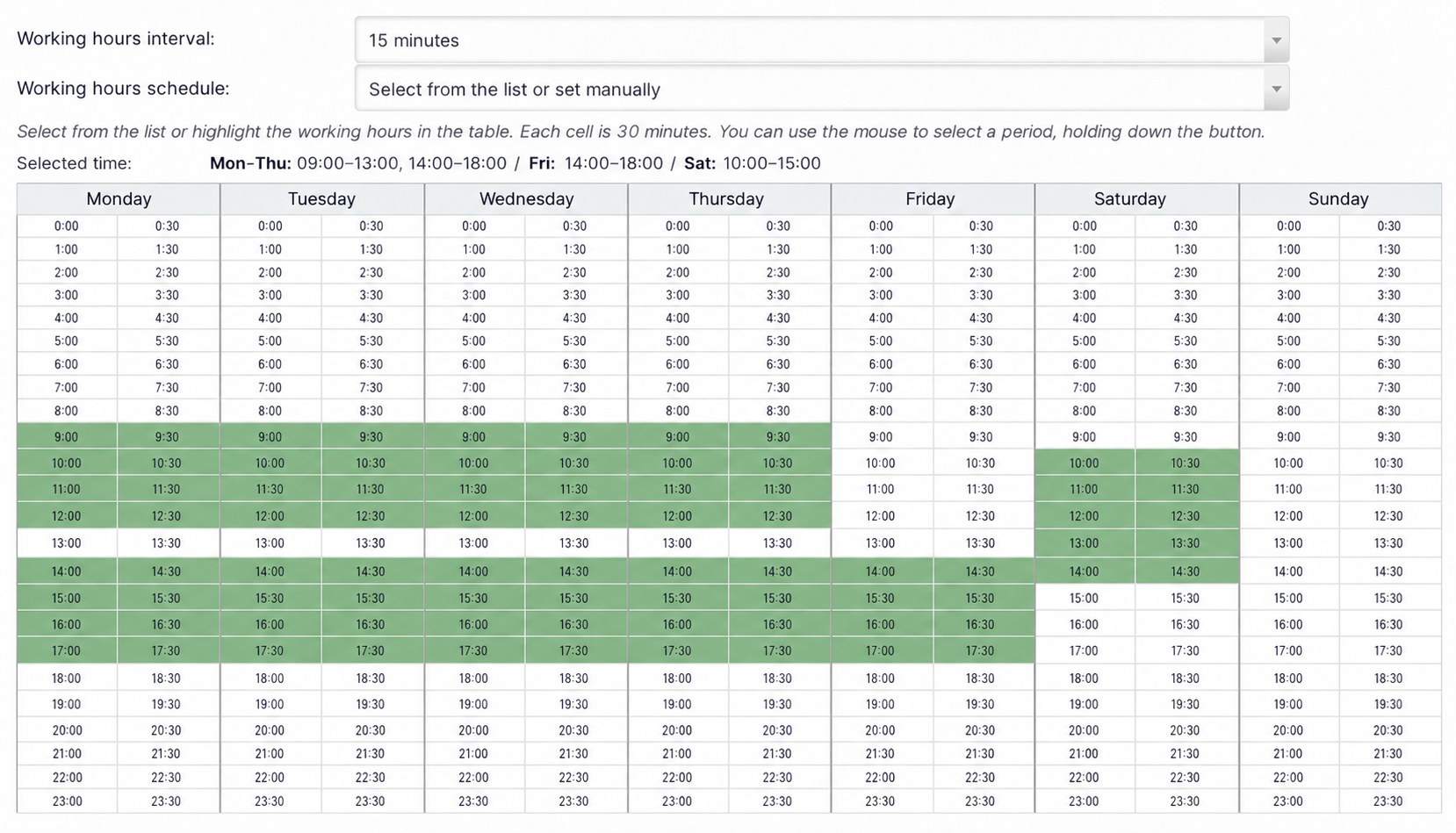
Configure three things here:
- Calendar interval: choose automatic spacing based on service duration, or a fixed interval of 1, 5, 10, 15, 20 or 30 minutes, or one hour. This example uses 15 minutes.
- Schedule template: start with weekdays from 09:00 to 18:00, a schedule with a lunch break, daily opening, 24-hour opening or another template. You can then edit the grid manually.
- Working-hours grid: green cells are working time. Each column is a weekday and each cell represents 30 minutes, regardless of the calendar interval selected above.
The Selected time line summarises the result. Our example reads:
Mon–Thu: 09:00–13:00, 14:00–18:00 / Fri: 14:00–18:00 / Sat: 10:00–15:00.
Use different hours for different weekdays, leave gaps for breaks and leave Sunday's column empty. An empty weekday column creates a regular day off.
Click Save and generate. This saves the settings and rebuilds the schedule for future dates.
How far ahead clients can book
Open Rules to set the booking horizon.
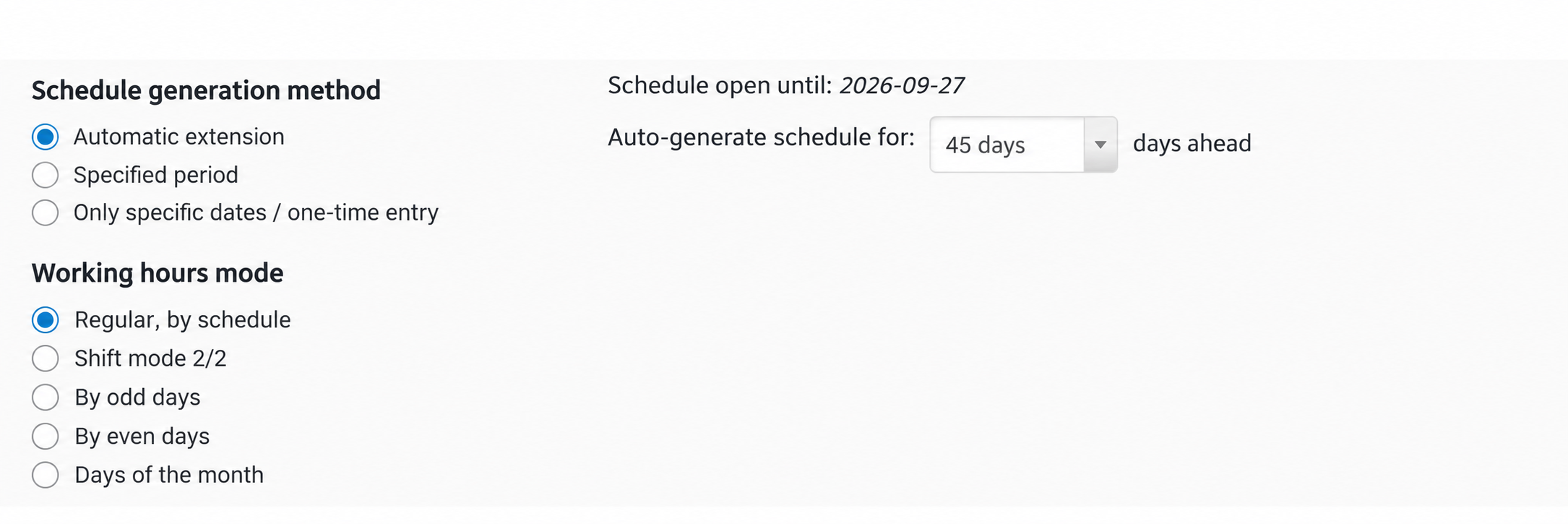
- Generation method: automatic extension, a specified period, or specified dates only / one-off booking.
- Working pattern: regular weekly schedule, two days on / two days off, odd dates, even dates, or selected days of the month.
- Generate the schedule N days ahead: 7, 14, 20, 30, 45 or 90 days. Check the accompanying Schedule open through date.
Here, booking is open 45 days ahead. Clients cannot book beyond the displayed final date, even if that weekday is normally a working day.
3. Open only part of a day
To accept appointments only from 14:00 to 18:00 on a particular weekday, leave only those hours selected in the regular schedule. In our example, Friday morning is closed.
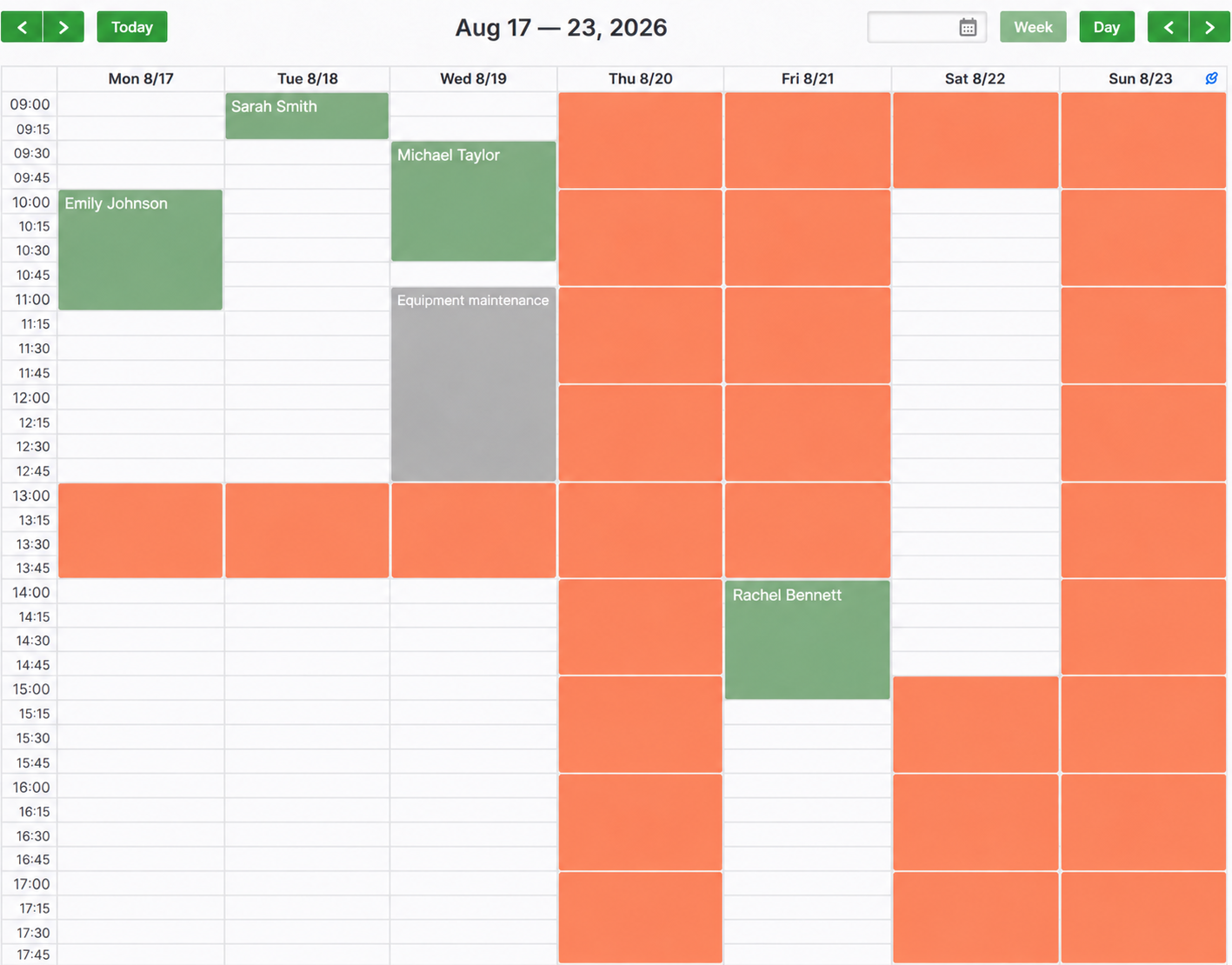
In this calendar, green means a client appointment, grey means reserved time, orange means non-working time and white means free time.
Clients see the same working hours on the booking page and cannot select orange cells.
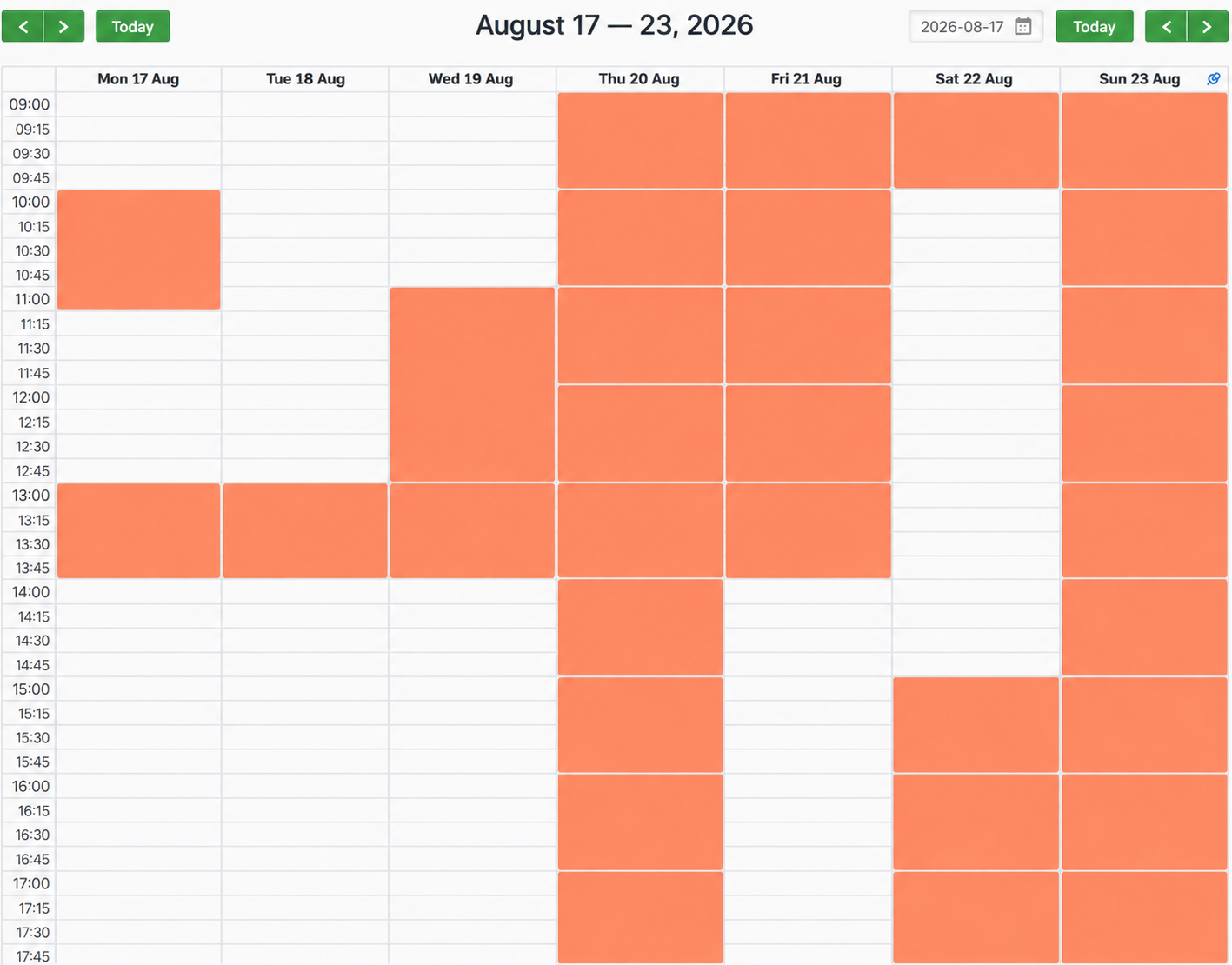
This week includes appointments on Monday, reserved time on Wednesday, a closed Thursday, a short Friday, Saturday opening from 10:00 to 15:00 and Sunday off.
You can create several working intervals within a day. For example, 09:00–13:00 and 14:00–18:00 leave a lunch break from 13:00 to 14:00. More than one break is possible.
4. Configure days off
A regular day off, such as every Sunday, is an empty column in the weekly grid. A one-off day off is a specific date entered under Restrictions → Days off.
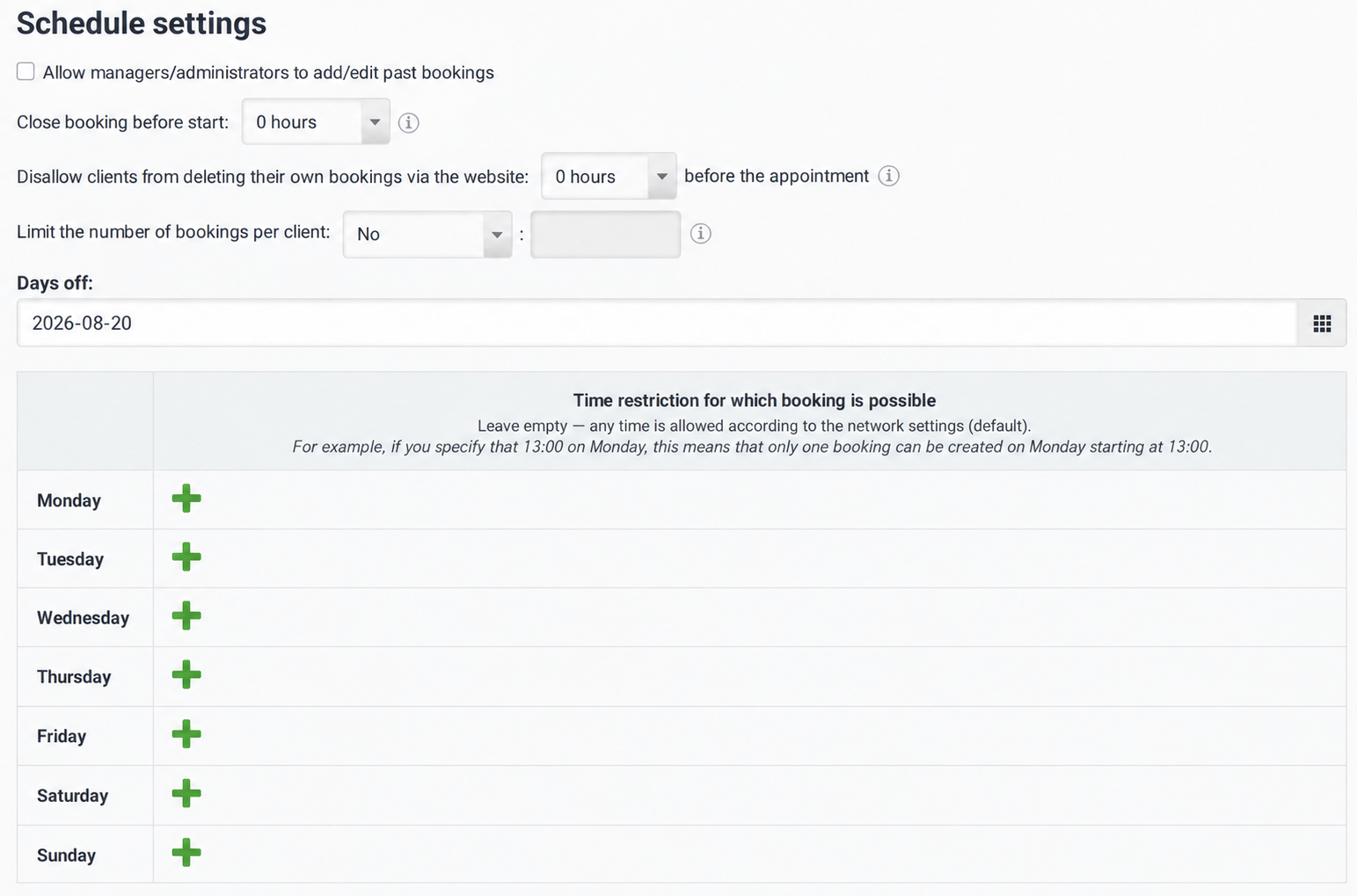
Select one or more dates, then click Save and generate. Selecting 20 August closes that Thursday even though Thursdays are normally working days.
The field stores individual dates, not recurring rules. To close the last Friday of each month, select those dates manually.
Check existing appointments before closing a date. Saving a day off does not warn you about or delete an existing appointment. In the example, an appointment on Thursday 27 August from 10:00 to 11:15 remained in place, together with a working interval from 10:00 to 12:00. The mobile page could therefore still offer starts at 11:15 and 11:30. Move or delete existing appointments manually where necessary, then check the resulting availability.
The same tab also provides:
- Close booking N hours before the appointment, to prevent last-minute bookings.
- Prevent clients from deleting bookings within N hours of the appointment.
- Limit bookings per client: no limit, an overall limit, or a limit per 24 hours, week or 30 days.
5. Offer only specific start times
A specialist may work all day but offer self-booking only at fixed times, such as 10:00 and 15:00. Use Restrictions → Allowed booking start times.
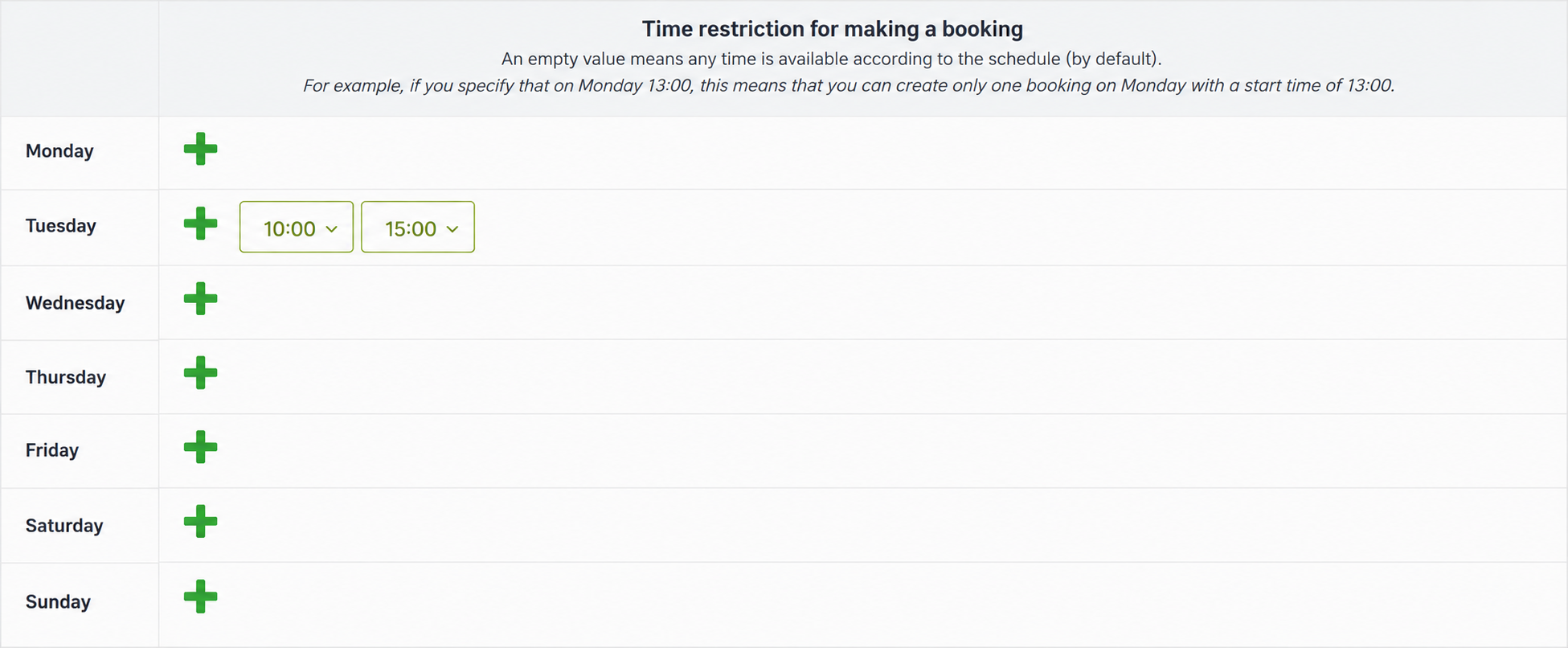
Click the green plus beside a weekday, choose the hour and minute, then click Add. You can add several times to one day. An empty row means any suitable start time in the calendar grid is allowed. Here, Tuesday is limited to 10:00 and 15:00.
After Save and generate, those start times are highlighted in light green in the administrator calendar.
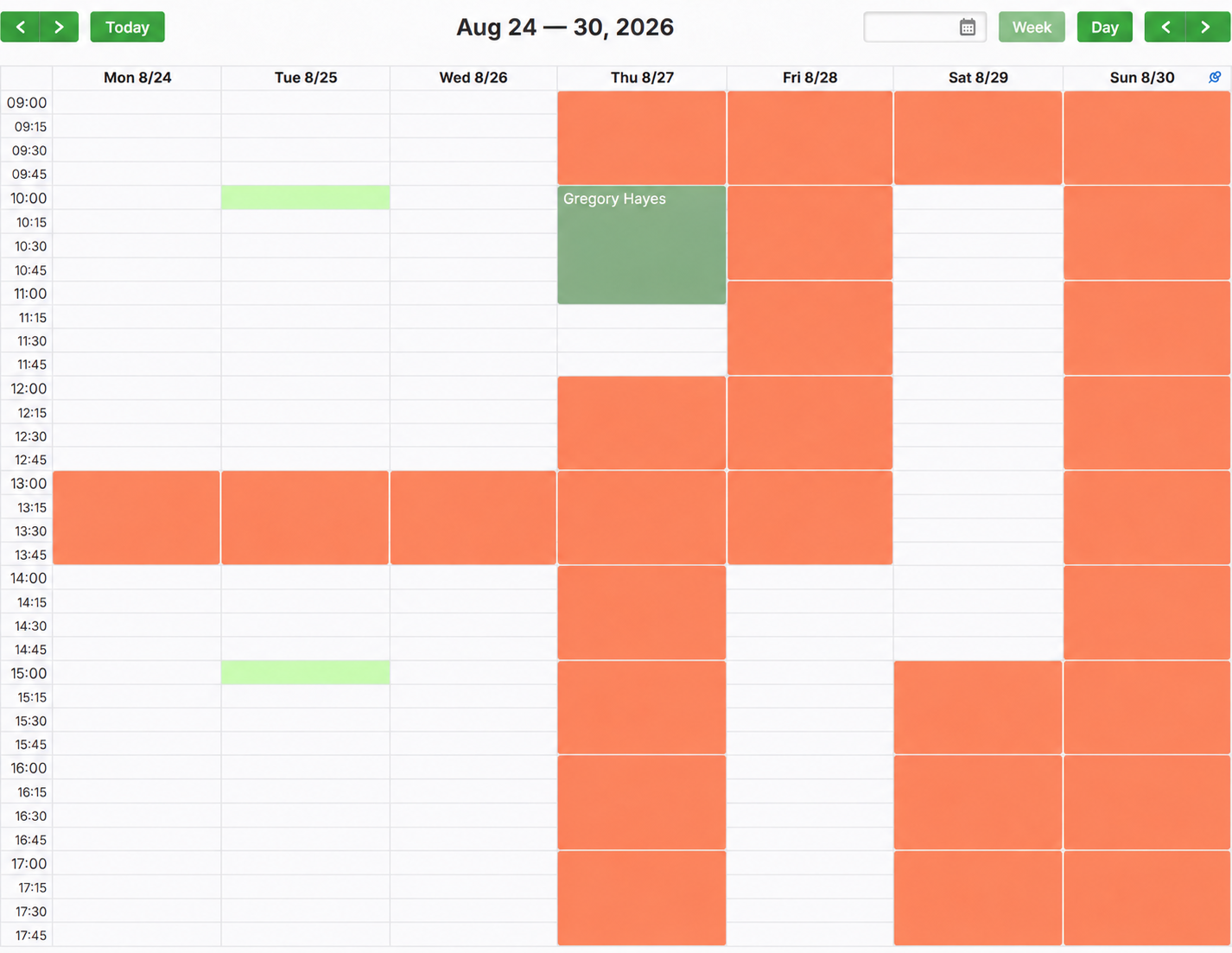
The rest of the working day remains white. This restriction applies only to client self-booking: an administrator can still add an appointment at another working time, such as 11:00.
On a computer, choosing a disallowed start produces a message listing the permitted times.
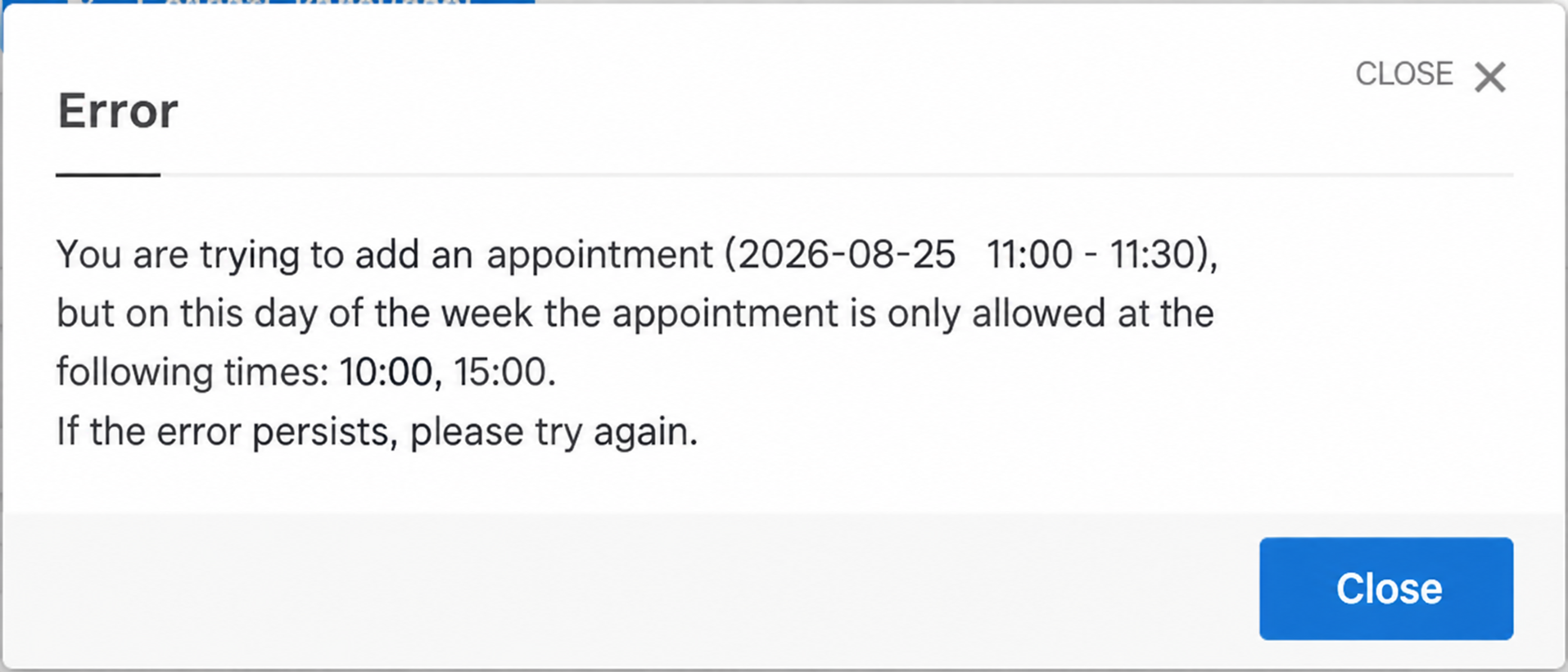
You are trying to add an appointment for 25 August 2026, 11:00–11:30. On this weekday, booking is allowed only at 10:00 and 15:00.
On a phone, unsuitable options are omitted entirely.
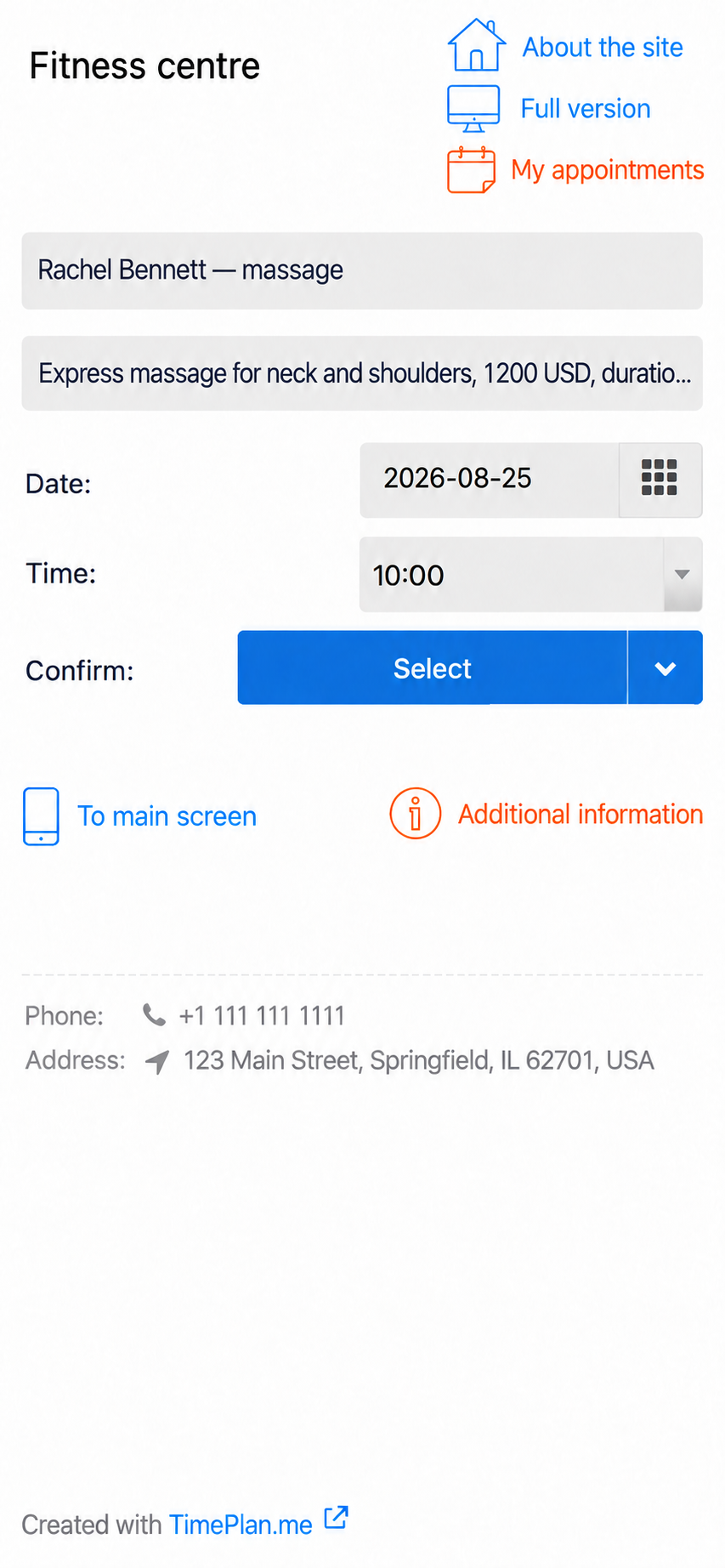
The following Wednesday has no such restriction and offers around thirty starts between 09:00 and 17:30. To remove a restriction, click a time label and choose Delete. An empty weekday row restores all suitable starts.
6. Reserve time for a one-off interruption
For maintenance, training, a meeting or equipment servicing, use Reserve time in the calendar.
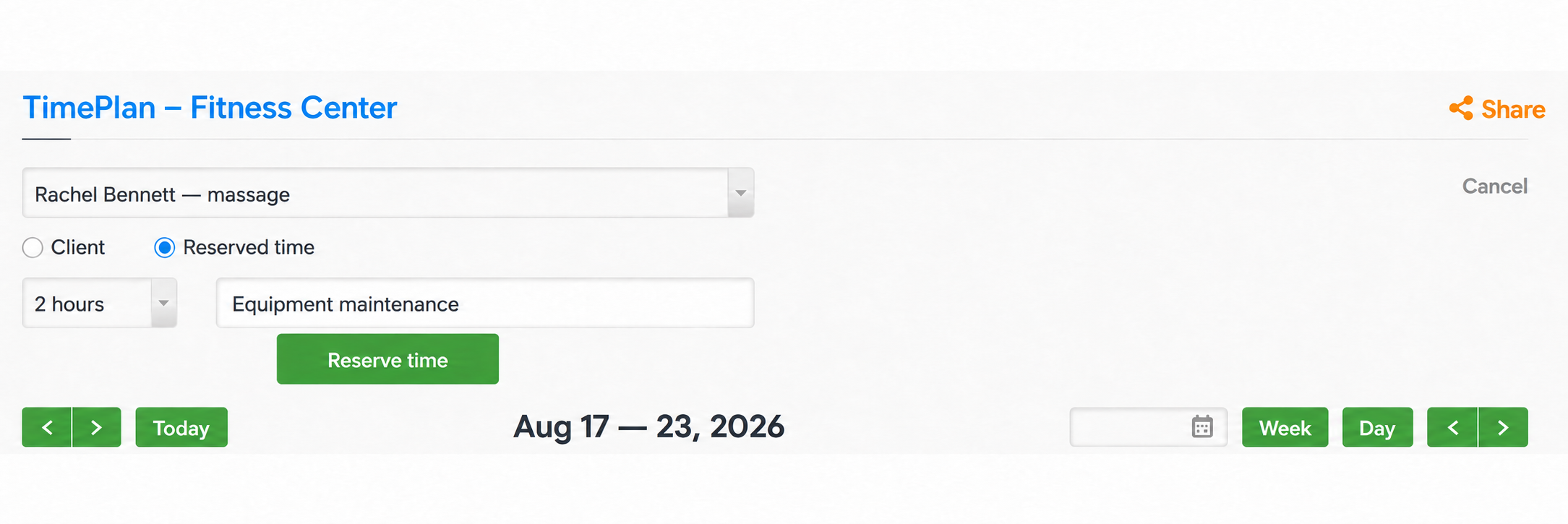
- Switch from Client to Reserve time.
- Choose a duration from 15 minutes to 23 hours.
- Enter a comment, visible to administrators in the calendar.
- Click Reserve time, select the interval and confirm.
A grey block appears. Here, Equipment maintenance occupies Wednesday from 11:00 to 13:00. Clients see unavailable time without the internal reason.
7. Calendar interval versus service duration
These are independent settings. For a working day from 09:00 to 18:00:
| Calendar interval | Resulting grid |
|---|---|
| 15 minutes | 36 rows: 09:00, 09:15, 09:30 … 17:45 |
| One hour | 9 rows: 09:00, 10:00 … 17:00 |
| Automatic, based on service duration | 30-minute intervals in this example, matching the shortest service: express neck and shoulder massage |
Service duration determines how many consecutive cells a particular appointment occupies.
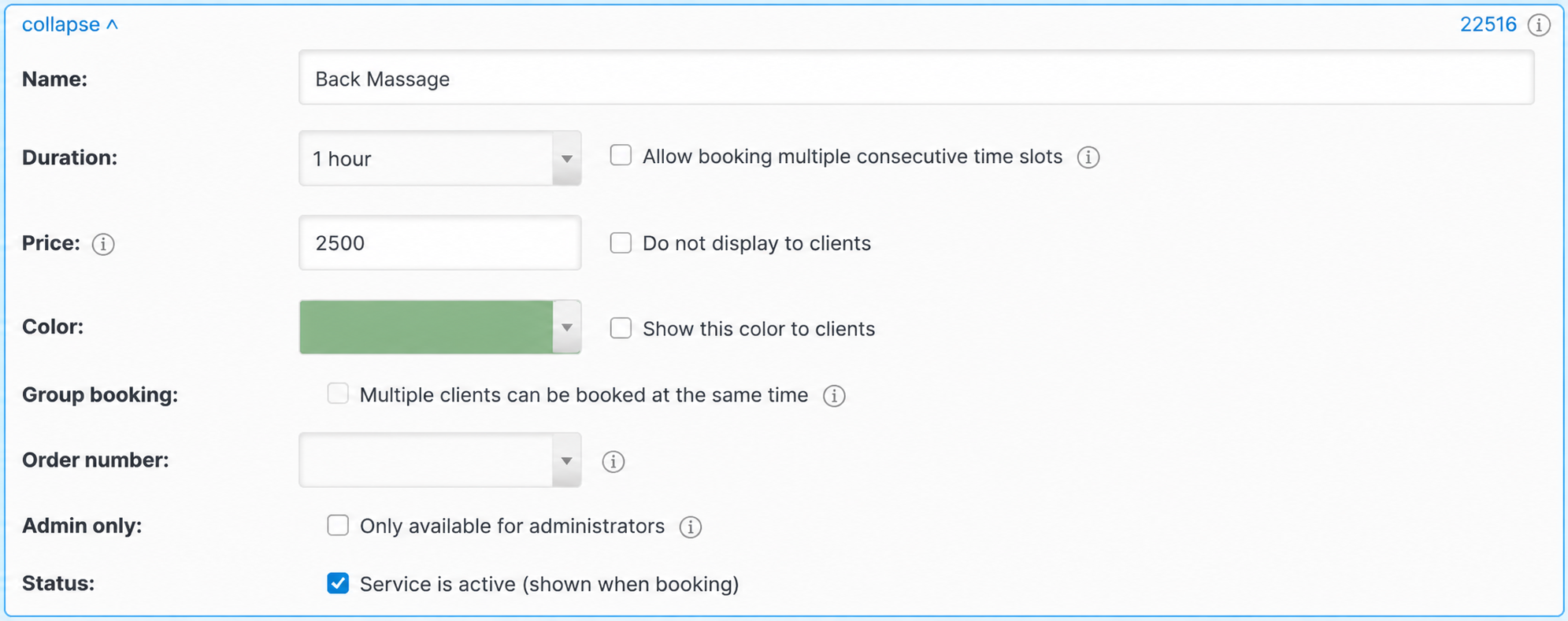
With a 15-minute grid, a one-hour back massage uses four cells; a 30-minute express massage uses two. Smaller intervals offer more possible starts, but may leave short gaps. Larger intervals give fewer choices and a more regular schedule.
8. Let clients choose several consecutive periods
Enable Allow booking of several consecutive periods in the service settings when clients should choose how many units to reserve. This is useful for hourly room or sauna rental.
For a one-hour Massage room rental service, the booking page offers Number of hours, from 1 to 30. Selecting two hours starting at 15:00 creates one appointment from 15:00 to 17:00. Without this option, clients can book only the service's standard duration.
9. Add duration through a service option
Under Request additional information, create fields with a name, help text, type and an optional Required setting. Available types are text, number and selection from a list.
Only a list selection can add time. Its values have columns for Name, Default, Price addition, Time addition and Active. Time additions include 10, 15, 20, 30 or 45 minutes, one hour, one hour 15 minutes, one hour 30 minutes, two hours and further choices up to five hours.
10. Leave a buffer after a service
Use a service option to include time for cleaning, preparing equipment or taking a break before the next client.
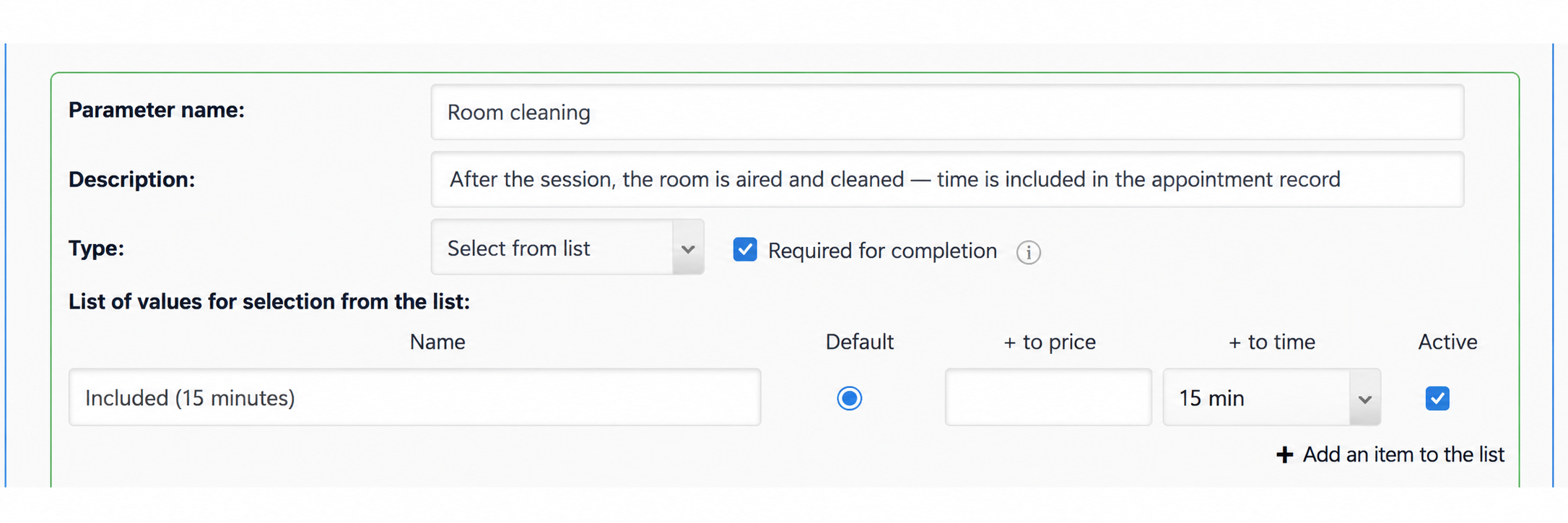
Our Back massage lasts 60 minutes and needs another 15 minutes for airing and cleaning the room. Configure it as follows:
- Service duration: one hour; sample price: 2,500 USD.
- Add Room cleaning, with the explanation “The room is aired and cleaned after the session; this time is included in the appointment.”
- Choose List selection and make the field Required.
- Keep one active value, Included (15 minutes), selected by default, with a 15-minute time addition.
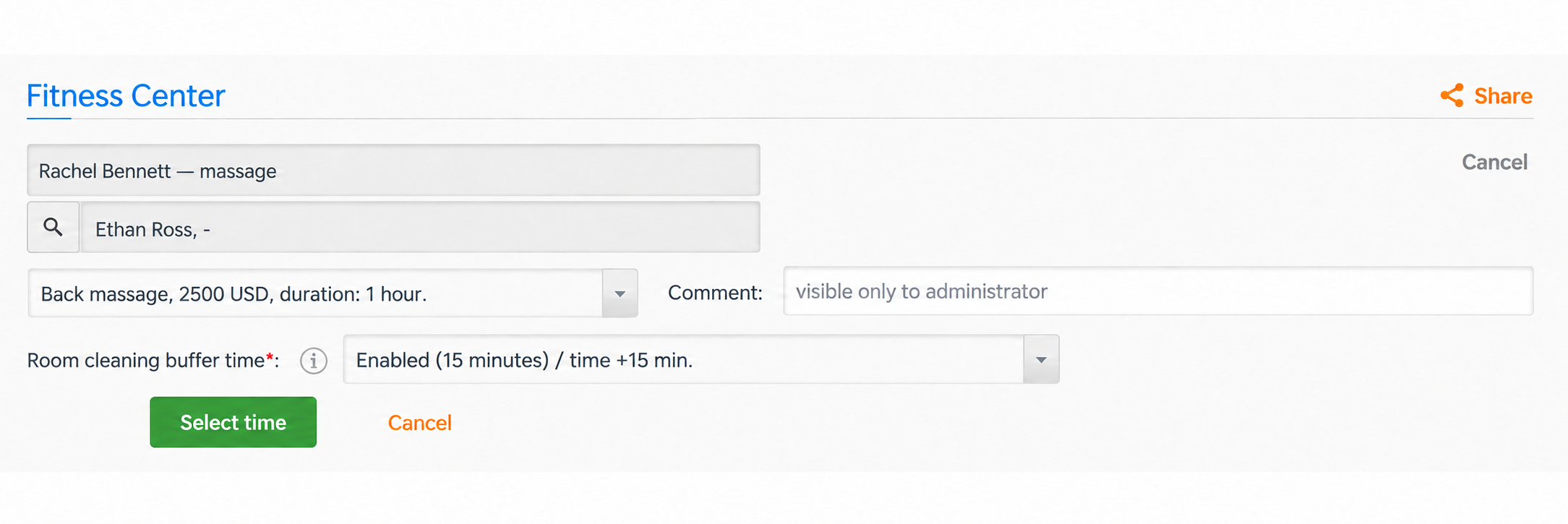
A 10:00 start now occupies 10:00–11:15, or five 15-minute cells. Check the chosen option under Appointment information.
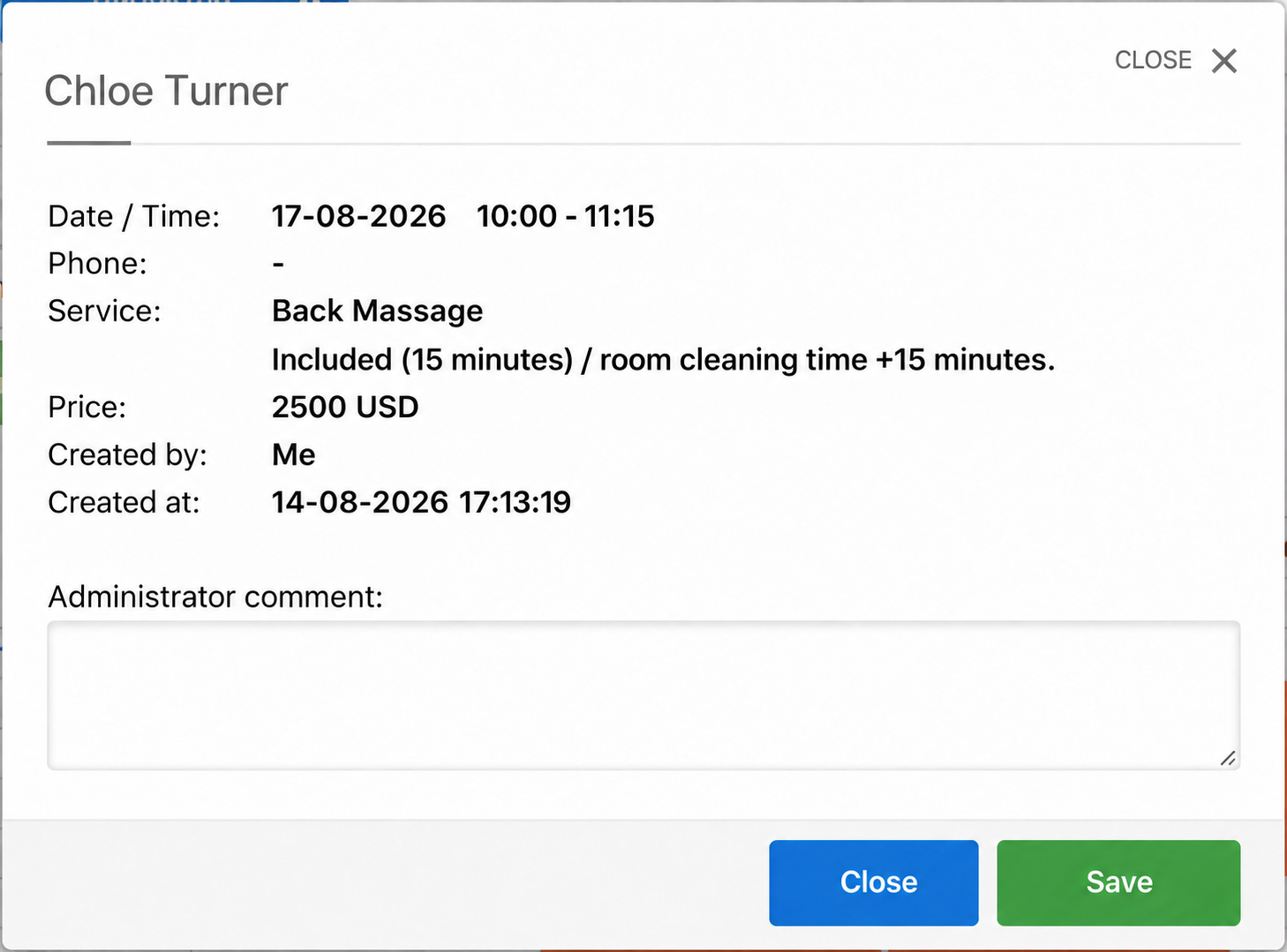
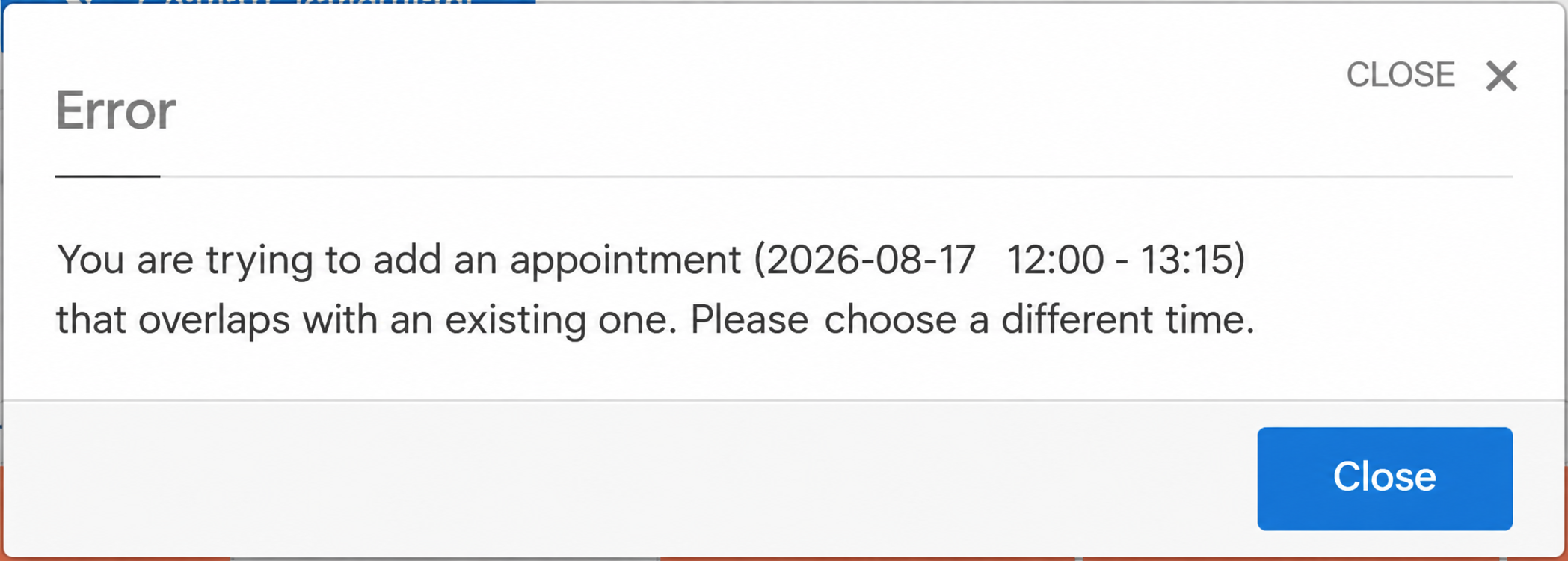
The next client can start at 11:15. An appointment from 12:00 to 13:15 would overlap the lunch break and is rejected.
Make the buffer unavoidable when necessary
Extra time is added only when the corresponding option is selected. If you also offer Not required with no time addition, clients can select it and book a normal one-hour appointment.
For a mandatory buffer, leave one active value with the time addition and make the field required. A saved list value cannot be deleted; deactivate it to hide it from clients.
The price list still displays the base service duration. The final duration including the option appears during booking confirmation.
11. What the client sees
On a computer, clients choose a calendar and service, complete the additional fields, click Choose time and select a free cell. Confirmation shows the full interval including any time addition.
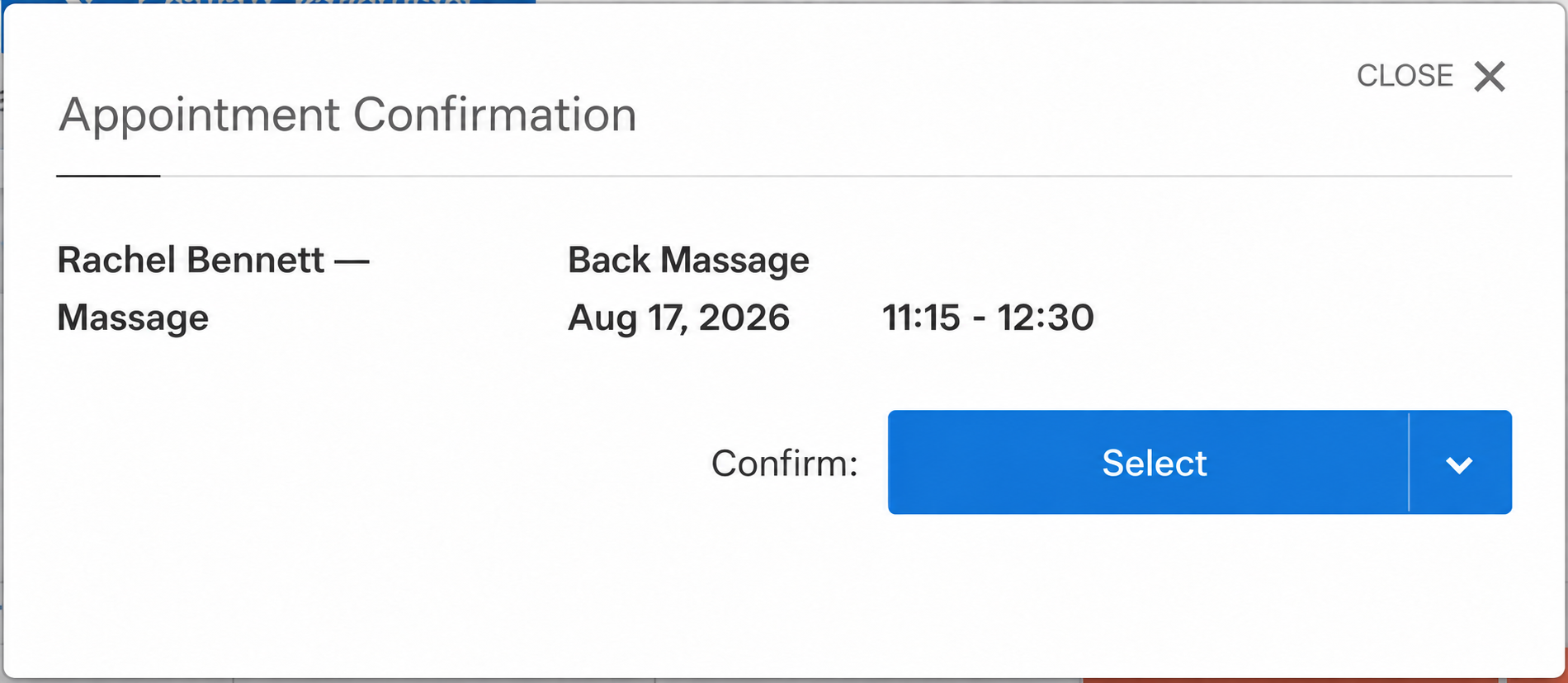
On a phone, clients click Choose date and receive a list of available starts.
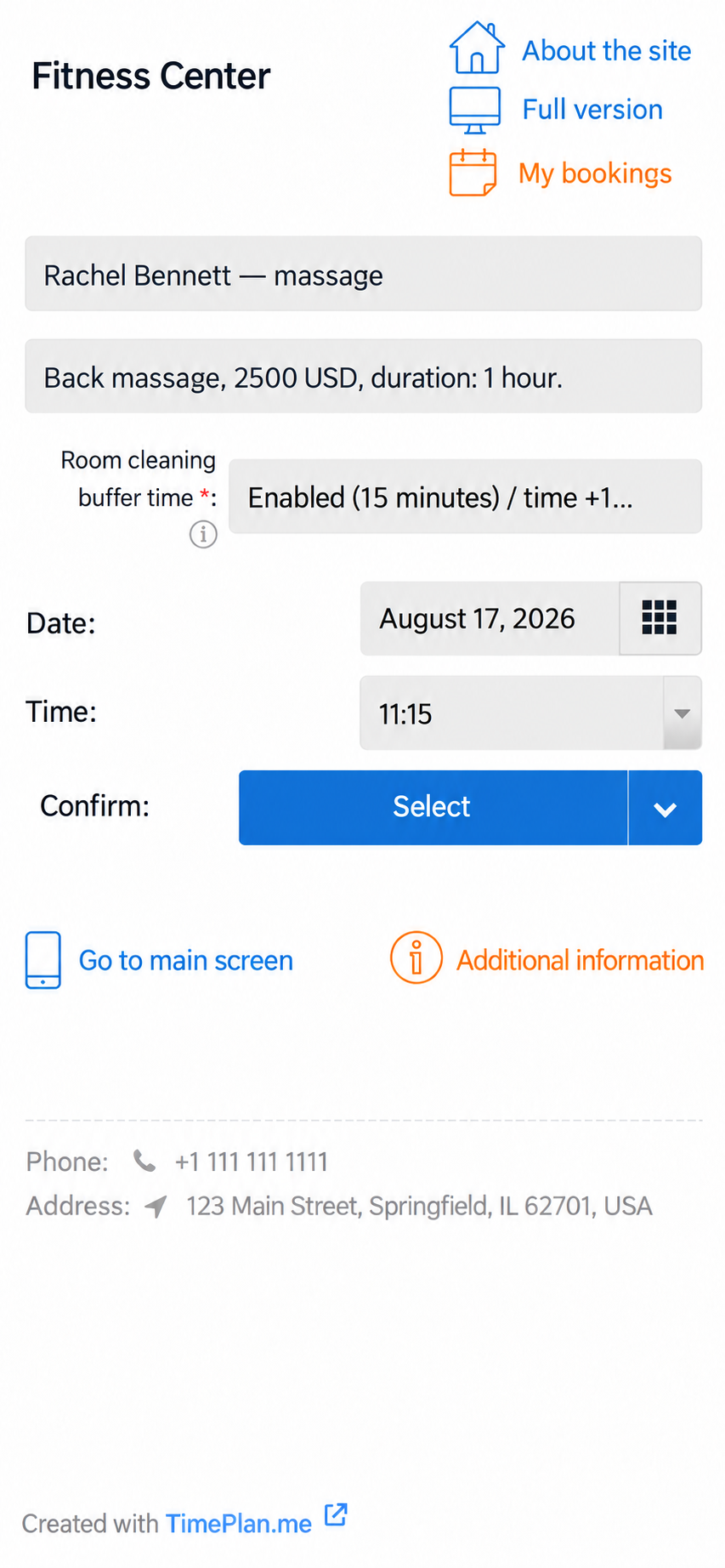
For our 60-minute massage plus 15-minute buffer, 17 August offers 11:15, 11:30, 11:45, then starts from 14:00 to 16:45:
- An earlier appointment occupies the calendar until 11:15.
- 11:45 is the last start before lunch: 11:45 + 75 minutes = 13:00.
- The lunch break is 13:00–14:00.
- 16:45 is the last start before closing: 16:45 + 75 minutes = 18:00.
For a 30-minute express massage on Saturday, open from 10:00 to 15:00, the last start is 14:30.
On mobile, unsuitable starts are hidden. On desktop, a white cell may be selectable, but TimePlan checks the complete appointment interval before saving. It rejects overlaps with lunch, reserved time or closing time. Orange cells cannot be selected at all.
12. Settings at a glance
| Setting | Effect on booking |
|---|---|
| Weekly working-hours grid | Defines opening and closing times; closed hours are orange |
| Empty weekday column | Creates a regular day off |
| Specific dates under Days off | Closes individual dates; check existing appointments and any remaining availability |
| Allowed booking start times | Restricts client self-booking to listed starts; administrators can use other working times |
| Calendar interval | Controls the spacing between possible starts |
| Service duration | Determines how long the appointment occupies the calendar |
| Consecutive periods | Lets clients choose a multiple of the standard duration |
| List option with a time addition | Extends the final appointment interval |
| Reserved time | Closes an interval without creating a client appointment |
| Generate N days ahead | Sets how far ahead booking is open |
| Close booking N hours before | Prevents last-minute self-booking |
13. Setup checklist
- Select the calendar under Settings → Working hours.
- Set the calendar interval.
- Apply a template and edit the weekly grid, including breaks and regular days off.
- Check the Selected time summary.
- Set the booking horizon under Rules and check the last available date.
- Add one-off days off and any advance-booking or cancellation restrictions.
- Set fixed start times by weekday if needed.
- Click Save and generate.
- Check each service's duration and consecutive-period setting.
- Add a required list option with one active value if every appointment needs extra time.
- Open the public booking page and test the resulting availability.
Remember that Save and generate preserves existing appointments and reserved time. A new calendar already has a default weekday schedule of 09:00–13:00 and 14:00–18:00, so review it before opening booking to clients.