
Tracking missed appointments in TimePlan
When a client books but does not attend or let you know, that time is lost. It can happen to anyone once, but repeated no-shows can disrupt your schedule.
In TimePlan, you mark missed appointments directly in the calendar. The system keeps these marks, includes them in a separate report and can block new bookings after a chosen number of no-shows.
This guide uses the Rachel Bennett — Massage calendar in the demonstration fitness centre.
What counts as a missed appointment?
A no-show is an appointment that remains in the calendar even though the client did not attend. An administrator marks it manually.
A booking cancelled or deleted in advance frees the slot and does not count towards the no-show statistics.
You can mark past appointments only. Future appointments do not have this menu option.
Step 1. Mark a no-show
Open the calendar, find a past appointment and click it. Select Mark as no-show.
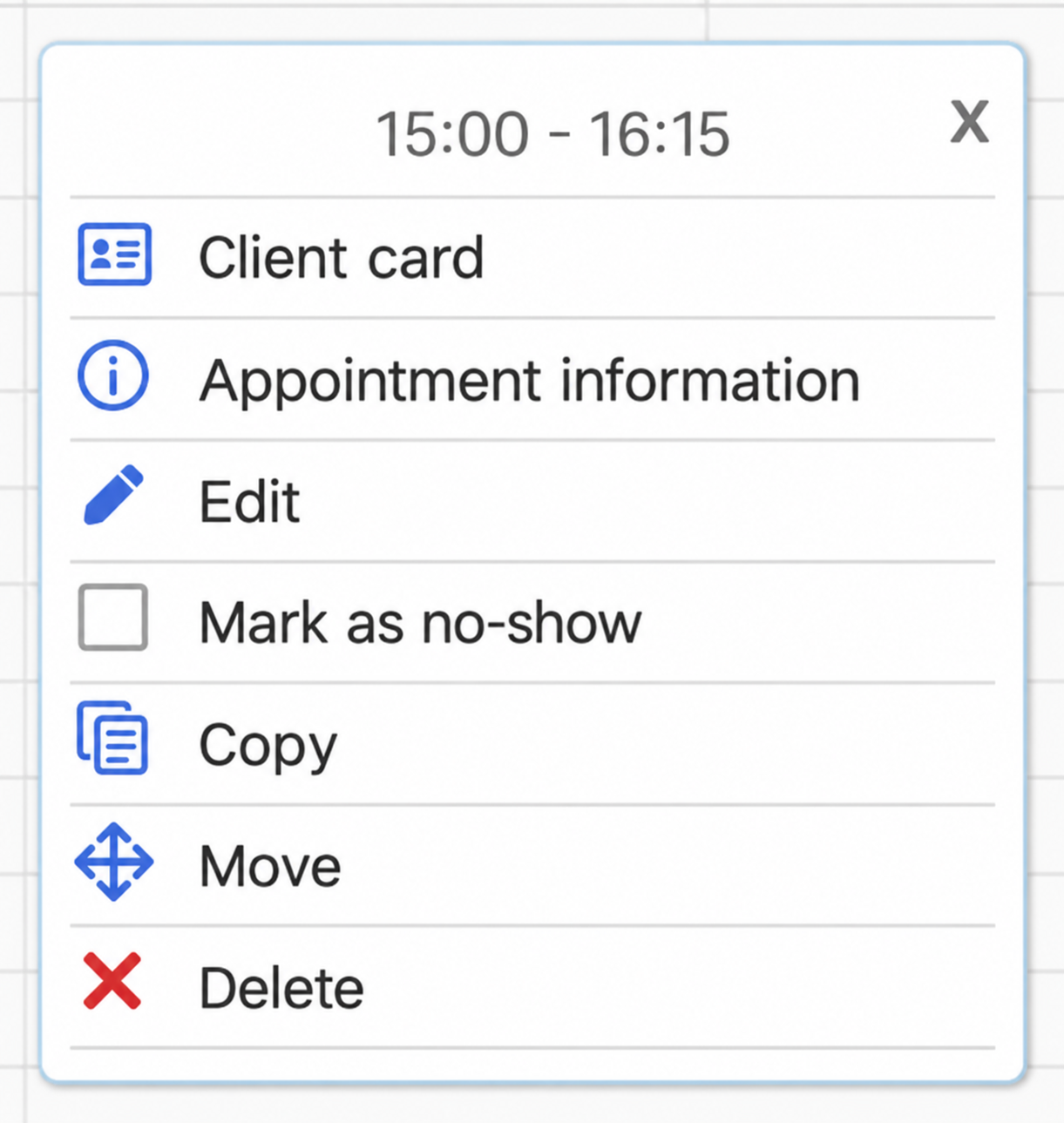
The mark is applied immediately, without another confirmation.
This action is available regardless of Allow the owner/administrator to add or edit past appointments under Restrictions. That setting controls backdated creation and editing; it does not control no-show marking.
Step 2. Recognise missed appointments in the calendar
The appointment stays in the calendar with diagonal hatching over it.
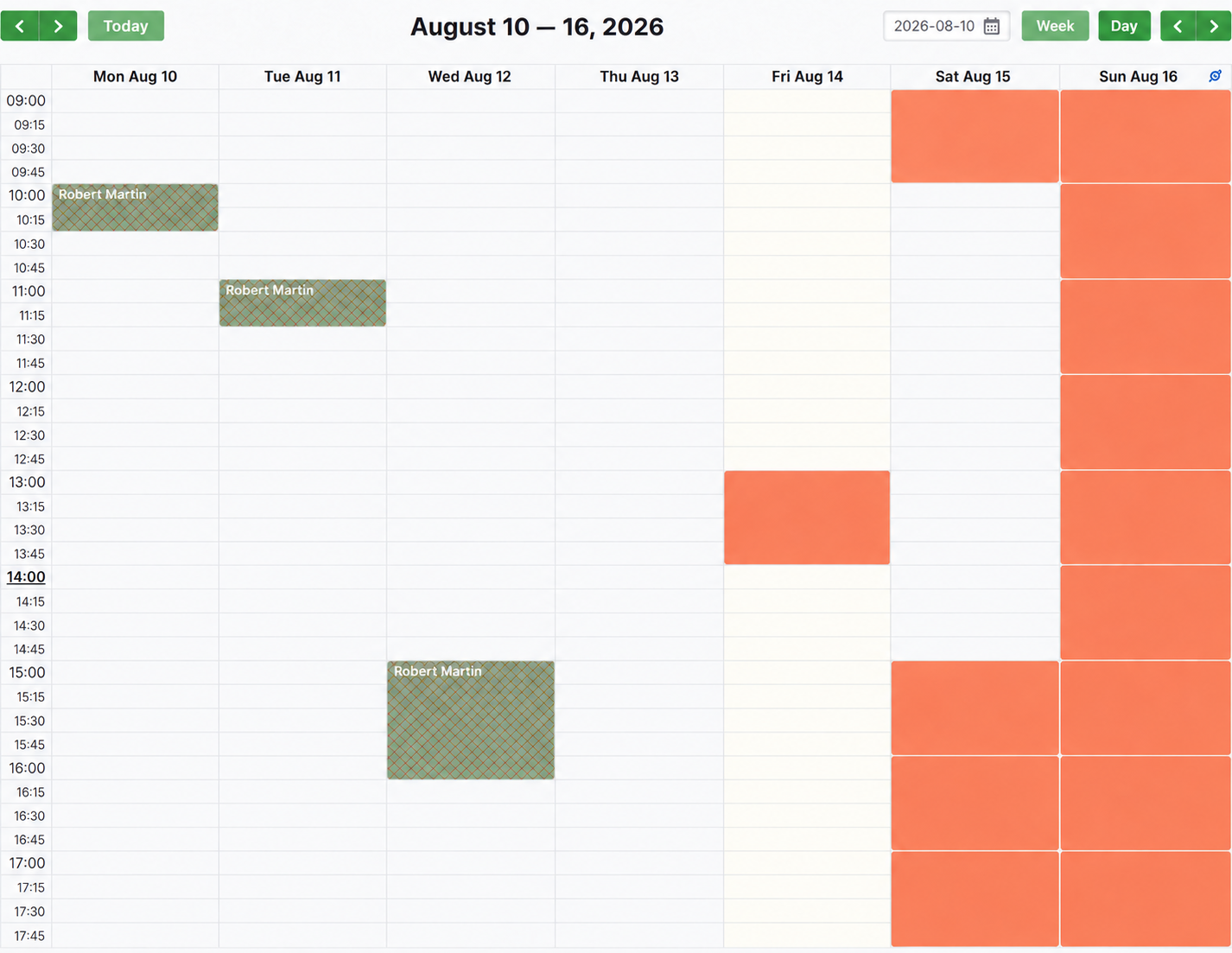
In this example, Robert Martin has three consecutive missed appointments: August 10, 11 and 12.
Open a marked appointment again and you will see Missed with a selected checkbox.
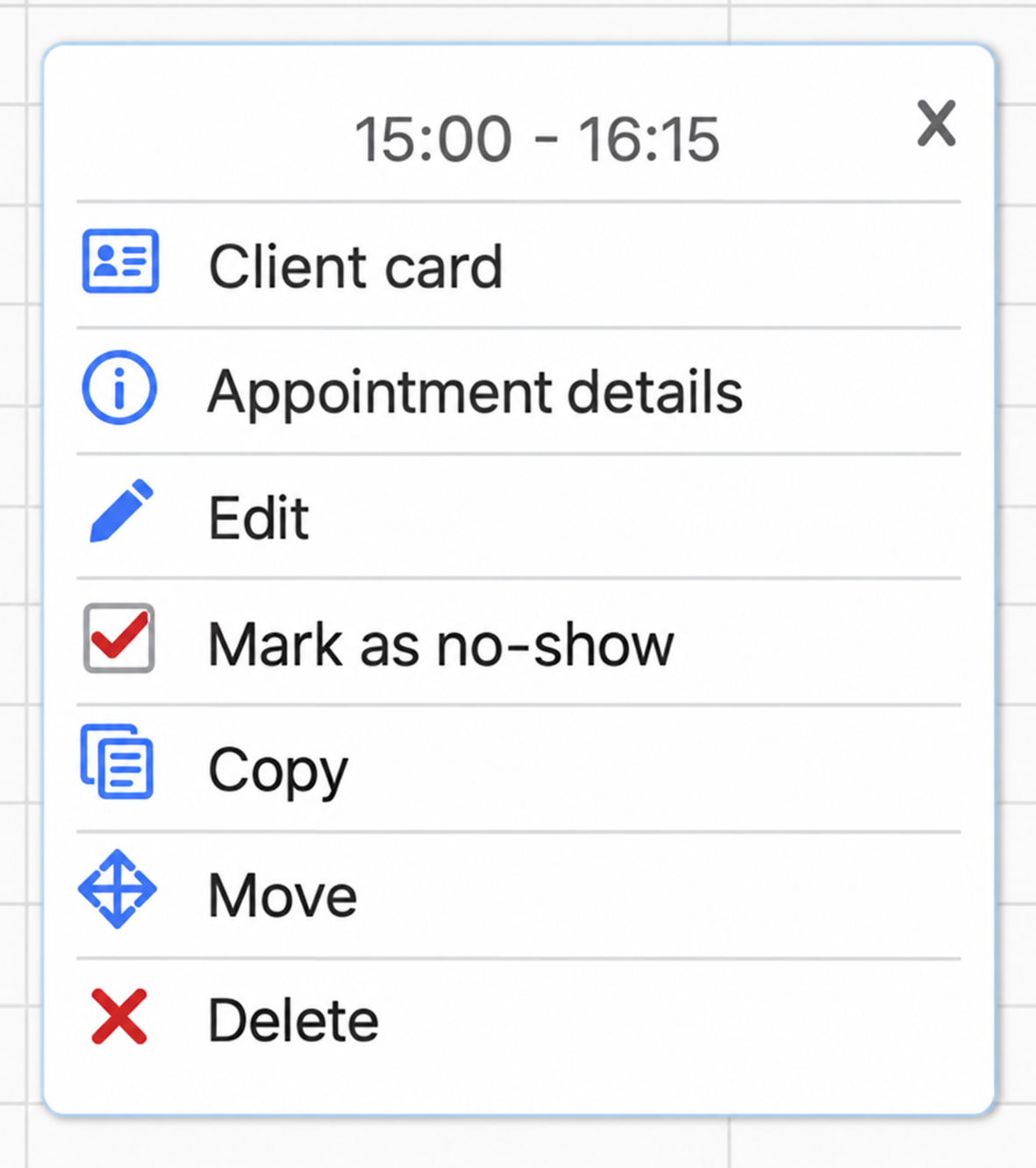
Click it again to remove the mark, for example if you marked it by mistake or discover that the client did attend.
Step 3. Use the Missed appointments report
Open Reports → Missed appointments to review a longer period.
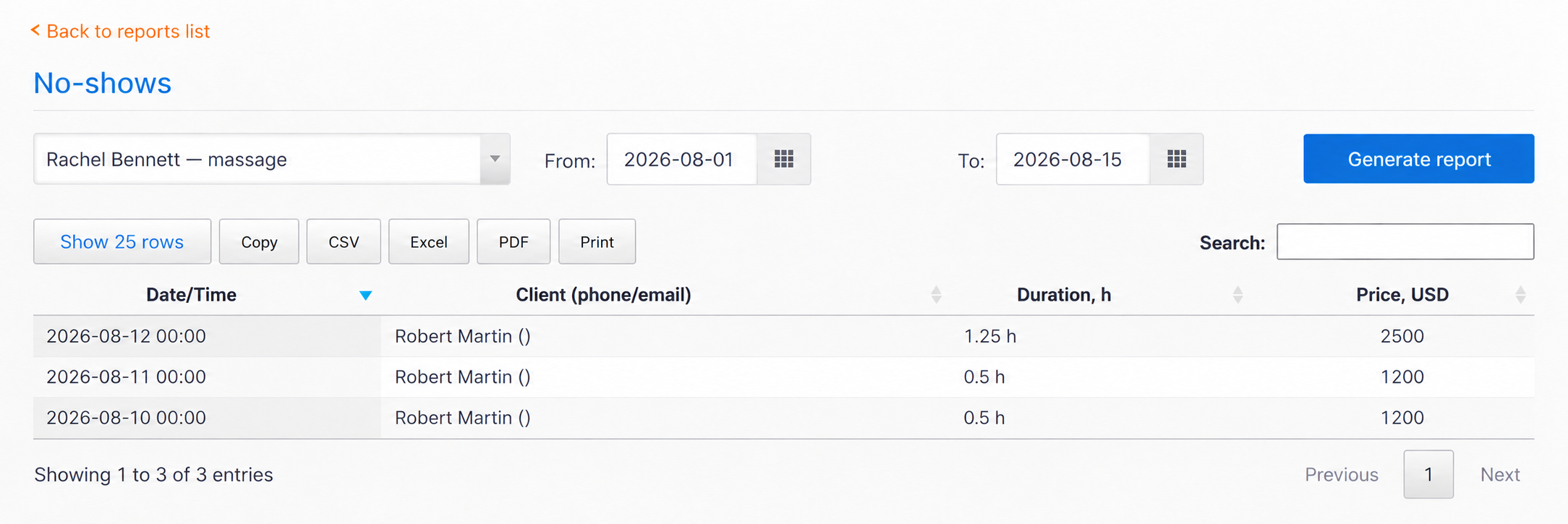
Choose a calendar and a From and To date, then click Generate report. The table includes:
- Date/Time;
- Client (phone/email);
- Duration, hours;
- Price.
Price helps estimate the value of missed bookings. The sample contains amounts of 1,200 + 1,200 + 2,500 USD. These are demonstration service prices, not TimePlan fees. Duration is shown in hours: 75 minutes appears as 1.25 hours.
You can sort the table, search for a client and export it using Copy / CSV / Excel / PDF / Print.
There are two details to remember:
- You must select a calendar. The report does not provide a company-wide summary across all calendars.
- Date/Time shows 00:00 as the time. The date is correct; check the calendar for the appointment's exact time.
Other reports do not display the no-show mark. In the full visit log and client history, a missed appointment looks like an ordinary booking. The Visits counter in the client list also includes missed appointments. Use the dedicated report to analyse no-shows separately.
Step 4. Block bookings after a chosen number of no-shows
You can automatically prevent further bookings after repeated no-shows.
Open Settings → Clients → Restrictions.
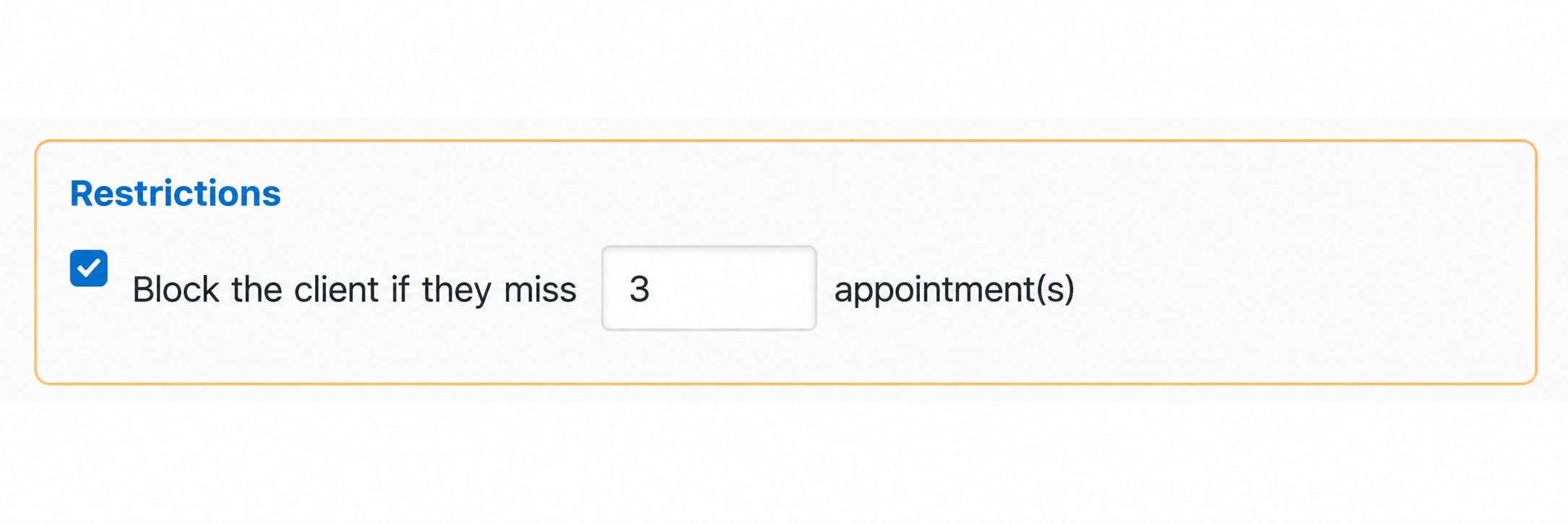
Enable Block the client after N missed appointments, enter the limit and save. The example uses 3.
As soon as a new no-show mark brings the client's total to the limit, the client is blocked immediately.
Enabling this rule does not retrospectively process existing marks. If you set the limit later, it takes effect when you add the next no-show mark.
What happens to a blocked client?
The client disappears from the ordinary Clients list. Enable Show blocked clients to find them; an Active column then appears.
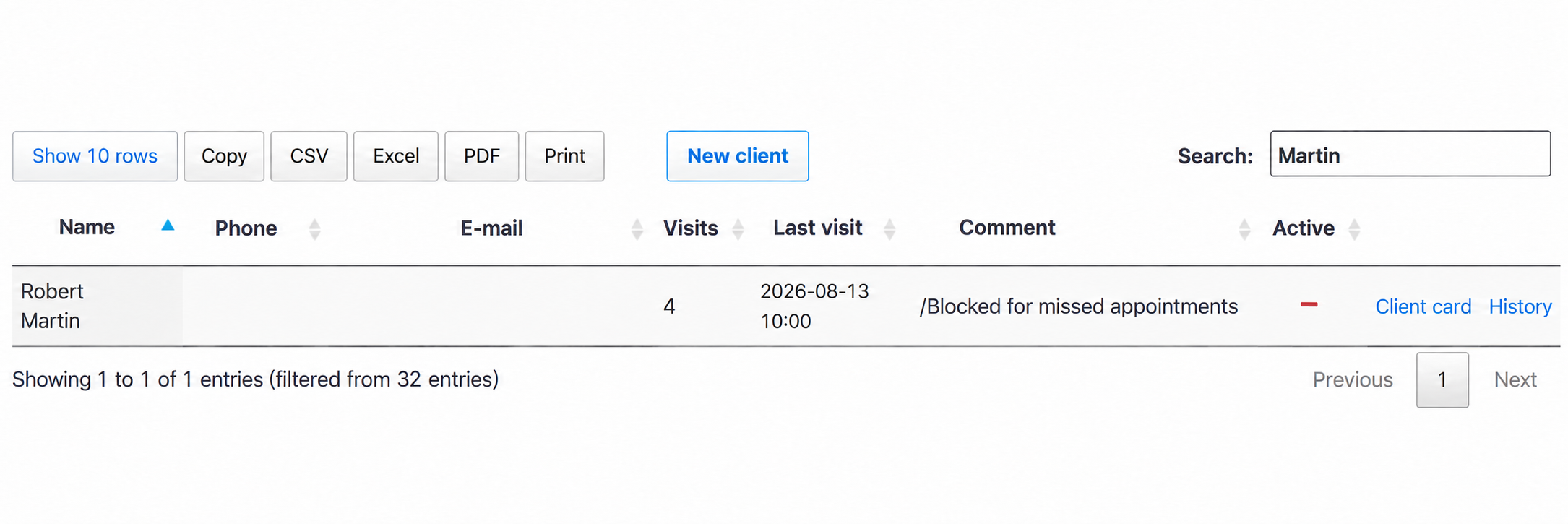
A red minus appears under Active, and /Blocked for missed appointments is added to the comment.
The client also disappears from client search in the calendar. An administrator cannot create a new booking for them until the block is removed.
The client can still open the booking page and choose a service and time. When they try to confirm, they see a restriction message.
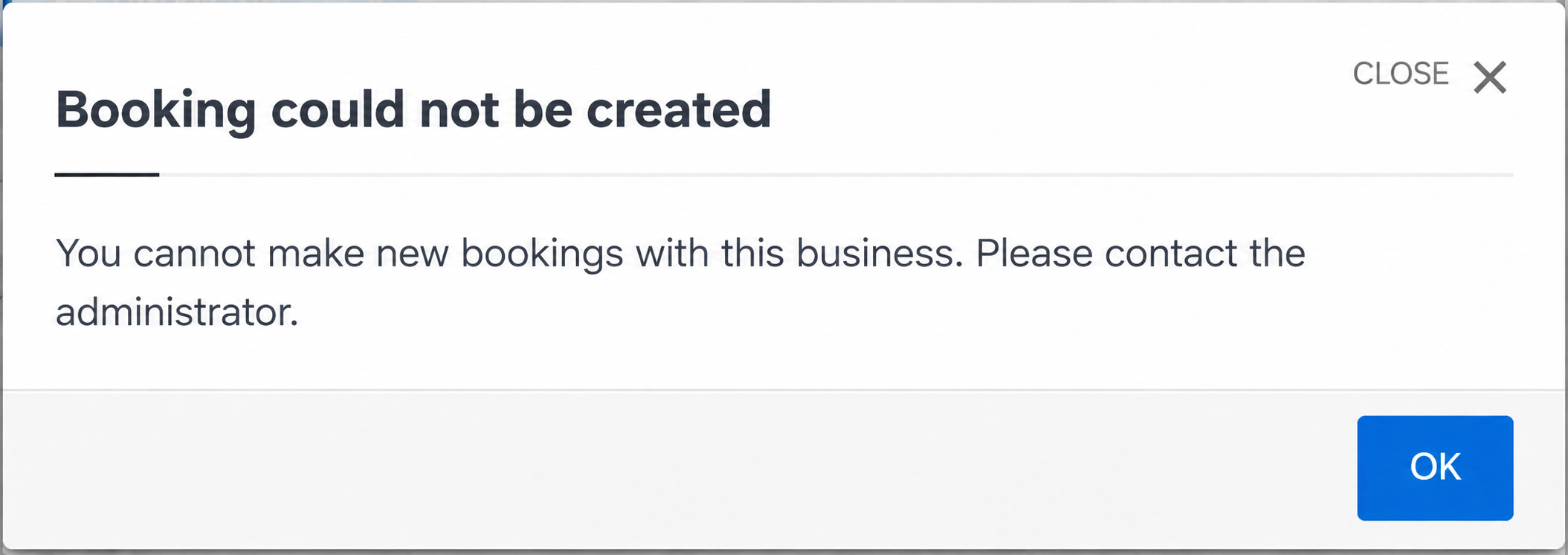
Your ability to create new bookings with this company is restricted. Please contact the company administrator.
The message does not show the reason or the number of no-shows.
The block applies across the whole company, so choosing a different specialist in the same company does not bypass it.
Give a client another chance
To unblock someone, enable Show blocked clients, open their Client card and clear Client inactive (blocked).
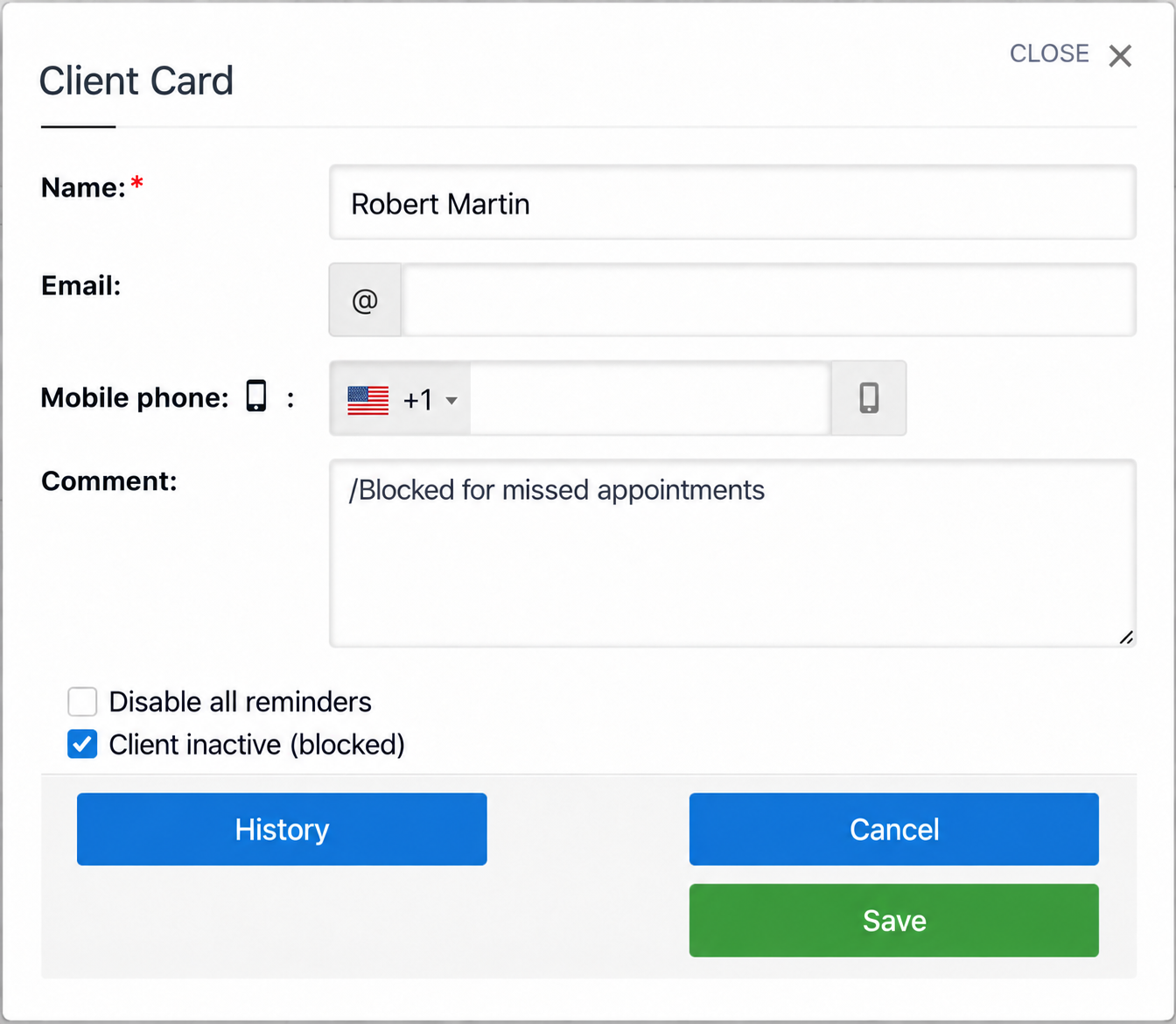
After saving, the client reappears in the list and calendar search and can book independently again.
The automatic comment is not removed when you unblock the client. Remove it manually if appropriate.
Unblocking does not remove old no-show marks. If the limit has already been reached, the next missed appointment blocks the client again.
You can therefore:
- give another chance: unblock the client and preserve the old marks;
- restart the count: unblock the client and remove the old Missed marks in the calendar.
Block a client manually
You can also enable Client inactive (blocked) directly in their profile without using the automatic rule.
The effect is the same: the client disappears from the normal list and calendar search and cannot make new bookings independently.
Use this when your company needs to stop accepting new bookings from a particular client.
Group classes do not support no-show marking
There is currently no separate no-show mark for individual group participants.
The menu for a past group session contains the usual group actions.
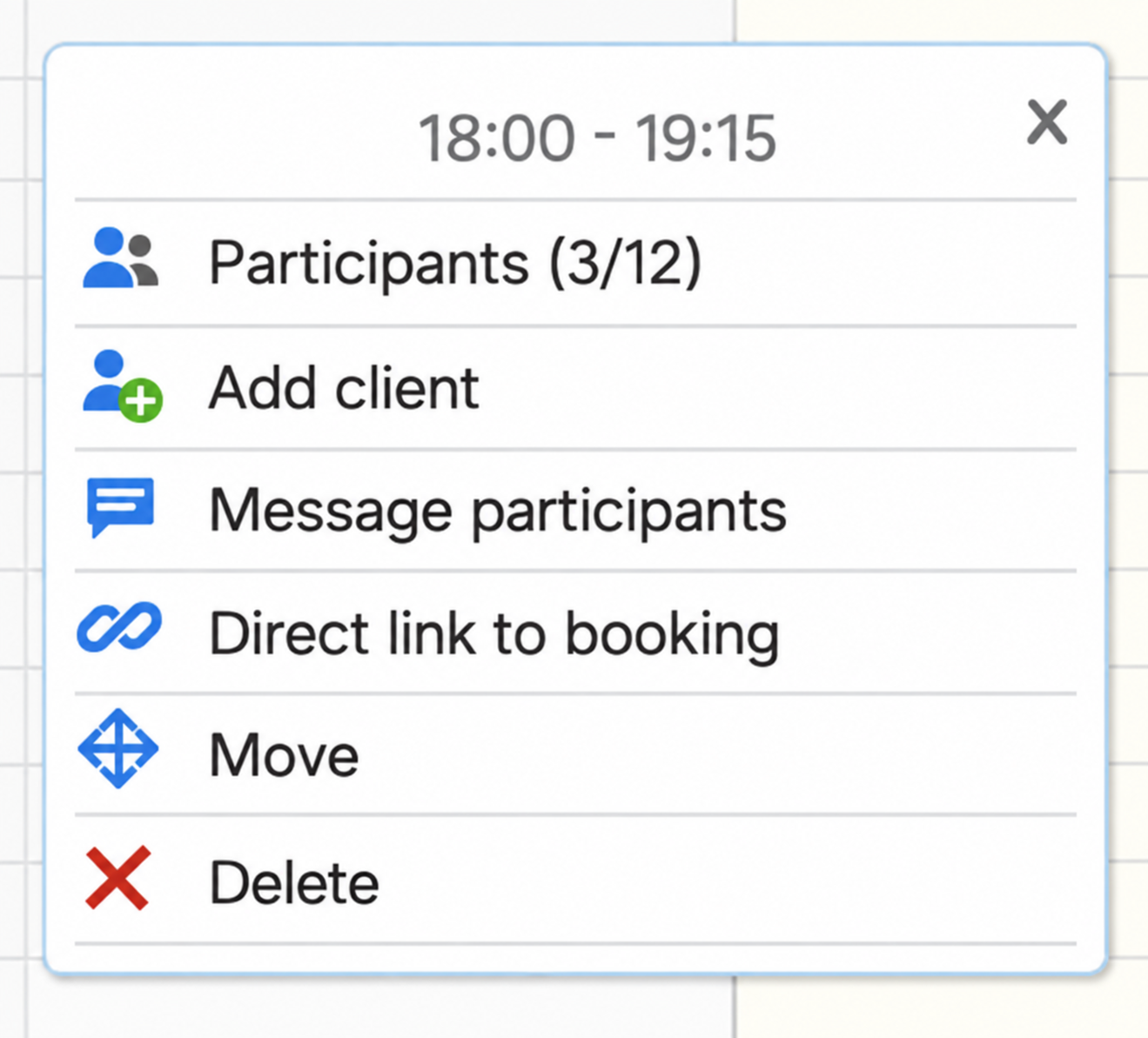
You can view Participants, Book client, send a Message to participants, copy a Direct booking link, Move or Delete the session. You cannot mark the group event or one participant as missed.
As a result:
- only ordinary individual appointments can receive no-show marks;
- absent group participants do not appear in the Missed appointments report;
- group absences do not count towards automatic blocking.
A client who is already blocked cannot join a group class either, because the block applies to the entire company.
If you need group-attendance tracking, keep those records separately from TimePlan's no-show mechanism.
Quick checklist
- Open a past individual appointment and select Mark as no-show.
- Click Missed again to remove an incorrect mark.
- Open Reports → Missed appointments, choose a calendar and set the date range.
- If needed, enable the no-show limit under Settings → Clients → Restrictions.
- Remember that blocking happens when a new mark is added and applies company-wide.
- Find blocked clients with Show blocked clients.
- When unblocking, decide whether to preserve old marks or remove them to restart the count.
Things to keep in mind
- Adding or removing a no-show mark takes one click, with no confirmation.
- Only past appointments can be marked.
- Blocking happens when you add the mark, not when the client next tries to book.
- Enabling a limit does not retrospectively block clients based on existing marks.
- Automatic blocking sets the client to inactive and adds a comment. It does not change Disable all reminders.
- Unblocking preserves both old marks and the automatic comment.
- The report covers one calendar and displays the time as 00:00.
- The visit log and client history do not display a separate no-show indicator.