
Recurring appointments in TimePlan: weekly client bookings
When a client comes at the same time every week, you do not need to enter each appointment manually. The same applies to regular training, courses and group classes.
With weekly repetition, you create an appointment once and TimePlan reserves the same time in subsequent weeks. Without an end date, the series extends automatically as more dates open for booking.
This guide covers enabling repeats, creating a series, handling conflicts, moving or cancelling sessions, and combining repeats with groups and lesson packages.
1. Enable repeats for the service
Repetition is configured for each service separately. You might allow weekly personal training while keeping consultations as one-off appointments.
Open Settings → Services, choose the calendar and find Repeat in the service card. Enable Allow weekly repetition.
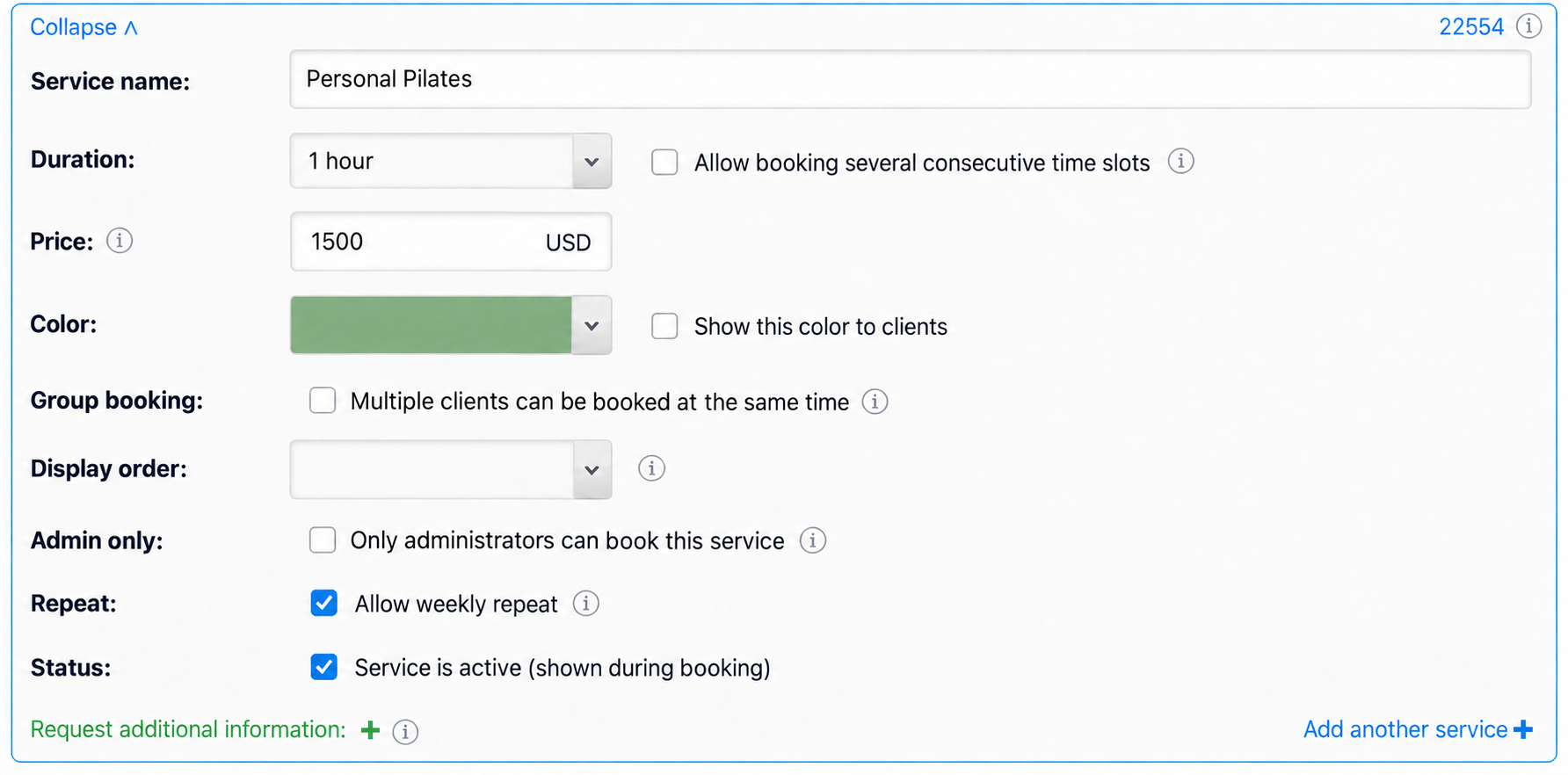
After saving, the booking form for this service includes ↻ Weekly. Weekly repetition is unavailable for daily services and services that require two specialists at once.
2. Create a recurring booking
Find the client, click Book client and select the service. Enable ↻ Weekly below the service list.
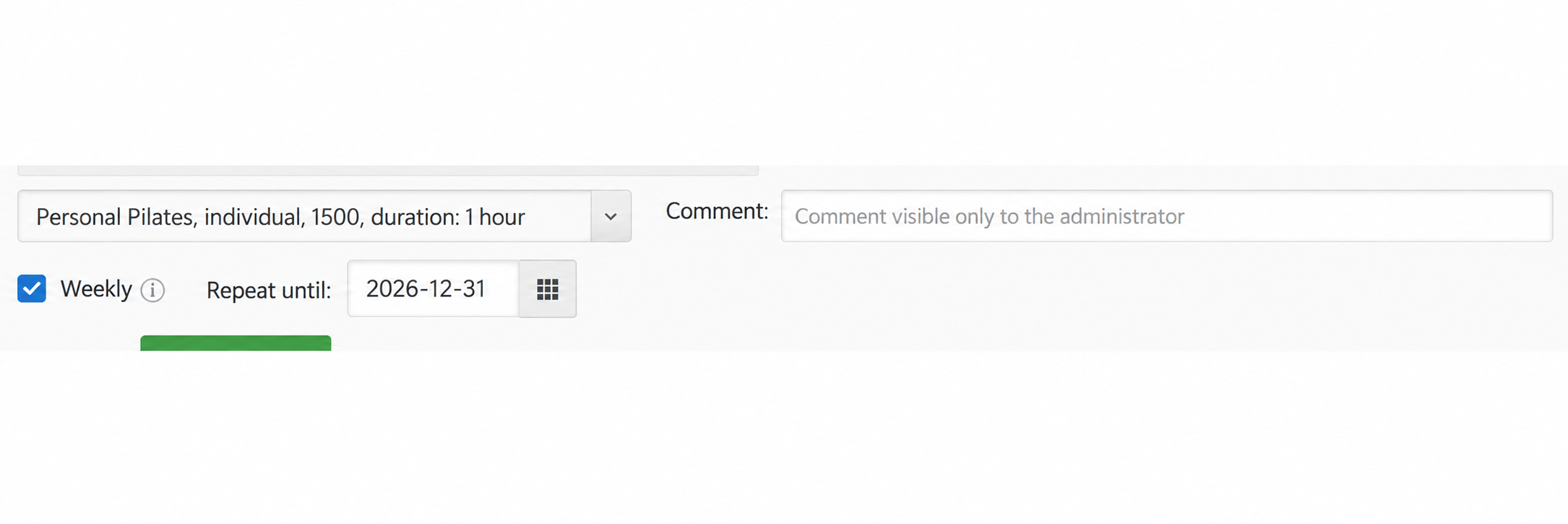
The Repeat until field appears. You can:
- set an end date for a fixed-length course;
- leave it blank for a regular client whose series should continue until you stop it.
Click Choose time and select an available interval. The confirmation window makes it clear that you are creating a weekly series.
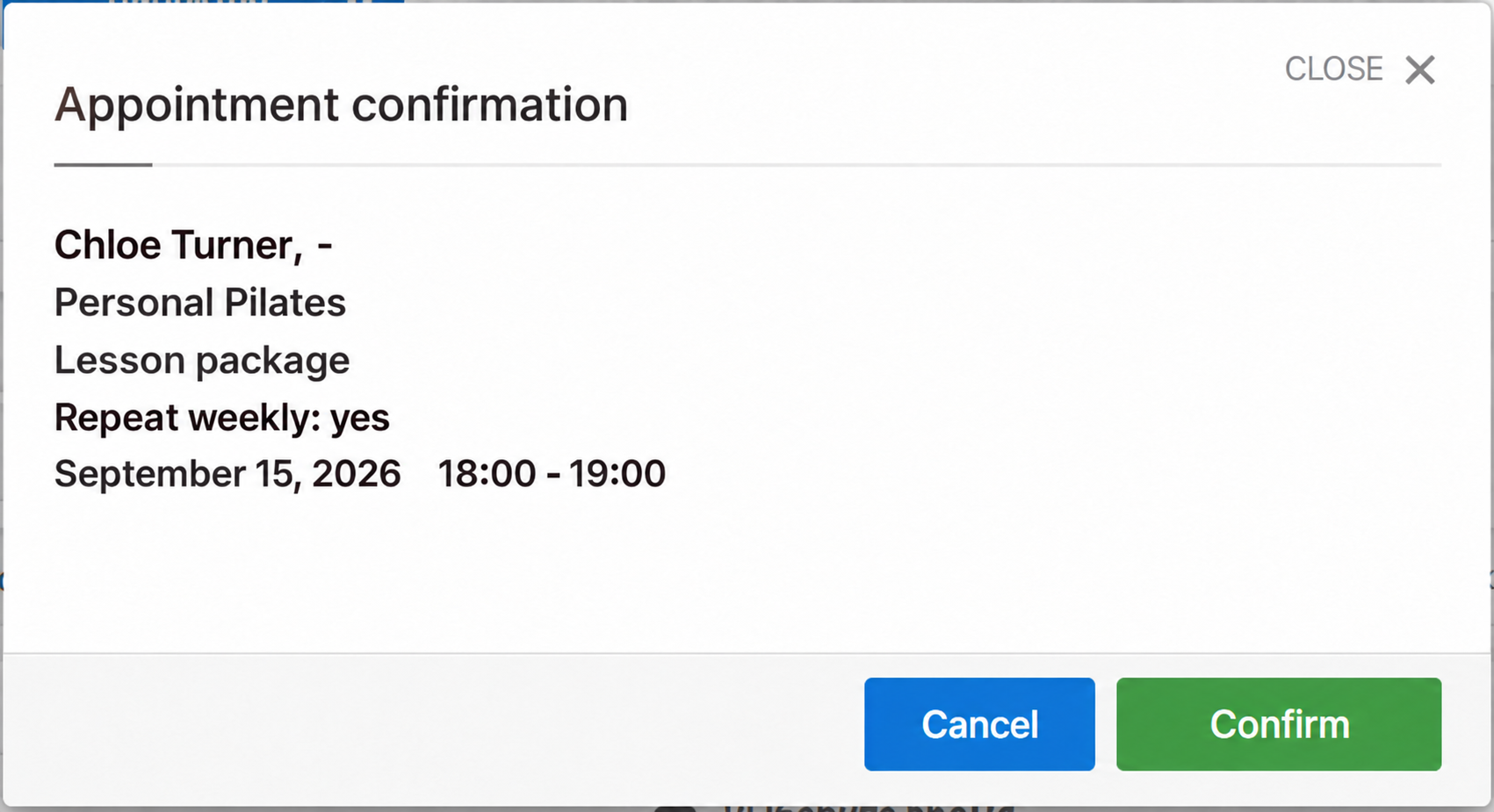
Check Repeat weekly: yes before confirming. The sessions will appear in the weeks currently available for booking.
3. Recognise a series in the calendar
Every appointment in a series has a ↻ symbol.
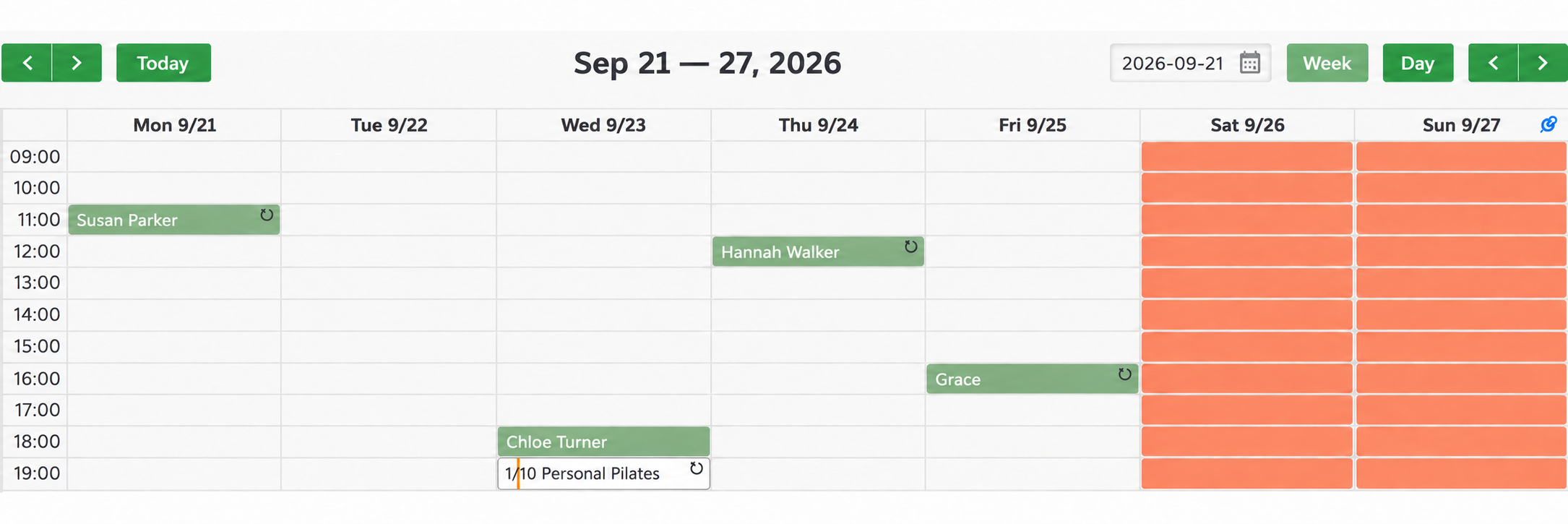
The example shows individual series and a recurring group class with a participant counter. An appointment without ↻ is a one-off booking.
4. Let clients book their own series
When repetition is enabled for a service, clients also see ↻ Weekly on the booking page.
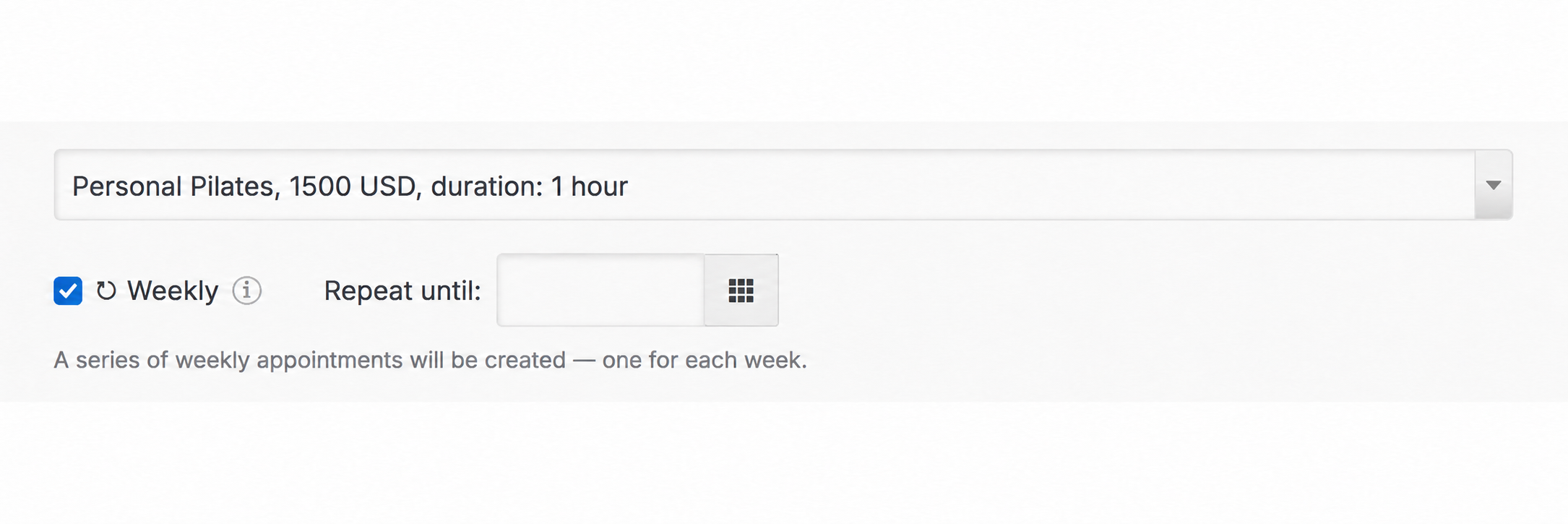
A regular client can reserve the same time for the following weeks. The interface shows ↻ beside the service and explains that a series will contain one appointment per week.
The Until field works just like the administrator's field: enter an end date or leave it blank.
Before booking, clients see another confirmation that they are creating a series.
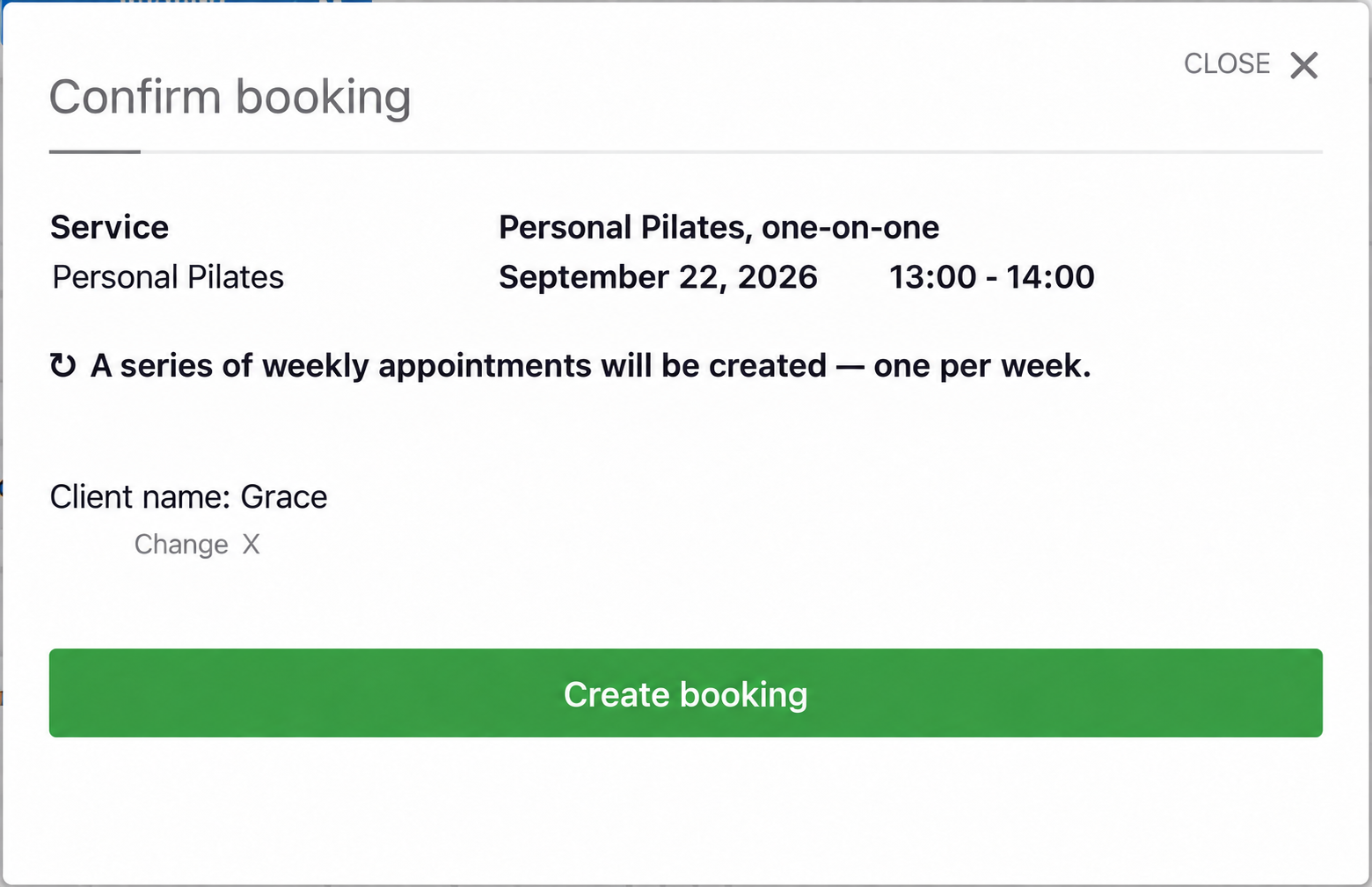
5. How far ahead a series is created
A series is created only up to the booking horizon: the last date currently open in the calendar.
Set this under Settings → Working hours, using the automatic schedule-generation option. For example, you can open bookings 30, 60 or 90 days ahead.
A 60-day horizon covers roughly nine weekly sessions; a 90-day horizon covers about thirteen.
As new dates open, TimePlan automatically adds sessions to the series. You do not have to rebook a regular client every month. The series continues until its end date or until you stop it manually.
If you end a series by deleting this and all following weekly appointments, those deleted sessions will not return when the schedule extends.
See Working hours and available booking times for more on the booking horizon.
6. Handle dates that are already taken
If the same time is occupied in a future week, TimePlan shows the conflict before creating the series.
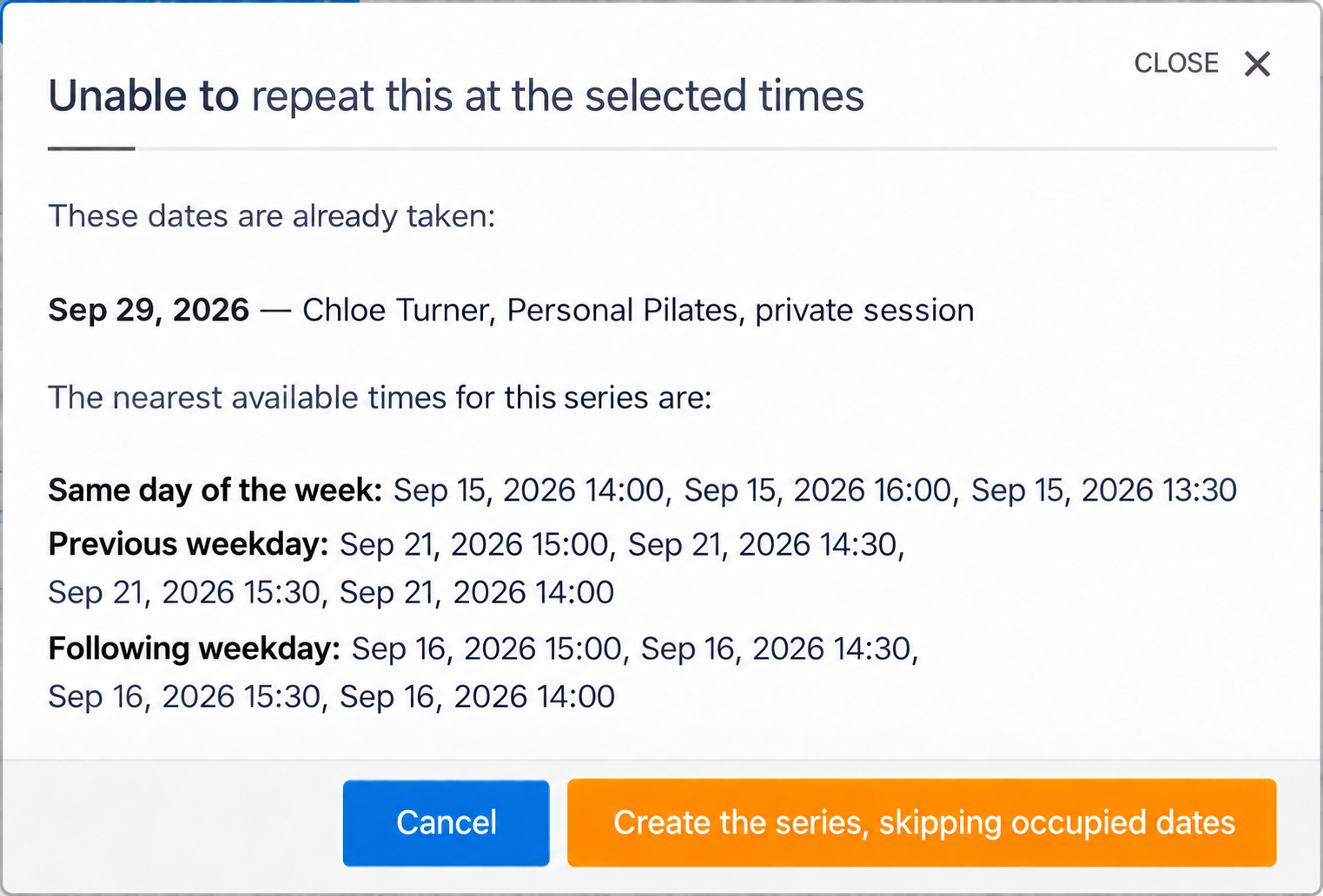
The window shows:
- occupied dates and existing appointments;
- nearby available times on the same or an adjacent day;
- Create the series, skipping occupied dates.
The last option creates appointments for available weeks and leaves the conflicting dates without a new booking. You can keep an existing appointment for one week and continue the regular schedule after it.
7. Cancel one session or end the series
If a client cannot attend for one week, there is no need to delete the entire series.
Open the appointment and select Delete. For a recurring booking, choose the scope.
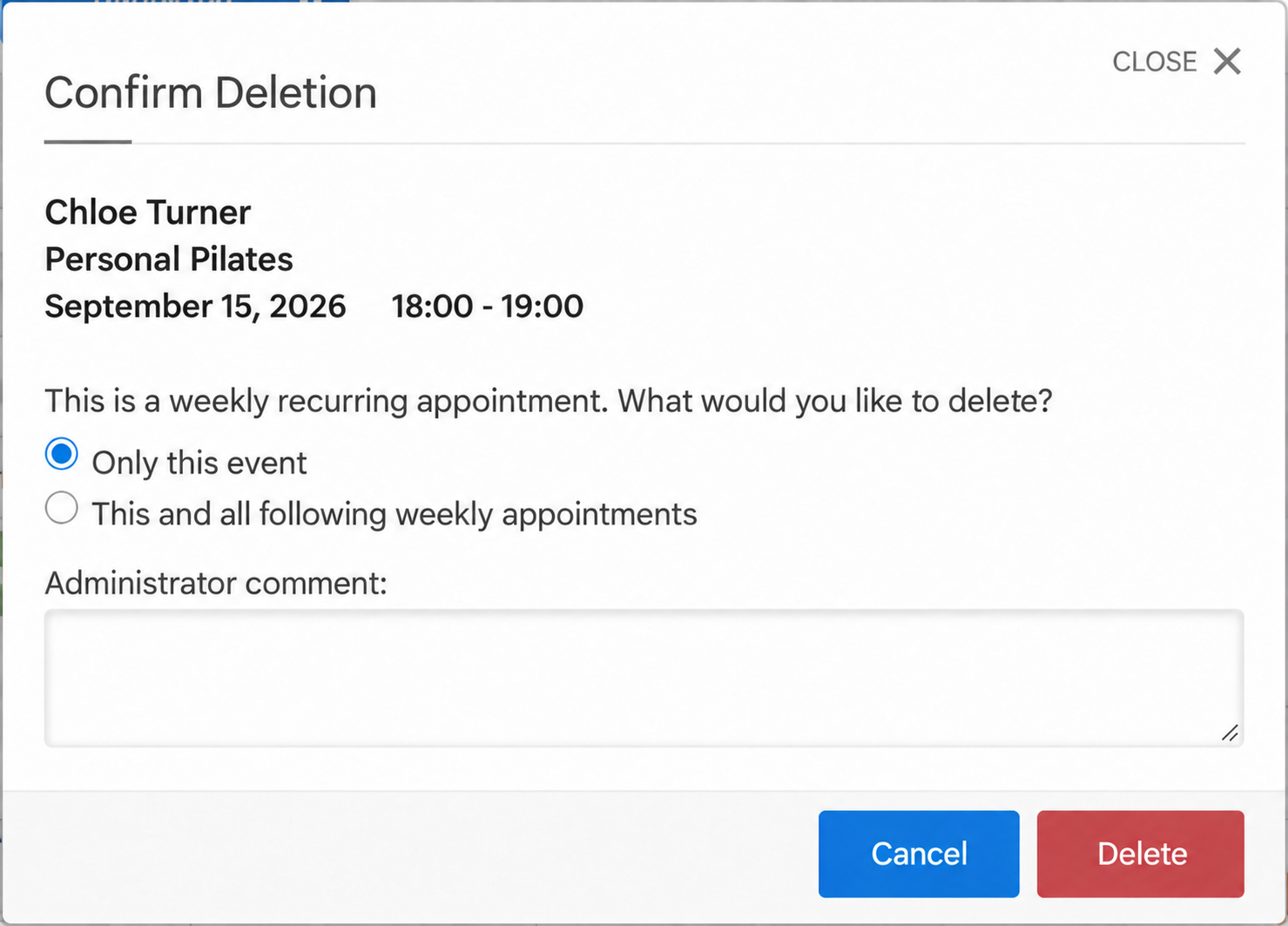
- Only this event: deletes the selected session.
- This and all following weekly appointments: deletes that session and the remaining series.
Earlier appointments remain. To stop regular appointments from a particular date, open the first unwanted session and delete it together with all following sessions.
Clients have the same choice in My Appointments.
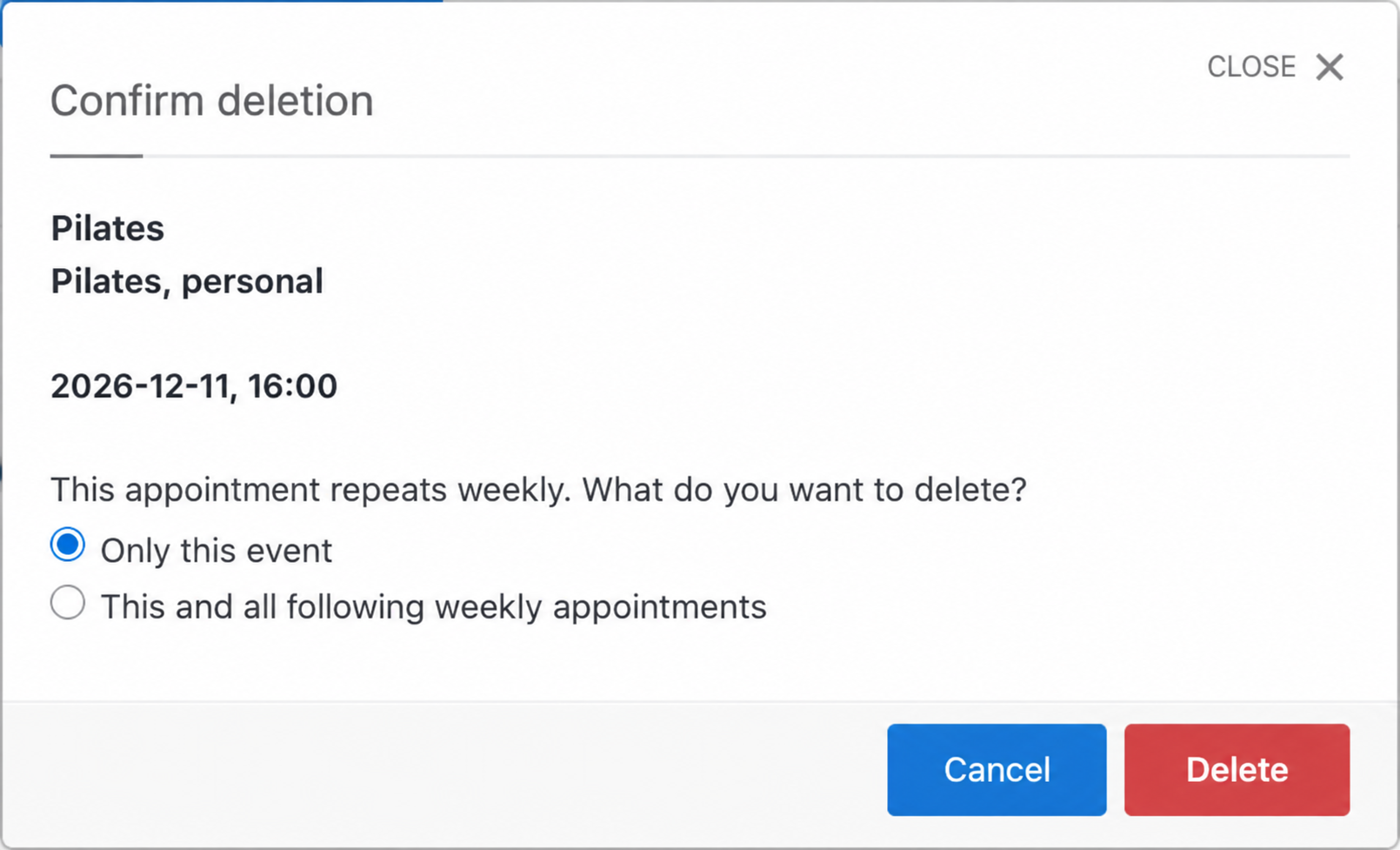
They can cancel one week or end their series themselves.
8. Move one session or change the regular time
To move a single session, open it, click Move and choose a new time.
The moved appointment leaves the series and becomes a one-off booking. Its ↻ symbol disappears. The remaining appointments stay at their original times.
For example, moving one Wednesday lesson to Thursday does not change the following week's Wednesday lesson.
There is no single command to move the whole series. To change the regular time:
- Open the first session that should no longer follow the old schedule.
- Choose Delete → This and all following weekly appointments.
- Create a new series on the new day and time.
TimePlan can then check the new dates for conflicts, while past appointments remain in the history.
9. Recurring group classes
Weekly repetition also works for group services, such as Wednesday Pilates or a Friday conversation club.
Switch to Group mode in the calendar and select the service. If repetition is allowed, you will see ↻ Weekly and the end-date field.
Each session in the resulting series is a separate group event with its own capacity counter.
The usual group-booking rules apply:
- clients join a specific session, not the entire series at once;
- each session has its own participant list;
- you can delete one session or that session and all following ones;
- participant lists, messages and direct booking links work as they do for other group events.
See Group classes in TimePlan.
10. Recurring appointments and lesson packages
If a calendar requires a lesson package, the series takes the remaining balance into account.
Each appointment uses one session. A series cannot contain more appointments than the client has available sessions.
For example, a balance of six sessions allows six weekly bookings, even when the calendar is open much further ahead.
In My Appointments, clients see the sessions, the ↻ symbol and their package information.
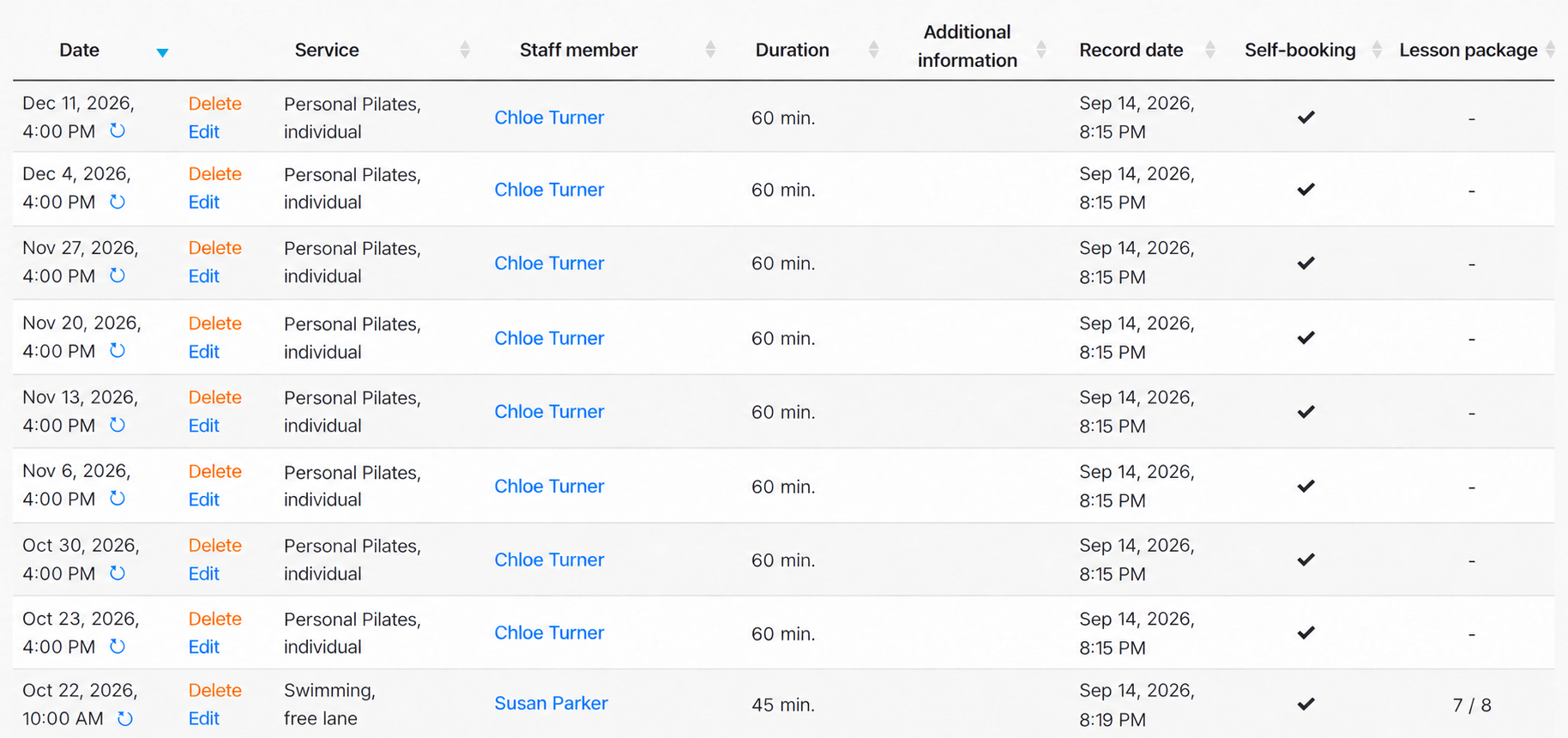
When the package sessions run out, the series stops extending. After a new package is issued, create a new recurring booking.
Quick checklist
- Enable Allow weekly repetition under Settings → Services.
- Select ↻ Weekly when booking.
- Enter Repeat until, or leave it blank for an ongoing series.
- Check for ↻ symbols in the calendar.
- Resolve conflicts by choosing another time or skipping occupied dates.
- Tell regular clients that they can create weekly series themselves.
Things to keep in mind
Repetition is weekly only. This setting does not create fortnightly or monthly appointments.
The series follows the booking horizon. It occupies open weeks and extends as more dates become available.
A moved session leaves its series. The other sessions keep their original schedule.
To change the regular time, end the old series and create a new one. This allows future dates to be checked again for conflicts.
Package bookings are limited by the remaining session balance. The series cannot create more sessions than the client has available.
My Appointments provides a convenient list of the series. Clients can see how many weeks ahead their bookings extend.