
Online booking for driving schools: lessons, lesson packages and driving tests
A driving school has to coordinate instructors, cars and students. Some students prefer mornings; others can only come after work. Manual and automatic cars need separate schedules, and regular lessons have different booking rules from using a car for a driving test.
TimePlan brings these schedules together. Students choose available times themselves, lessons count towards their packages, and regular appointments can repeat every week.
Our example uses two cars: a manual Kia Rio with instructor James Davis and an automatic Hyundai Solaris with instructor Daniel Anderson.
1. Two calendars for each car
A TimePlan calendar can represent a resource, such as a car, as well as a person. Selecting the car also selects its instructor in this example.
We use four calendars:
- Kia Rio, manual — driving lessons;
- Hyundai Solaris, automatic — driving lessons;
- Kia Rio, manual — driving tests;
- Hyundai Solaris, automatic — driving tests.
Lessons and driving tests have different opening hours and booking requirements, so each car has two calendars. Lesson bookings use lesson packages.
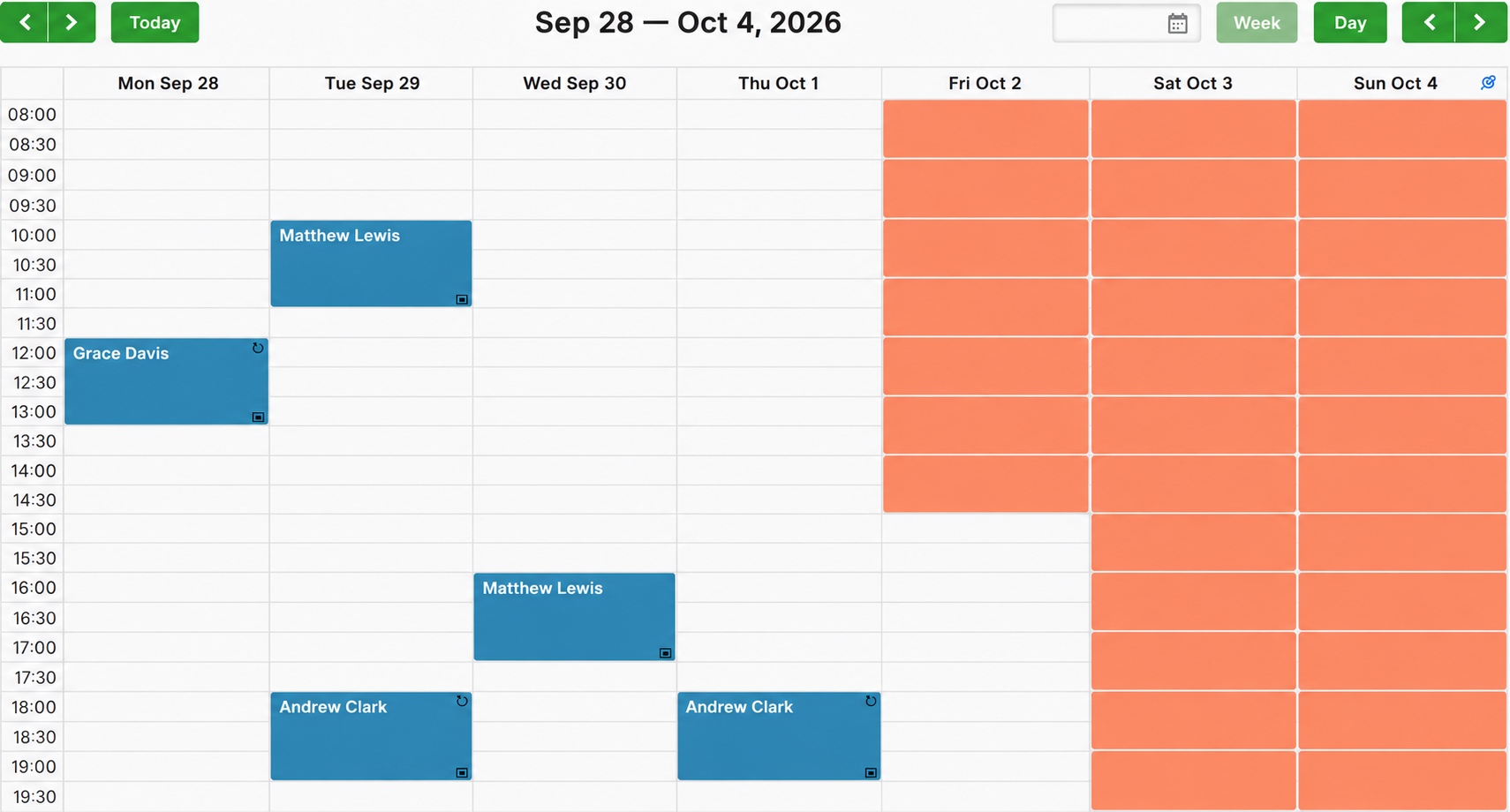
In the weekly calendar:
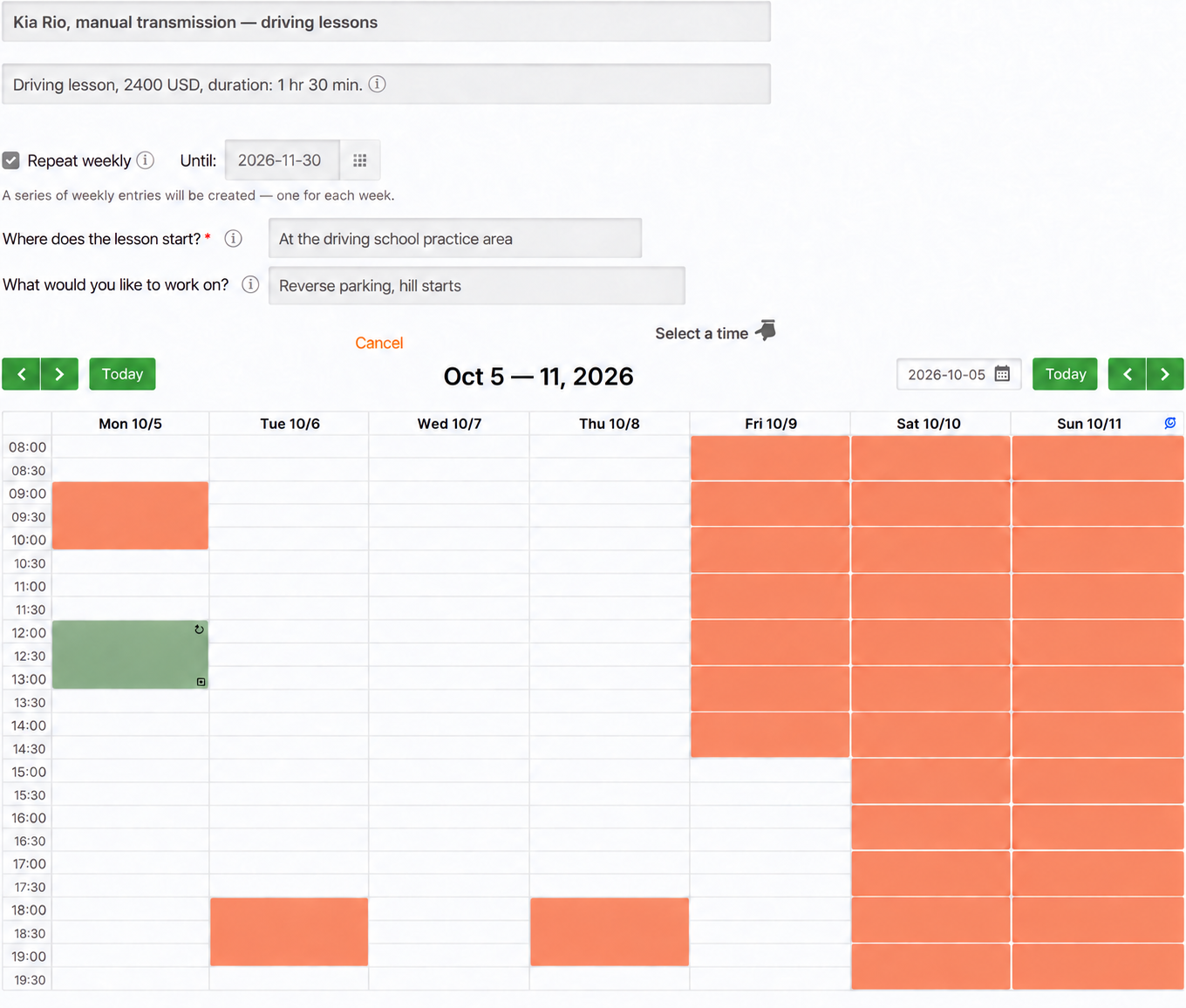
- Blue cards are driving lessons. Their height represents the 90-minute lesson duration.
- ↻ marks a weekly repeat. For example, Andrew Clark attends on Tuesdays and Thursdays at 18:00.
- ▣ indicates that a lesson is counted against a package.
- Orange cells are non-working hours: Friday before 15:00, Saturday and Sunday are closed for lessons.
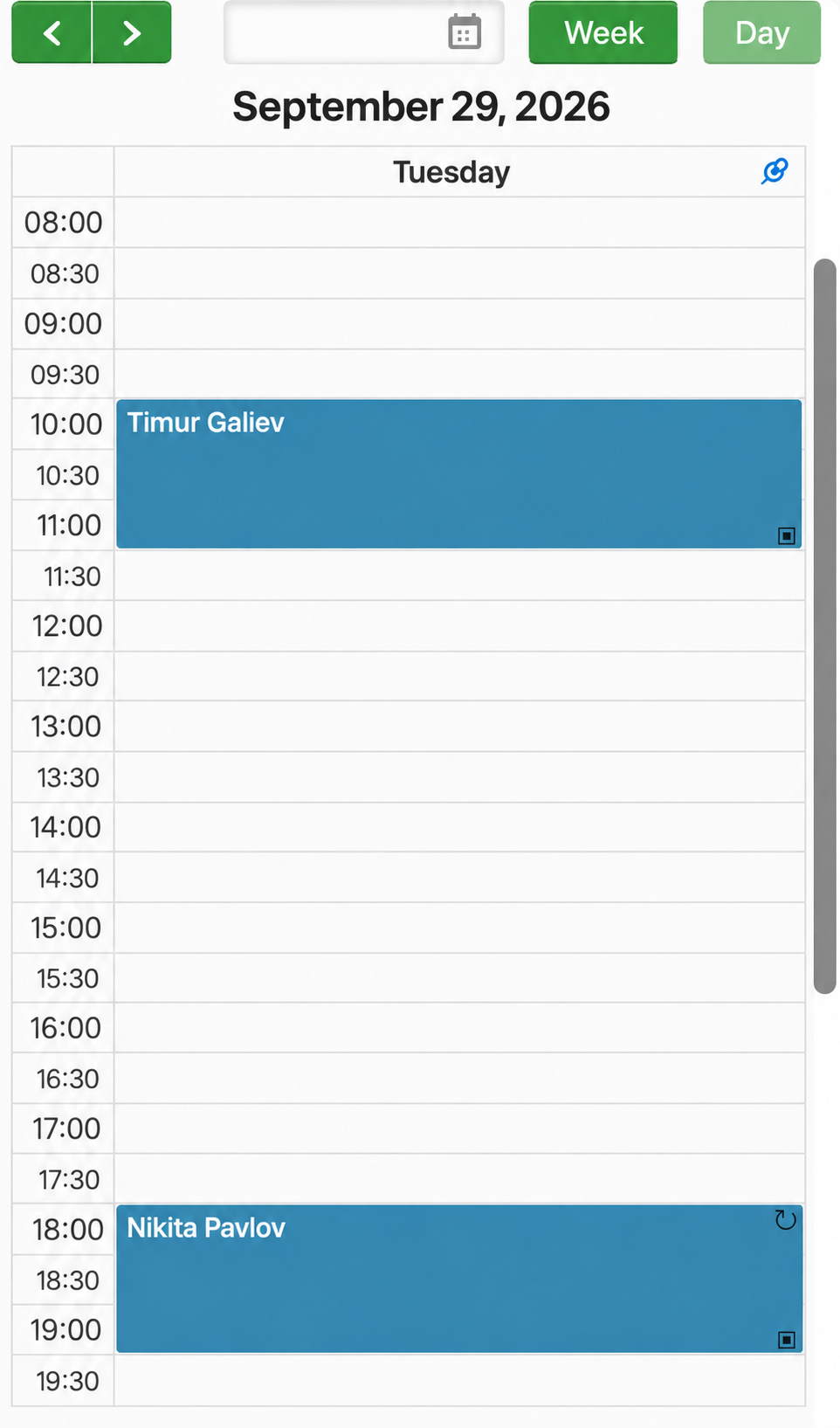
Instructors can use the same calendar on their phones. Day view is convenient on a small screen.
2. Keep driving tests separate from lessons
In this example, cars are used for driving tests on Fridays and Saturdays from 09:00 to 15:00. They must be unavailable for ordinary lessons during those hours.
The two calendars for each car therefore have different schedules:
- Lessons: Monday–Thursday, 08:00–20:00; Friday, 15:00–20:00.
- Driving tests: Friday and Saturday, 09:00–15:00.
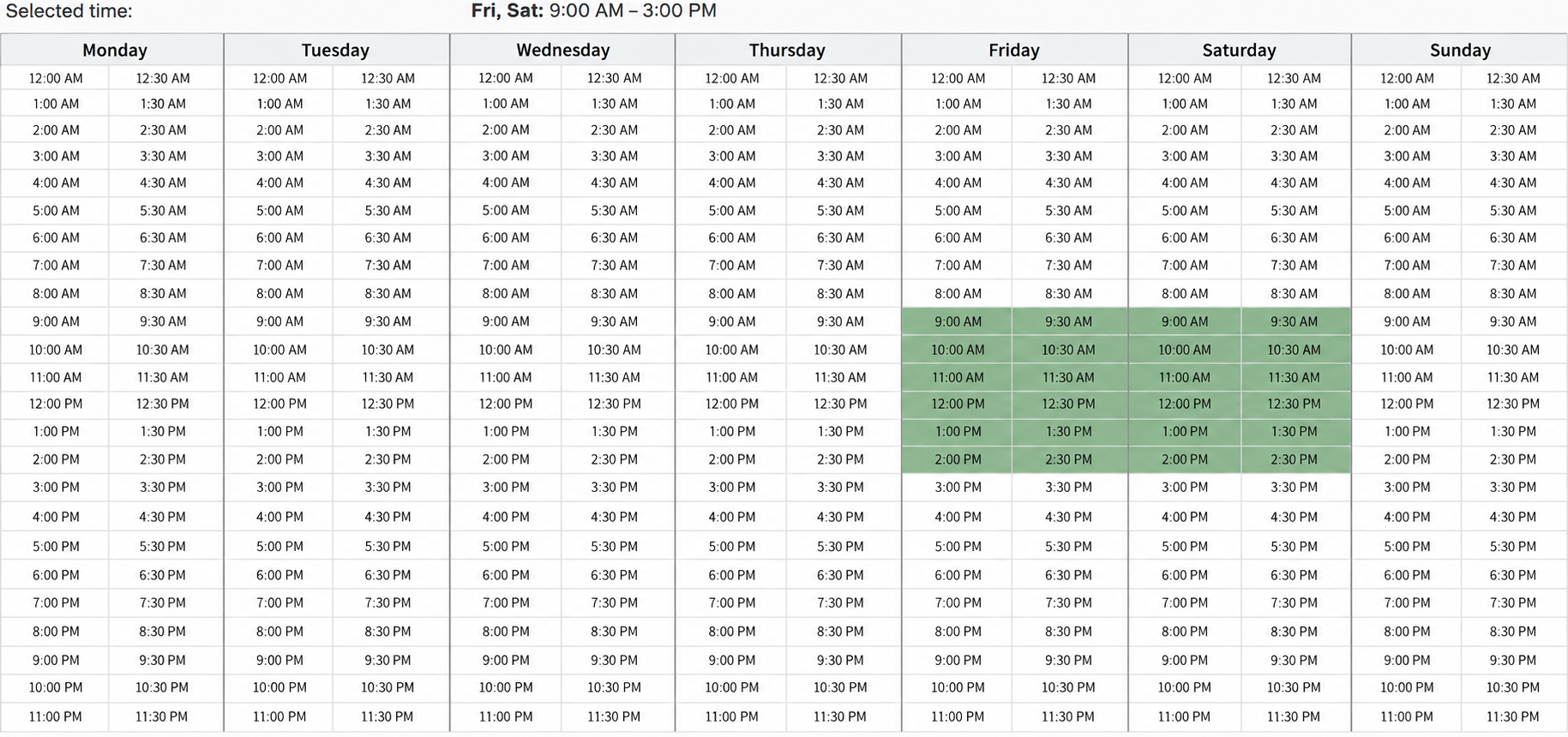
With these non-overlapping working hours, students cannot book the same car for a lesson and a test at the same time.
The two calendars are not linked automatically. Whenever you change working hours, check both calendars so the same car cannot receive two simultaneous bookings.
See Working hours and available booking times for details.
3. Offer driving lessons in packages
Practical lessons are often sold in packages of 10, 15 or 20 sessions. In TimePlan, a lesson package tracks these sessions: bookings count against it, and both the student and administrator can see the balance.
For lesson calendars, enable Booking with packages under Settings → Working hours → Restrictions. Students can then book independently when they have a suitable package. Our example also allows one booking without a package so a new student can meet the instructor.
Manage packages in the Packages section.
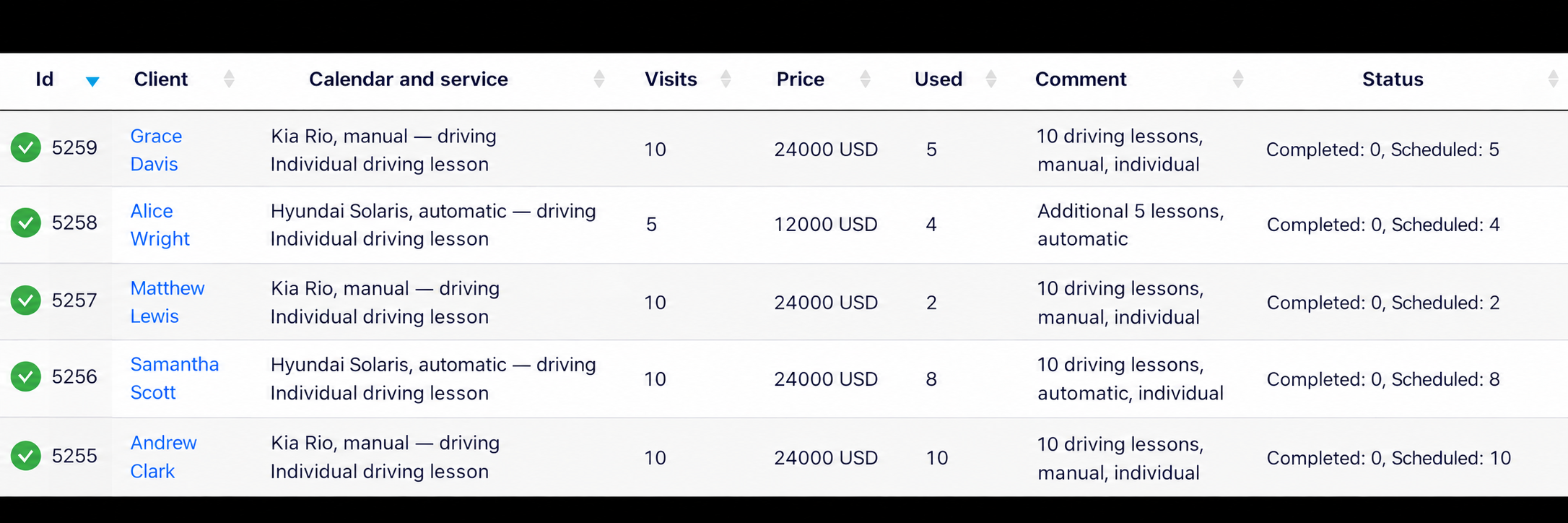
Each package applies to selected services. A Kia Rio package cannot be used for a Hyundai Solaris lesson unless that service is included too. Select both services when issuing a package for both cars.
Used shows how many sessions have been counted against the package. Status distinguishes completed sessions from scheduled ones.
See Lesson packages in TimePlan for setup and session accounting.
4. Reserve the same time for several weeks
For a student who attends at the same time each week, create a weekly series instead of adding lessons one by one.
Enable ↻ Weekly in the booking form and, if needed, set a Repeat until date.
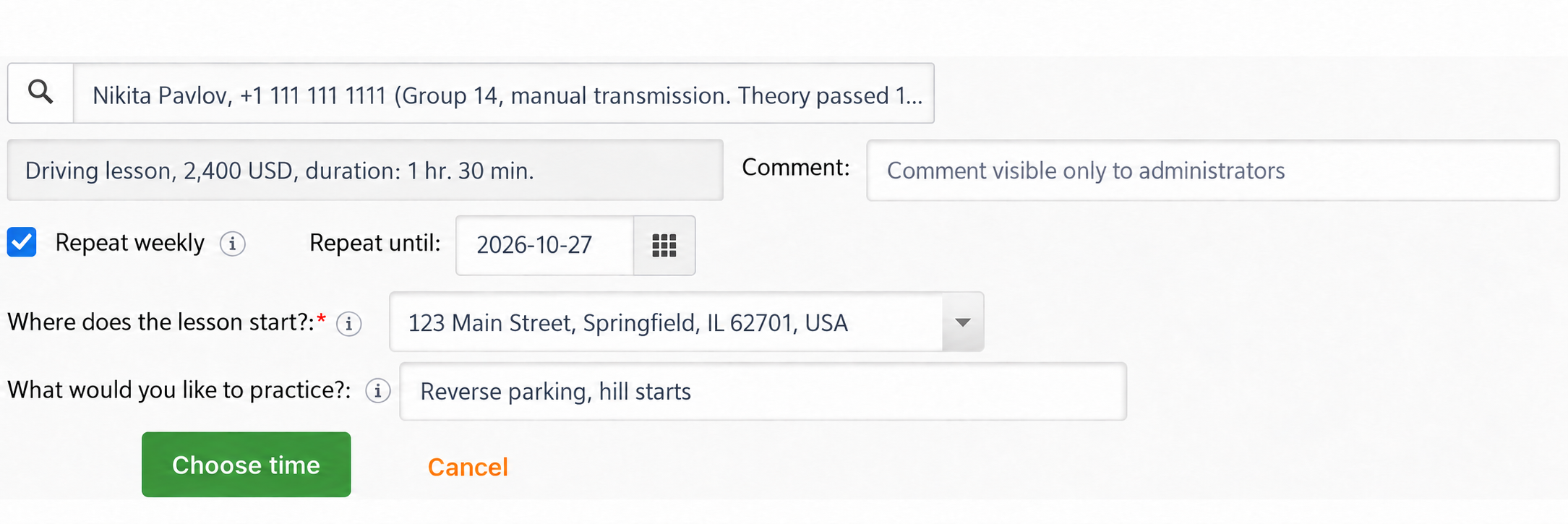
The form also collects information for the instructor:
- Where shall we start? A required choice between the practice area and a meeting point in town.
- What would you like to practise? An optional answer, such as reverse parking or hill starts.
Add these questions in the service settings. Both administrators and students can answer them.
Before confirming, choose whether to use a session from the package.
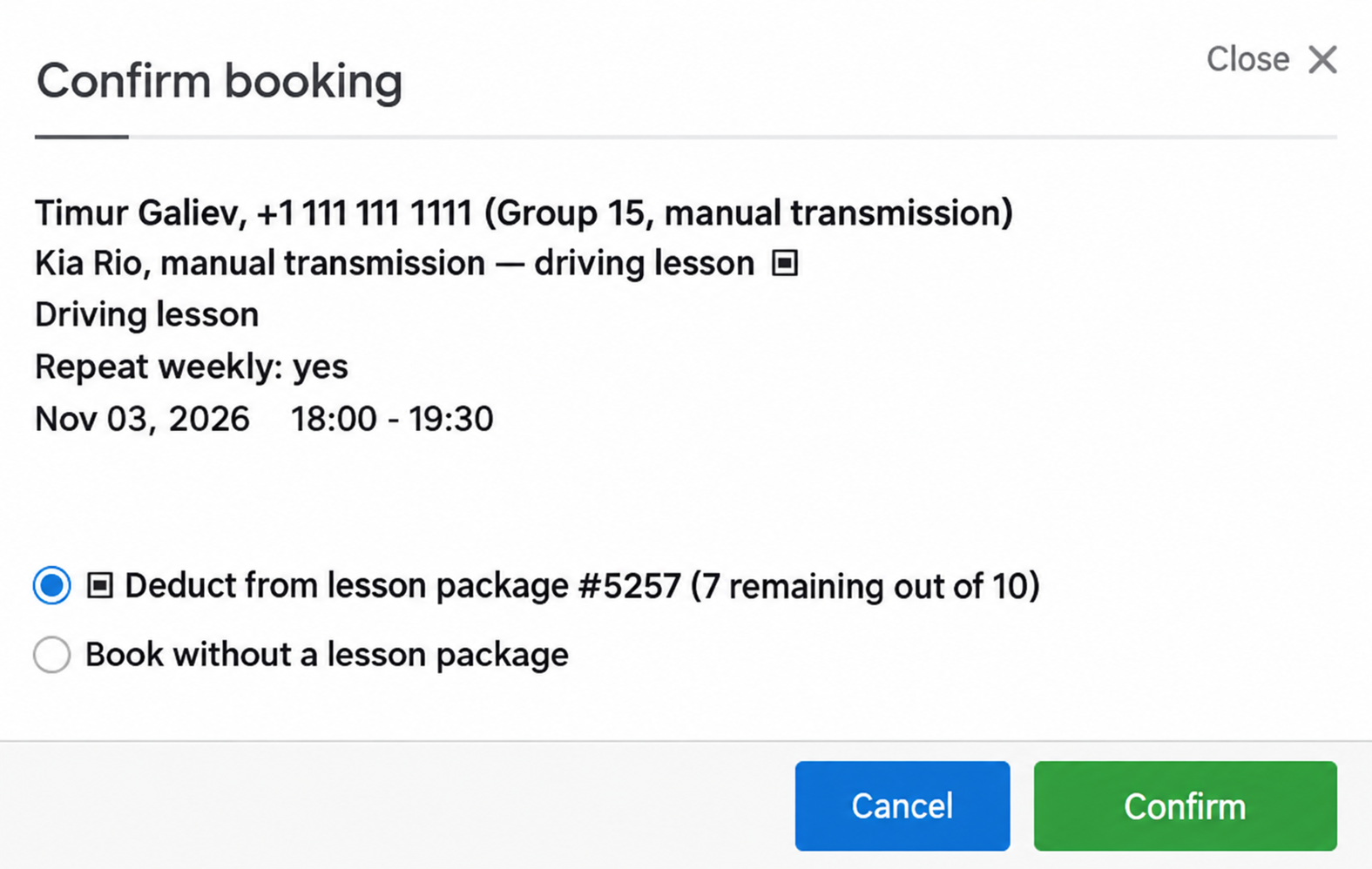
Choose Use a package session for lessons included in a purchased package. Book without a package is available when you want to handle a lesson separately.
The series cannot exceed the remaining package balance. If five sessions remain, TimePlan creates no more than five weekly bookings, even if the calendar is open two months ahead.
See Recurring appointments for end dates, extending a series and making changes.
5. How students book
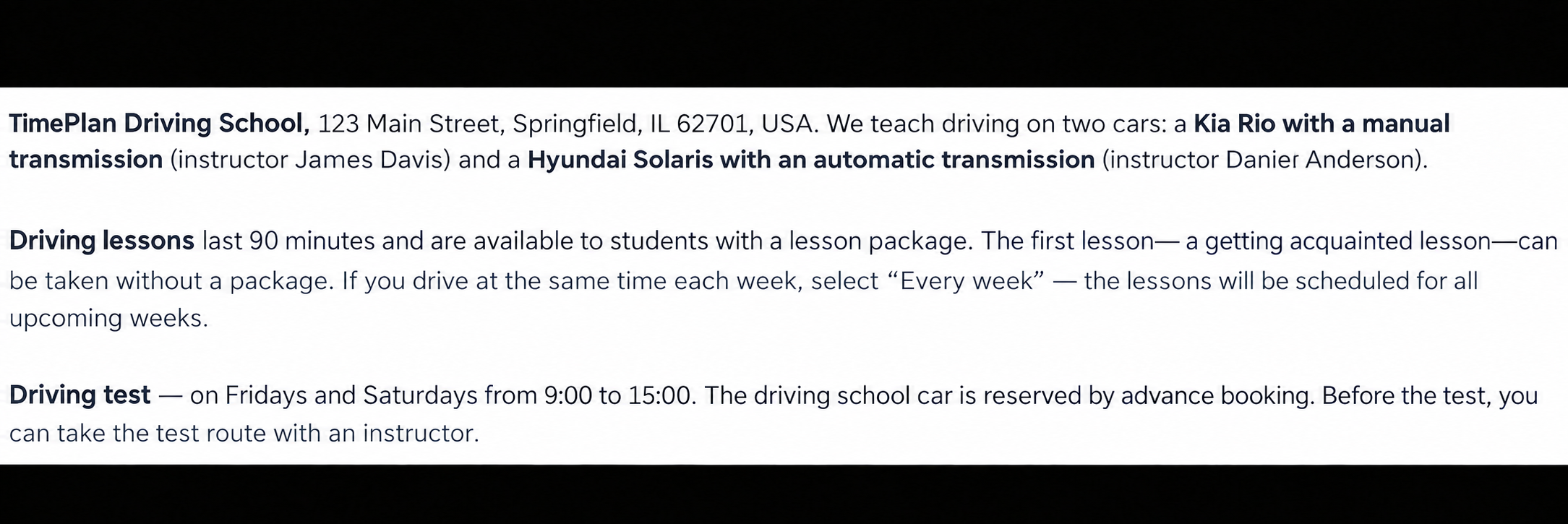
The school's booking page describes its cars, instructors and lesson arrangements.
Students choose a car and service, enable Weekly if appropriate, answer the extra questions and select an available time.
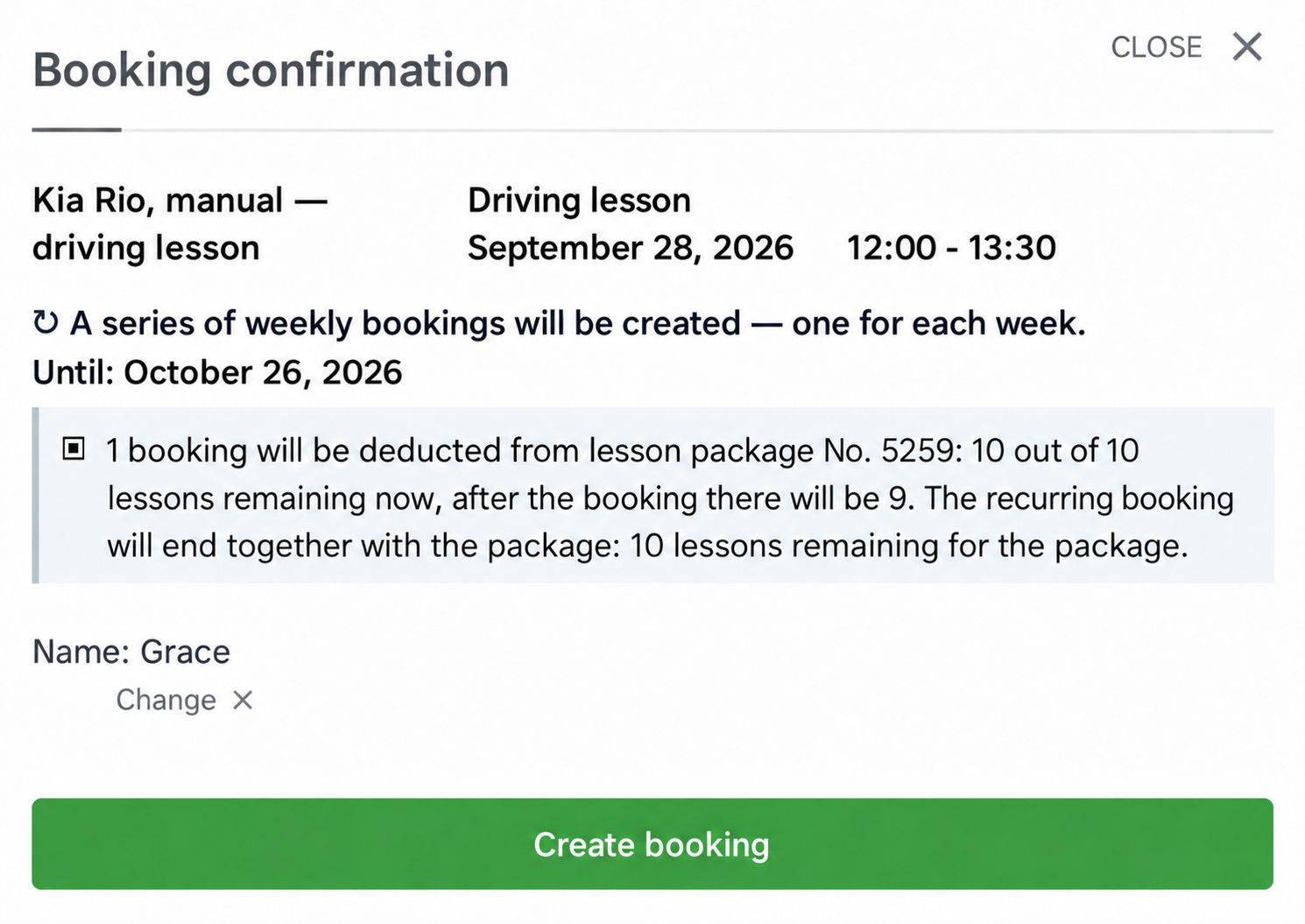
The confirmation window explains the series and package usage. Students can see how many sessions will remain after booking.
After booking, a message tells the student where to meet and what to bring. It also shows the package session information.
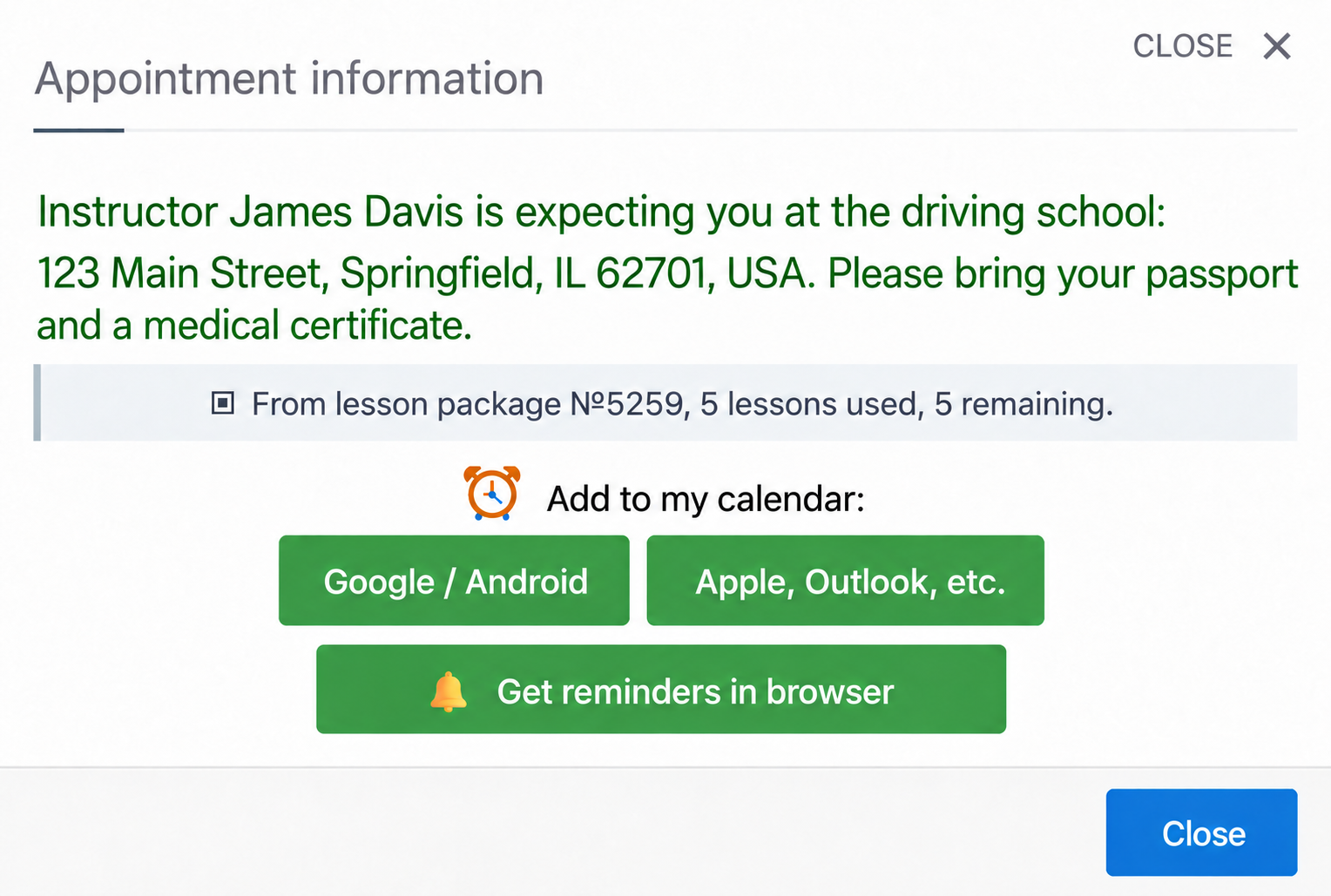
Set a separate message for each calendar under Settings → Where → Message after booking.
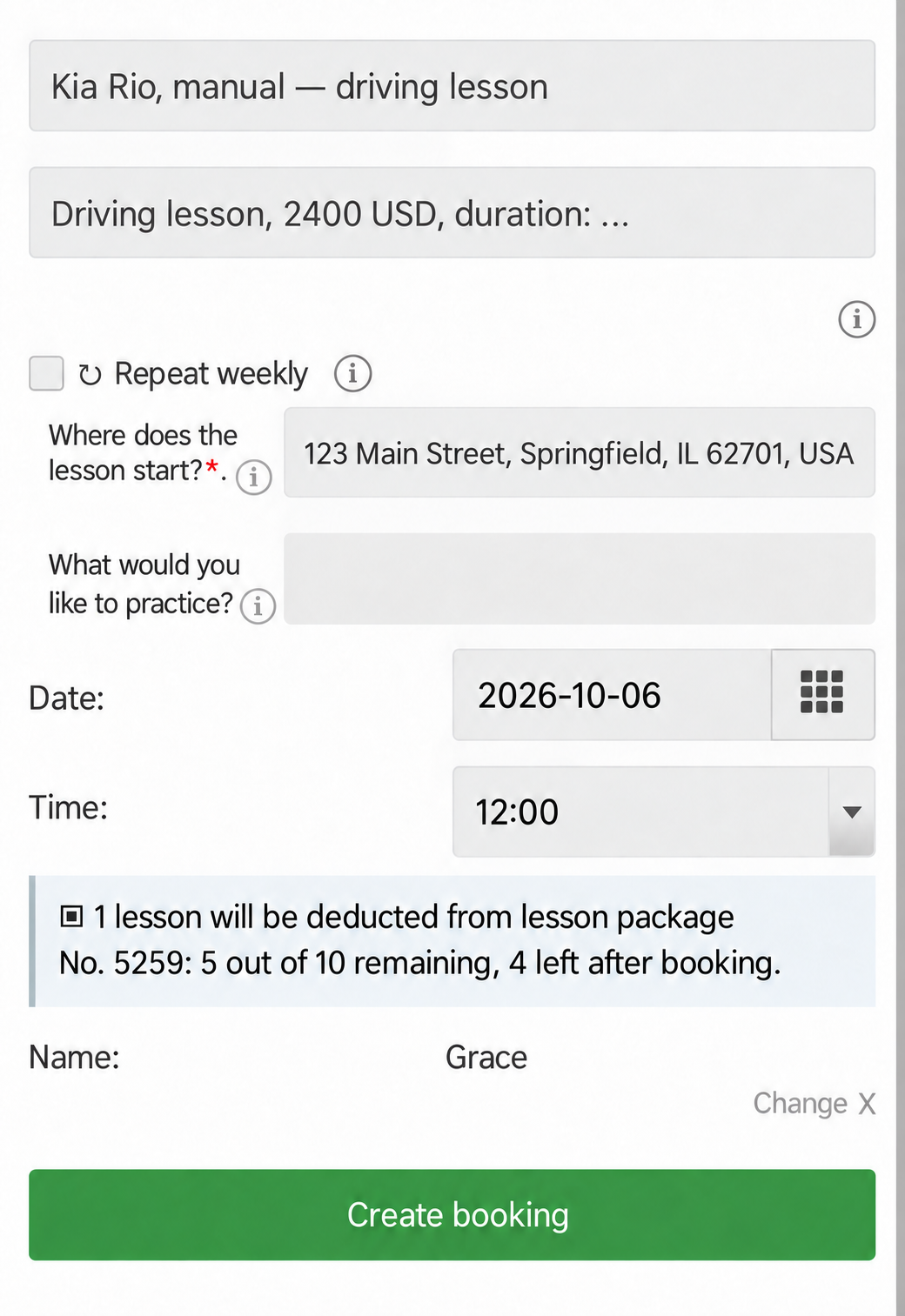
The same steps work on a phone: choose the car, date and time, answer the questions and check package information before confirming.
Students can view their packages and remaining sessions in My Appointments.
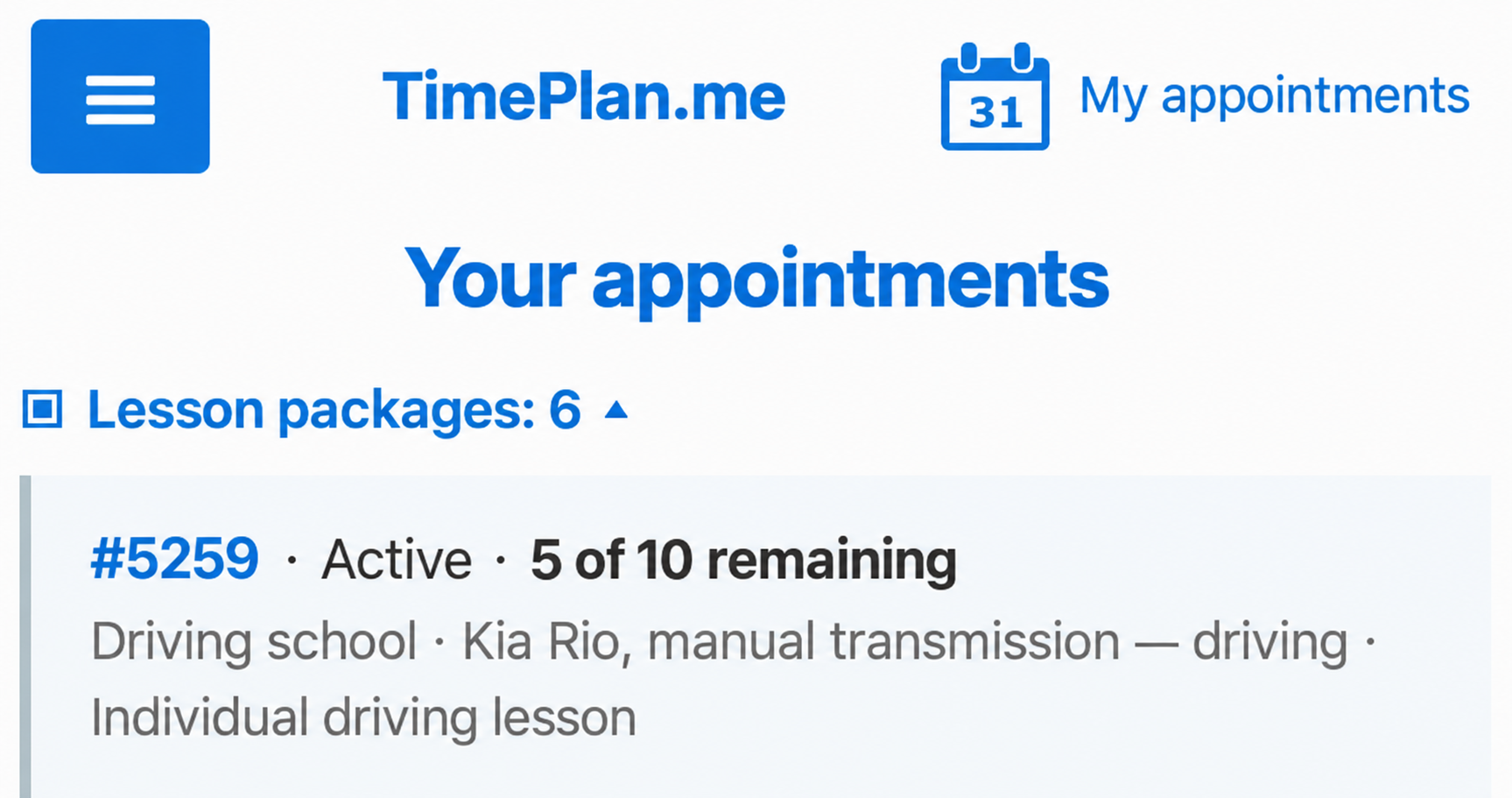
They can check the balance themselves without asking the administrator.
6. Reserve a car for a driving test
A driving-test booking reserves a car for a specific time. Give this service its own requirements and questions:
- Confirm that you have passed the theory test: a required answer before booking.
- Warm-up drive before the test: an optional 30-minute drive that adds 800 USD to the example price.
These are sample service prices from the demonstration; use your own prices and currency.
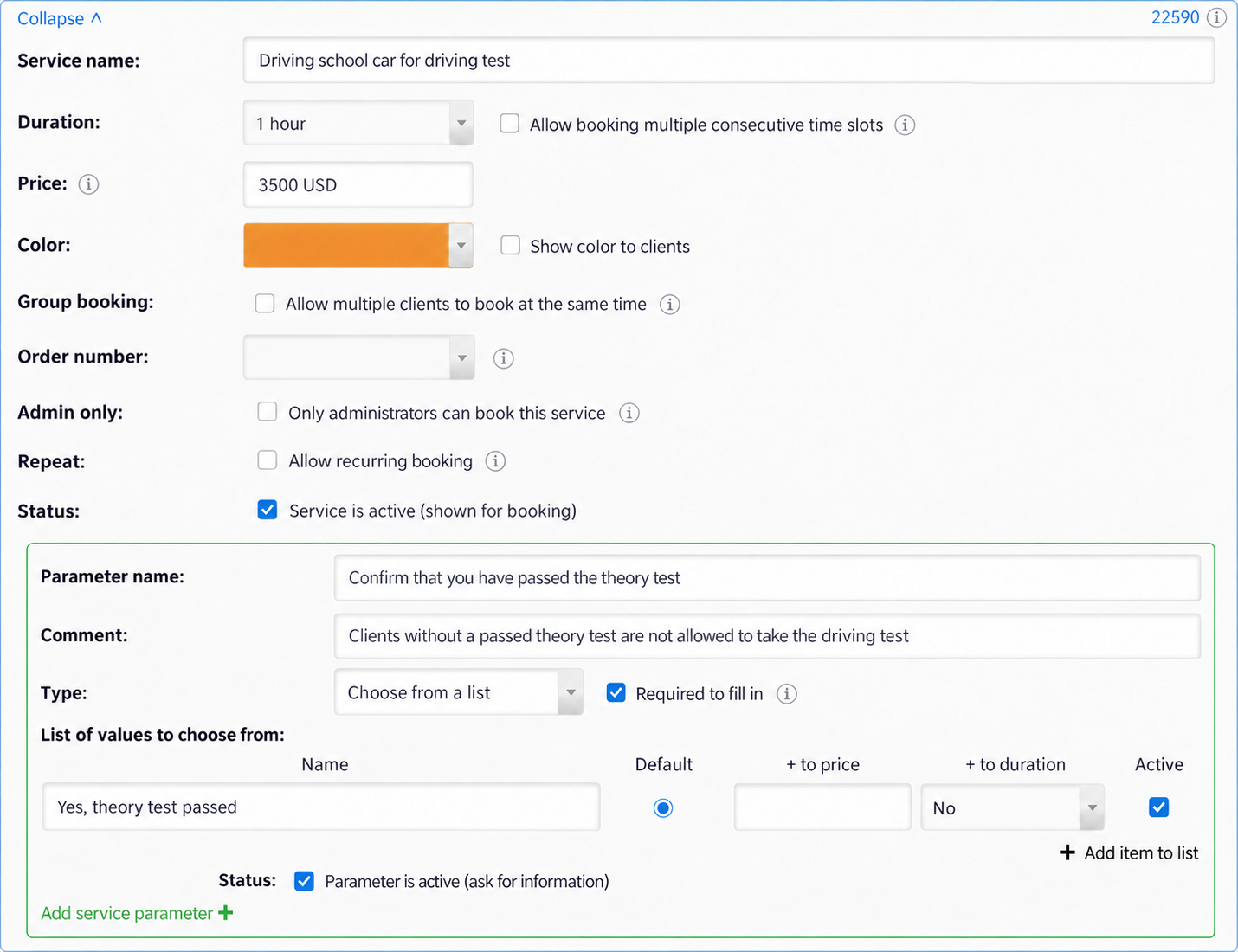
Students select the relevant options when booking.
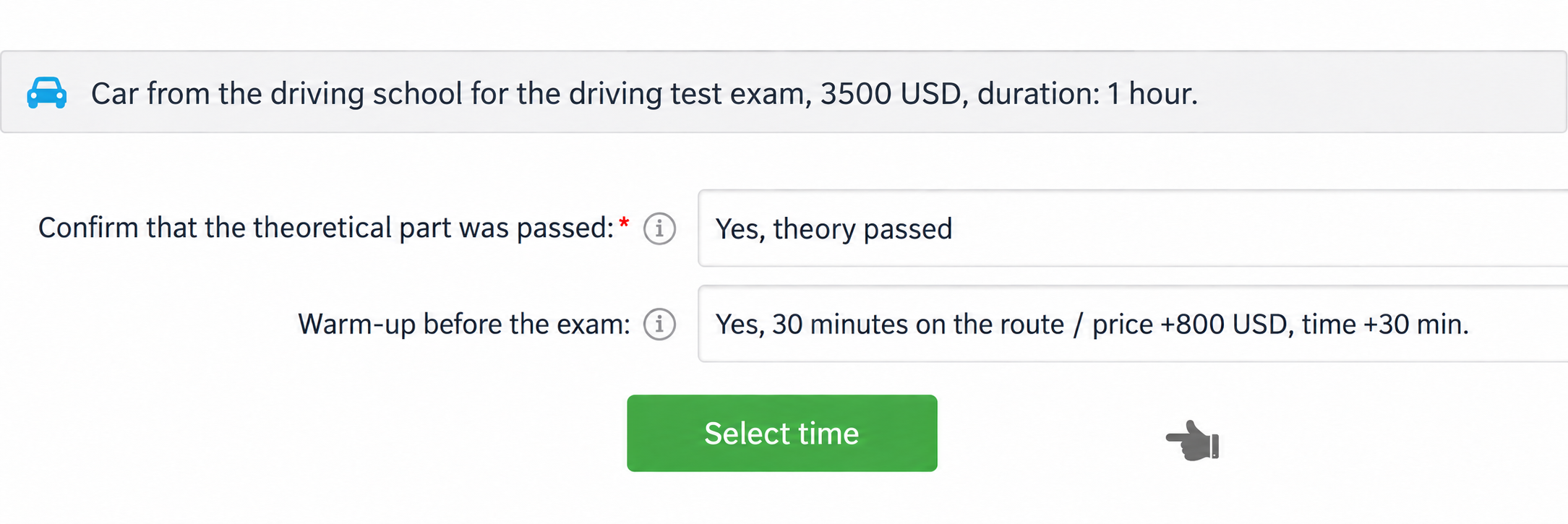
If a warm-up is selected, the configured duration and price are added automatically.
A separate test calendar lets you set its own availability and booking confirmation message. Regular lessons can continue to use packages and weekly series.
7. Reminders and missed lessons
TimePlan can send email and SMS reminders, as well as free browser push notifications. See Client reminders for the available options and settings.
If a student does not attend, mark the lesson as missed. Reports show no-show counts, and you can configure automatic restrictions on self-booking after a chosen number of missed appointments. See Tracking missed appointments.
Where to configure everything
| Driving-school task | Where in TimePlan | What the student sees |
|---|---|---|
| Assign a car and instructor | Settings → Where; calendars for each car | A choice of cars |
| Separate lessons and tests | Each calendar's working schedule | Availability during the configured hours |
| Offer lesson packages | Packages and Booking with packages | Remaining sessions in My Appointments |
| Allow an introductory lesson | Limit on bookings without a package | One booking without a package |
| Reserve a regular time | Weekly and Repeat until | A series marked ↻ |
| Ask lesson questions | Extra service parameters | Meeting-point and practice questions |
| Confirm theory-test completion | Required service parameter | A confirmation question |
| Provide meeting instructions | Message after booking | Meeting point and required documents |
Quick checklist
- Create a lesson calendar and a test calendar for each car.
- Set non-overlapping working hours for the same car.
- Enable package bookings for lessons and, if appropriate, allow one introductory booking.
- Add services for weekly lessons and for driving tests, including the theory-test question.
- Add extra questions and messages explaining where to meet and what to bring.
- Issue lesson packages and share the booking-page link.
Things to keep in mind
Calendars do not automatically share a car's availability. Overlapping opening hours can lead to double bookings. Keep the schedules separate.
Packages apply only to selected services. Include both cars' lesson services if a student should be able to use either car.
A series is limited by the remaining package balance. After purchasing more lessons, the student needs to create another series if the previous one has ended.
Confirming the theory test is a student's declaration. The school must check any required documents and test results separately.
Administrator-created bookings count towards the introductory-booking limit. If you book a student's first lesson yourself, they cannot then make another package-free introductory booking.