
Client reminders in TimePlan: SMS, email and browser push notifications
A client may book a week or two ahead and forget the appointment. Automatic reminders help reduce these no-shows without constant calls and manual messages.
TimePlan supports SMS, email and browser push notifications. Email and push are free, including on the Free plan. SMS can be sent through TimePlan or through your own Android phone and SIM card.
This guide explains company and personal settings, message types, push subscriptions, an Android SMS gateway, templates and time zones.
1. Company settings and personal preferences
Two sections control different parts of notification delivery.
Settings → Notifications contains company settings. The main administrator chooses which messages the company can send to clients and staff.
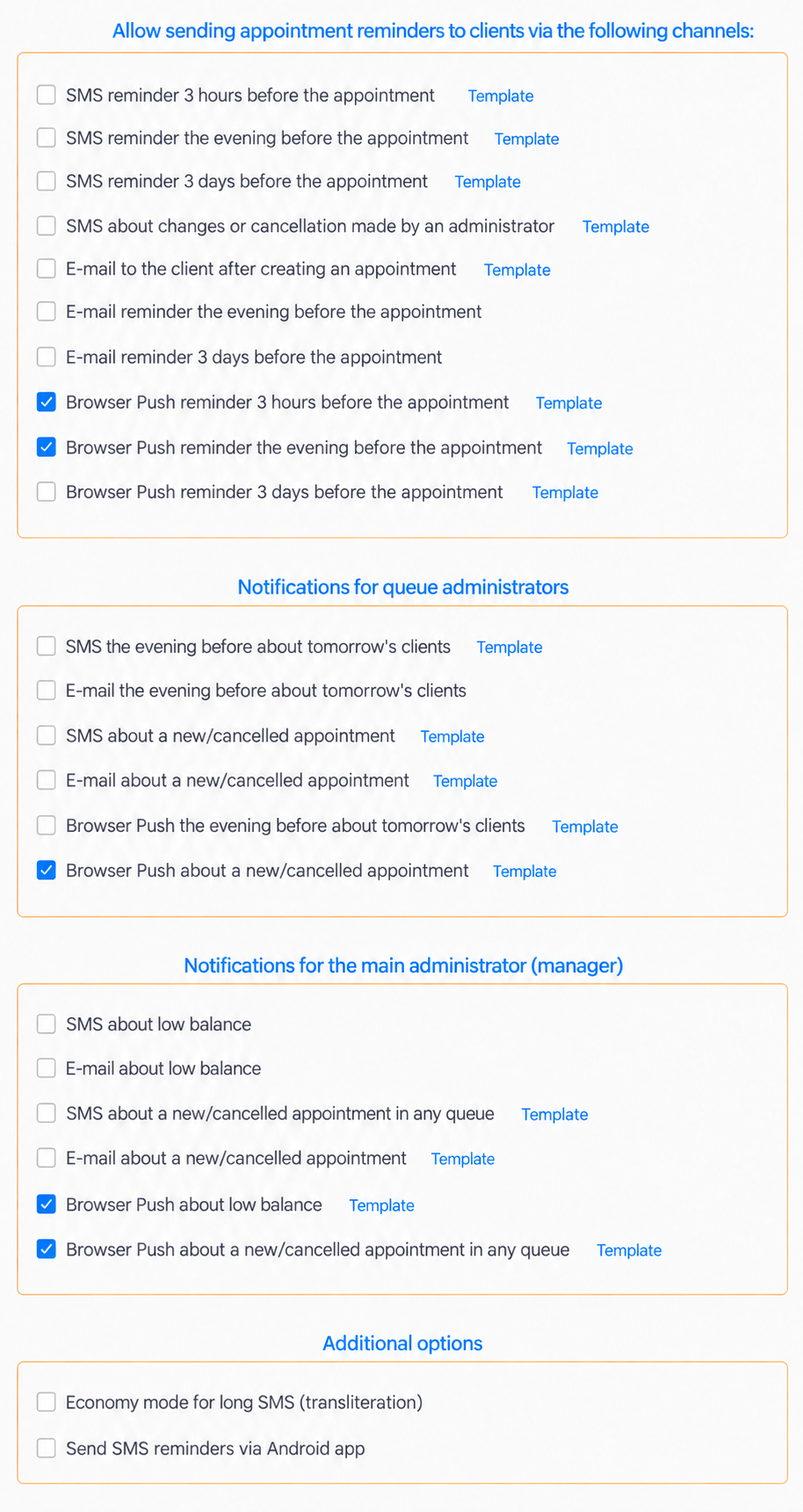
Notifications in the user's personal menu at /user/notices contains that person's preferences. Clients and administrators choose which messages they want to receive.
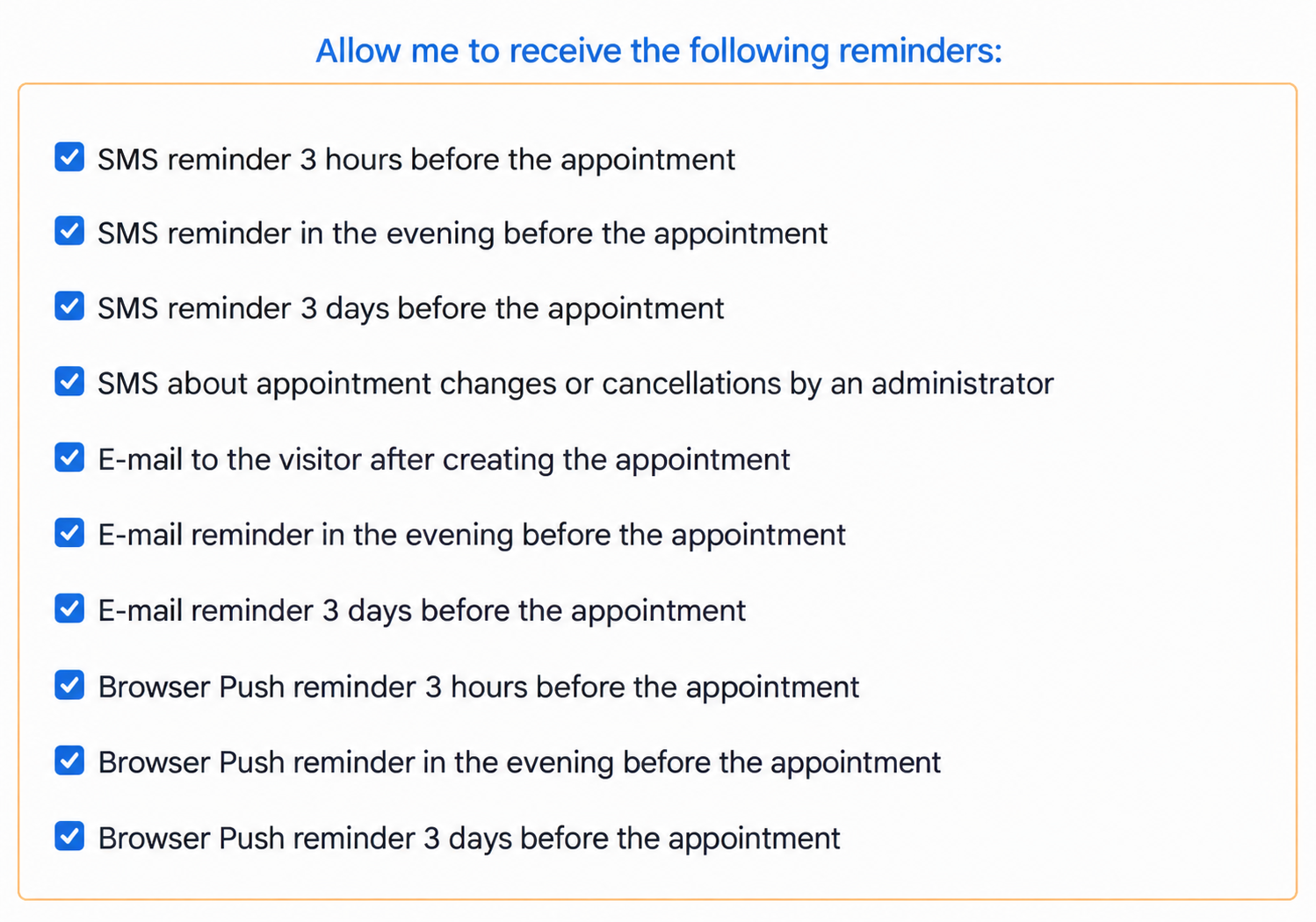
Both conditions must be met: the company allows the message type, and the user has not disabled it.
If the company enables an SMS reminder for the evening before a visit but the client opts out, it will not be sent. A user also cannot enable a channel disabled by the company. Available notification types are initially enabled in personal preferences; users can opt out individually.
A further control in the client profile
The client profile includes Disable all reminders.
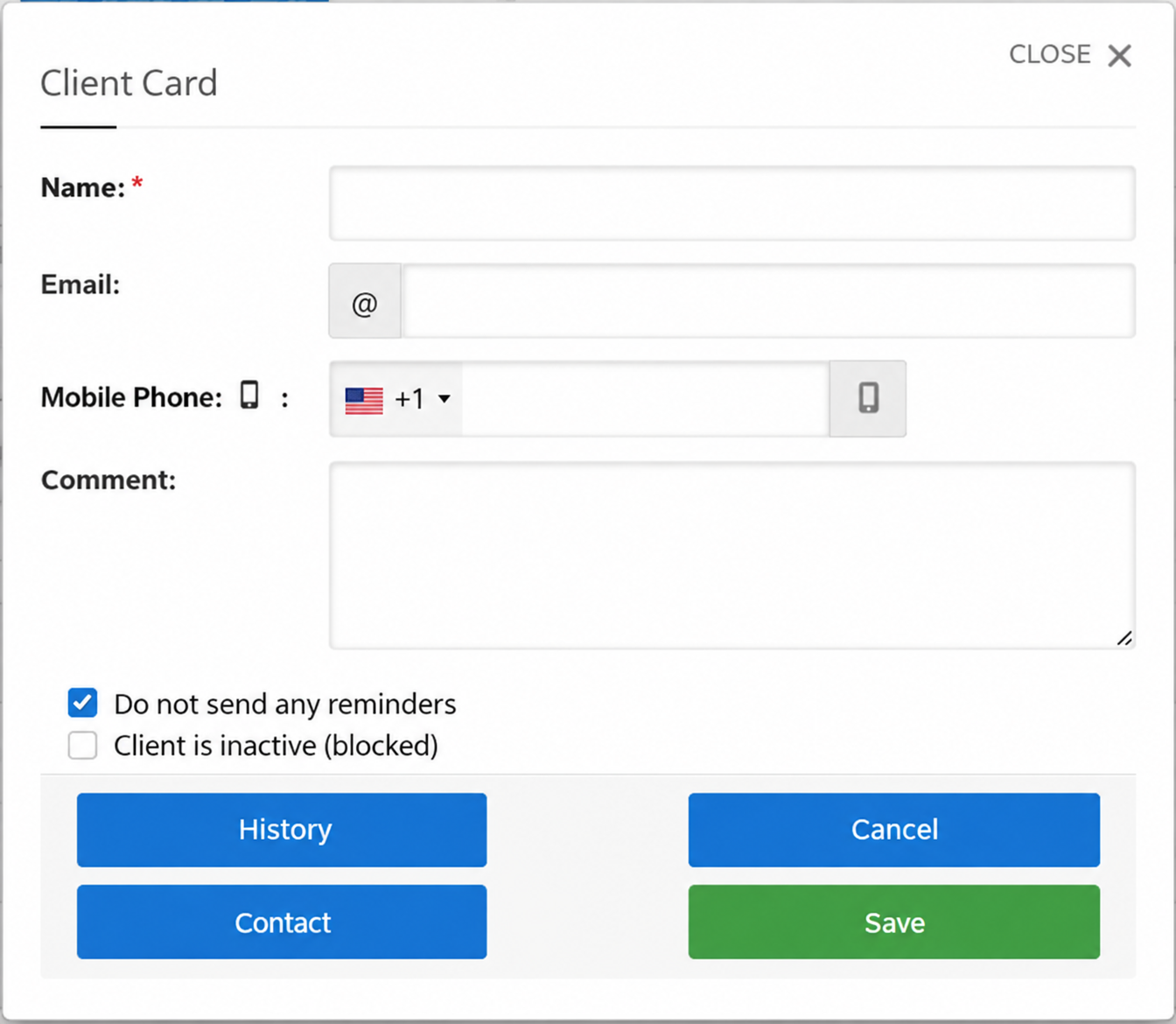
Use it when a client asks you to stop reminders but does not use their account settings.
It disables upcoming-visit reminders sent three hours before, the evening before and three days before, by SMS, email and push. Booking-confirmation emails and SMS about administrator changes or cancellations are separate message types and are not disabled by this checkbox.
2. Available message types
For clients:
| Message | When | Channels |
|---|---|---|
| Reminder three hours before | Automatically | SMS, push |
| Reminder the evening before | Automatically | SMS, push, email |
| Reminder three days before | Automatically | SMS, push, email |
| Administrator changes or cancels a booking | When the action occurs | SMS |
| Booking confirmation | Immediately after booking |
For calendar administrators, meaning staff with access to particular calendars:
| Message | When | Channels |
|---|---|---|
| Tomorrow's appointments | The evening before | SMS, email, push |
| A new or deleted client self-booking | When the action occurs | SMS, email, push |
The main administrator can receive notifications about self-bookings across all calendars and low-balance warnings by SMS, email or push.
Staff notifications about new bookings concern client self-booking. Administrators do not receive a notification about a booking they created themselves.
3. Free browser push notifications
Push notifications appear on a computer or phone through the browser, much like notifications from email or other apps.
A client does not need a separate application. Once they allow notifications for the site, their browser can display reminders even when the TimePlan page is not open.
Push notifications:
- are free on every plan;
- require a supported browser, not a separate app;
- do not use SMS credit, an SMS sender name or an SMS gateway;
- use the internet rather than the client's mobile operator;
- have the three-hour and evening-before reminder options enabled by default when registering.
How clients subscribe
After a successful booking, clients can click Receive reminders in this browser.
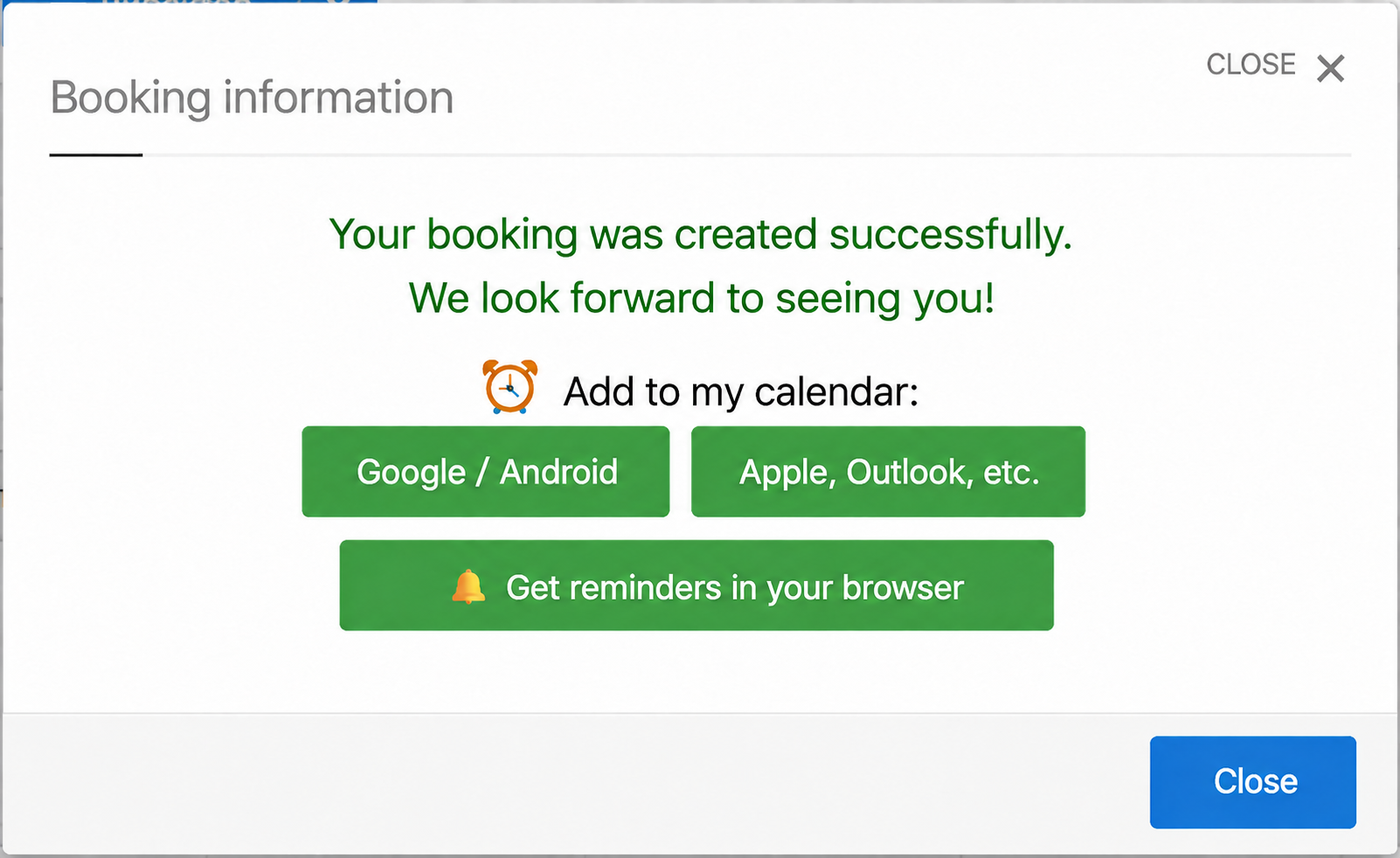
The browser asks for permission. Once the client accepts, that browser is subscribed.
The button appears when the company has at least one client push notification enabled and the current browser is not already subscribed.
Clients can also open their personal Notifications section. Push notifications for this browser shows the subscription status and controls for subscribing or unsubscribing.
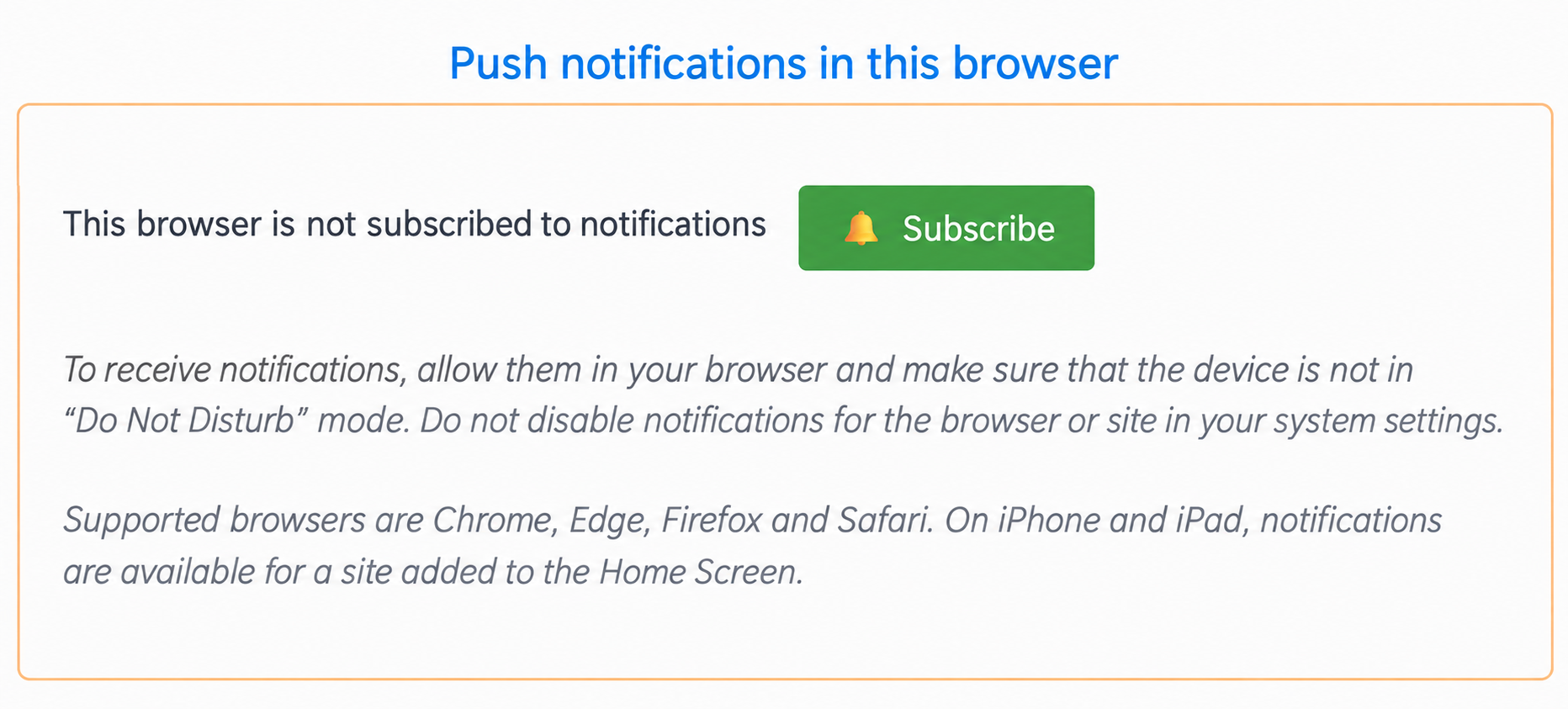
Administrators subscribe in the same way and may also see a prompt in their account.
What affects delivery?
- Notifications must be allowed in the browser and in the device's system settings.
- Do Not Disturb can hide notifications.
- A subscription belongs to a particular browser and device. Subscribing on a computer does not subscribe a phone.
- A user can have at most two active push subscriptions. Adding another disables the oldest.
- On iPhone and iPad, the site must be added to the Home Screen for push notifications.
- Supported browsers include Chrome, Edge, Firefox and Safari.
Push can be your main free reminder channel, supplemented by email or SMS when useful.
4. Send SMS through your own Android phone
You can use SMS Transmitter to send messages through your Android phone's SIM card. TimePlan prepares messages; the application retrieves and sends them.
TimePlan does not charge per SMS in this mode. Your mobile operator's rates still apply. If messages are included in your plan, there may be no separate per-message charge.
Set up the connection
Open Settings → Notifications → Additional options and enable Send SMS reminders through the Android application.
A secret key appears to link the phone application to your company.
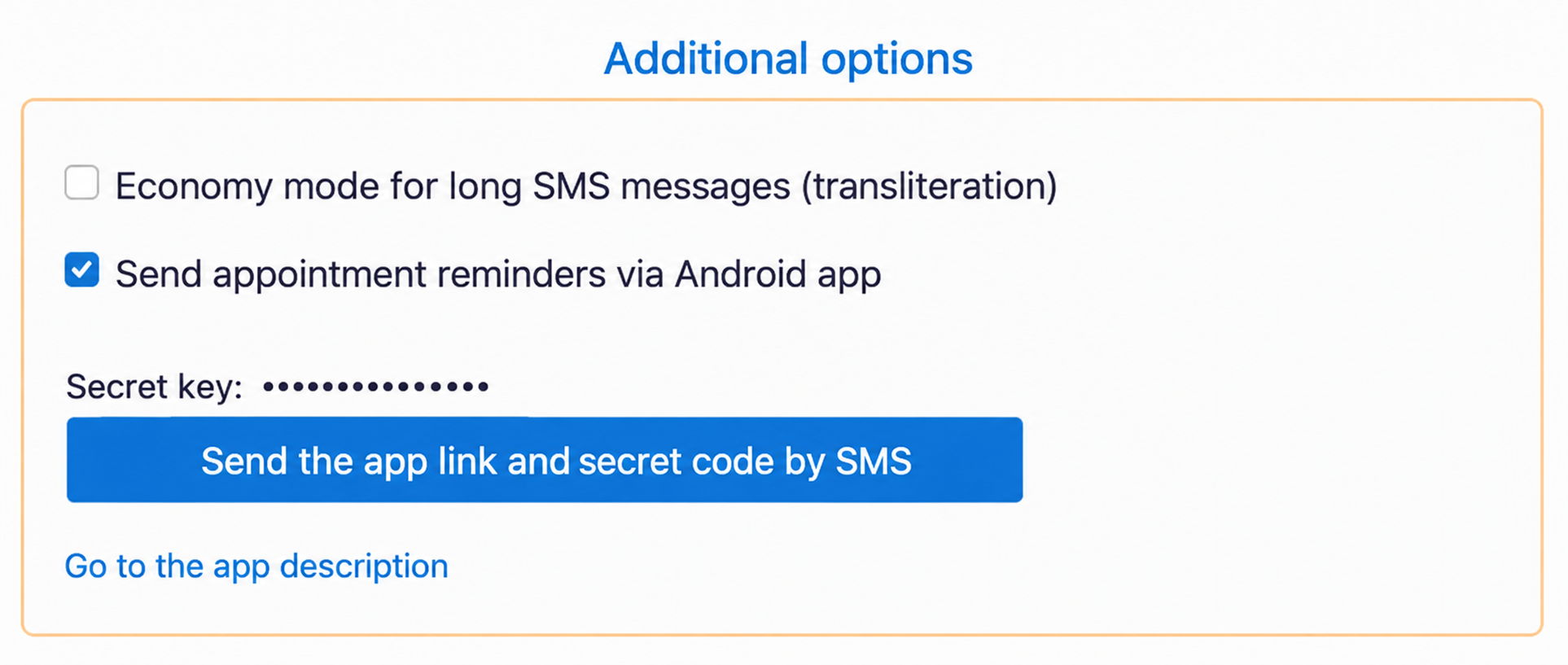
You can use Send the application link and secret code by SMS to send the details to the phone that will deliver messages.
On the phone:
- Install SMS Transmitter using the link on its description page.
- Allow it to send SMS and run in the background.
- Enter the secret key from TimePlan.
- Start the application and enable automatic sending.
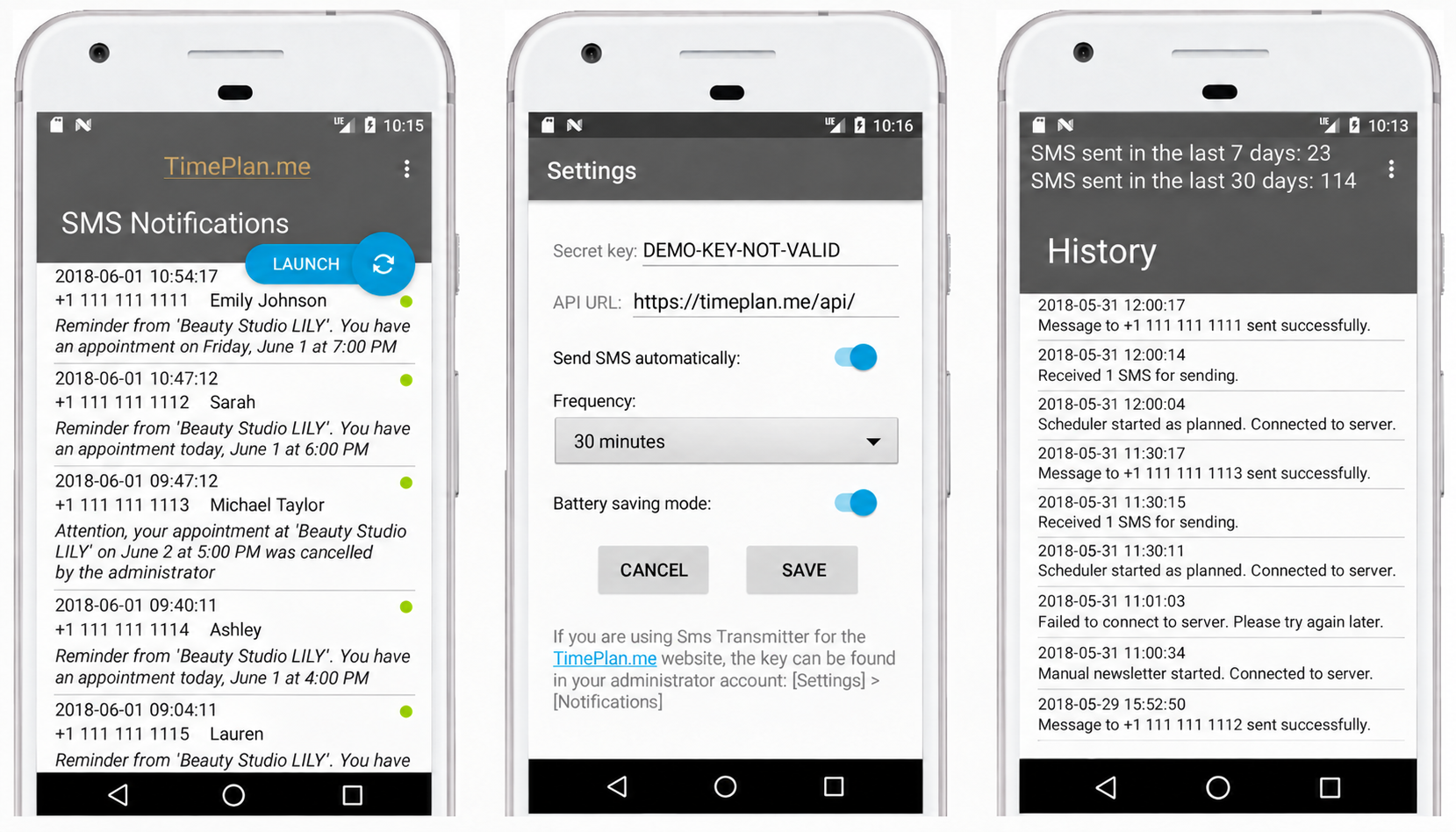
The application shows queued messages, history and sending results.
Practical details
- Keep the phone powered on and connected to the internet. Messages remain queued while the application cannot contact the server.
- Android may restrict background activity. You may need to adjust battery-saving settings for SMS Transmitter.
- The application receives no more than 30 messages per request.
- SMS is sent during permitted daytime hours.
- In Android gateway mode, clients also receive SMS after creating their own online bookings.
The Economy mode for long SMS (transliteration) option converts Cyrillic text to Latin characters to reduce the number of message segments. It is relevant when your templates contain Cyrillic; it does not translate message content into another language.
5. Open-source application and delivery protocol
SMS Transmitter is open source under GPL-3.0. Its GitHub repository contains the source code, so developers can build it themselves.
The message-retrieval protocol is also open. The application uses the company secret key to request prepared messages containing the phone number, name, message text and booking details.
Developers can build their own application or service to deliver these prepared messages through another gateway or channel. SMS Transmitter also accepts a custom gateway URL, allowing it to work with another server system.
This provides a way to connect existing delivery infrastructure to prepared booking notifications.
6. Email notifications
Email is free on both Free and paid plans.
The booking-confirmation email is sent immediately. It includes the calendar, service, date, time, duration and booking links. It may also include an .ics attachment for adding the event to a personal calendar.
The client receives it after self-booking or an administrator-created booking, provided their profile contains an email address and the relevant notifications are enabled.
Administrator new-booking notifications are different: they concern client self-booking, not appointments the employee created themselves.
Clients can receive a confirmation immediately, a reminder the evening before and a reminder three days before. Calendar administrators can receive an email listing tomorrow's appointments.
You can add text to the confirmation email template. Use two asterisks for bold emphasis, such as **important**.
7. Custom message templates
Editable notifications have a Template link beside them.
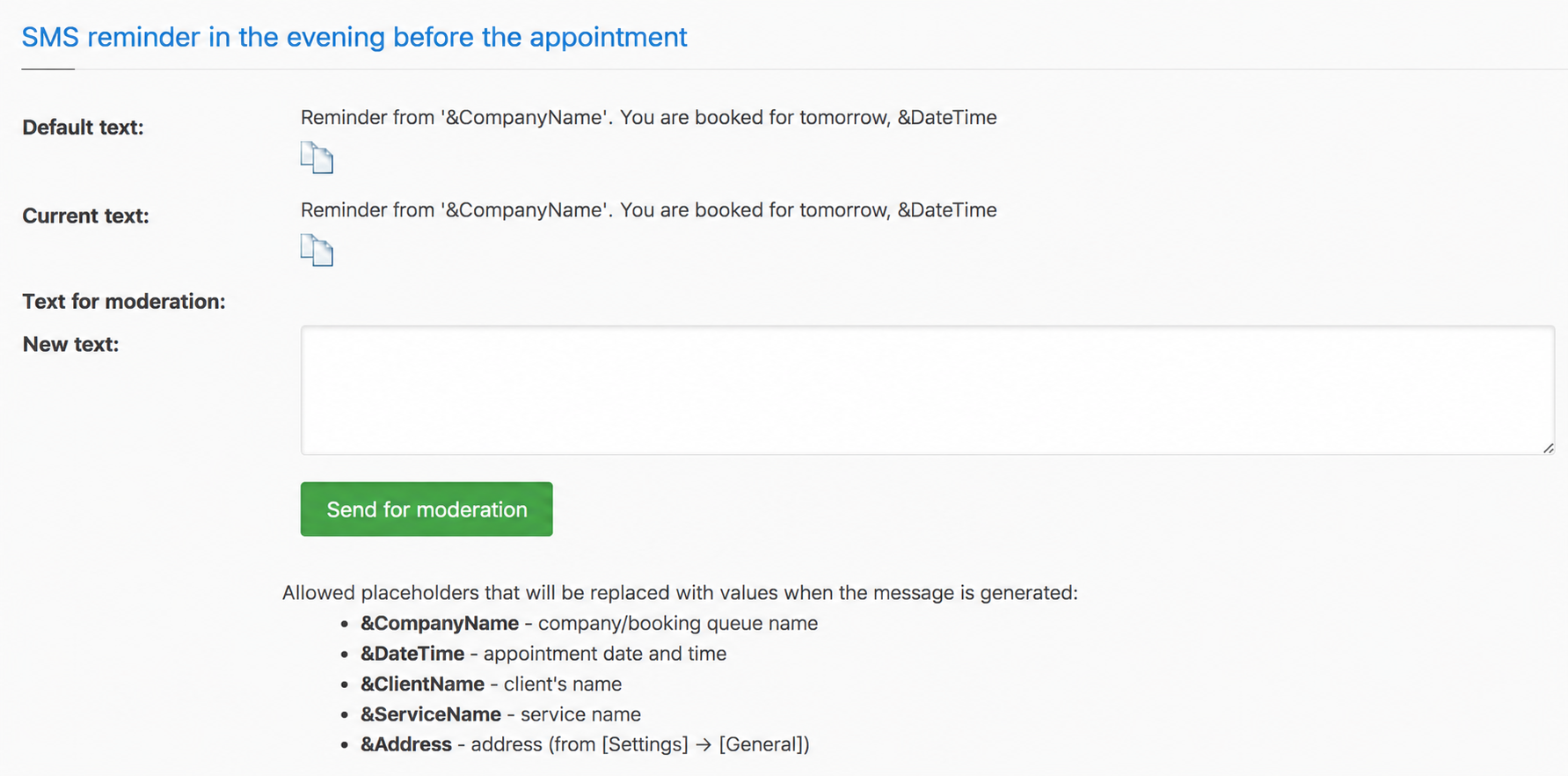
The editor shows the default message, the current message and a field for the new version.
New text is reviewed before use. After you click Submit for review, the existing template remains active until the new one is approved.
Available placeholders include:
&CompanyName— company or calendar name;&DateTime— appointment date and time;&ClientName— client name;&ServiceName— service name;&Address— address from general settings.
Staff notifications have additional placeholders, such as the client's phone number and information entered during booking.
Custom templates require a paid plan. On Free, you can enable or disable notifications, which use the standard text.
8. When messages are sent
Client SMS delivery is restricted to avoid sending messages at night.
TimePlan uses the client's time zone when known; otherwise it uses the calendar's time zone.
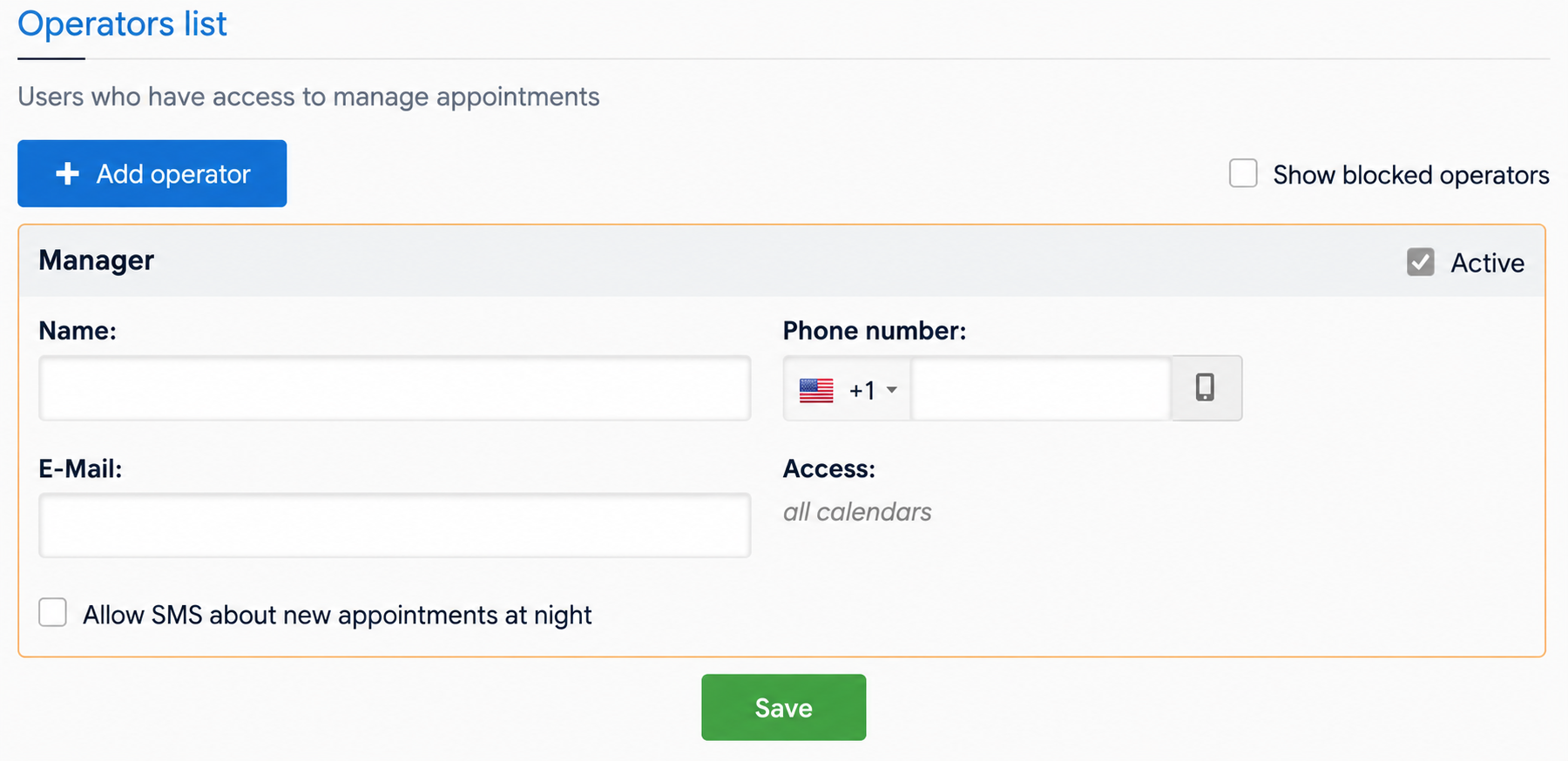
For staff notifications about new bookings, you can allow night-time delivery separately under Settings → Operators → Allow SMS about new bookings at night.
Other timing rules:
- Each reminder type is sent once per booking.
- A three-hour reminder is sent when no more than three hours remain. A booking created too late may not receive it.
- Tomorrow's-appointments notifications are sent at most once a day and only if there are bookings for the next day.
9. Time zones
Time zones matter especially for online consultations across cities or countries.
The calendar time zone is set under Settings → Where and inherits the company setting by default. It defines the specialist's schedule.
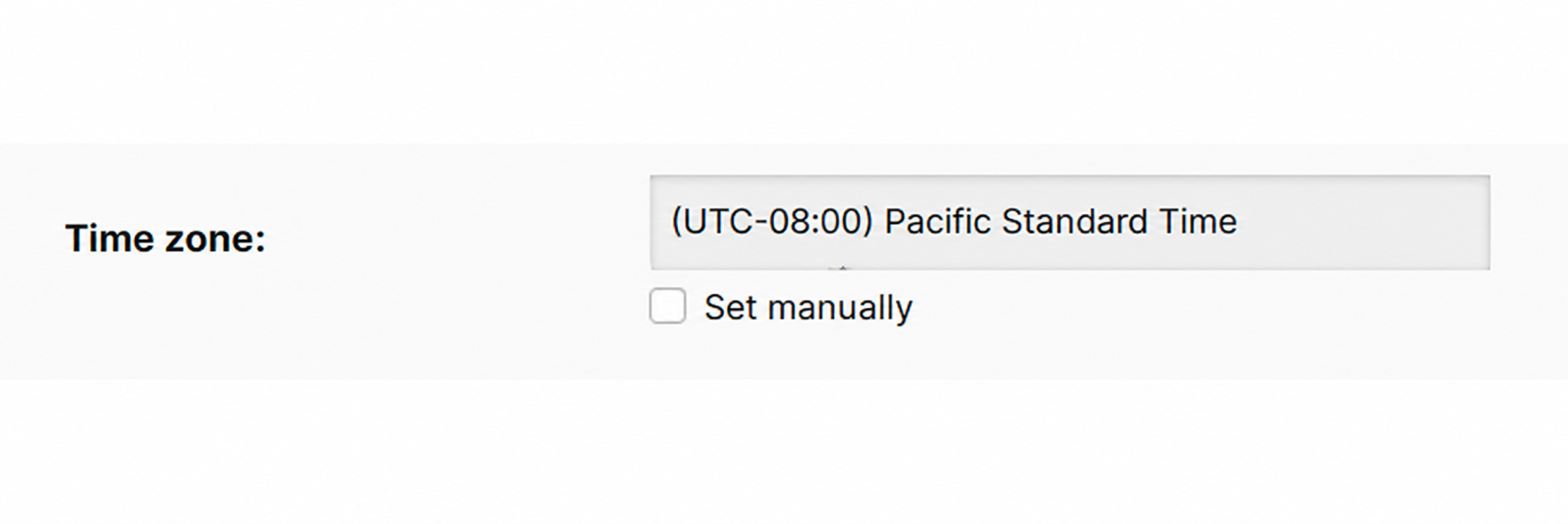
The client time zone is detected from the browser. Users can also set it manually in their profile.
Displayed times depend on the calendar type:
- In person at an address: clients see the calendar's local time, where they need to arrive.
- Online: clients see appointments in their own time zone.
An online appointment can therefore show different times to the client and administrator while referring to the same moment.
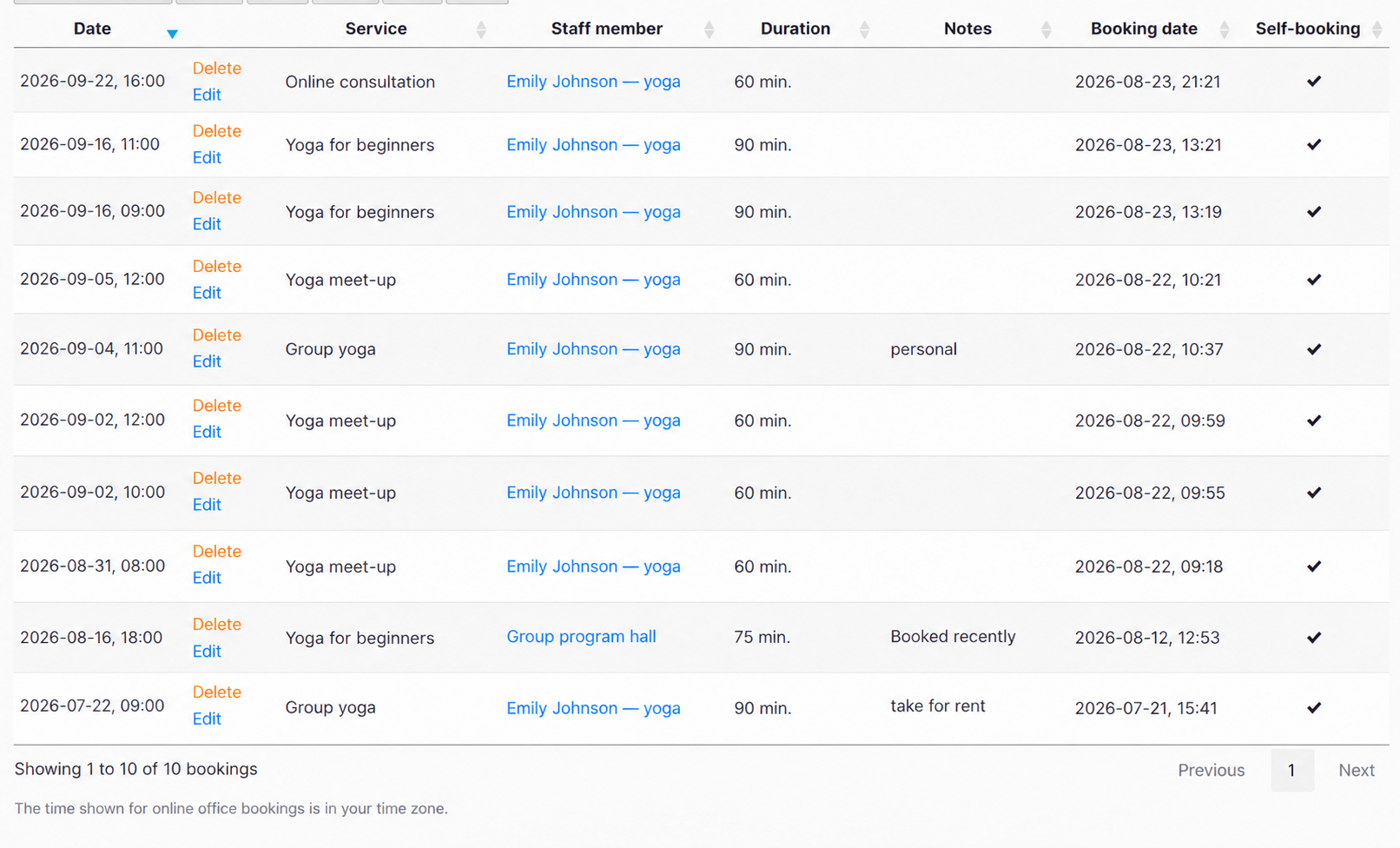
Reminder delivery also uses the client time zone, falling back to the calendar time zone if needed.
10. What is free?
Available on every plan at no message charge:
- client and administrator emails;
- browser push notifications;
- enabling and disabling available notification types;
- personal notification preferences;
- time-zone handling.
A paid plan is needed for:
- SMS sent through TimePlan;
- SMS sent through your Android phone;
- custom message templates;
- long-SMS transliteration.
You can therefore use email and push for reminders on Free. Paid plans add SMS and template customisation. Android gateway mode has no TimePlan per-message fee, while your SIM tariff still applies. Check the current plan comparison when choosing a plan.
11. Let clients manage messages
Keep &CompanyName in your templates so recipients can recognise your company. Use booking notifications for messages relevant to the appointment and respect the client's preferences.
Clients can stop messages using:
- the unsubscribe link in emails;
- personal Notifications settings;
- push subscription controls for a specific browser;
- an administrator's reminder restriction in their client profile.
Settings at a glance
| Setting | Where | Effect |
|---|---|---|
| Company notification list | Settings → Notifications | Enables message types for the company |
| Personal Notifications | User menu | Controls the user's preferences |
| Disable all reminders | Client profile | Stops upcoming-visit reminders |
| Send SMS through Android | Company notification settings | Uses the phone's SIM card |
| Long-SMS economy mode | Company notification settings | Transliterates Cyrillic to reduce message segments |
| Allow night-time notifications | Settings → Operators | Allows night-time staff notifications |
| Template | Beside an editable notification | Applies custom text after review |
| In person / Online | Settings → Where | Controls which time zone clients see |
| Client time zone | User profile | Controls reminder timing, with a calendar fallback |
Quick checklist
- Review Settings → Notifications.
- Enable free email and push if you want reminders without SMS charges.
- Check that reminders are not disabled in the relevant client profiles.
- If you need SMS, choose TimePlan delivery or your Android phone.
- Check calendar type and time zone for online services.
- Make a test booking and confirm that the chosen notifications work as expected.
Things to keep in mind
Administrator changes and cancellations use SMS notifications. If you do not use SMS, contact the client through another channel for an important cancellation.
Disable all reminders affects upcoming-visit reminders. Confirmation emails and change/cancellation SMS are separate.
Staff are not notified of their own booking actions. New and deleted booking notifications concern self-booking.
Email and push are available on Free; SMS requires a paid plan. This also applies to Android gateway mode.
Push subscriptions belong to a browser and device. A computer subscription does not automatically cover a phone.
New templates are used after approval. Until then, the previous text remains active.
Verification codes have separate channels and settings. Do not confuse them with appointment reminders.
An Android gateway phone must remain available. Check its sending history and background restrictions regularly. A dedicated phone is useful for continuous sending.