
Online booking for tutors: schedules and students in one place
As your student list grows, your schedule can end up spread across several places: lessons in a calendar, rescheduling requests in messages, regular lessons in your memory, and available times that you have to find manually each time.
TimePlan brings these into one schedule. Students can see available times and book themselves. You can schedule regular lessons several weeks ahead, run a conversation club as a group class and keep track of missed lessons in the calendar.
You can explore the system without registering. The demo account of English tutor Emily Johnson includes students, recurring lessons and a conversation club. This guide uses that example.
1. Open the demo
You can enter the demo as either the tutor or a student:
| Role | Link | What you will see |
|---|---|---|
| Tutor | timeplan.me/user/demoadminuser | Emily's calendar, students and settings |
| Student | timeplan.me/user/demouser | The booking page and Sarah's My Appointments section |
Both links are also at the bottom of the FAQ.
Open the tutor and student views in two browsers, or use a normal window and a private window. You can then compare the same schedule from both sides.
2. A tutor's week on one screen
Here is Emily's working week:
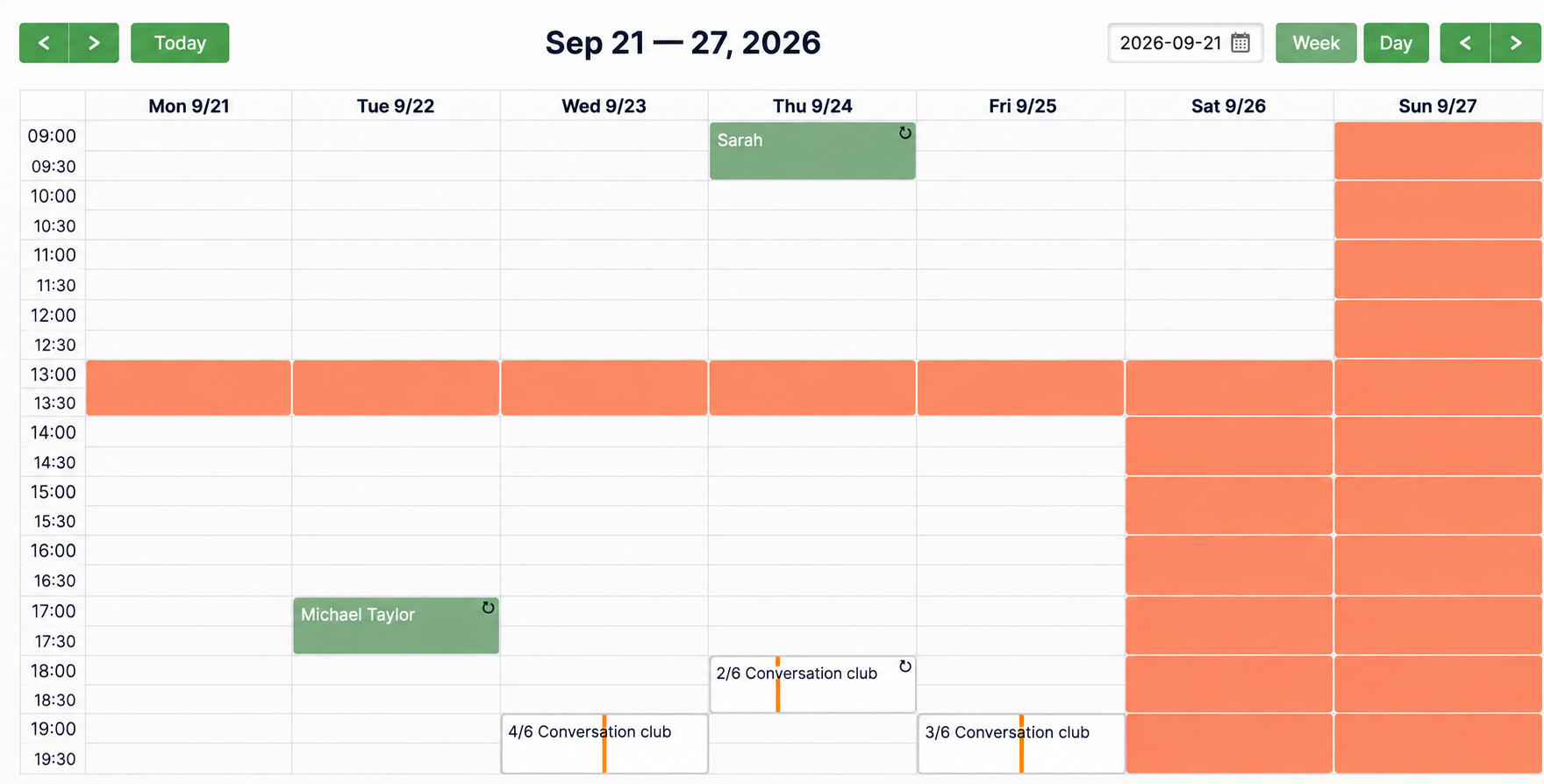
- Green cells are individual lessons, with the student's name in the calendar.
- The ↻ symbol marks a weekly lesson: for example, Michael attends on Tuesdays at 17:00 and Sarah on Thursdays at 09:00.
- White cards such as “4/6 Conversation club” are group classes. The first number is the number of participants booked; the second is the capacity.
- Orange areas are non-working hours, lunch breaks and days off.
- Empty cells are available times.
Individual lessons, groups and free slots appear together, so you do not have to compare a notebook, a spreadsheet and your messages.
Working hours, breaks and availability are covered in Setting Up Working Hours and Booking Availability.
3. The same schedule on your phone
Between lessons, you can check the calendar on your phone. The site adapts to a smaller screen; there is no need to install an app.
The Day view is particularly useful on a phone:
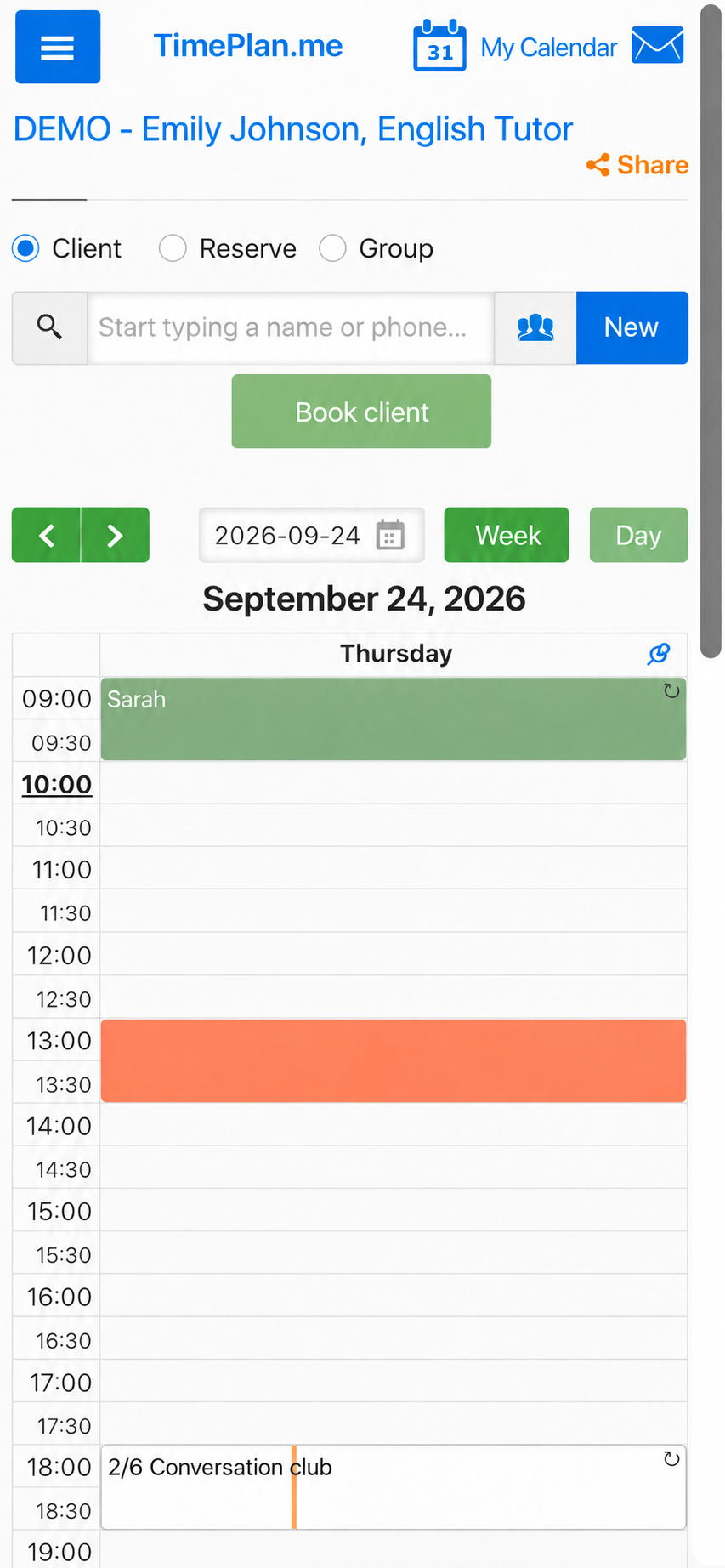
Student search and the Book client button remain at the top, so you can add or reschedule a lesson from your phone.
4. Book a student in a few steps
If a student asks you to book a lesson for them, start typing their name or phone number, select the service and click Choose time. Then select an available interval in the calendar.
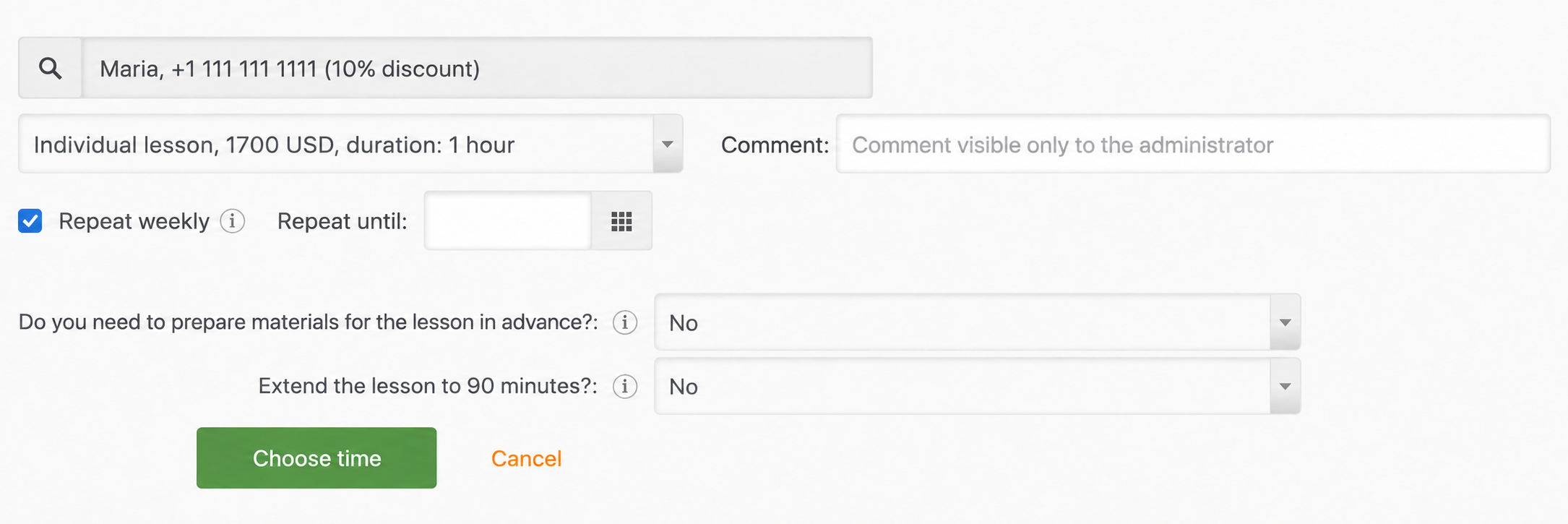
The form includes several useful details:
- The client note appears next to the name. Sarah's note says “10% discount.” You can record a student's level, learning goals, discount or other arrangements here.
- A service can include additional questions. The demo asks whether materials are needed in advance and whether to extend the lesson to 90 minutes. Choosing the extension adds 30 minutes and USD 500 to the example lesson price.
- Weekly ↻ creates a series for subsequent weeks, as described below.
Demo tip: enter
999in the search field to find a test student. This is the search hint provided by the demo; phone numbers in the illustrations are masked examples.
5. Set up regular students once
A tutor's timetable often repeats: the same student attends at the same time each week.
Select Weekly ↻ instead of creating each lesson separately. Enter a date in Repeat until if the course has an end date, or leave it blank to extend the series automatically until you cancel it.
Michael's Tuesday lessons and Sarah's Thursday lessons use this setting in the demo. They are marked with ↻ in the calendar.
If a student misses just one week, you can delete one lesson and leave the others in place. If the lessons stop completely, delete the selected booking and all subsequent bookings in the series.
Students can also create their own weekly booking; see section 9.
6. A conversation club: group classes
Use group booking for conversation clubs, small groups and other lessons where several students attend at the same time.
The demo's Conversation club (B1–B2) has six places. Sessions are scheduled on Wednesdays and Fridays at 19:00 and Thursdays at 18:00.
Click the club's card in the calendar:
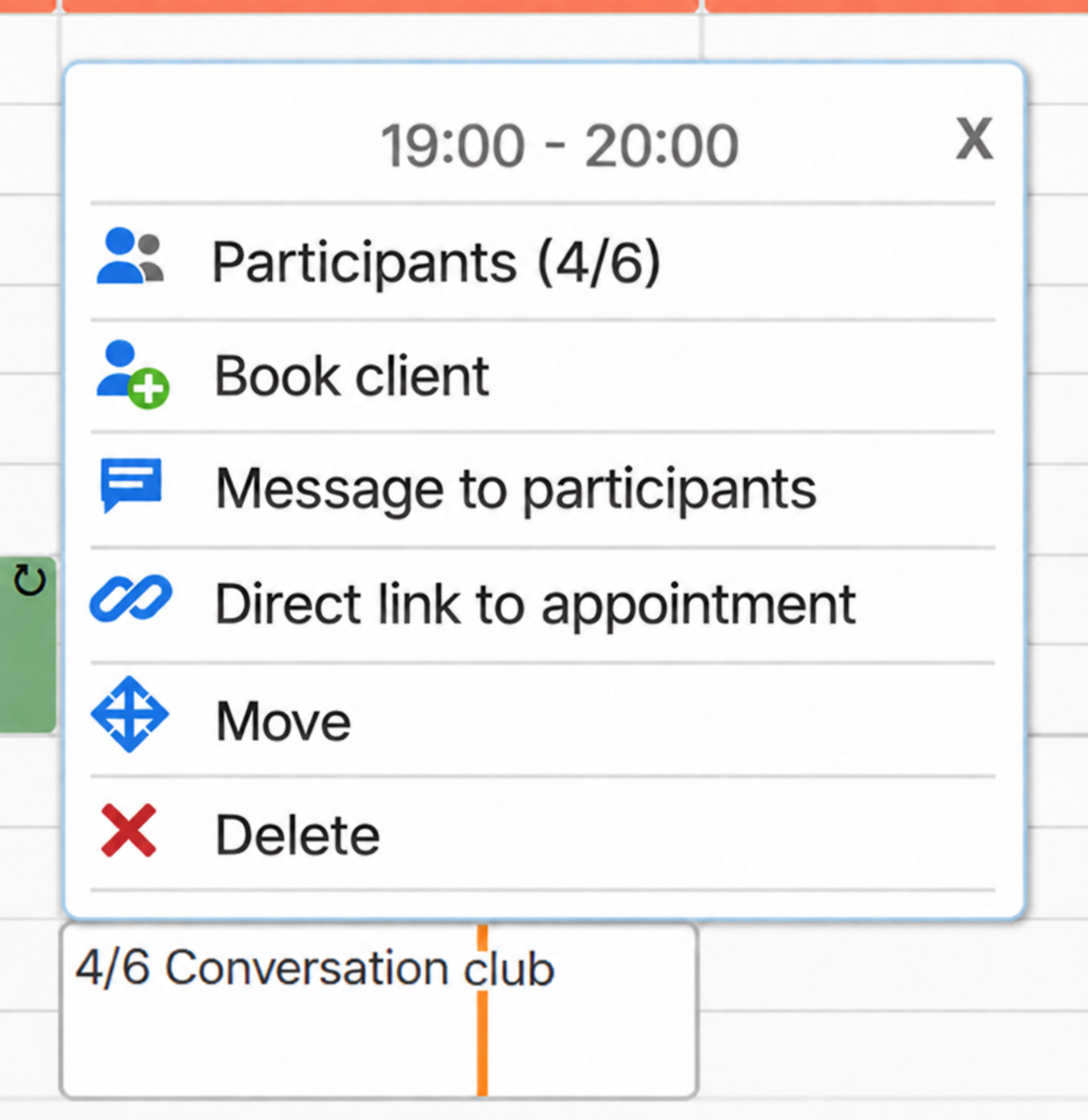
From the menu, open the participant list:
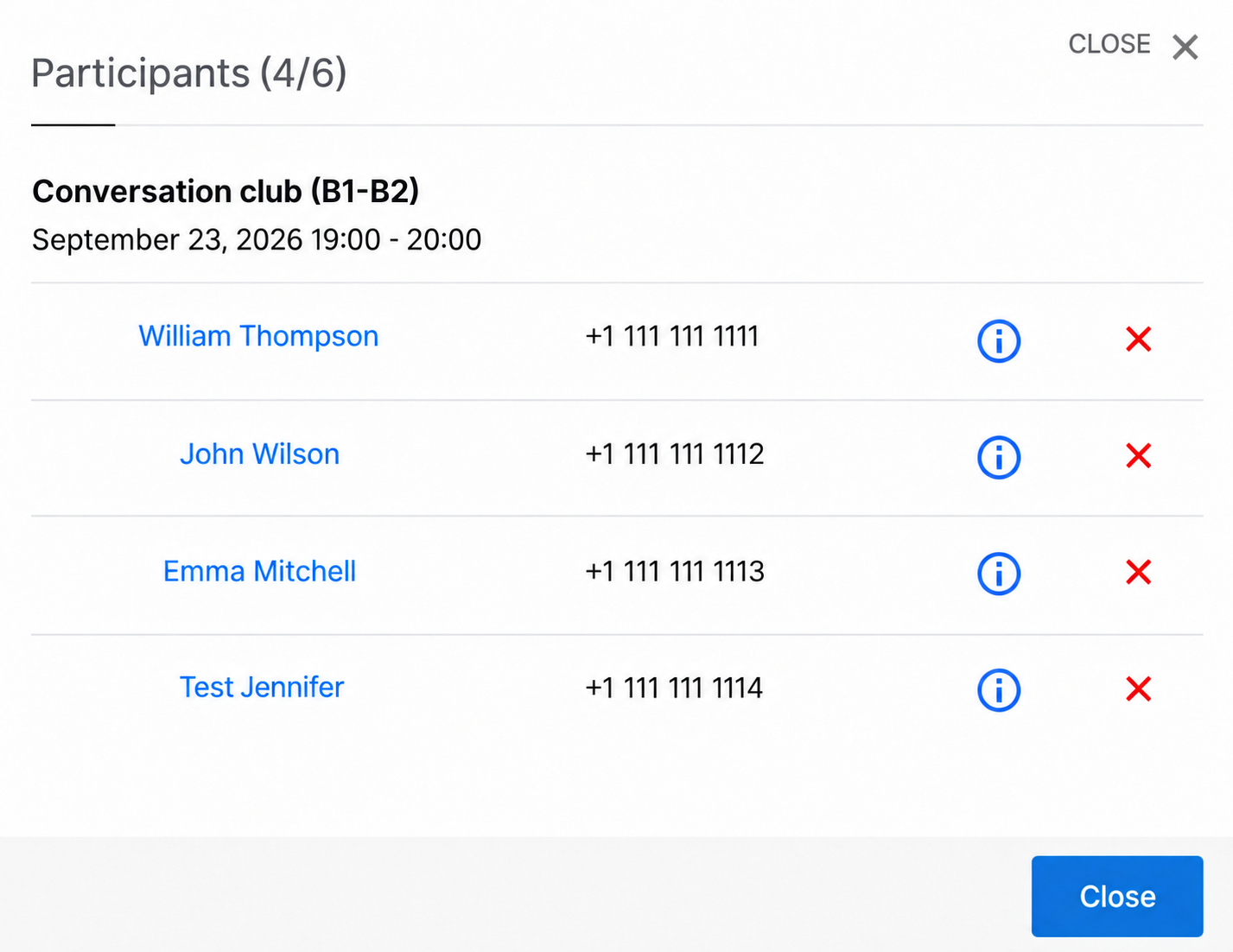
- Participants: see who has booked.
- Book client: add a student manually.
- Message to participants: leave information for the group.
- Direct booking link: obtain a link to this particular session and send it to students.
Students see the remaining places on the booking page and can join themselves. Once the class is full, new bookings close automatically.
For the full workflow, see Group Classes in TimePlan.
7. When a student does not attend
You can mark a past lesson as missed. Click the booking and choose Mark as no-show:
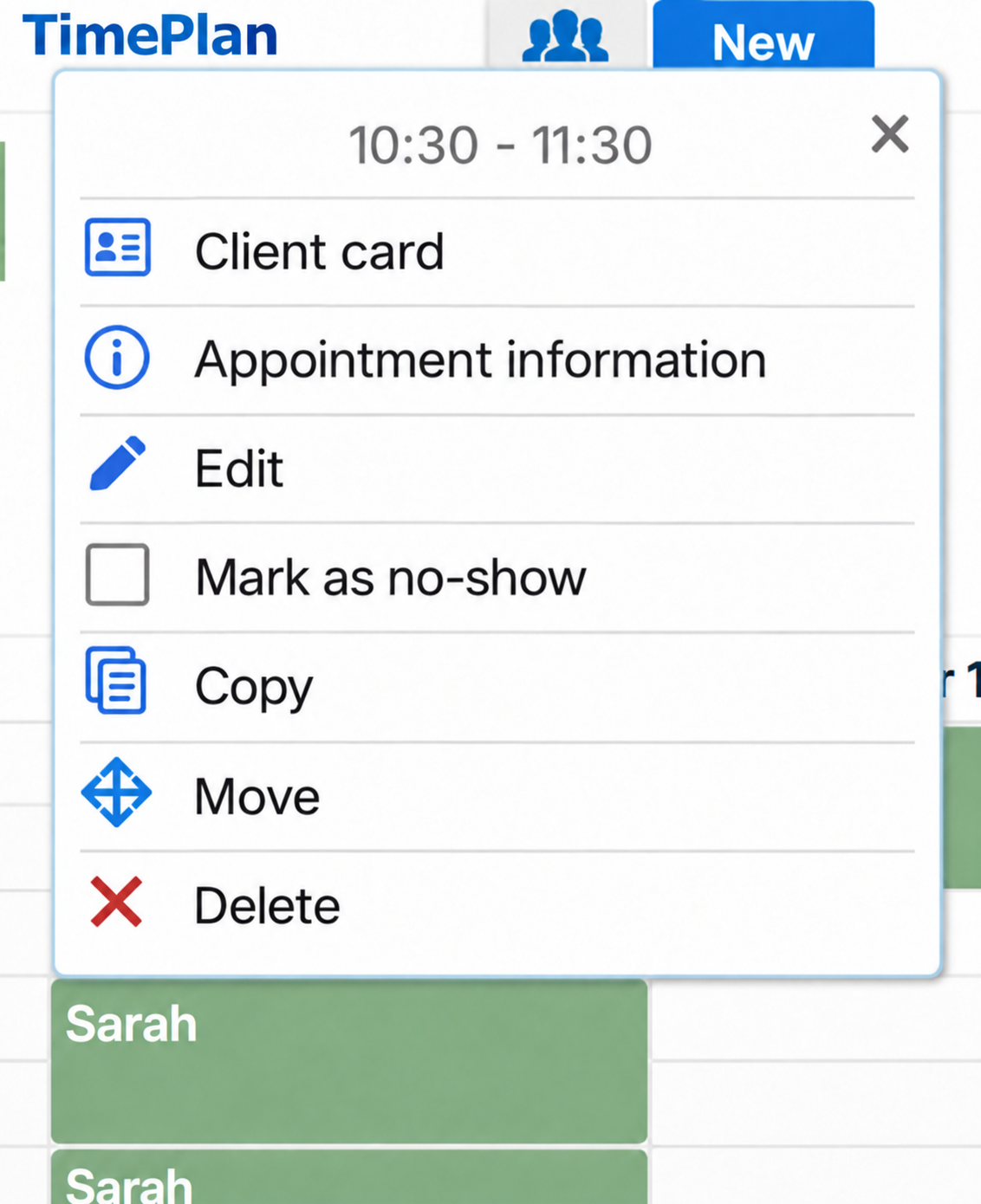
The lesson is shown with diagonal shading in the calendar:
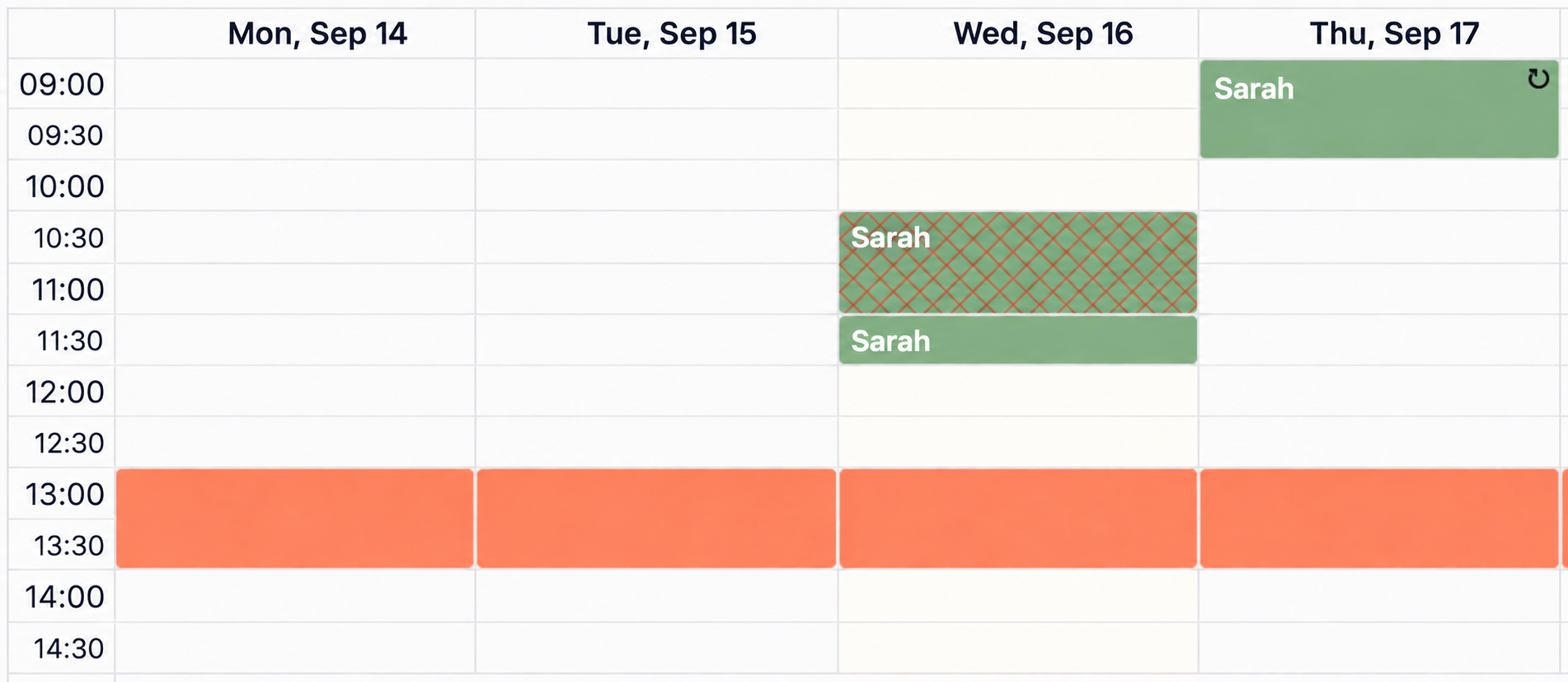
This keeps the attendance history out of your memory:
- Reports → No-shows shows when a student missed lessons and how many.
- You can enable automatic blocking after a specified number of missed visits and unblock a student manually when needed.
See Tracking Client No-shows for details.
TimePlan can remind students by email, SMS and free browser Push notifications before a lesson. The reminders guide explains the settings.
In the shared demo, a no-show mark appears immediately but may disappear after refreshing: demo changes are not saved permanently.
8. The student's desktop booking page
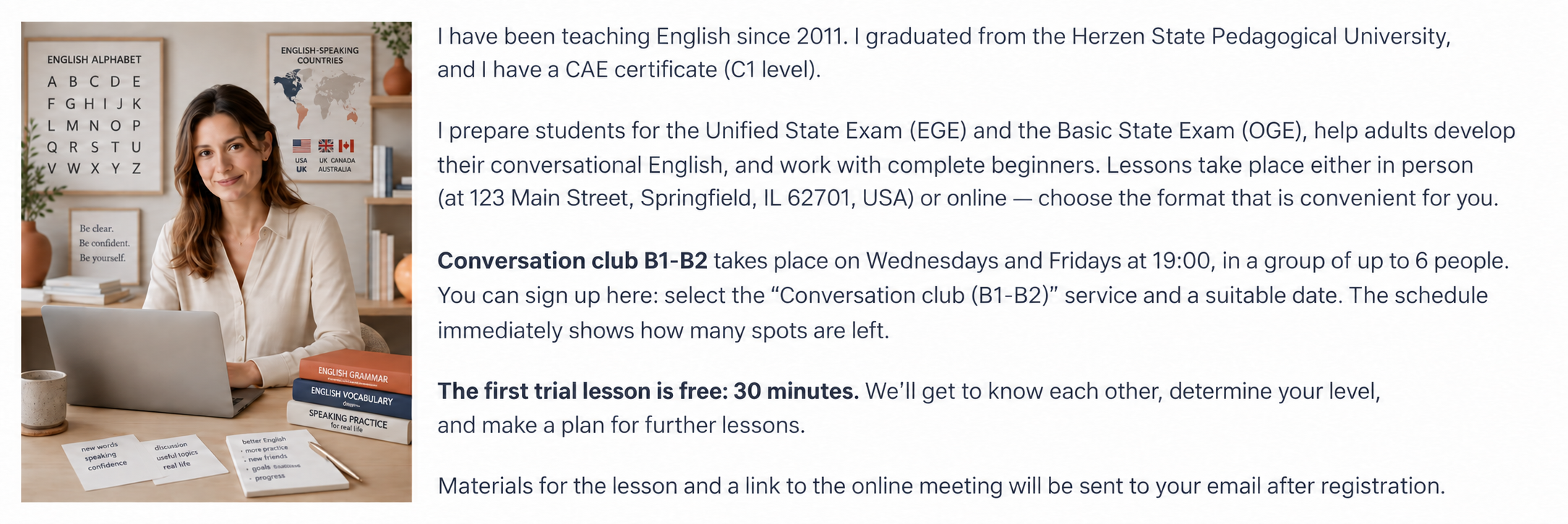
Open the demo as a student. Emily's page includes her profile as well as the calendar: a photo, experience, lesson formats and service descriptions.
The calendar above shows available times:
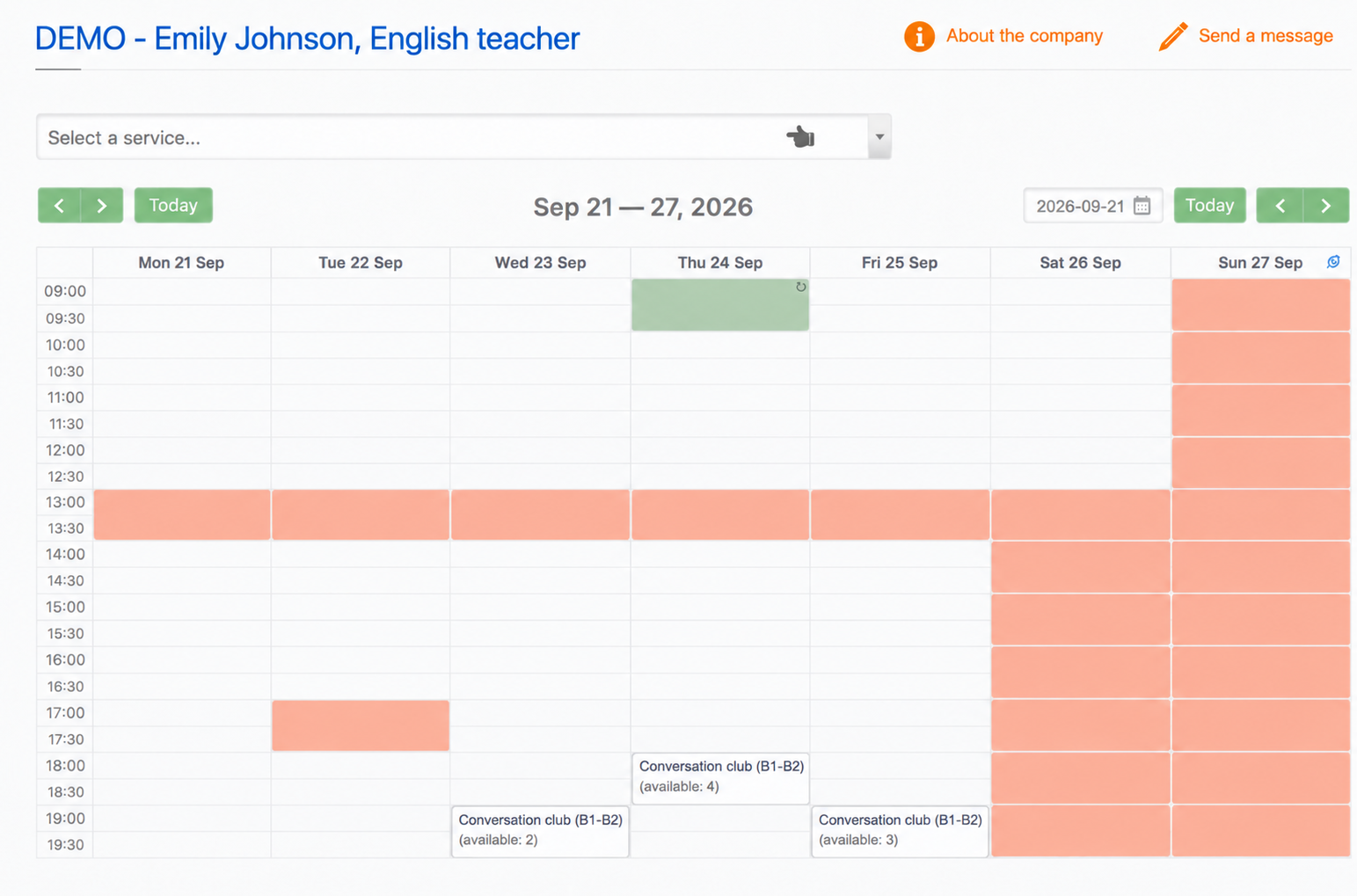
Other students' individual lessons are private: the student sees that the time is busy, without their details. Their own lessons are shown separately. Sarah, for example, has a regular Thursday lesson at 09:00 marked with ↻.
Group sessions show the available places. Click a session card to join the conversation club:
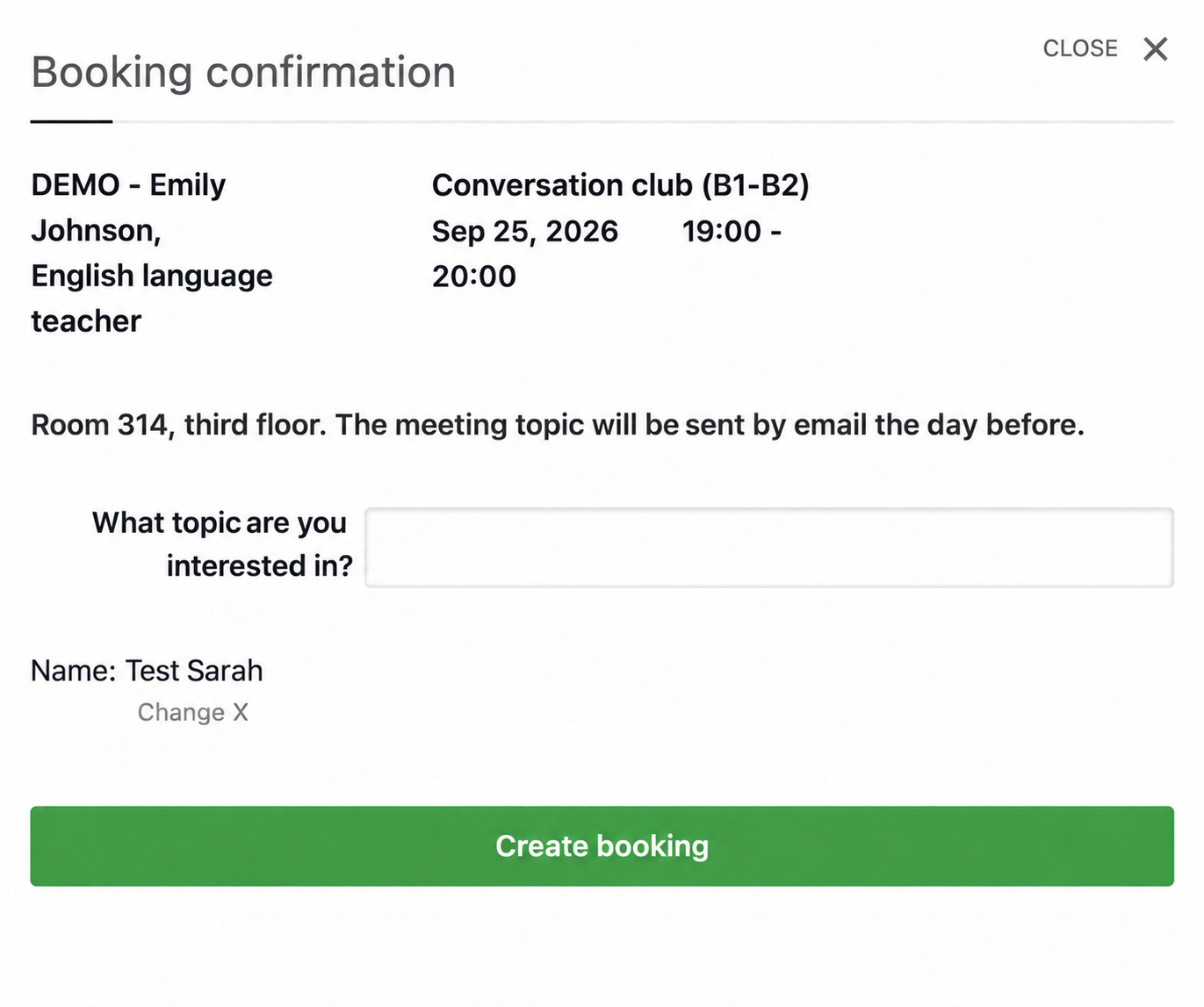
The window displays the tutor's instructions: “Room 314, third floor. The meeting topic will be emailed the evening before.”
The student also fills in “A topic you are interested in.” The answer stays with the booking and is available to the tutor.
9. Booking from a student's phone
On a phone, the student selects a service, a date and a suitable time from a list.
They can book a regular weekly lesson at the same time. Select Weekly ↻ and, if needed, enter the final date in Until:
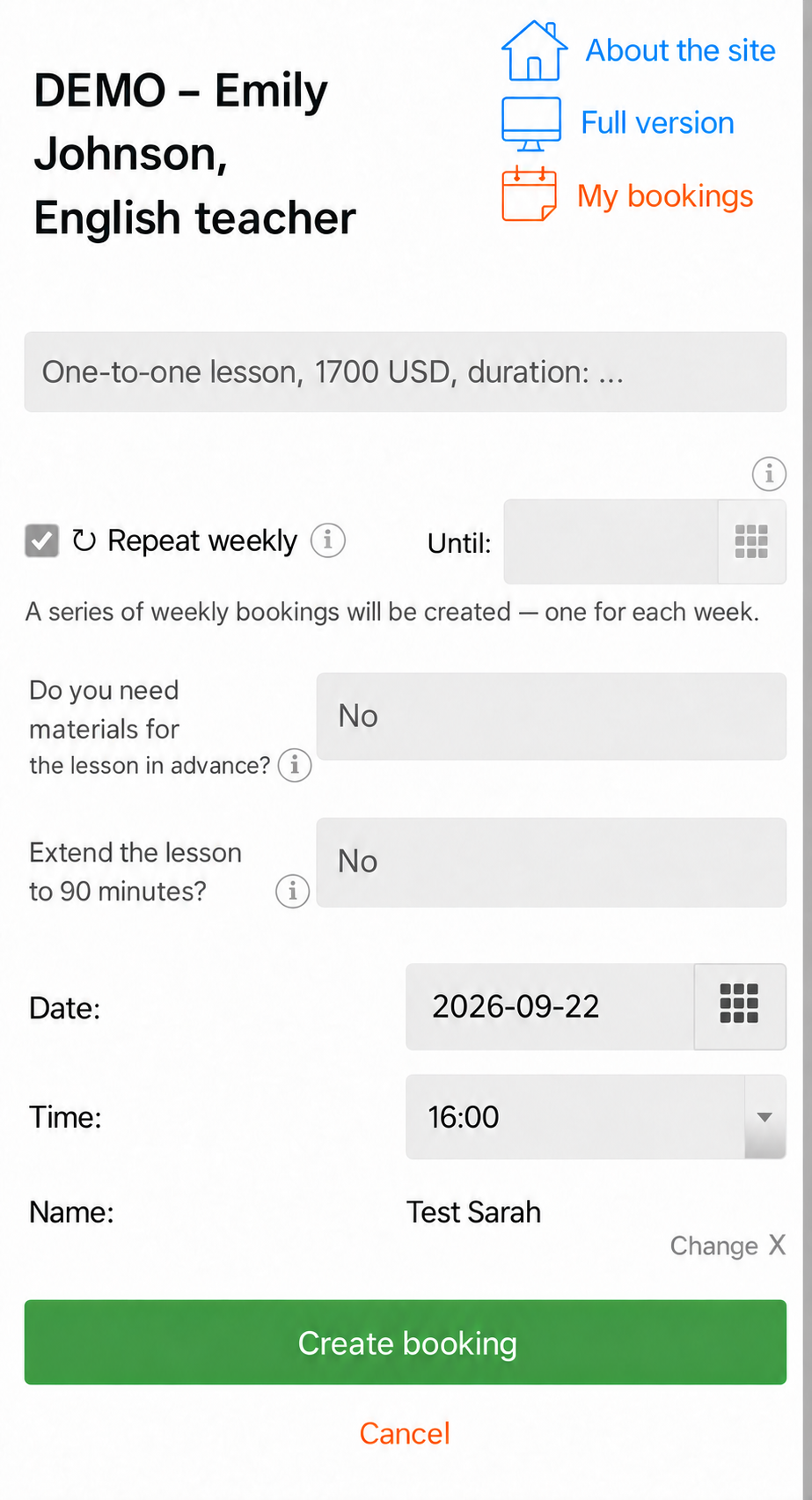
The service explains that a series of weekly bookings will be created, one per week. Select the checkbox before choosing the date.
Group classes appear as a list of upcoming sessions with the number of available places:
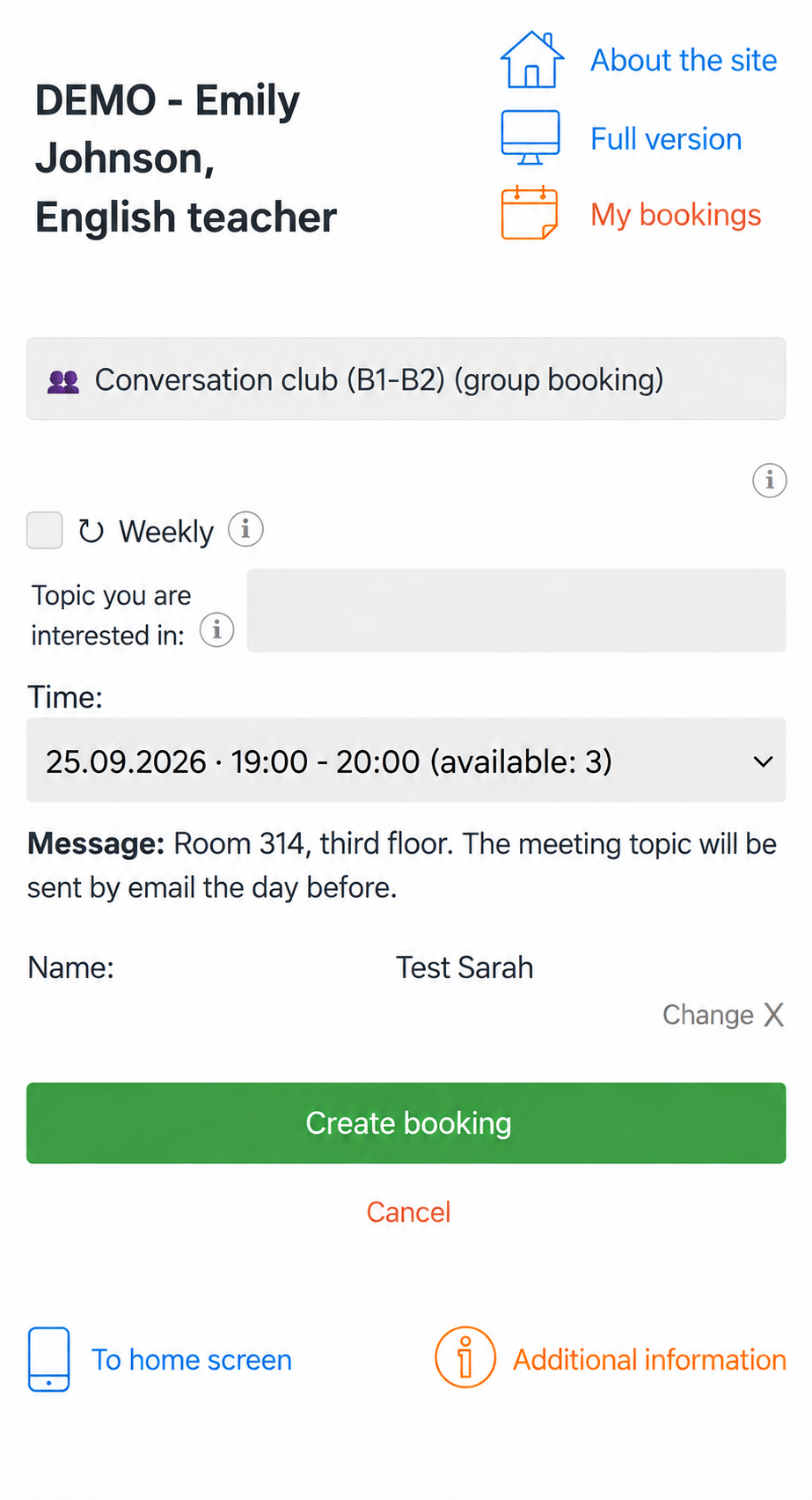
My Appointments shows upcoming and past lessons. Weekly lessons carry the ↻ symbol, and future bookings can be changed or canceled:
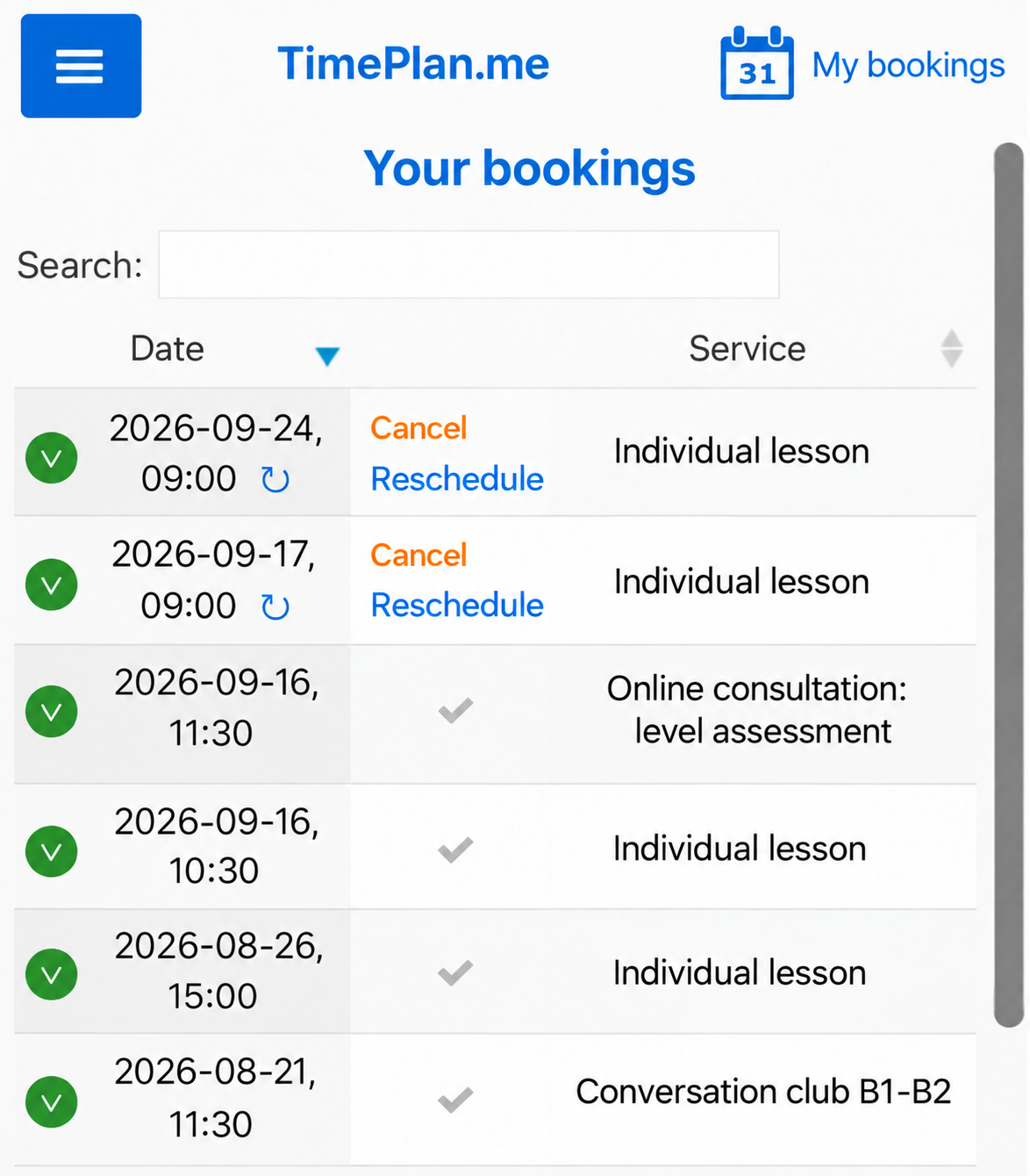
Students can check their next lesson and booking history in their account without asking the tutor each time.
Where to find each feature
| Task | In the tutor's account | What the student sees |
|---|---|---|
| Check the schedule | My Calendar, Week or Day view | Available and busy times |
| Schedule a regular student | Booking → Weekly ↻ | A series of lessons marked ↻ |
| Run a conversation club | A group-booking service | Remaining places |
| Record a missed lesson | Click the lesson → Mark as no-show | — |
| Send lesson reminders | Settings → Notifications | Email, SMS or Push reminders |
Getting started
- Open the tutor and student demos to see both sides of the schedule.
- Register and configure working days, hours and breaks.
- Add services such as an individual lesson, a trial lesson and a conversation club.
- Create weekly bookings for regular students.
- Send students the link to your page so they can choose available times themselves.
Things to keep in mind
The demo is shared. Other visitors may use it at the same time, so bookings and participant counts can differ from the illustrations.
Demo changes are not permanent. Some actions can be tried, but refreshing may restore the initial data. Changes in your own account are saved normally.
On a computer, join an existing group session through its calendar card. On a phone, upcoming sessions appear in a list after selecting the service.
Students need an account to manage their lessons. Once signed in, they can open My Appointments and change or cancel future bookings.