
Online booking for an auto repair shop: schedules, vehicle details and visit history
When someone calls for diagnostics or an oil change, it is not always convenient to stop work and look for a free slot. Before a return visit, you also need to know what brought the customer in last time.
TimePlan brings these tasks together. Customers choose a service and time, enter their registration number, vehicle details and reason for the visit, and the mechanic sees the information before they arrive. Previous visits remain in the customer record.
This guide follows Garage 78, a demonstration workshop offering diagnostics, oil changes, tyre fitting and scheduled maintenance. Prices in the examples are in USD and illustrate the workshop's services.
1. A week of workshop activity on one screen
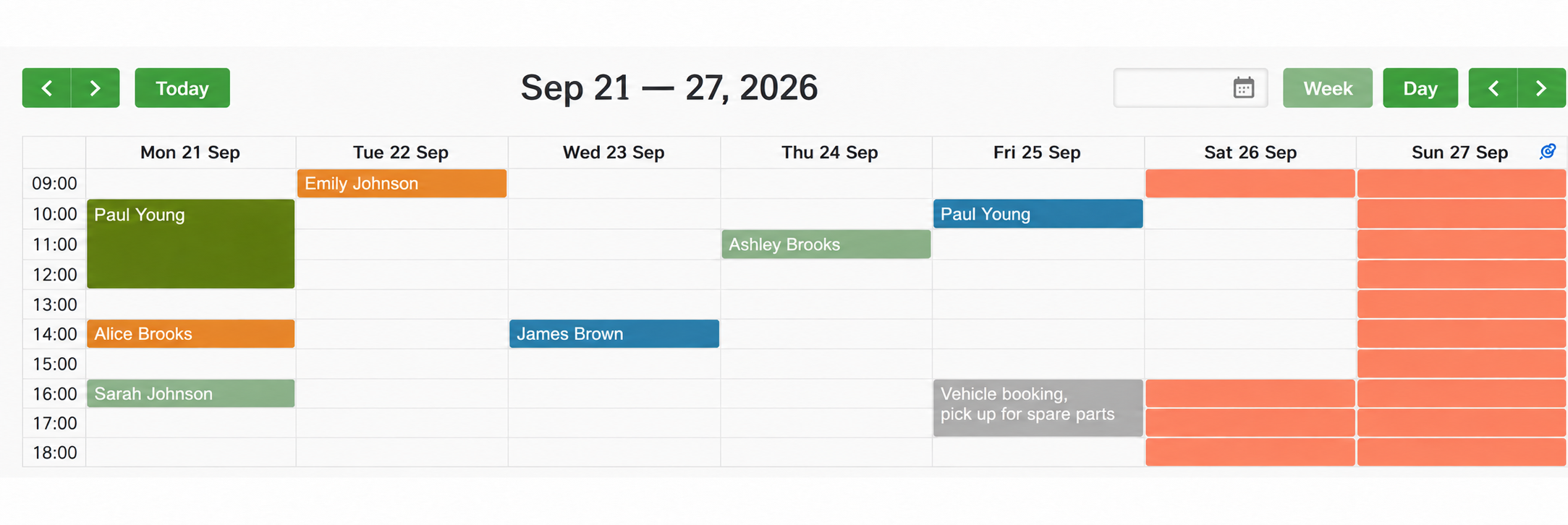
Colours and appointment lengths make the workload easy to read:
- Each service has its own colour: scheduled maintenance is dark green, tyre fitting orange, diagnostics blue and oil changes light green.
- The block's length matches the job: scheduled maintenance takes three hours; an oil change takes one.
- Grey reserved time closes an interval for internal work. On Friday from 16:00, the mechanic is collecting parts, so customers cannot book that time.
- Orange background cells are non-working hours, including evenings, Sunday and Saturday after closing.
- White cells are free time.
See Working hours and available booking times for setting opening hours and breaks.
2. Work from your phone
The calendar also works on a phone. Day view is especially useful in the workshop.
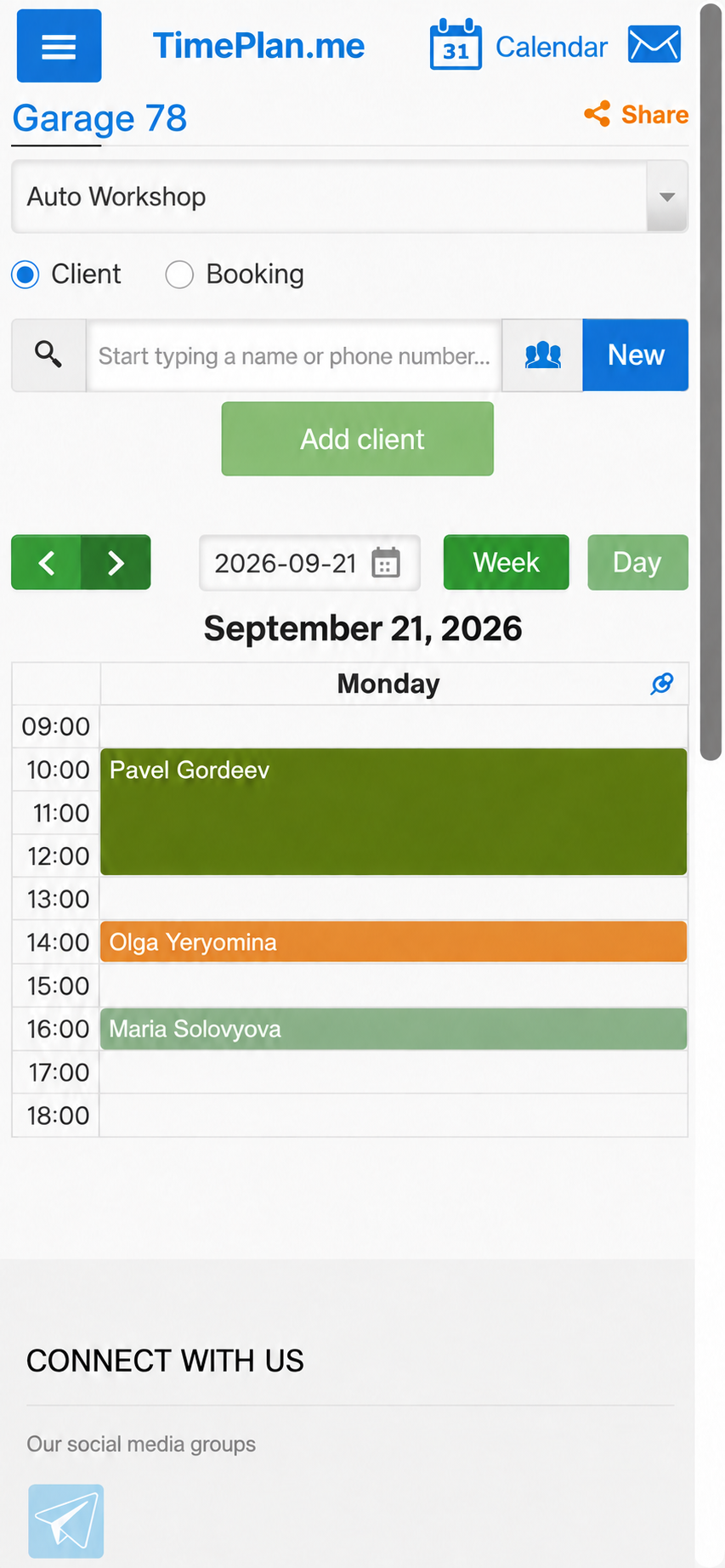
Monday shows maintenance from 10:00 to 13:00, tyre fitting at 14:00 and an oil change at 16:00. Customer search and Book a customer are available at the top. Add or change a visit directly in the browser; no separate app is needed.
3. Add a booking during a phone call
Start typing the customer's name or phone number, choose the service and enter the vehicle details.
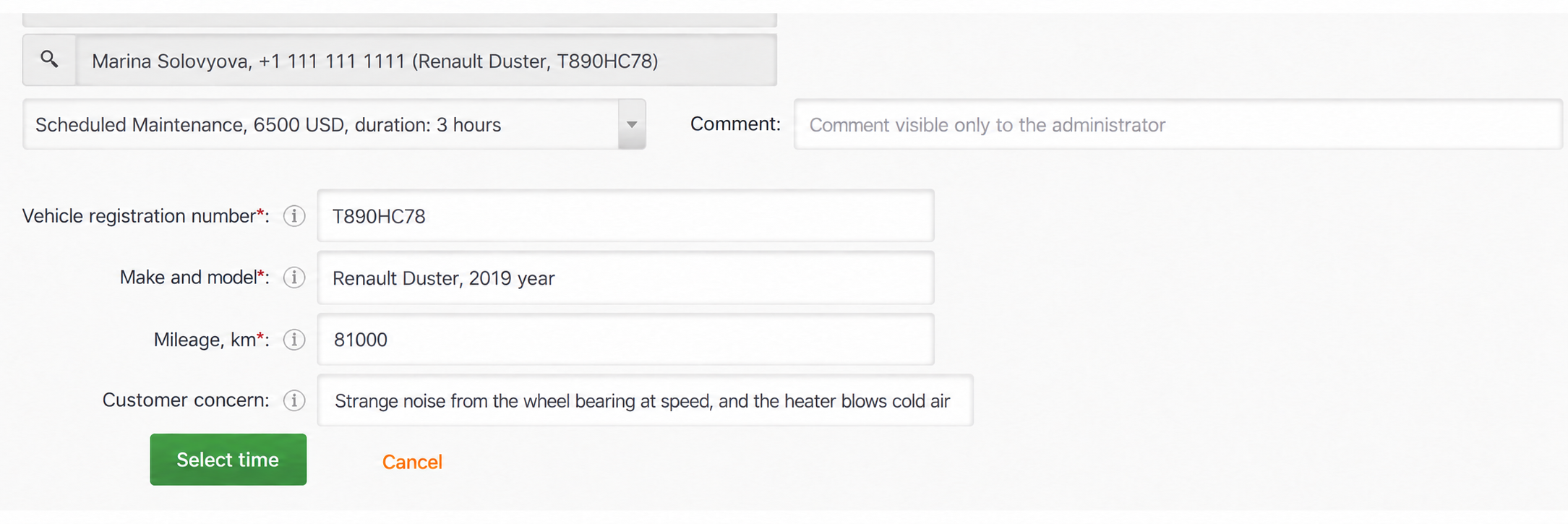
Customer notes appear in search. A note such as “Renault Duster, T890HC78” beside Megan's name helps you find the right person and recognise the car.
Required fields have an asterisk. For scheduled maintenance, this example requires a registration number, make and model, and mileage. The booking cannot be created without them.
Questions depend on the service. A “What is the problem?” field lets customers describe symptoms, such as “A bearing hums at speed and the heater blows cold air.” Make it required for services that need this information and optional elsewhere.
Click Choose time, then select a free interval.
4. Vehicle details arrive with the booking
Open the calendar entry and select Appointment information before the customer arrives.
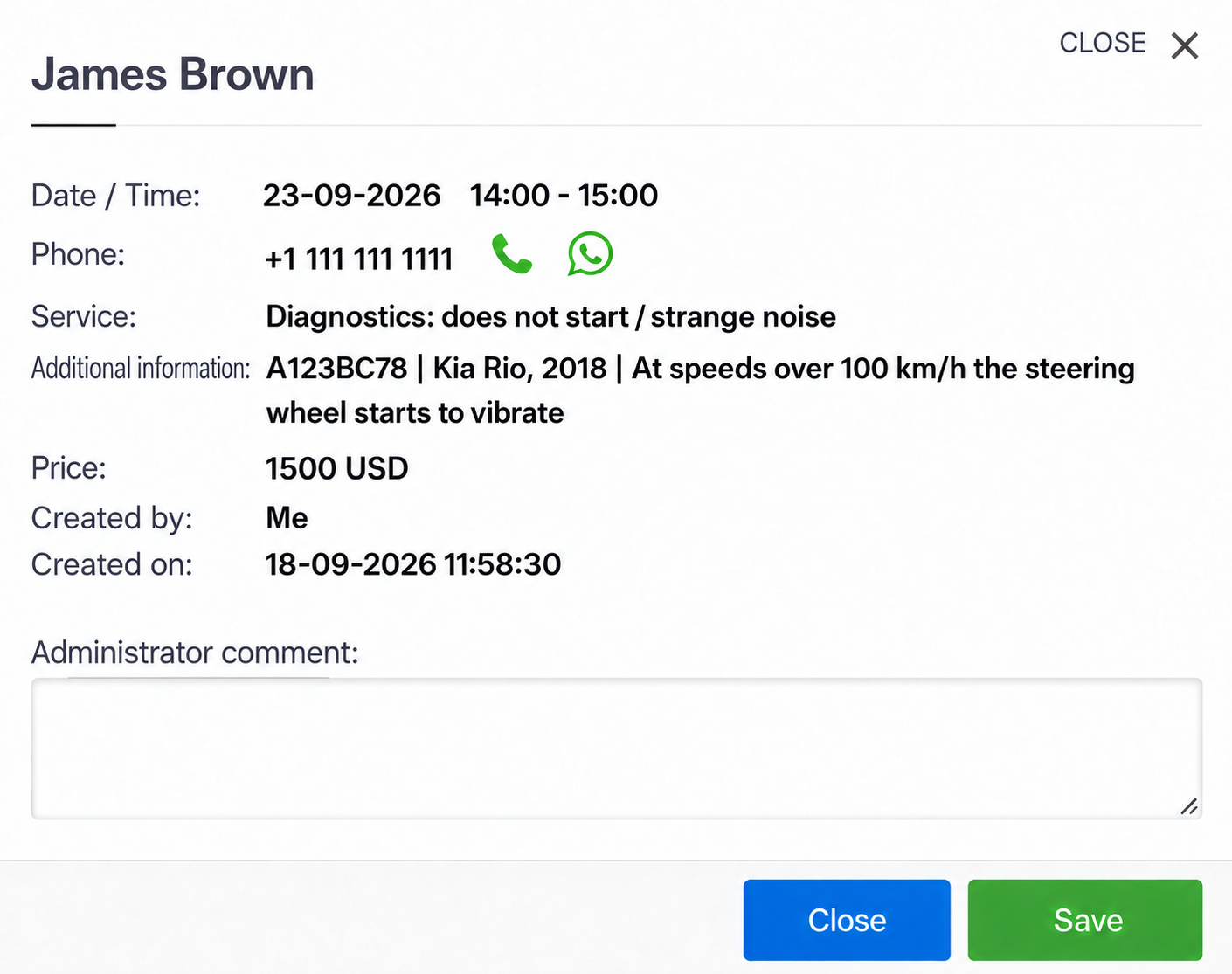
The registration number, vehicle make and model, and problem description help the mechanic prepare equipment and materials.
Set up these questions under Settings → Services → Select a service → Request additional information.
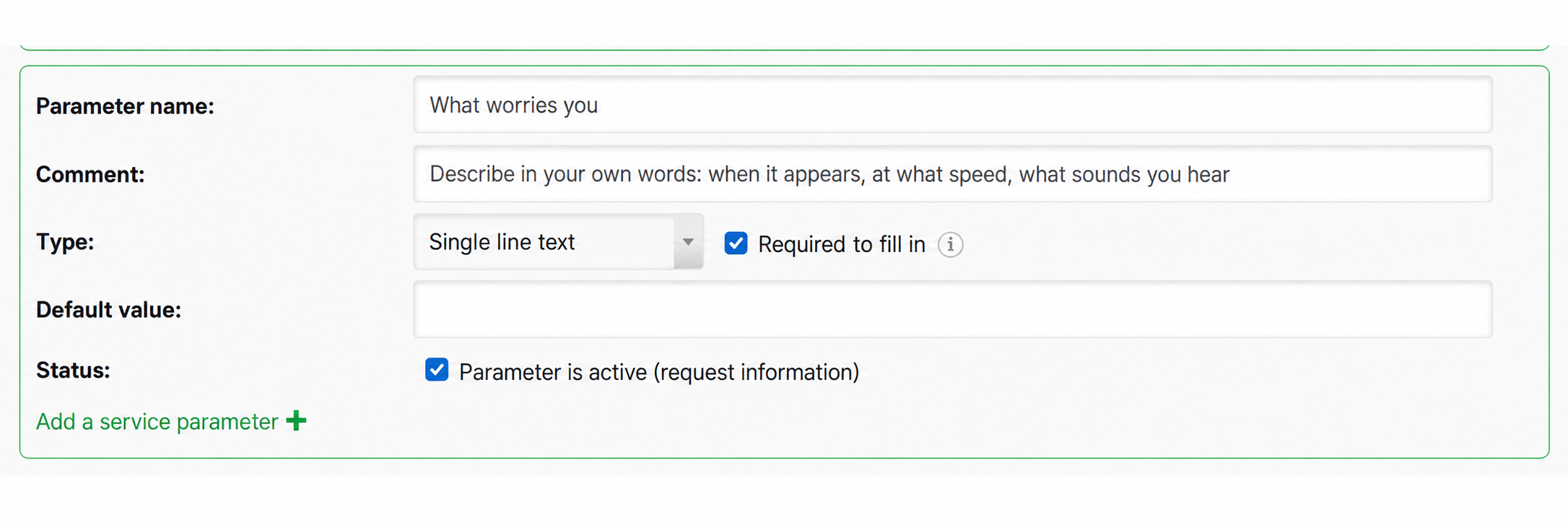
For each field, enter a name, help text, answer type and whether it is required. Useful help text might be: “Describe when the problem occurs, at what speed and what sounds you hear.”
- Text: registration number, vehicle model or a description of the fault.
- Number: mileage.
- List selection: wheel diameter for tyre fitting, for example.
List choices can change both price and duration. In the sample workshop, R16–R17 wheels add 400 USD; R18 and larger add 900 USD and 30 minutes. The customer sees the adjusted price and the mechanic receives the details in advance.
5. The customer's booking page
The workshop has its own booking page. Use About us to explain your specialities, working arrangements and directions.
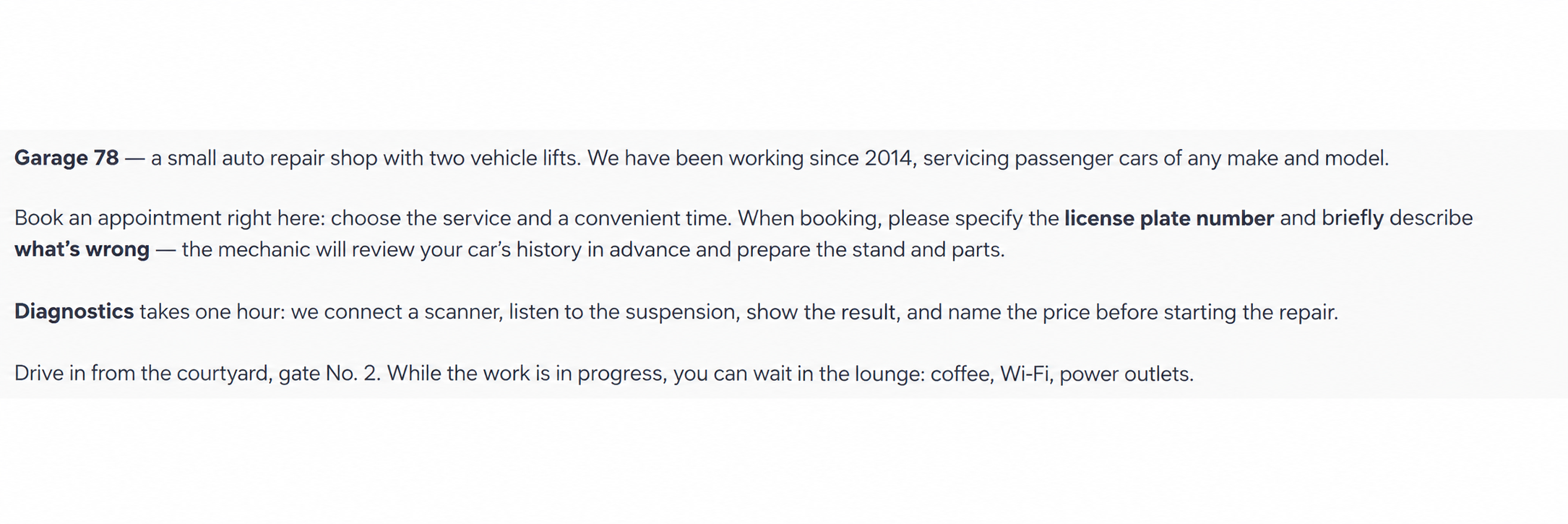
Customers choose a service, complete the vehicle fields and select a time.
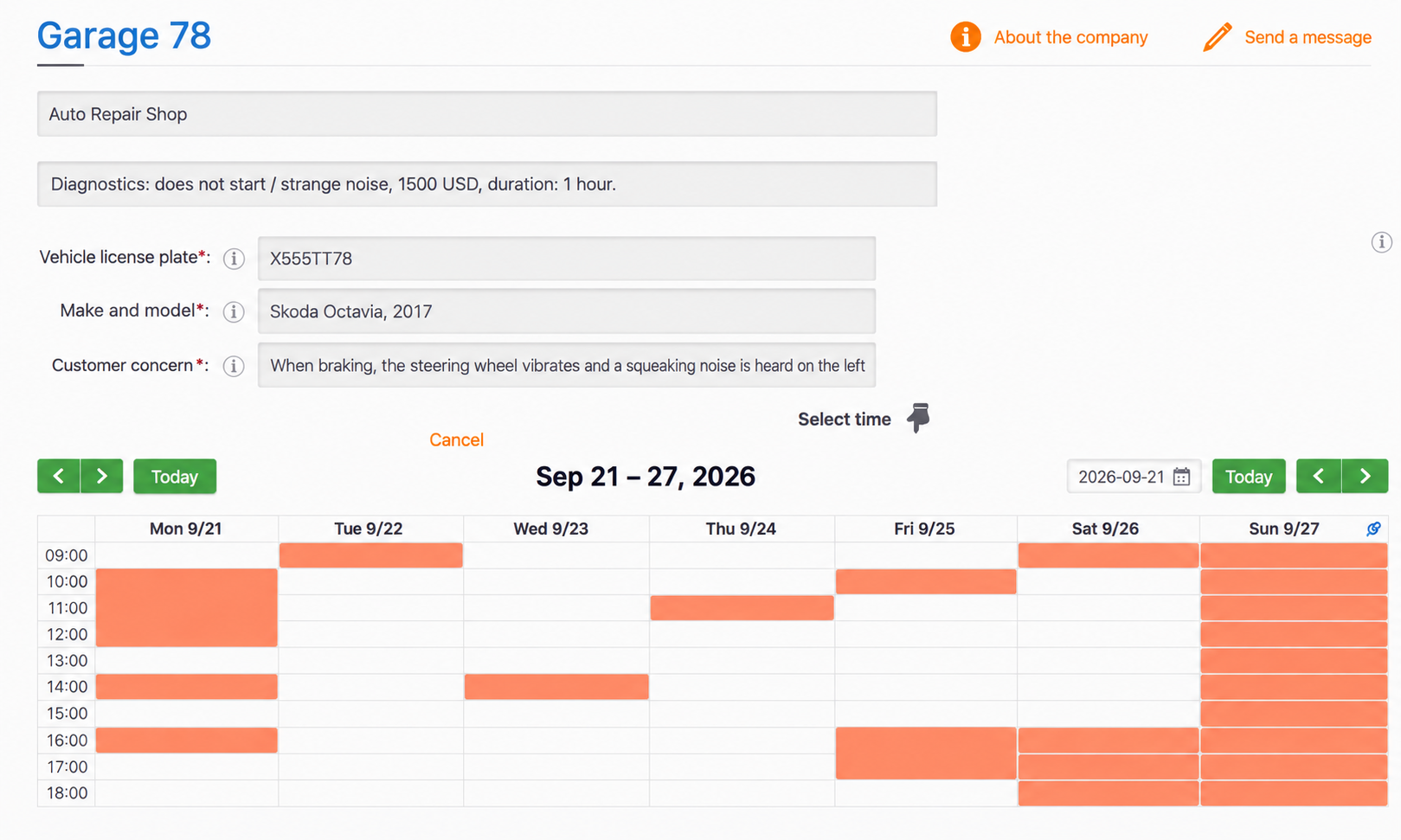
They see availability, but not other customers' names or vehicle details. Selecting a suitable free cell opens confirmation.
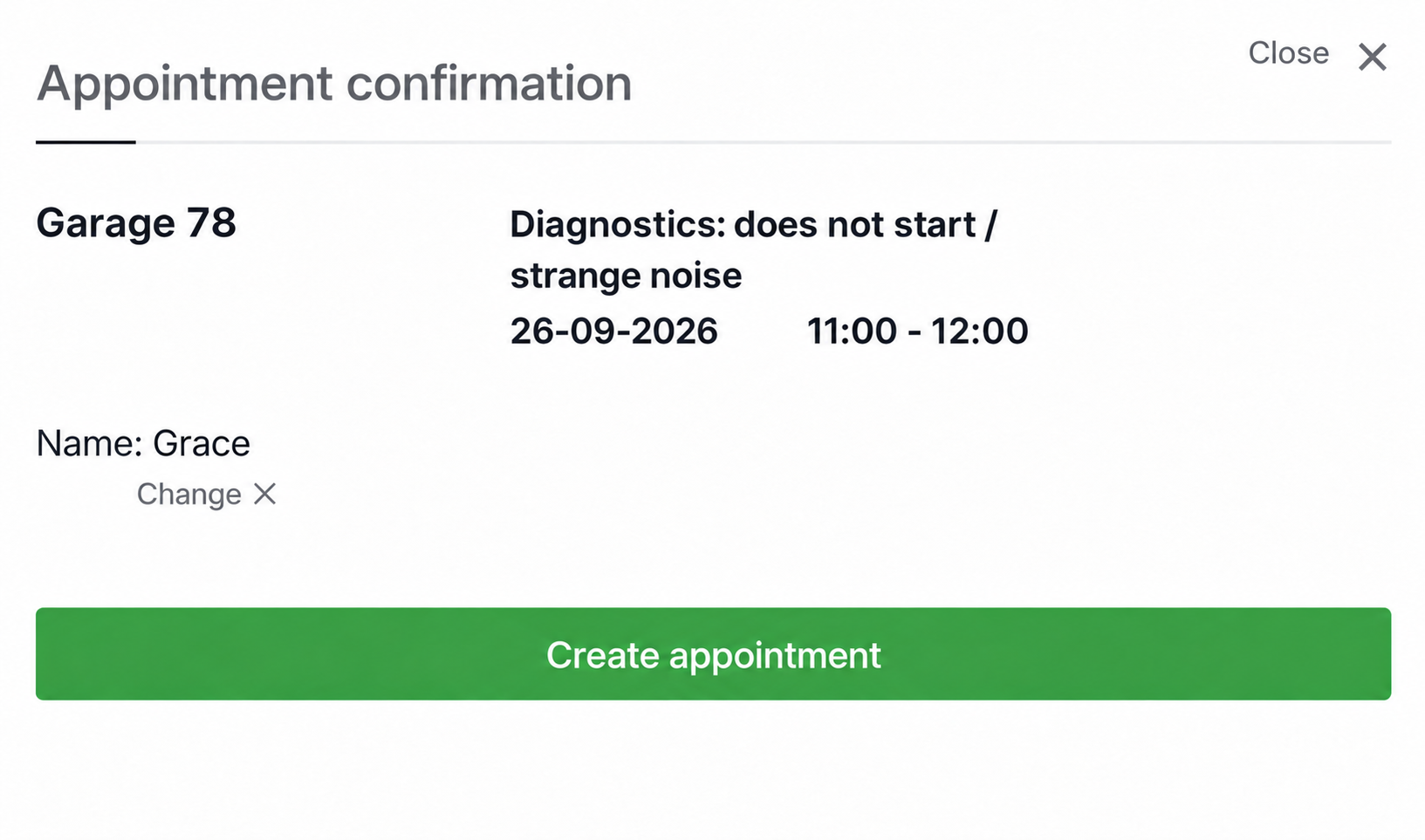
After confirmation, TimePlan displays the message configured for the calendar.
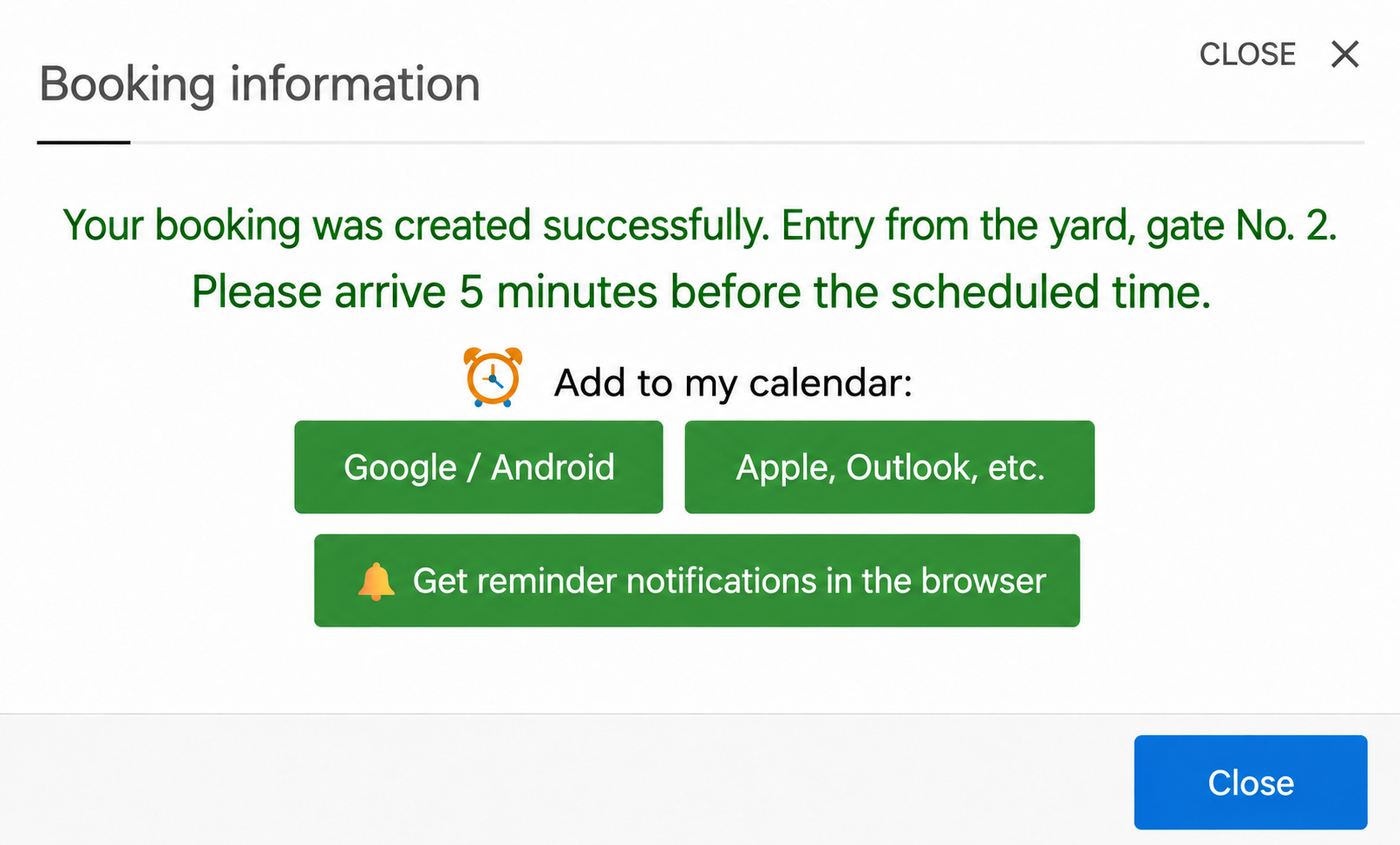
Use it for arrival instructions: “Enter through the courtyard, gate 2. Please arrive five minutes before your appointment.” Customers can also add the visit to their calendar and subscribe to free browser reminders.
6. Booking from a phone
The mobile flow follows the same steps: choose a service, complete the fields, select a date and an available time.
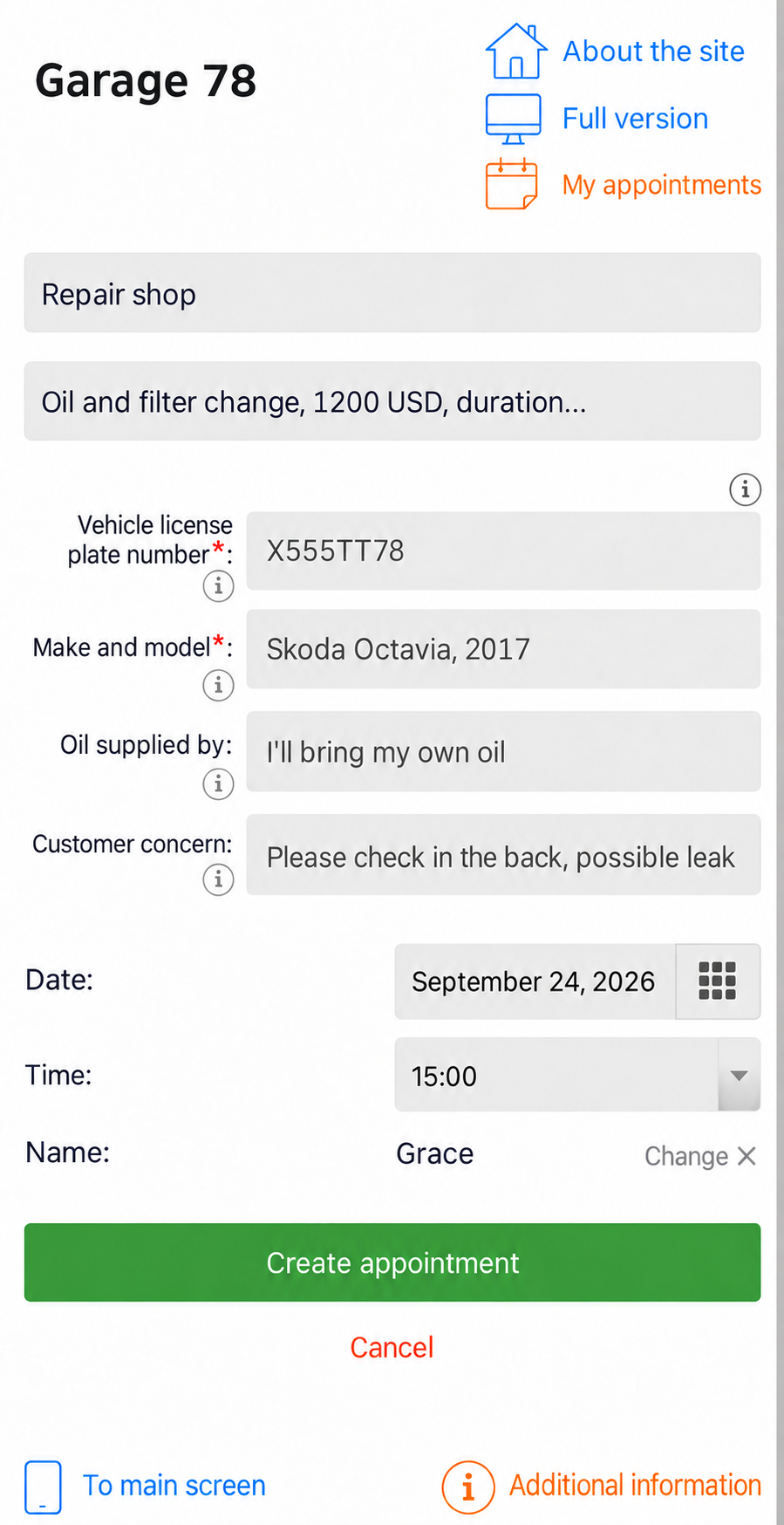
Fields marked with an asterisk are required. Other fields can be left blank. Someone booking an oil change might have no problem to report, or might ask you to check a possible coolant leak at the same visit.
Under My bookings, customers see past and upcoming visits and can change or cancel future bookings when permitted by the calendar's rules.
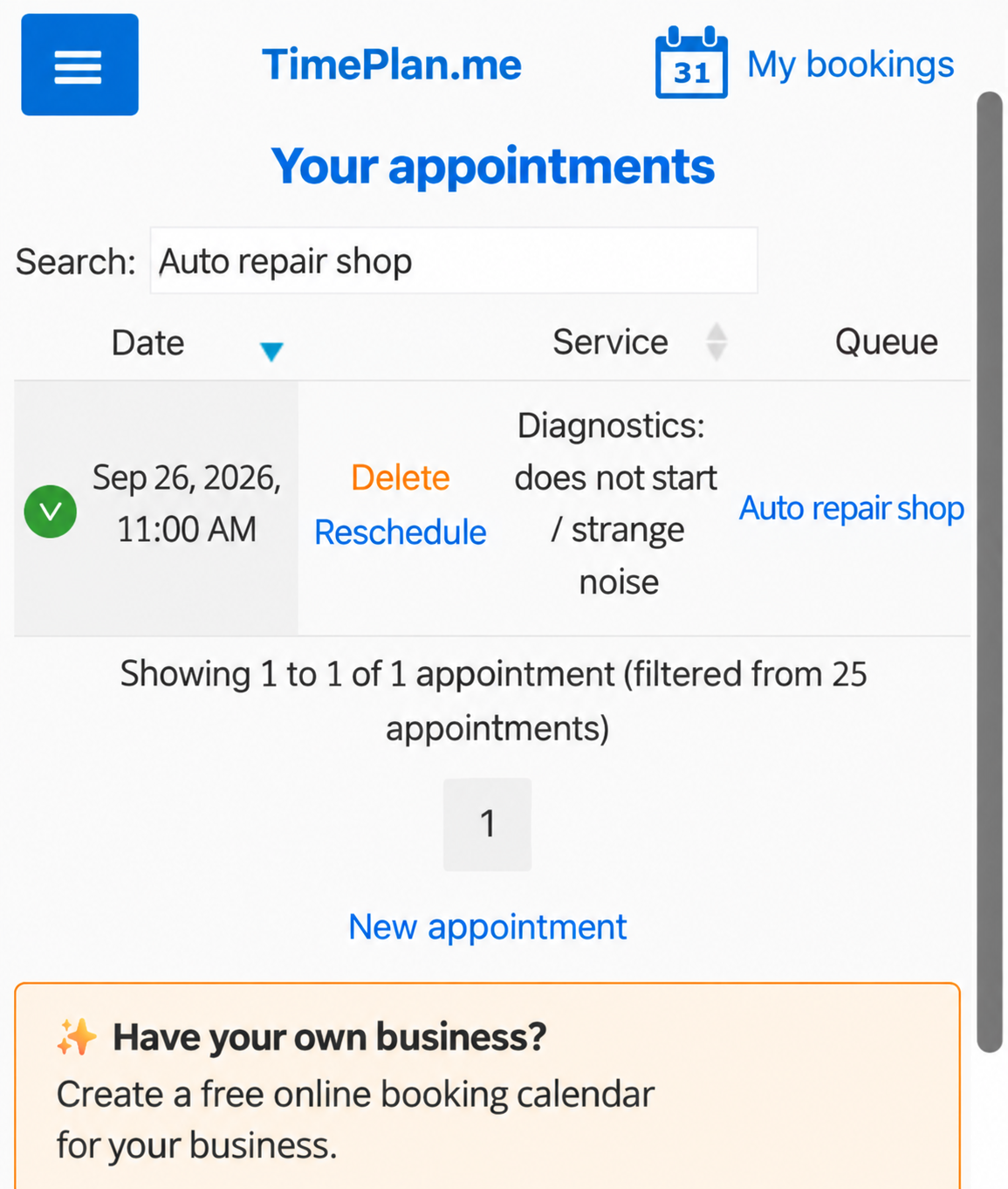
When a customer cancels in advance, the time becomes available again.
7. Record missed appointments
If a customer does not arrive, open the appointment and select Mark as no-show.
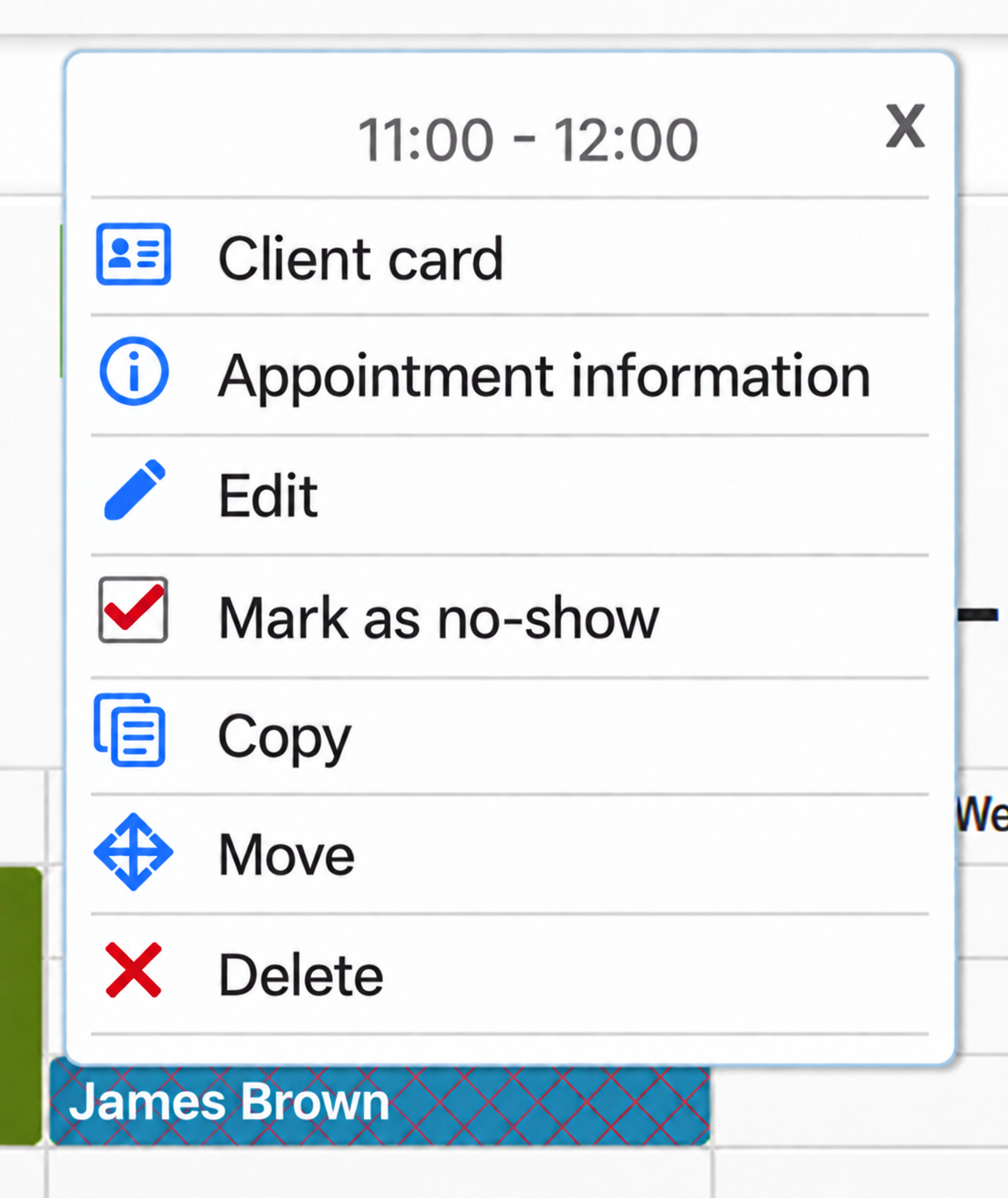
The calendar marks the missed appointment with hatching.
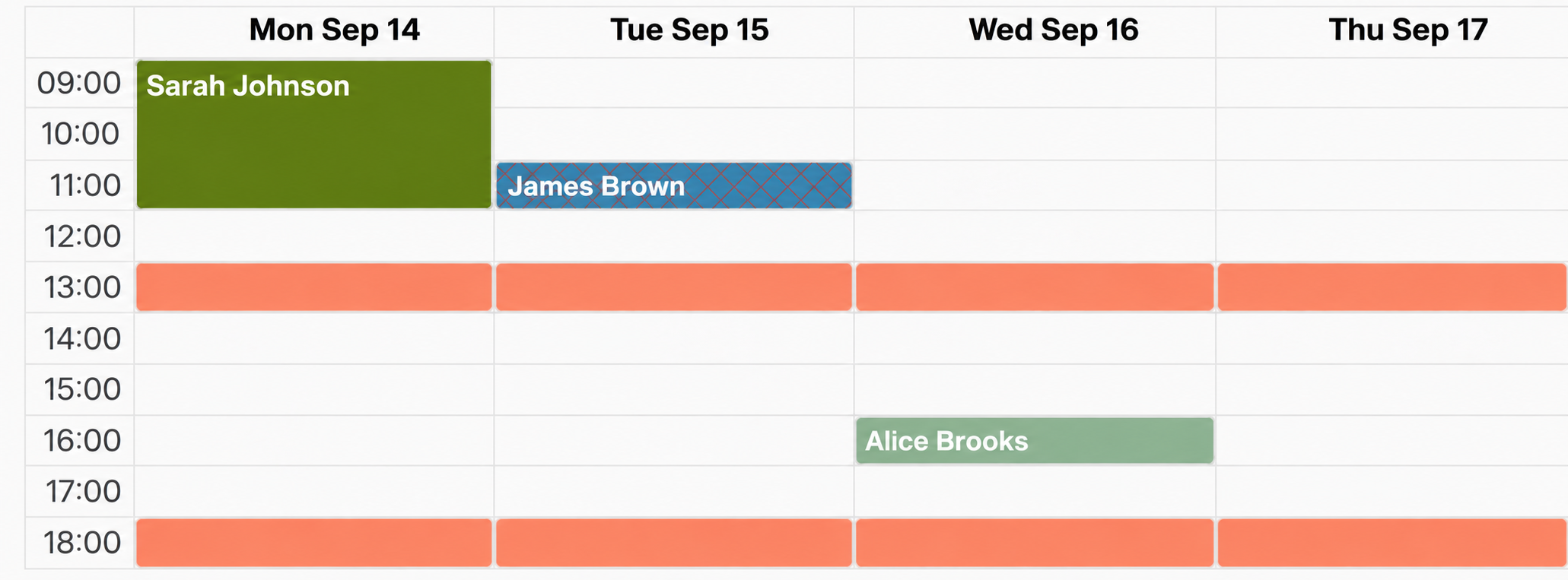
The Missed appointments report shows who has missed visits and how often. You can enable automatic blocking after a configured number of missed appointments; administrators can unblock customers manually.
Automatic email, SMS and free browser push reminders help customers remember their visits. See Client reminders and Managing missed appointments.
8. Keep previous vehicle visits at hand
Open Customers → History to see previous visits, services and information entered at booking.
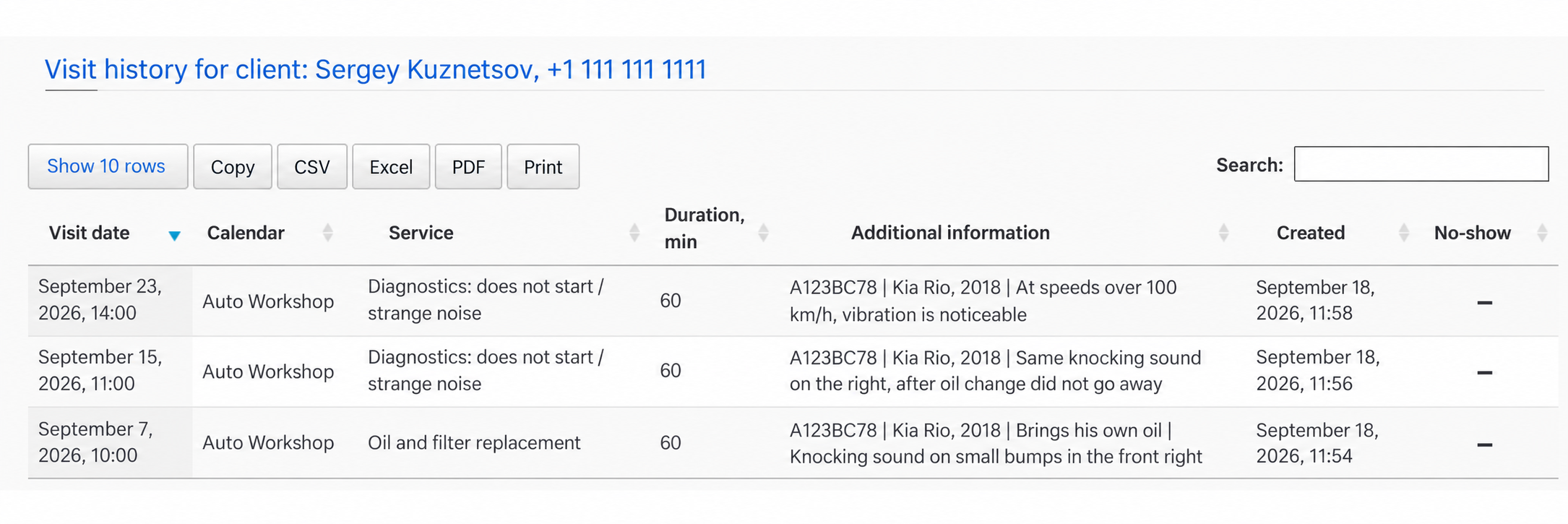
The history includes dates, services, durations and vehicle details. A registration number helps distinguish work on a particular vehicle. For example, James's history shows an oil change on 7 September with a note about a knocking sound on the right, a later diagnostic visit for the same problem and another visit reporting steering-wheel vibration.
History belongs to the customer. Vehicle details are saved with appointments; this example does not create a separate vehicle record. If one customer has several cars, distinguish their visits using the registration numbers and vehicle information.
For a workshop-wide view, open Reports → Full visit log, select a calendar and period, and optionally enable Show booking field names.
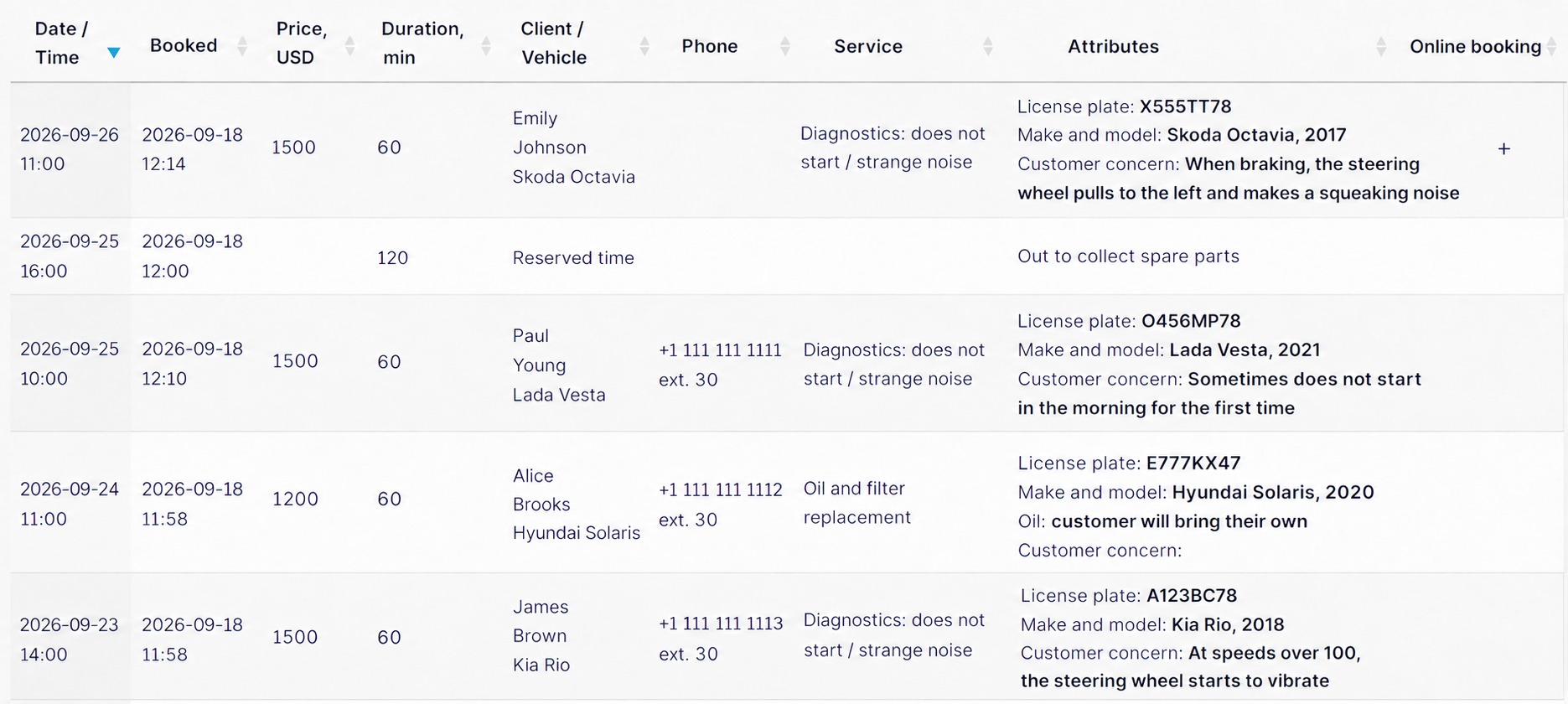
The log includes date, service, customer, price and additional details. Prices include selected options: an oil change with the customer's own oil costs 1,200 USD in this example, compared with 4,100 USD using the workshop's oil. Export the log to Excel, CSV or PDF for further record keeping.
Where to find each feature
| Workshop task | Administrator area | Customer view |
|---|---|---|
| Check daily or weekly workload | My calendar → Day / Week | Free and busy times |
| Collect registration numbers and symptoms | Service → Request additional information | Booking fields |
| Prepare for a visit | Appointment → Appointment information | — |
| Set aside time for internal work | Reserve time | Unavailable time |
| Record a no-show | Appointment → Mark as no-show | — |
| Review previous visits | Customers → History | Their own visits under My bookings |
| Report on a period | Reports → Full visit log | — |
Getting started
- Add clearly named services, such as oil change, tyre fitting and diagnostics, with duration and price.
- Add registration number, make and model fields, plus mileage and problem descriptions where needed.
- Configure working hours, breaks and days off.
- Add arrival instructions to the booking confirmation message.
- Share the booking link on your website, social profiles and in messages to regular customers.
Practical details
- Configure fields separately for each service. Ask for a detailed fault description for diagnostics and wheel diameter for tyre fitting. Keep questions relevant.
- Make only necessary fields required. A routine oil change does not always need a problem description.
- Appointment information may show additional values on one line, for example
A123BC78 | Kia Rio, 2018 | Steering wheel vibrates above 100 km/h. Customer history and the full log put these details alongside the visit information. - Adding past appointments is restricted by default. To enter a previous visit, enable Allow the manager/administrator to add or edit past appointments under Settings → Working hours → Restrictions.
- Use different service colours to distinguish job types, especially on a small phone screen.
- Reserve time for internal work, including collecting parts, breaks and equipment maintenance, so customers cannot book those intervals.