
Online booking for group fitness classes
How group classes work
An ordinary TimePlan appointment reserves one time for one client. A group service lets several people book the same session, up to the capacity you set.
Use it for yoga, Pilates and other group workouts, workshops, children's activities or a shared session for two people. Participants stay together in the calendar, TimePlan tracks capacity, and clients can join through the public booking page.
Our demonstration fitness centre offers Group yoga with Emily Johnson: 90 minutes, a sample price of 700 USD and up to 20 participants. This article walks through that example. For other workflows, direct links, rescheduling and mobile administration, see the complete group booking guide.
Create a group service
Under Settings → Services, create a service and enable Group booking → Multiple clients can book the same time.
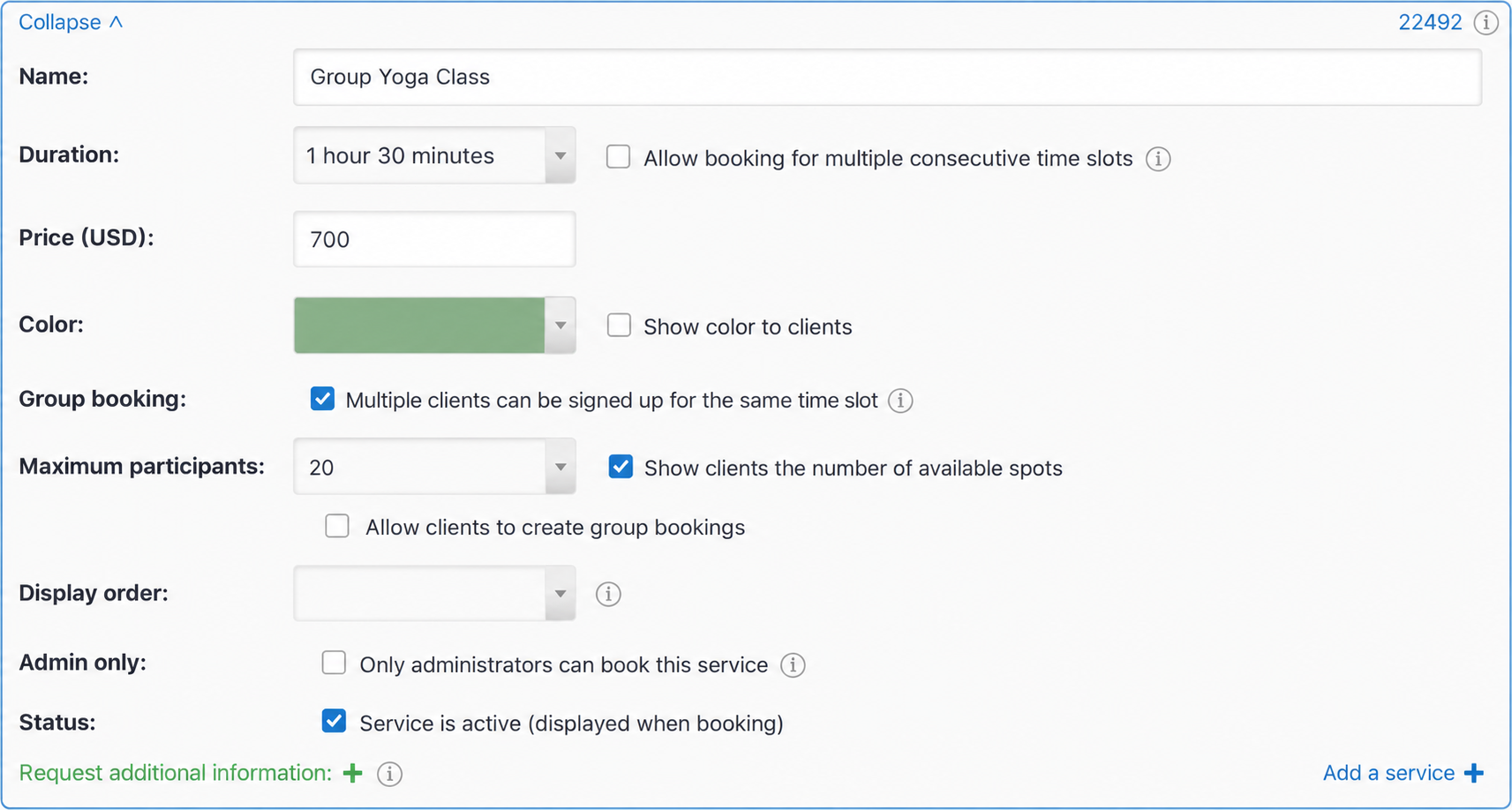
Three settings matter:
- Group booking makes the service a group service. You cannot change this setting after saving, so choose the correct type when creating the service.
- Maximum participants sets the capacity: 20 in this example, two for a paired workout or a larger number for a large class.
- Show clients the number of remaining places displays information such as “16 places available” on the booking page.
The separate Allow clients to create group sessions option lets a client start a new group in a free interval. It is disabled here: the administrator schedules classes and clients join those existing sessions.
Schedule a class as an administrator
Open My calendar, select the instructor and switch to Group mode. The customer search changes to a group-service selector and an optional Message to participants field. Use the message for a room address, online meeting link or things to bring; participants see it before booking and in the email afterwards.
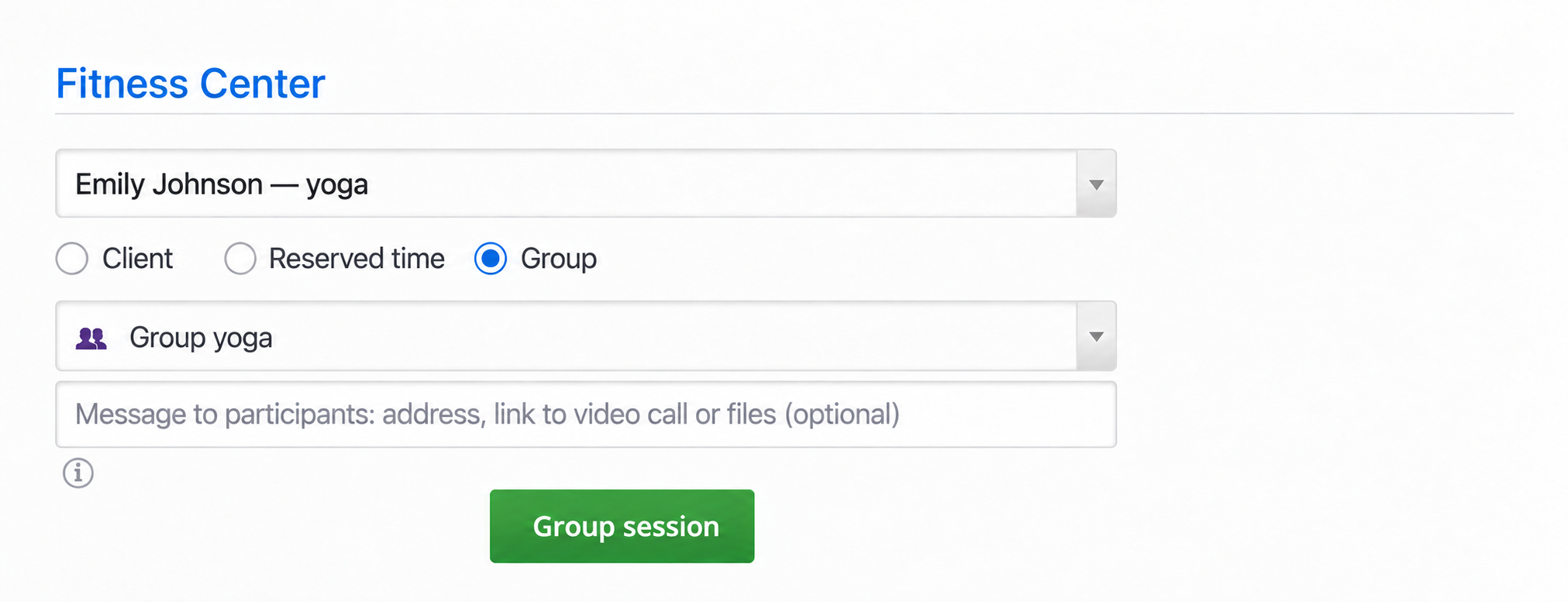
Click Group session, then select a free cell. Check the date, time and service in the confirmation window.
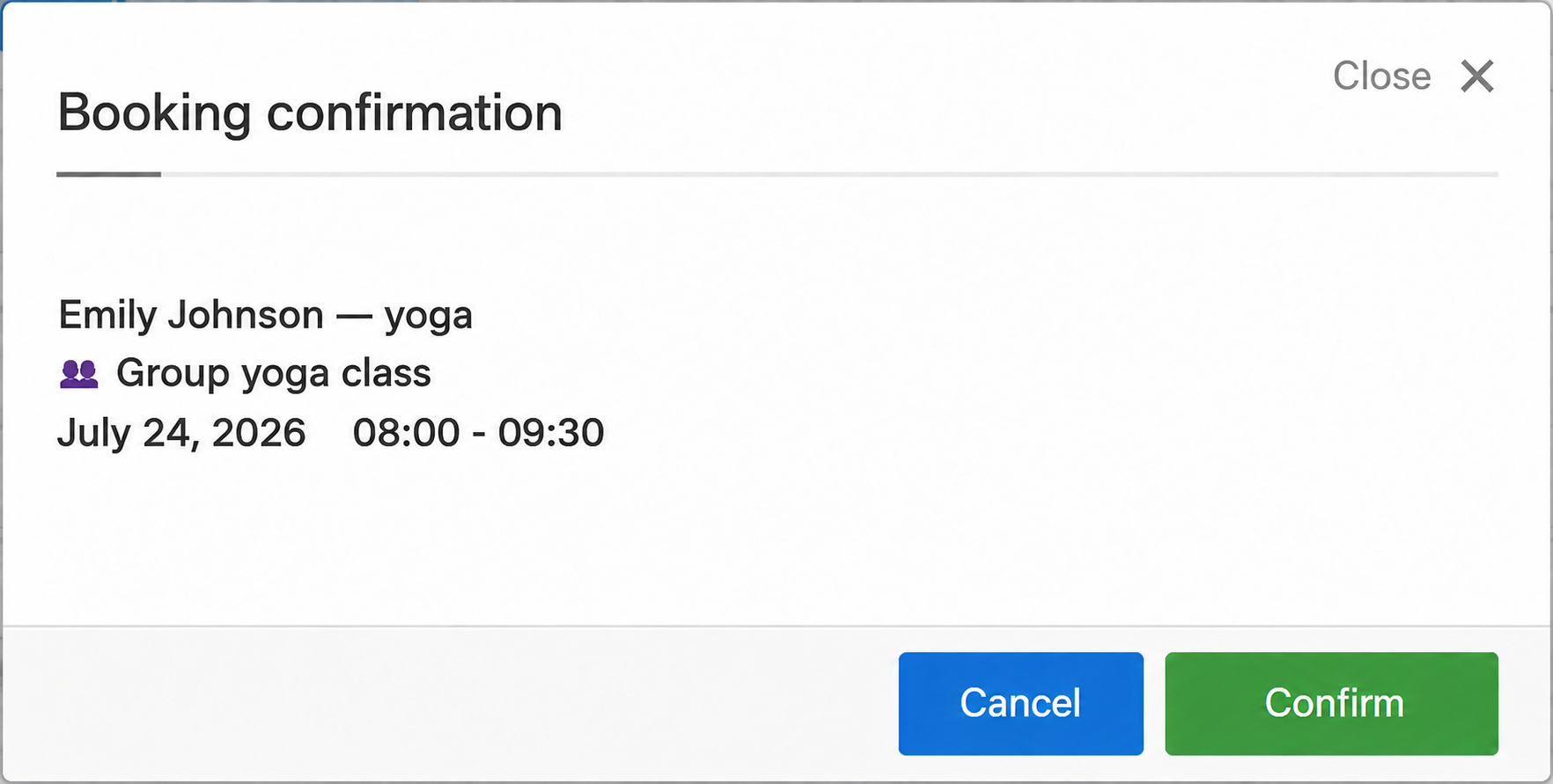
Click Confirm. The session appears with a participant counter, initially 0/20.
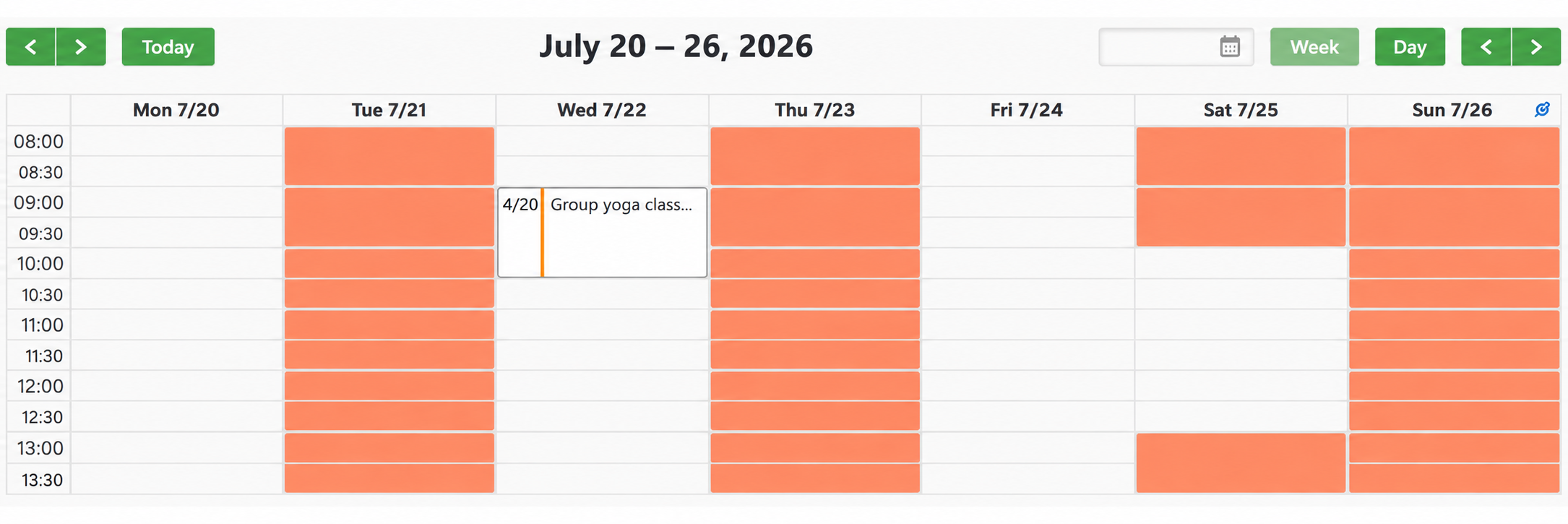
White cells are working hours and orange cells are closed. A group session has an outlined block, an occupied/total counter and a vertical occupancy indicator.
Open the session and participant list
Click the session to open its menu.
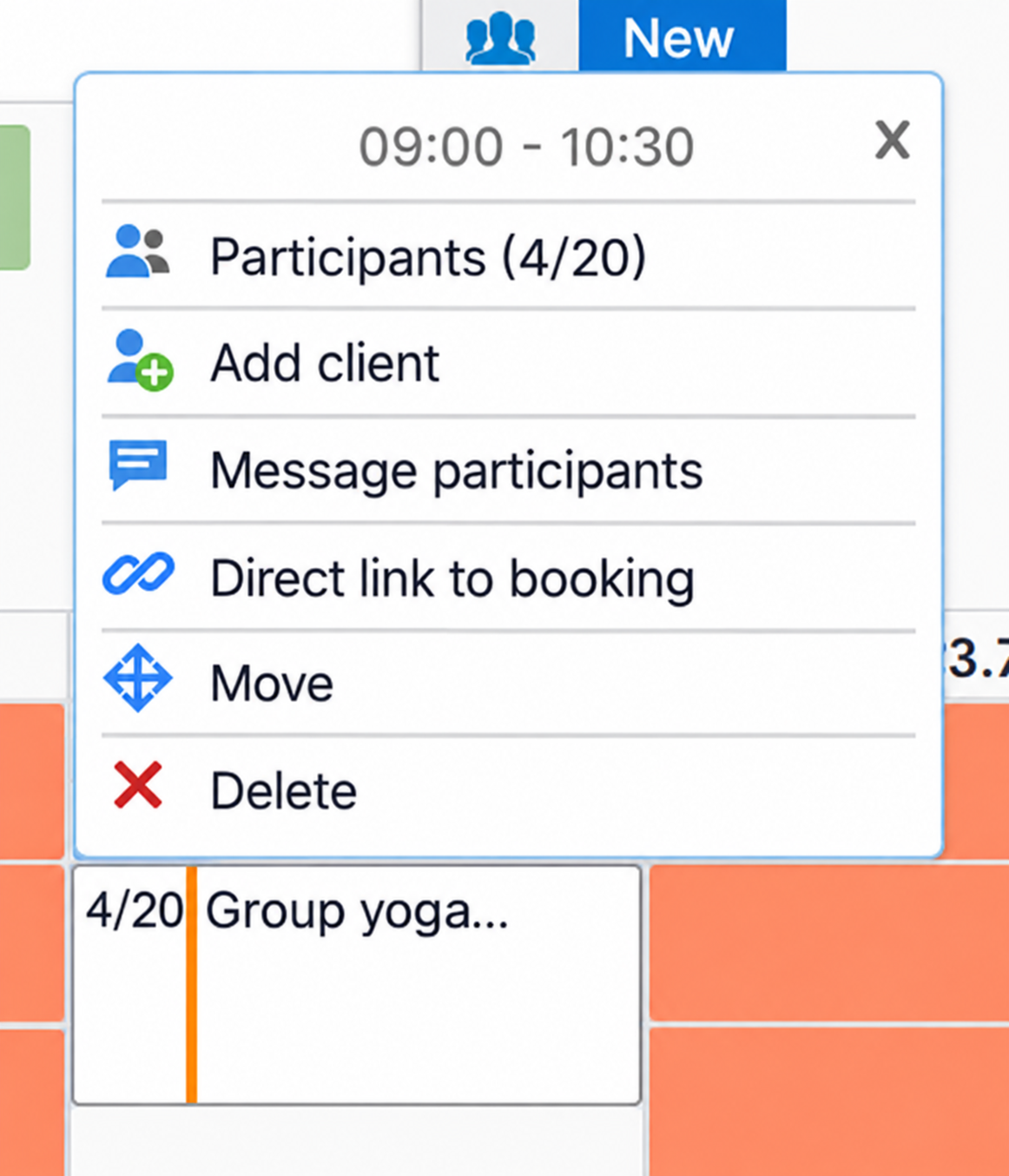
- Participants (6/20): view names and phone numbers, open booking details or customer records, or remove someone.
- Book a client: add the selected client as an administrator.
- Message to participants: view or edit the shared session text.
- Direct booking link: copy a link to this particular class for messages or social posts.
- Reschedule: move the whole session.
- Delete: cancel the entire session.
The participant window shows the service, date, time, capacity and everyone booked.
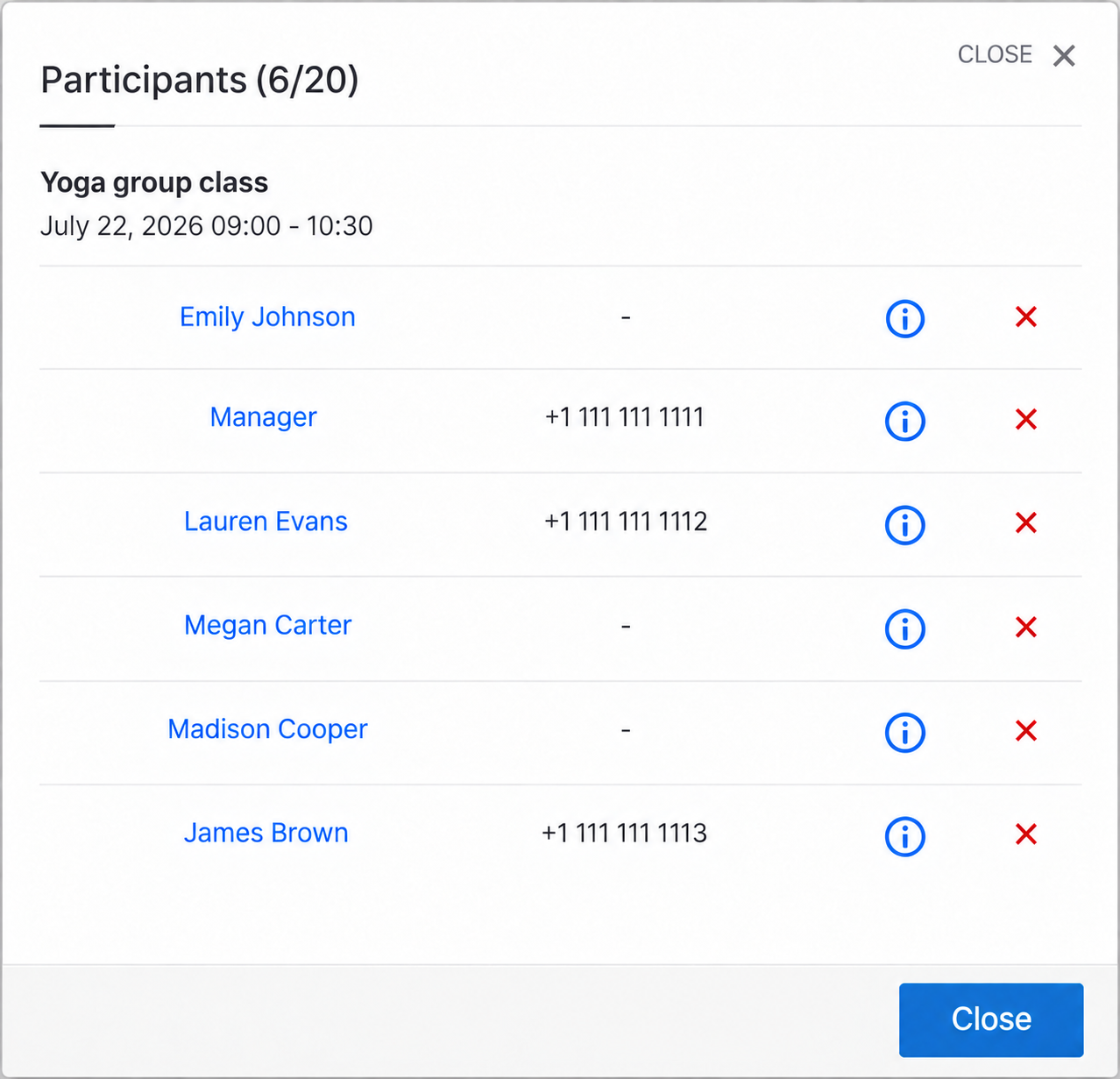
The example is Emily Johnson's group yoga on 22 July 2026, 09:00–10:30: six of 20 places taken and 14 available. Each row provides three actions:
- Click the name to open the customer record.
- Click ⓘ to view that participant's booking information.
- Click ✕ to remove the participant; confirmation is requested first.
Collect details from each participant
You may need to know whether someone needs a mat or their experience level. Add questions under Settings → Services → Request additional information. Fields can be text, numbers or list selections.
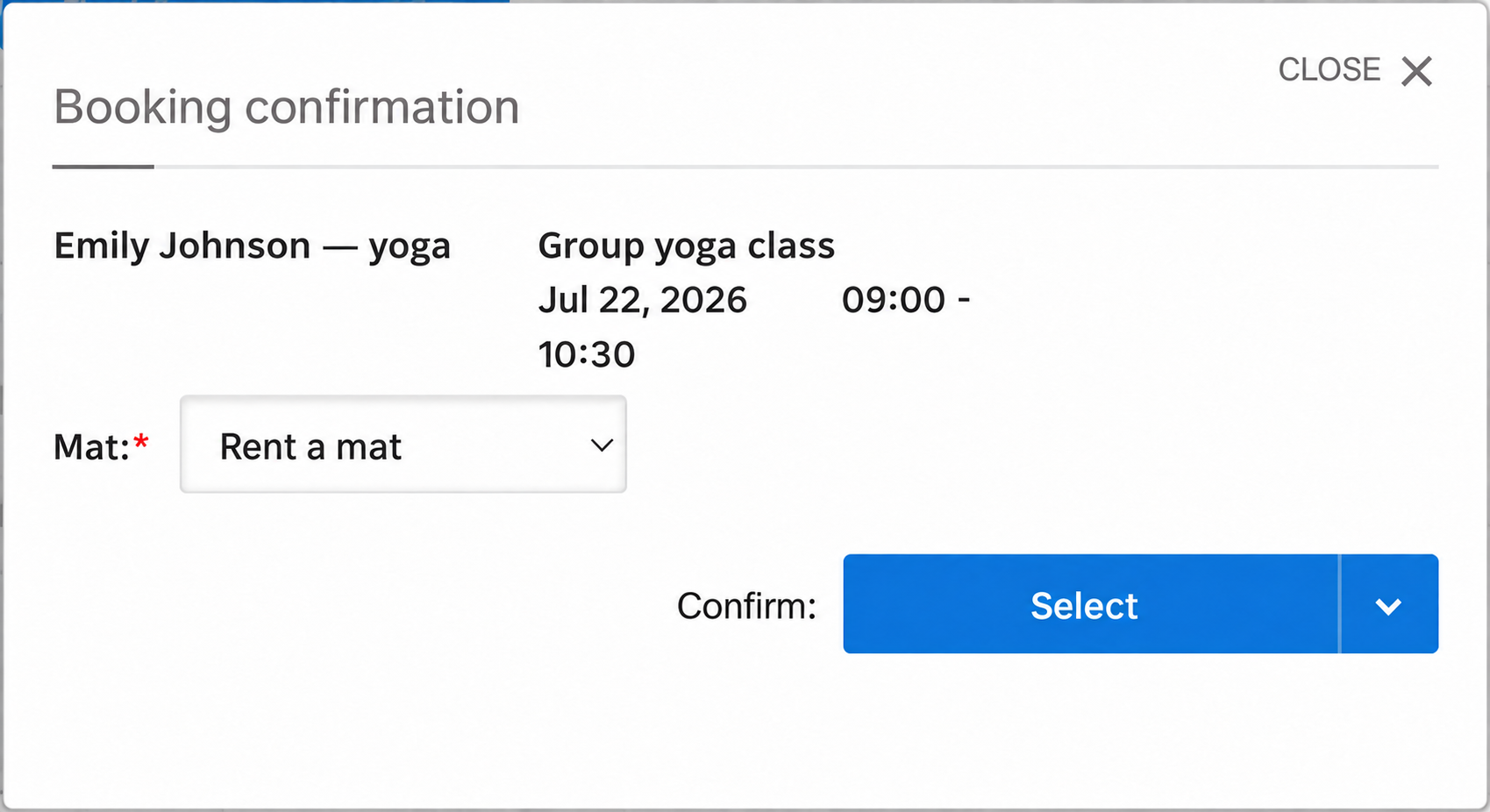
Our yoga service has a required Mat field with two choices: Bring my own or Rent one. Self-booking clients answer it in the confirmation window.
When an administrator adds someone, the same questions appear after Book a client.
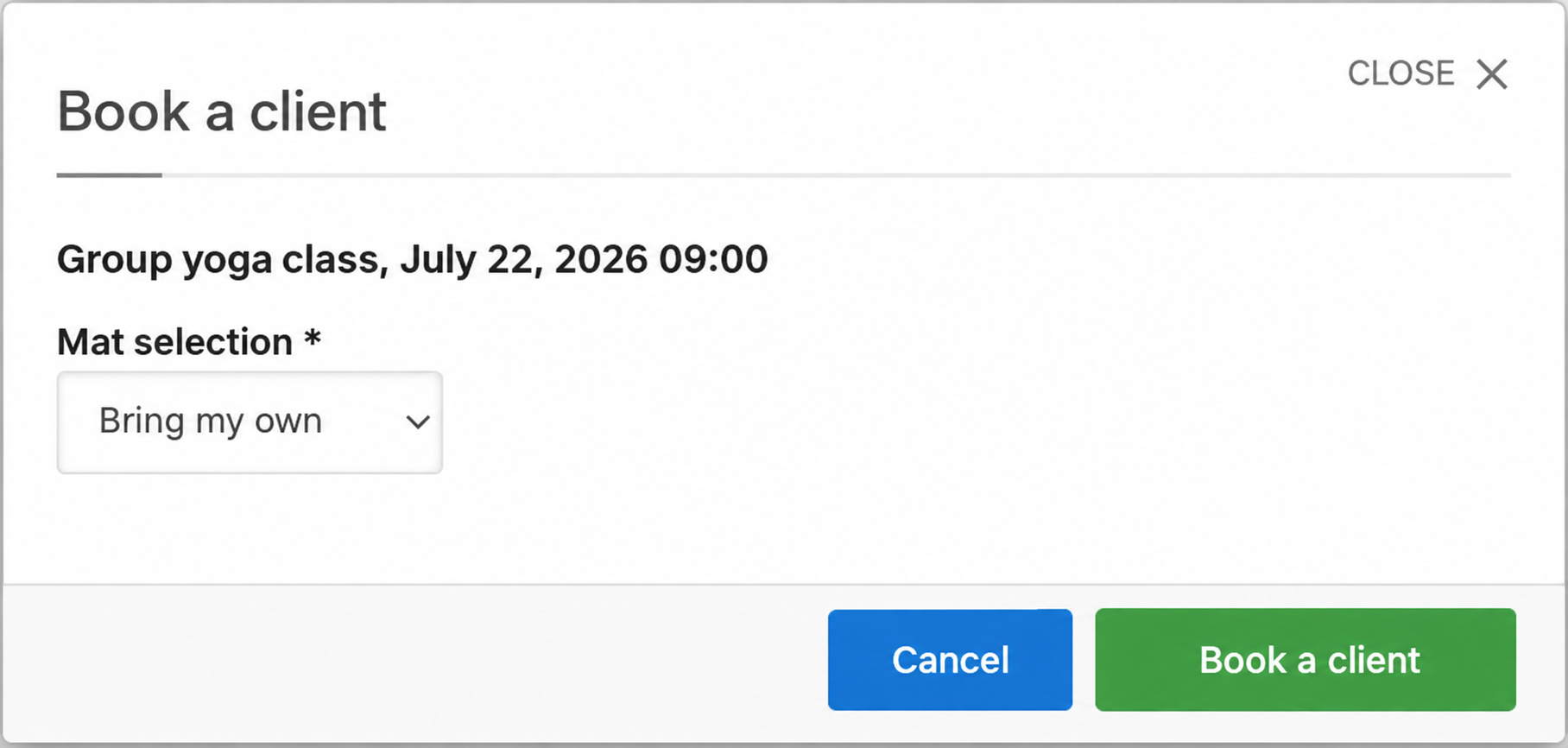
Answers are saved with the booking. Open Participants → ⓘ beside the person's name to see them.
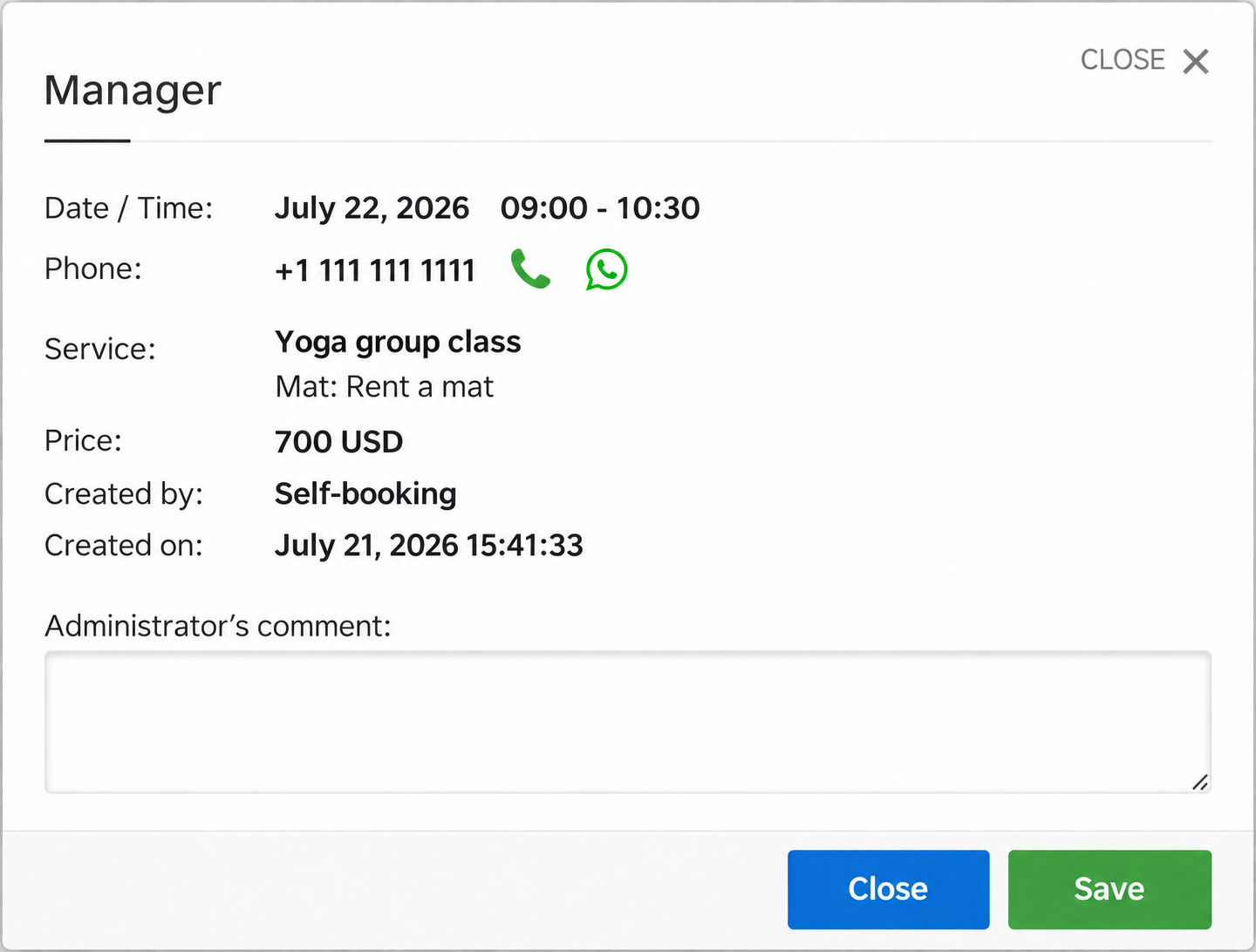
The details include date and time, phone number with call and WhatsApp actions, service, answers, price, and who created the booking and when. Self-booking means the client booked themselves. Administrators can save a private note in Administrator comment.
This makes it possible to prepare the right number of mats without calling every participant.
Add a participant as an administrator
The order is client first, session second.
- Search above the calendar by name or phone number and select the client. For a new customer, click New and create their record.
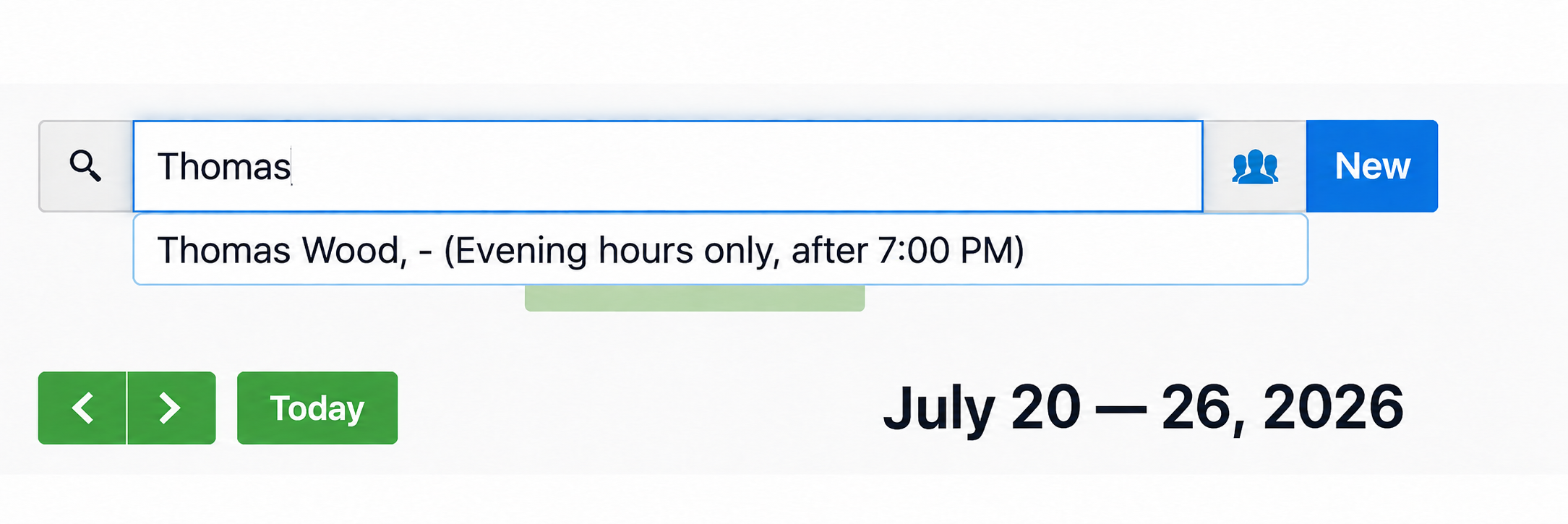
- Open the group session menu and click Book a client. Complete any additional fields. If there are none, the participant is added immediately and the counter increases, for example from 3/20 to 4/20.
If you open the session without selecting a client, TimePlan asks you to find the client first. The result appears in the participant list.
Let clients join from the booking page
Each calendar has a public booking page. Share your own TimePlan calendar address. Clients see the weekly schedule and, when enabled, the remaining places beside each group session.
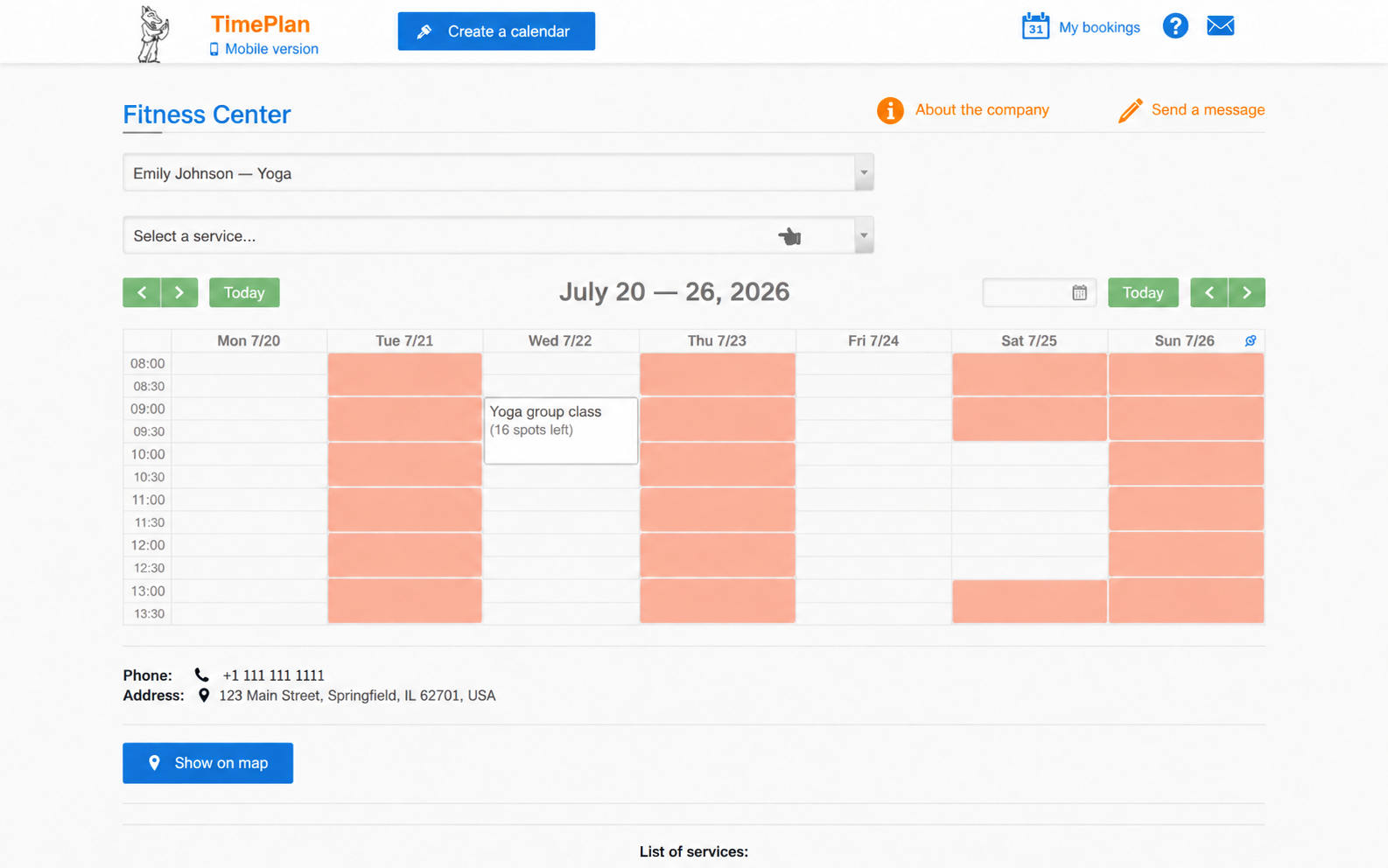
Clicking a session opens confirmation with its date, time and service.
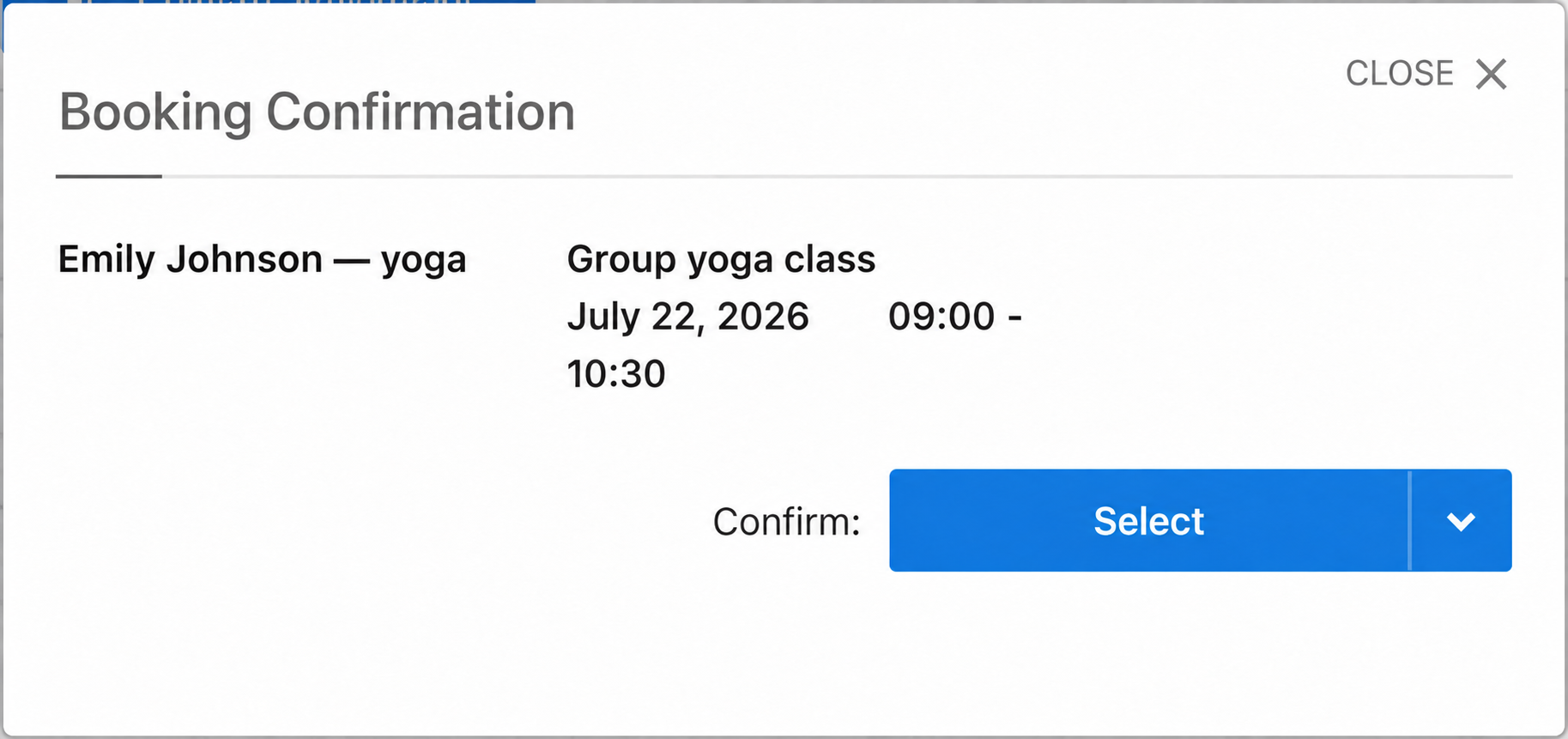
Additional questions appear in this window. Required fields have an asterisk and must be completed.
The client then identifies themselves. Choose offers phone or email verification.
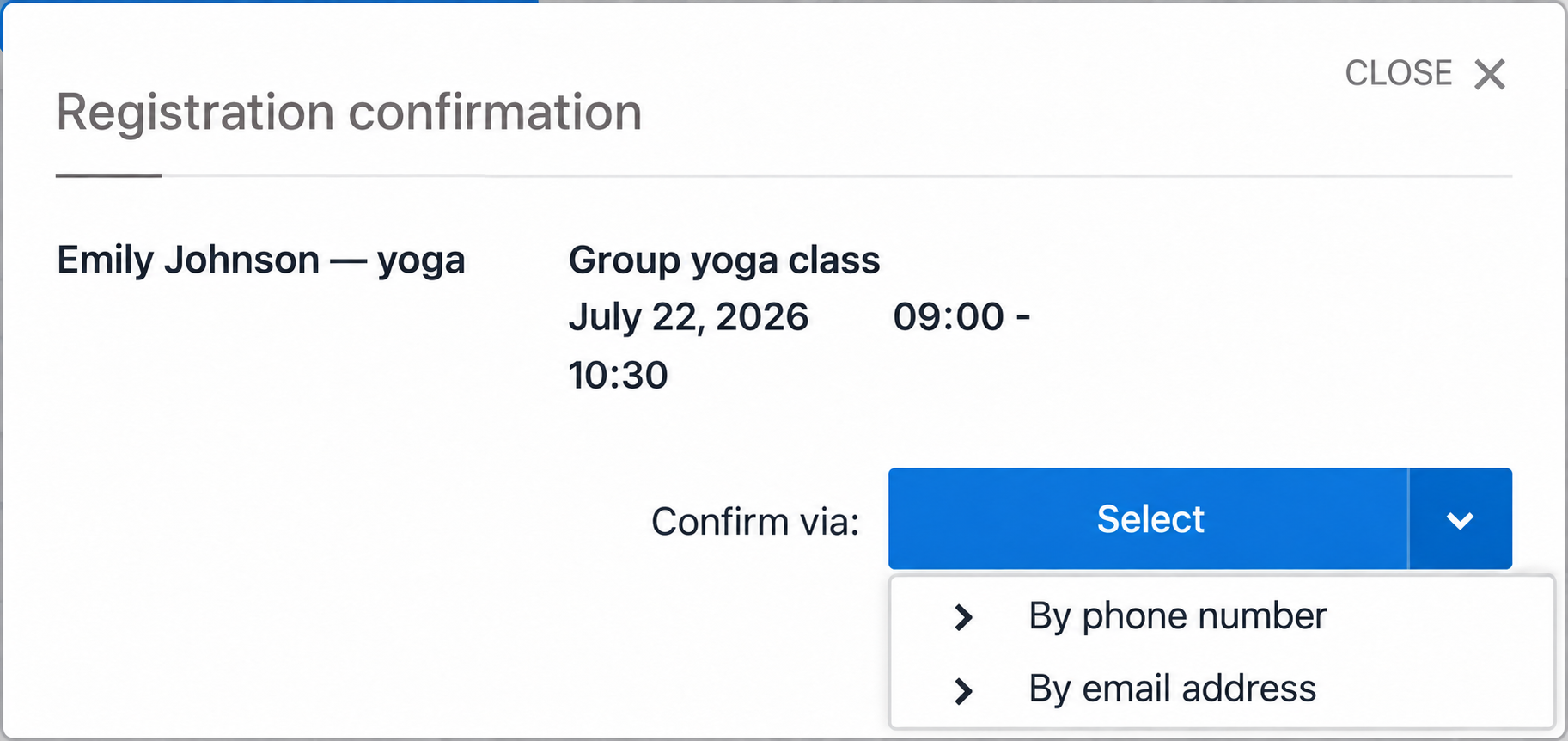
- Phone number: enter a number and complete verification with a code.
- Code by email: enter an email address and use the code sent there.
After confirmation, the booking is created, the client receives a notification and the available-place counter decreases for other visitors. Some demonstration participants were added by the administrator; in normal self-booking, clients complete verification on the public page themselves.
Booking on a phone
The booking page opens in its mobile version, including when a client follows a direct class link. The steps are the same, with a layout suited to the smaller screen.
1. Open the page. The client sees the company, calendar selector and services. Group services have a people icon and a group-booking label.
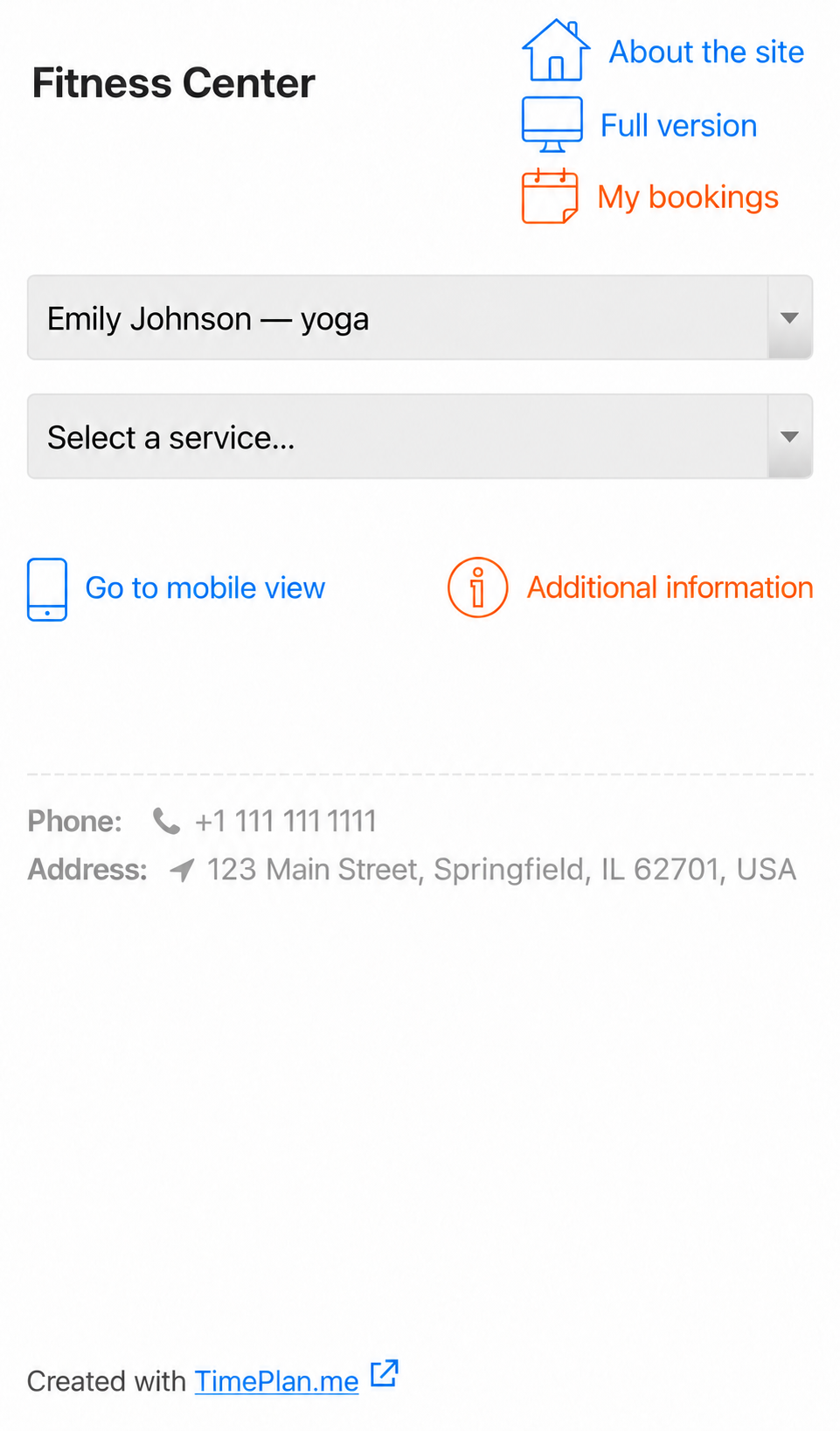
2. Choose Group yoga, then Choose date.
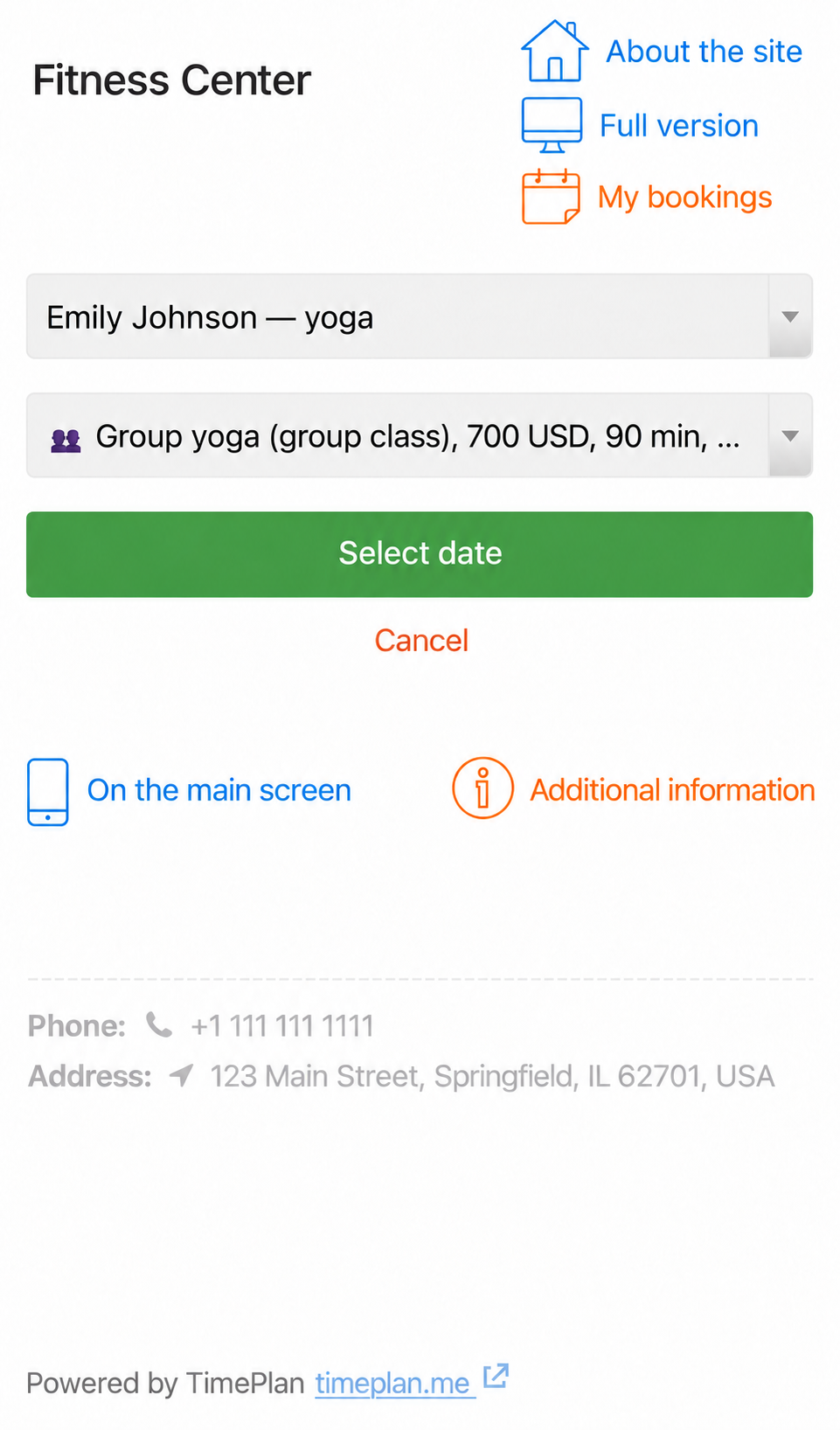
3. Check the session. TimePlan shows its date, time and remaining places. If several sessions are available, choose from the list. A direct session link selects the corresponding time automatically.
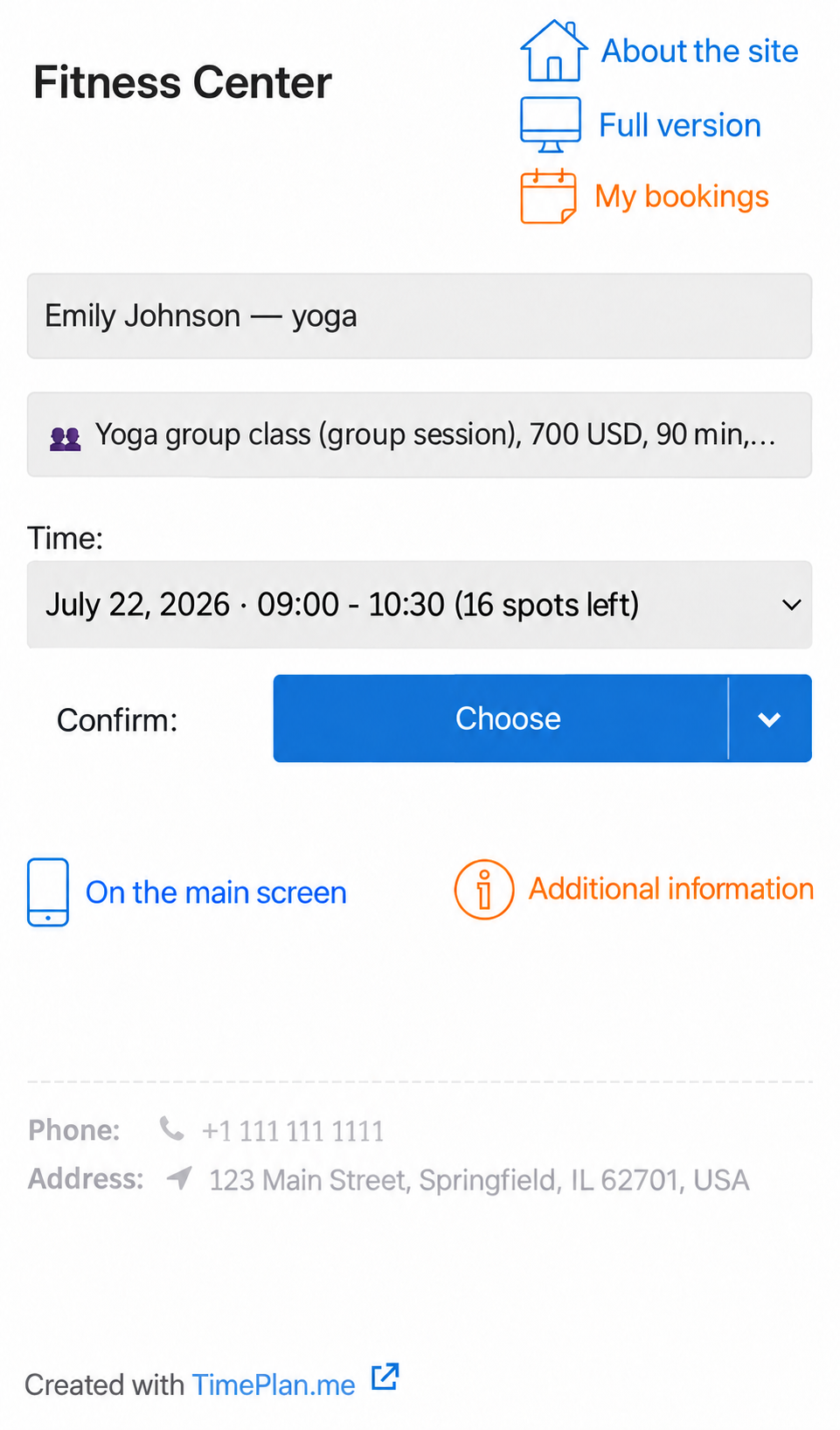
4. Confirm the booking using phone or email verification.
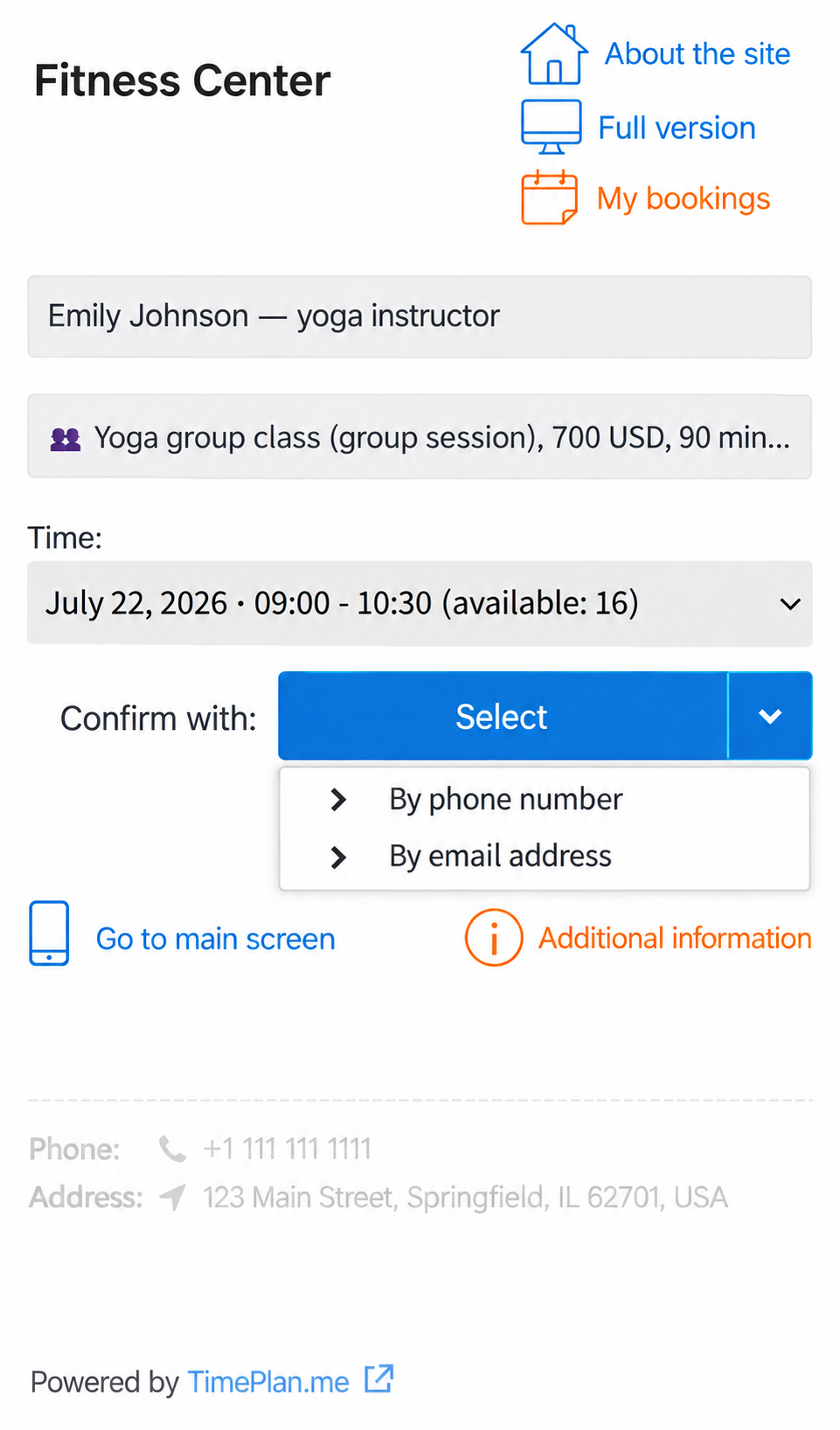
The resulting booking is available under My bookings.
Quick reference
| Task | Action |
|---|---|
| Make a service a group service | Enable Group booking when creating it |
| Limit class size | Set Maximum participants |
| Schedule a class | Use Group mode in the administrator calendar |
| Add someone manually | Select the client first, then use the session menu |
| Let clients join themselves | Share the public booking page |
| Show remaining places | Enable the service's remaining-places option |
| Share one particular class | Copy Direct booking link from its menu |
| Read a participant's answers | Open Participants → ⓘ |
For further scenarios and limitations, read the complete group booking guide.